Data Source in Blazor AutoComplete
26 Aug 202624 minutes to read
The AutoComplete loads data from local sources or remote services using the DataSource property. It supports an array or the DataManager.
The AutoComplete also supports various data services such as OData, OData V4, and Web API and data formats such as XML, JSON, and JSONP through DataManager adaptors.
| Fields | Type | Description |
|---|---|---|
| Value | int or string |
Specifies the hidden data value mapped to each list item; it should be unique. |
| GroupBy | string |
Specifies the category used to group list items. |
| IconCss | string |
Specifies the icon CSS class for each list item. |
When binding complex data to AutoComplete, ensure field mappings are configured correctly; otherwise, the selected item remains undefined.
Bind to local data
Local data can be represented in two ways as described below.
Array of object
Generate list items from an array of complex objects by mapping fields using the Fields property.
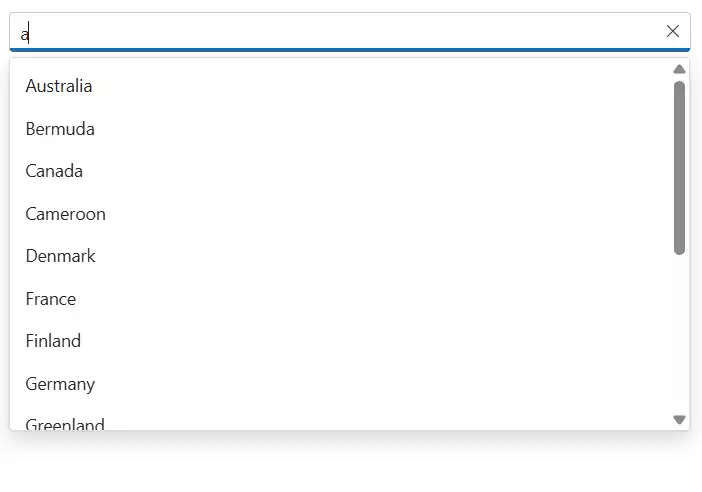
In the following example, the Name column from complex data is mapped to the Value field.
@using Syncfusion.Blazor.DropDowns

<SfAutoComplete TValue="string" TItem="Country" Placeholder="e.g. Australia" DataSource="@Countries">
    <AutoCompleteFieldSettings Value="Name"></AutoCompleteFieldSettings>
</SfAutoComplete>

@code {

    public class Country
    {
        public string Name { get; set; }

        public string Code { get; set; }
    }

    List<Country> Countries = new List<Country>
    {
        new Country() { Name = "Australia", Code = "AU" },
        new Country() { Name = "Bermuda", Code = "BM" },
        new Country() { Name = "Canada", Code = "CA" },
        new Country() { Name = "Cameroon", Code = "CM" },
        new Country() { Name = "Denmark", Code = "DK" },
        new Country() { Name = "France", Code = "FR" },
        new Country() { Name = "Finland", Code = "FI" },
        new Country() { Name = "Germany", Code = "DE" },
        new Country() { Name = "Greenland", Code = "GL" },
        new Country() { Name = "Hong Kong", Code = "HK" },
        new Country() { Name = "India", Code = "IN" },
        new Country() { Name = "Italy", Code = "IT" },
        new Country() { Name = "Japan", Code = "JP" },
        new Country() { Name = "Mexico", Code = "MX" },
        new Country() { Name = "Norway", Code = "NO" },
        new Country() { Name = "Poland", Code = "PL" },
        new Country() { Name = "Switzerland", Code = "CH" },
        new Country() { Name = "United Kingdom", Code = "GB" },
        new Country() { Name = "United States", Code = "US" },
    };
}
Array of complex object
Generate list items from an array of complex objects by mapping fields using the Fields property.
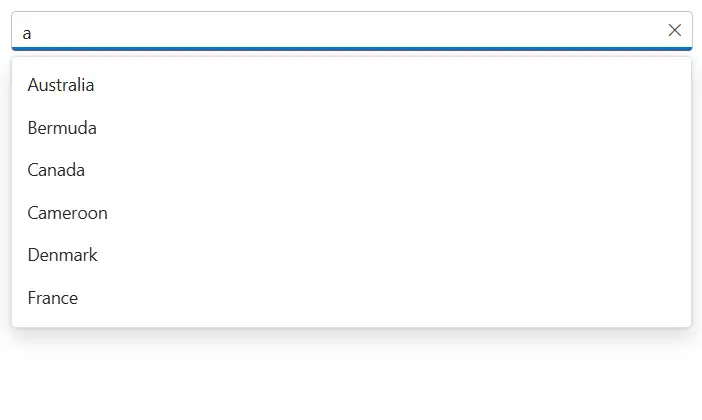
In the following example, the Country.CountryID column from complex data is mapped to the Value field.
@using Syncfusion.Blazor.DropDowns

<SfAutoComplete TValue="string" TItem="Complex" Placeholder="e.g. Select a country" DataSource="@LocalData">
<AutoCompleteFieldSettings Value="Country.CountryID" ></AutoCompleteFieldSettings>
</SfAutoComplete>

@code {

    public IEnumerable<Complex> LocalData { get; set; } = new Complex().GetData();

    public class Code
    {
        public string ID { get; set; }
    }

    public class Country
    {
        public string CountryID { get; set; }
    }

    public class Complex
    {
        public Country Country { get; set; }
        public Code Code { get; set; }
        public List<Complex> GetData()
        {
            List<Complex> Data = new List<Complex>();
            Data.Add(new Complex() { Country = new Country() { CountryID = "Australia" }, Code = new Code() { ID = "AU" } });
            Data.Add(new Complex() { Country = new Country() { CountryID = "Bermuda" }, Code = new Code() { ID = "BM" } });
            Data.Add(new Complex() { Country = new Country() { CountryID = "Canada" }, Code = new Code() { ID = "CA" } });
            Data.Add(new Complex() { Country = new Country() { CountryID = "Cameroon" }, Code = new Code() { ID = "CM" } });
            Data.Add(new Complex() { Country = new Country() { CountryID = "Denmark" }, Code = new Code() { ID = "DK" } });
            Data.Add(new Complex() { Country = new Country() { CountryID = "France" }, Code = new Code() { ID = "FR" } });
            return Data;
        }
    }
}
Bind to remote data
Retrieve data from remote services using the DataManager property to shape queries and bind results to the AutoComplete.
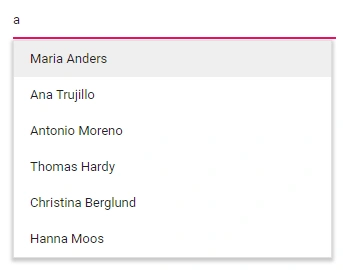
The following sample displays the first 6 contacts from the Customers table of the Northwind data service.
@using Syncfusion.Blazor
@using Syncfusion.Blazor.Data
@using Syncfusion.Blazor.DropDowns

<SfAutoComplete TValue="string" TItem="EmployeeData" PopupHeight="200px" Placeholder="Select a name" Query="@RemoteQuery" Autofill="true" @bind-Value="@EmployeeValue">
    <SfDataManager Url="https://blazor.syncfusion.com/services/production/api/Employees" Offline="true" CrossDomain="true" Adaptor="Syncfusion.Blazor.Adaptors.WebApiAdaptor"></SfDataManager>
    <AutoCompleteFieldSettings Value="FirstName"/>
</SfAutoComplete>

@code{
    public string EmployeeValue { get; set; }
    public Query RemoteQuery = new Query();
    public class EmployeeData
    {
        public int EmployeeID { get; set; }
        public string? FirstName { get; set; }
        public string? LastName { get; set; }
        public string? Country { get; set; }
    }
}
Web API Adaptor
Use the WebApiAdaptor to bind AutoComplete with a Web API that supports OData-style queries.
@using Syncfusion.Blazor.Data
@using Syncfusion.Blazor.DropDowns

<SfAutoComplete TValue="string" TItem="OrderDetails" Placeholder="Select a name" Query="@Query">
    <SfDataManager Url="https://ej2services.syncfusion.com/production/web-services/api/Orders" Adaptor="Syncfusion.Blazor.Adaptors.WebApiAdaptor" CrossDomain=true></SfDataManager>
    <AutoCompleteFieldSettings Value="CustomerID"></AutoCompleteFieldSettings>
</SfAutoComplete>

@code {
    public Query Query = new Query().Select(new List<string> { "CustomerID" }).Take(6).RequiresCount();
    public class OrderDetails
    {
        public int? OrderID { get; set; }
        public string CustomerID { get; set; }
        public int? EmployeeID { get; set; }
        public double? Freight { get; set; }
        public string ShipCity { get; set; }
        public bool Verified { get; set; }
        public DateTime? OrderDate { get; set; }
        public string ShipName { get; set; }
        public string ShipCountry { get; set; }
        public DateTime? ShippedDate { get; set; }
        public string ShipAddress { get; set; }
    }
}Custom adaptor
The SfDataManager supports custom adaptors for manual data operations. Implement a custom adaptor by inheriting from DataAdaptor and overriding Read or ReadAsync to control data retrieval.
public abstract class DataAdaptor
{
    /// <summary>
    /// Performs data Read operation synchronously.
    /// </summary>
    public virtual object Read(DataManagerRequest dataManagerRequest, string key = null)

    /// <summary>
    /// Performs data Read operation asynchronously.
    /// </summary>
    public virtual Task<object> ReadAsync(DataManagerRequest dataManagerRequest, string key = null)
}
The custom data binding can be performed by providing the custom adaptor class and overriding the required methods.
The following sample demonstrates custom data binding using a custom adaptor:
<SfAutoComplete TValue="string" TItem="Orders">
    <SfDataManager AdaptorInstance="@typeof(CustomAdaptor)" Adaptor="Adaptors.CustomAdaptor"></SfDataManager>
    <AutoCompleteFieldSettings Value="CustomerID"></AutoCompleteFieldSettings>
</SfAutoComplete>

@code{

    public class Orders
    {
        public Orders() { }
        public Orders(int OrderID, string CustomerID)
        {
            this.OrderID = OrderID;
            this.CustomerID = CustomerID;
        }
        public int OrderID { get; set; }
        public string CustomerID { get; set; }
    }
    public class CustomAdaptor : DataAdaptor
    {
        static readonly HttpClient client = new HttpClient();
        public static List<OrdersDetails> order = OrdersDetails.GetAllRecords();
        public override object Read(DataManagerRequest dm, string key = null)
        {
            IEnumerable<OrdersDetails> DataSource = order;
            if (dm.Search != null && dm.Search.Count > 0)
            {
                DataSource = DataOperations.PerformSearching(DataSource, dm.Search);  //Search
            }
            if (dm.Sorted != null && dm.Sorted.Count > 0) //Sorting
            {
                DataSource = DataOperations.PerformSorting(DataSource, dm.Sorted);
            }
            if (dm.Where != null && dm.Where.Count > 0) //Filtering
            {
                DataSource = DataOperations.PerformFiltering(DataSource, dm.Where, dm.Where[0].Operator);
            }
            int count = DataSource.Cast<OrdersDetails>().Count();
            if (dm.Skip != 0)
            {
                DataSource = DataOperations.PerformSkip(DataSource, dm.Skip);         //Paging
            }
            if (dm.Take != 0)
            {
                DataSource = DataOperations.PerformTake(DataSource, dm.Take);
            }
            return dm.RequiresCounts ? new DataResult() { Result = DataSource, Count = count } : (object)DataSource;
       }
    }
}
Offline mode
To avoid round trips for each action, load data during initialization and perform actions on the client by setting the DataManager’s Offline property to true.
Refer to the following example for remote data binding with offline mode enabled.
@using Syncfusion.Blazor.Data
@using Syncfusion.Blazor.DropDowns

<SfAutoComplete TValue="string" TItem="EmployeeData" Placeholder="Select a Employee" Query="@Query">
    <SfDataManager Url="https://ej2services.syncfusion.com/production/web-services/api/Employees" Offline=true Adaptor="Adaptors.WebApiAdaptor" CrossDomain=true></SfDataManager>
    <AutoCompleteFieldSettings Value="FirstName"></AutoCompleteFieldSettings>
</SfAutoComplete>

@code{
    public Query Query = new Query().Select(new List<string> { "FirstName" }).Take(6).RequiresCount();
    public class EmployeeData
    {
        public int EmployeeID { get; set; }
        public string FirstName { get; set; }
        public string Designation { get; set; }
        public string Country { get; set; }
    }
}ValueTuple data binding
Bind ValueTuple data to the Blazor AutoComplete component. The following example shows how to get a string value from enumeration data using ValueTuple.
@using Syncfusion.Blazor.DropDowns;

<SfAutoComplete TItem="(DayOfWeek, string)" Width="250px" TValue="DayOfWeek"
                DataSource="@(Enum.GetValues<DayOfWeek>().Select(e => (e, e.ToString())))">
    <AutoCompleteFieldSettings Value="Item1" />
</SfAutoComplete>
Binding ExpandoObject
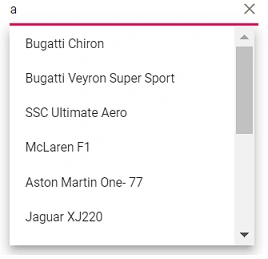
Bind ExpandoObject data to the Blazor AutoComplete component. The following example binds an ExpandoObject collection of vehicles.
@using Syncfusion.Blazor.DropDowns
@using System.Dynamic

<SfAutoComplete TItem="ExpandoObject" TValue="string" PopupHeight="230px" Placeholder="Select a vehicle" DataSource="@VehicleData">
    <AutoCompleteFieldSettings Value="Text"></AutoCompleteFieldSettings>
</SfAutoComplete>

@code{
    public List<ExpandoObject> VehicleData { get; set; } = new List<ExpandoObject>();
    protected override void OnInitialized()
    {
        VehicleData = Enumerable.Range(1, 15).Select((x) =>
        {
            dynamic d = new ExpandoObject();
            d.ID = (1000 + x).ToString();
            d.Text = (new string[] { "Hennessey Venom", "Bugatti Chiron", "Bugatti Veyron Super Sport", "SSC Ultimate Aero", "Koenigsegg CCR", "McLaren F1", "Aston Martin One- 77", "Jaguar XJ220", "McLaren P1", "Ferrari LaFerrari", "Mahindra Jaguar", "Hyundai Toyota", "Jeep Volkswagen", "Tata Maruti Suzuki", "Audi Mercedes Benz" }[x - 1]);
            return d;
        }).Cast<ExpandoObject>().ToList<ExpandoObject>();
    }
}
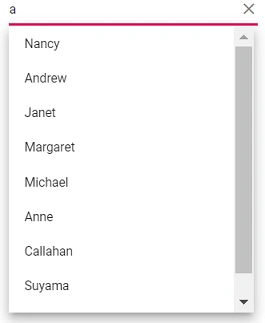
Binding DynamicObject
Bind DynamicObject data to the Blazor AutoComplete component. The following example binds a DynamicObject collection of customers.
@using Syncfusion.Blazor.DropDowns
@using System.Dynamic

<SfAutoComplete TValue="string" TItem="DynamicDictionary" Placeholder="Select a name" DataSource="@Orders">
    <AutoCompleteFieldSettings Text="CustomerName" Value="CustomerName"></AutoCompleteFieldSettings>
</SfAutoComplete>

@code{
    public List<DynamicDictionary> Orders = new List<DynamicDictionary>() { };
    protected override void OnInitialized()
    {
        Orders = Enumerable.Range(1, 15).Select((x) =>
        {
            dynamic d = new DynamicDictionary();
            d.OrderID = 1000 + x;
            d.CustomerName = (new string[] { "Nancy", "Andrew", "Janet", "Margaret", "Steven", "Michael", "Robert", "Anne", "Nige", "Fuller", "Dodsworth", "Leverling", "Callahan", "Suyama", "Davolio" }[x - 1]);
            return d;
        }).Cast<DynamicDictionary>().ToList<DynamicDictionary>();
    }
    public class DynamicDictionary : System.Dynamic.DynamicObject
    {
        Dictionary<string, object> dictionary = new Dictionary<string, object>();
        public override bool TryGetMember(GetMemberBinder binder, out object result)
        {
            string name = binder.Name;
            return dictionary.TryGetValue(name, out result);
        }
        public override bool TrySetMember(SetMemberBinder binder, object value)
        {
            dictionary[binder.Name] = value;
            return true;
        }
        //The GetDynamicMemberNames method of DynamicObject class must be overridden and return the property names to perform data operation and editing while using DynamicObject.
        public override System.Collections.Generic.IEnumerable<string> GetDynamicMemberNames()
        {
            return this.dictionary?.Keys;
        }
    }
}
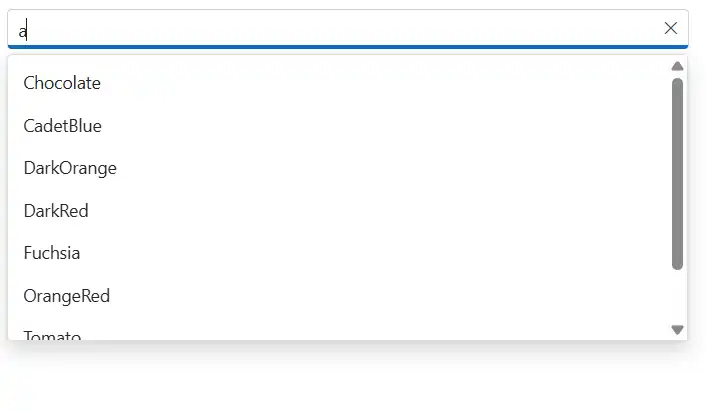
Binding ObservableCollection
Bind ObservableCollection data to the Blazor AutoComplete component. The following example binds ObservableCollection data for colors.
@using Syncfusion.Blazor.DropDowns
@using System.Collections.ObjectModel;

<SfAutoComplete TValue="string" TItem="Colors" PopupHeight="230px" Placeholder="Select a color" DataSource="@ColorsData">
    <AutoCompleteFieldSettings Value="Color"></AutoCompleteFieldSettings>
</SfAutoComplete>
@code {
    public class Colors
    {
        public string Code { get; set; }
        public string Color { get; set; }
    }
    private ObservableCollection<Colors> ColorsData = new ObservableCollection<Colors>()
    {
        new Colors() { Color = "Chocolate", Code = "#75523C" },
        new Colors() { Color = "CadetBlue", Code = "#3B8289" },
        new Colors() { Color = "DarkOrange", Code = "#FF843D" },
        new Colors() { Color = "DarkRed", Code = "#CA3832"},
        new Colors() { Color = "Fuchsia", Code = "#D44FA3" },
        new Colors() { Color = "HotPink", Code = "#F23F82" },
        new Colors() { Color = "Indigo", Code = "#2F5D81" },
        new Colors() { Color = "LimeGreen", Code = "#4CD242" },
        new Colors() { Color = "OrangeRed", Code = "#FE2A00" },
        new Colors() { Color = "Tomato", Code = "#FF745C" },
        new Colors() { Color = "Brown", Code = "#A52A2A" },
        new Colors() { Color = "Maroon", Code = "#800000" },
        new Colors() { Color = "Green", Code = "#008000" },
        new Colors() { Color = "Pink", Code = "#FFC0CB" },
        new Colors() { Color = "Purple", Code = "#800080" }
    };
}
Entity Framework
Follow the steps below to consume data from Entity Framework in the Blazor AutoComplete component.
Create DBContext class
Create a DbContext class called OrderContext to connect to a Microsoft SQL Server database.
using Microsoft.EntityFrameworkCore;
using System;
using System.Collections.Generic;
using System.Linq;
using System.Threading.Tasks;
using EFDropDown.Shared.Models;

namespace EFDropDown.Shared.DataAccess
{
    public class OrderContext : DbContext
    {
        public virtual DbSet<Shared.Models.Order> Orders { get; set; }

        protected override void OnConfiguring(DbContextOptionsBuilder optionsBuilder)
        {
            if (!optionsBuilder.IsConfigured)
            {
                optionsBuilder.UseSqlServer(@"Data Source=(LocalDB)\MSSQLLocalDB;AttachDbFilename=D:\Blazor\DropDownList\EFDropDown\Shared\App_Data\NORTHWND.MDF;Integrated Security=True;Connect Timeout=30");
            }
        }
    }
}
Create data access layer to perform data operation
Create a data access class named OrderDataAccessLayer to retrieve the records from the database table.
using Microsoft.EntityFrameworkCore;
using System;
using System.Collections.Generic;
using System.Linq;
using System.Threading.Tasks;
using EFDropDown.Shared.Models;

namespace EFDropDown.Shared.DataAccess
{
    public class OrderDataAccessLayer
    {
        OrderContext db = new OrderContext();

        //To Get all Orders details
        public DbSet<Order> GetAllOrders()
        {
            try
            {
                return db.Orders;
            }
            catch
            {
                throw;
            }
        }
    }
}
Creating Web API Controller
Create a Web API Controller that allows the AutoComplete to consume data directly from Entity Framework.
using EFDropDown.Shared.DataAccess;
using EFDropDown.Shared.Models;
using Microsoft.AspNetCore.Mvc;
using Microsoft.Extensions.Primitives;
using System;
using System.Collections.Generic;
using System.Linq;
using System.Threading.Tasks;
using System.Web;
using Microsoft.AspNetCore.Http;

namespace EFDropDown.Controllers
{
    [Route("api/[controller]")]
    [ApiController]
    //TreeGrid
    public class DefaultController : ControllerBase
    {
        OrderDataAccessLayer db = new OrderDataAccessLayer();
        [HttpGet]
        public object Get()
        {
            IQueryable<Order> data = db.GetAllOrders().AsQueryable();
            var count = data.Count();
            var queryString = Request.Query;
            if (queryString.Keys.Contains("$inlinecount"))
            {
                StringValues Skip;
                StringValues Take;
                int skip = (queryString.TryGetValue("$skip", out Skip)) ? Convert.ToInt32(Skip[0]) : 0;
                int top = (queryString.TryGetValue("$top", out Take)) ? Convert.ToInt32(Take[0]) : data.Count();
                return new { Items = data.Skip(skip).Take(top), Count = count };
            }
            else
            {
                return data;
            }
        }
    }
}
Configure Blazor AutoComplete component using Web API adaptor
Configure the AutoComplete using the SfDataManager to interact with the created Web API and consume the data appropriately. To interact with the Web API, use WebApiAdaptor.
@using Syncfusion.Blazor.Data
@using Syncfusion.Blazor.DropDowns

<SfAutoComplete  TValue="string" TItem="Order" Placeholder="Select a Country">
    <SfDataManager Url="api/Default" Adaptor="Adaptors.WebApiAdaptor" CrossDomain="true"></SfDataManager>
    <AutoCompleteFieldSettings  Value="ShipCountry"></AutoCompleteFieldSettings>
</SfAutoComplete>

@code{
    public class Order
    {
        public string ShipCountry { get; set; }
    }
}