Sorting in Blazor ComboBox
14 Aug 20262 minutes to read
Sorting enables displaying items in ascending or descending order. To enable sorting in the ComboBox, set the SortOrder property to the required value.
The available sort orders are:
| SortOrder | Description |
|---|---|
| None | The data source is not sorted. |
| Ascending | The data source is sorted in ascending order. |
| Descending | The data source is sorted in descending order. |
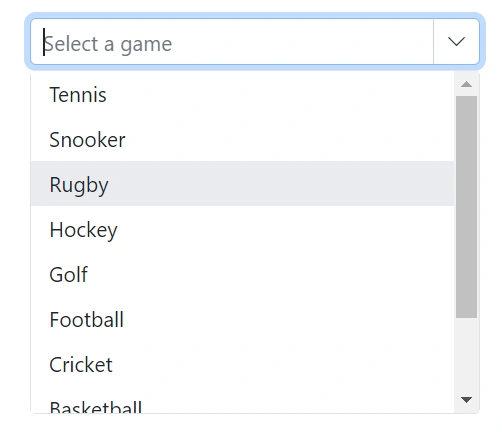
In the following sample, items in the data source are initially in random order. Use SortOrder to display them alphanumerically in ascending or descending order in the popup.
@using Syncfusion.Blazor.DropDowns

<SfComboBox TValue="string" TItem="GameFields" PopupHeight="230px" Width="300px" SortOrder="SortOrder.Descending" Placeholder="Select a game" DataSource="@Games">
    <ComboBoxFieldSettings Text="Text" Value="ID" />
</SfComboBox>
@code {
    public class GameFields
    {
        public string ID { get; set; }
        public string Text { get; set; }
    }
    public List<GameFields> Games = new List<GameFields>()
    {
        new GameFields(){ ID= "Game1", Text= "Rugby" },
        new GameFields(){ ID= "Game2", Text= "Snooker" },
        new GameFields(){ ID= "Game3", Text= "Basketball" },
        new GameFields(){ ID= "Game4", Text= "Cricket" },
        new GameFields(){ ID= "Game5", Text= "Football" },
        new GameFields(){ ID= "Game6", Text= "Tennis" },
        new GameFields(){ ID= "Game7", Text= "Hockey" },
        new GameFields(){ ID= "Game8", Text= "American Football"},
        new GameFields(){ ID= "Game9", Text= "Badminton" },
        new GameFields(){ ID= "Game10",Text= "Golf"}
    };
}