How can I help you?
Deploy Blazor Web App to IIS server
19 Jun 20261 minute to read
This section provides information about deploying a Blazor Web applications with the Blazor components to IIS server.
Refer to Host and deploy ASP.NET Core Blazor topic for more information.
Create an IIS Site
-
Enable IISin Windows Features.
-
Enable WebSockets in IIS.
-
Now, publish the application for deployment in Release configuration by referring to this.
-
Open Internet Information Services (IIS) Manager and then right-click on “Sites,” followed by selecting “Add Website.”
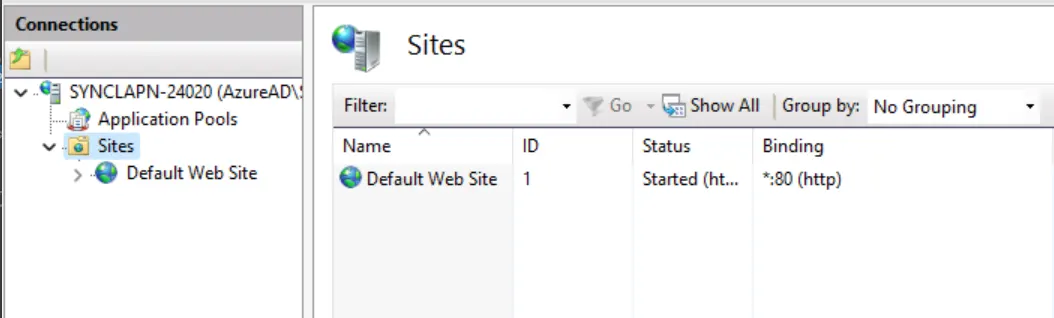
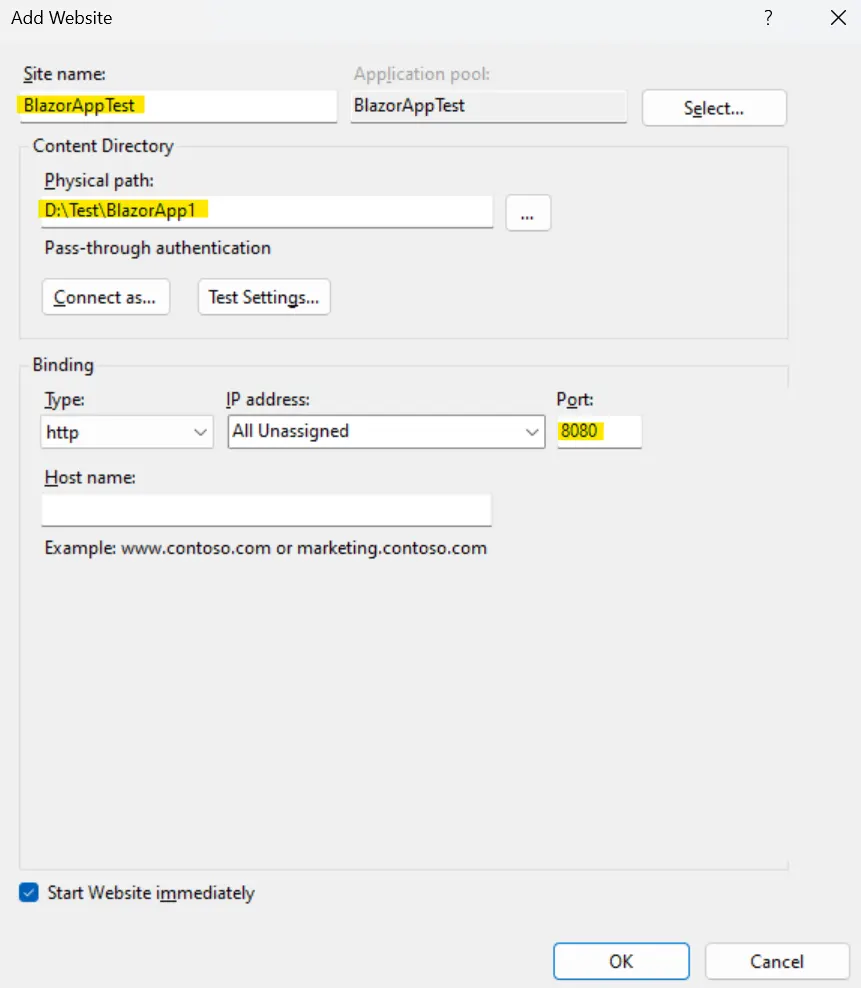
- In the Add Website dialog, fill in the required field values such as site name, physical path and customized port value and then click OK.
Set the physical path to the location where your sample application is developed.
Run the Published Application
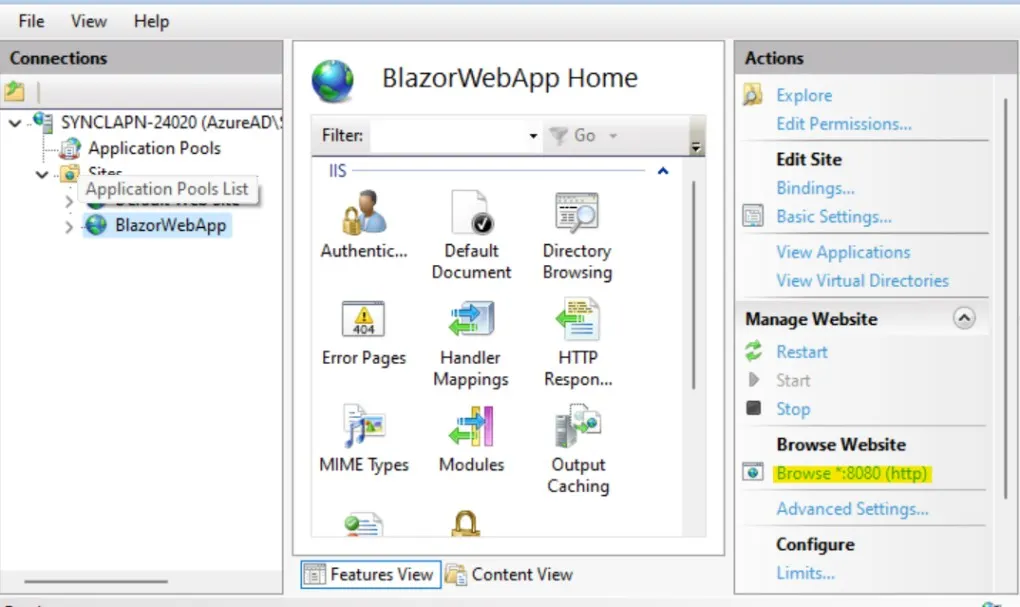
- Open Internet Information Services (IIS) Manager. Expand the
Sitesnode to verify that the published application is running. ClickBrowseto open the application in your browser.
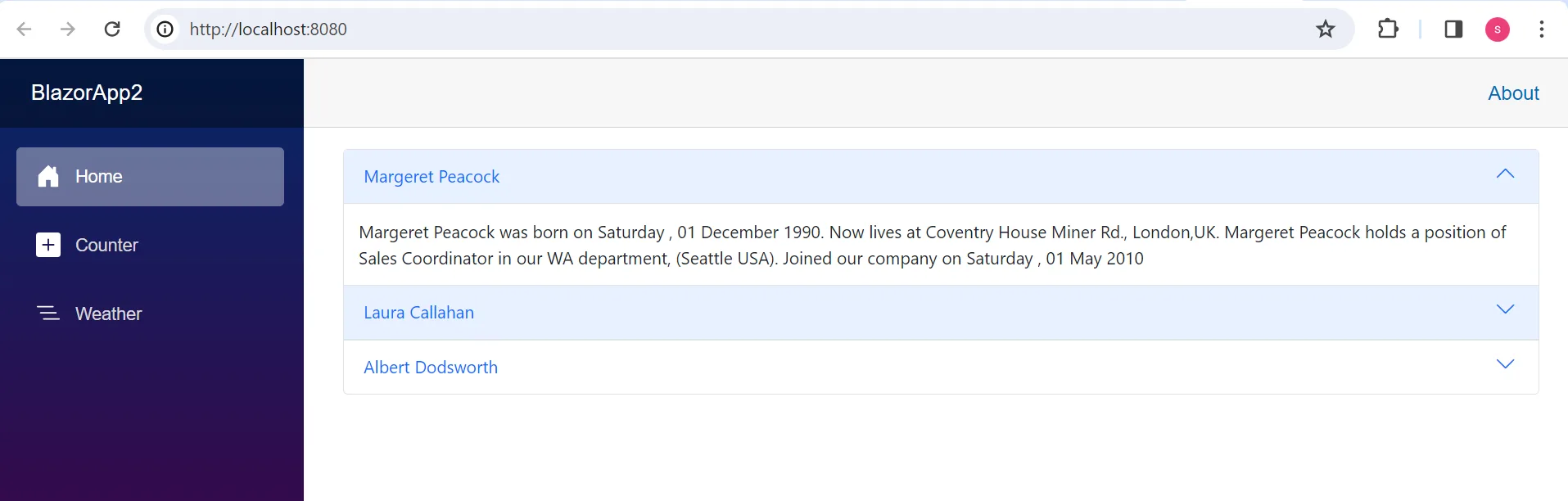
- Now, application runs in the specified browser port(8080).
See also
Refer here for publishing the application to IIS Service using Visual Studio.