How can I help you?
Form Integration in Blazor File Upload Component
17 Nov 20256 minutes to read
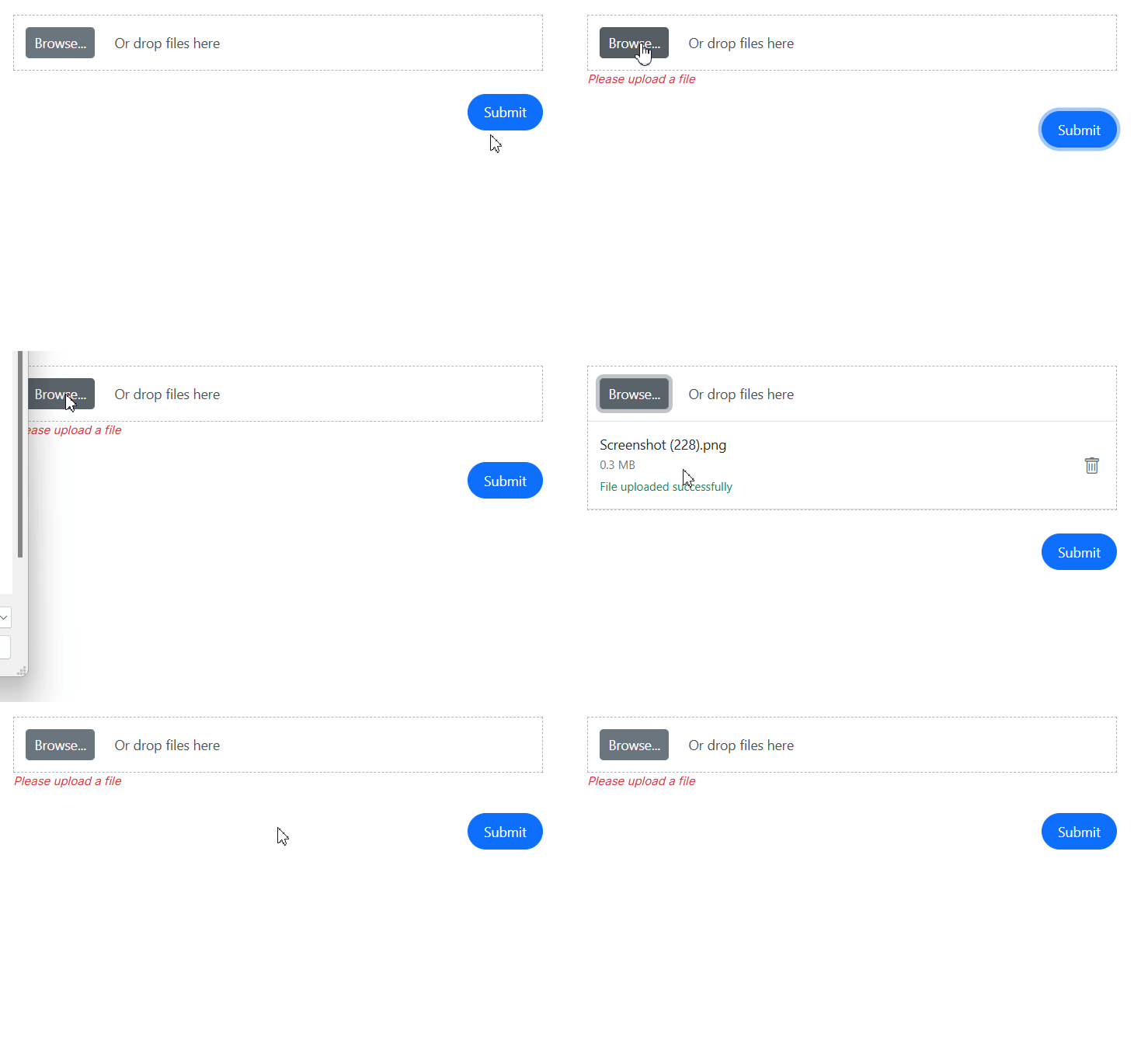
The Syncfusion Blazor File Upload component seamlessly integrates with Blazor’s EditForm and the Syncfusion DataForm, enabling you to build robust forms with file upload functionality. This integration associates the uploaded file information with a data model, leveraging the form’s built-in validation.
When a file is selected, its information is added to the model property bound to the component. Upon form submission, the entire model, including the list of selected files, is passed to the submit event handler.
File Upload with EditForm Integration
Integrating the File Upload component into a Blazor EditForm streamlines data entry by including file management directly within the form.
Validation for the file input is achieved by binding the component to a model property. The ValueChange and OnRemove events are used to update this property with the current list of files. Within these events, it is crucial to call EditContext.NotifyFieldChanged to trigger the form’s validation logic immediately after the file list changes.
When the form is successfully submitted, the OnValidSubmit event handler receives the EditContext, which contains the complete form model.
@using System.ComponentModel.DataAnnotations
@using Syncfusion.Blazor.Inputs
@using Syncfusion.Blazor.Buttons

<EditForm Model="@employee" OnValidSubmit="@HandleValidSubmit" Context="formContext">
    <DataAnnotationsValidator />
    <div class="form-group">
        <SfUploader @ref="@UploaderObj" ID="UploadFiles">
            <UploaderEvents ValueChange="@(async (args) => await OnChange(args, formContext))" OnRemove="@(async (args) => await OnRemove(args, formContext))"></UploaderEvents>
        </SfUploader>
        <ValidationMessage For="() => employee.files" />
    </div>
    <SfButton type="submit" CssClass="e-primary">Submit</SfButton>
</EditForm>

@code {
    public class UserDataModel
    {
        [MinLength(1, ErrorMessage = "Please upload a file")]
        public List<FileInfo> files { get; set; } = new();
    }

    public UserDataModel employee = new UserDataModel();
    private SfUploader UploaderObj;

    private async Task OnChange(UploadChangeEventArgs args, EditContext context)
    {
        employee.files = await UploaderObj.GetFilesDataAsync();
        context?.NotifyFieldChanged(FieldIdentifier.Create(() => employee.files));
    }

    private async Task OnRemove(RemovingEventArgs args, EditContext context)
    {
        var currentFiles = await UploaderObj.GetFilesDataAsync();
        var fileToRemove = args.FilesData.FirstOrDefault();
        if (fileToRemove != null)
        {
            currentFiles = currentFiles.Where(f => f.Name != fileToRemove.Name).ToList();
        }
        employee.files = currentFiles;
        context?.NotifyFieldChanged(FieldIdentifier.Create(() => employee.files));
    }

    public void HandleValidSubmit(EditContext args)
    {
        // The form model (args.Model) now contains the list of selected files.
        // The 'employee.files' property holds the FileInfo objects.
        // From here, you can implement custom logic to upload the files to a server,
        // for example, by iterating through the list and using HttpClient.
        var filesToUpload = employee.files;
        // Custom file upload logic goes here.
    }
}
File Upload with DataForm Integration
The File Upload component can also be integrated into a Syncfusion DataForm to automatically build a form from a model that includes file upload capabilities.
When the DataForm is submitted, the OnSubmit event handler receives the EditContext. The EditContext.Model property contains the complete form data, including the list of FileInfo objects from the File Upload component. This allows you to access and process the file information as part of the form’s submission logic.
@using Syncfusion.Blazor.DataForm
@using System.ComponentModel.DataAnnotations
@using Syncfusion.Blazor.Inputs

<SfDataForm ID="MyForm" Model="@UserModel" Width="50%" OnSubmit="Submit" @ref="@DataForm">
    <FormValidator>
        <DataAnnotationsValidator></DataAnnotationsValidator>
    </FormValidator>
    <FormItems>
        <FormItem Field="@nameof(UserModel.files)">
            <Template>
                <SfUploader ID="UploadFiles" @ref="@UploaderObj">
                    <UploaderEvents ValueChange="async (args) => await OnChange(args)" OnRemove="async (args) => await OnRemove(args)"></UploaderEvents>
                </SfUploader>
            </Template>
        </FormItem>
    </FormItems>
</SfDataForm>

@code {
    public class UserDataModel
    {
        [MinLength(1, ErrorMessage = "Please upload a file")]
        public List<FileInfo> files { get; set; } = new();
    }

    private UserDataModel UserModel = new UserDataModel();
    private SfDataForm DataForm;
    private SfUploader UploaderObj;

    private async Task OnChange(UploadChangeEventArgs args)
    {
        this.UserModel.files = await UploaderObj.GetFilesDataAsync();
        var fieldIdentifier = FieldIdentifier.Create(() => UserModel.files);
        DataForm.EditContext?.NotifyFieldChanged(fieldIdentifier);
    }

    private async Task OnRemove(RemovingEventArgs args)
    {
        var currentFiles = await UploaderObj.GetFilesDataAsync();
        var fileToRemove = args.FilesData.FirstOrDefault();
        if (fileToRemove != null)
        {
            currentFiles = currentFiles.Where(f => f.Name != fileToRemove.Name).ToList();
        }
        this.UserModel.files = currentFiles; ;
        var fieldIdentifier = FieldIdentifier.Create(() => UserModel.files);
        DataForm.EditContext?.NotifyFieldChanged(fieldIdentifier);
    }

    private void Submit(EditContext args)
    {
        // The form model is available in args.Model.
        // The 'files' property contains the list of selected FileInfo objects.
        // Custom file upload logic can be implemented here.
        var modelWithFileData = (UserDataModel)args.Model;
        var filesToUpload = modelWithFileData.files;
    }
}