---
layout: post
title: Drag And Drop in Blazor ListBox Component | Syncfusion®
description: Checkout and learn here all the features about drag and drop in Blazor ListBox component and much more.
platform: Blazor
control: List Box
documentation: ug
---
# Drag And Drop in Blazor ListBox Component
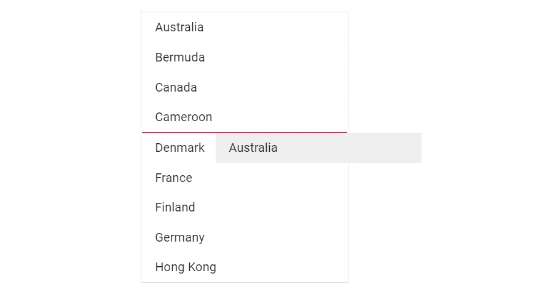
The Blazor ListBox supports dragging a single item or a group of selected items and dropping them within the same ListBox or into another ListBox.
Customize drag-and-drop behavior by handling the following events on the [ListBoxEvents](https://help.syncfusion.com/cr/blazor/Syncfusion.Blazor.DropDowns.ListBoxEvents-2.html) child component:
| Events | Description |
|------|------|
| [DragStart](https://help.syncfusion.com/cr/blazor/Syncfusion.Blazor.DropDowns.ListBoxEvents-2.html#Syncfusion_Blazor_DropDowns_ListBoxEvents_2_DragStart) | Triggers when dragging starts for the selected item(s). |
| [OnDrop](https://help.syncfusion.com/cr/blazor/Syncfusion.Blazor.DropDowns.ListBoxEvents-2.html#Syncfusion_Blazor_DropDowns_ListBoxEvents_2_OnDrop) | Triggers before the selected item(s) are dropped. |
| [Dropped](https://help.syncfusion.com/cr/blazor/Syncfusion.Blazor.DropDowns.ListBoxEvents-2.html#Syncfusion_Blazor_DropDowns_ListBoxEvents_2_Dropped) | Triggers after the selected item(s) are dropped. |
## Single ListBox
Drag and drop within a single ListBox can be achieved by setting the [AllowDragAndDrop](https://help.syncfusion.com/cr/blazor/Syncfusion.Blazor.DropDowns.SfListBox-2.html#Syncfusion_Blazor_DropDowns_SfListBox_2_AllowDragAndDrop) property to `true`.
```cshtml
@using Syncfusion.Blazor.DropDowns
@code {
public List GroupA = new List
{
new CountryCode{ Name = "Australia", Code = "AU" },
new CountryCode{ Name = "Bermuda", Code = "BM" },
new CountryCode{ Name = "Canada", Code = "CA" },
new CountryCode{ Name = "Cameroon", Code = "CM" },
new CountryCode{ Name = "Denmark", Code = "DK" },
new CountryCode{ Name = "France", Code = "FR" },
new CountryCode{ Name = "Finland", Code = "FI" },
new CountryCode{ Name = "Germany", Code = "DE" },
new CountryCode{ Name = "Hong Kong", Code = "HK" }
};
public class CountryCode {
public string Name { get; set; }
public string Code { get; set; }
}
}
```
## Multiple ListBox
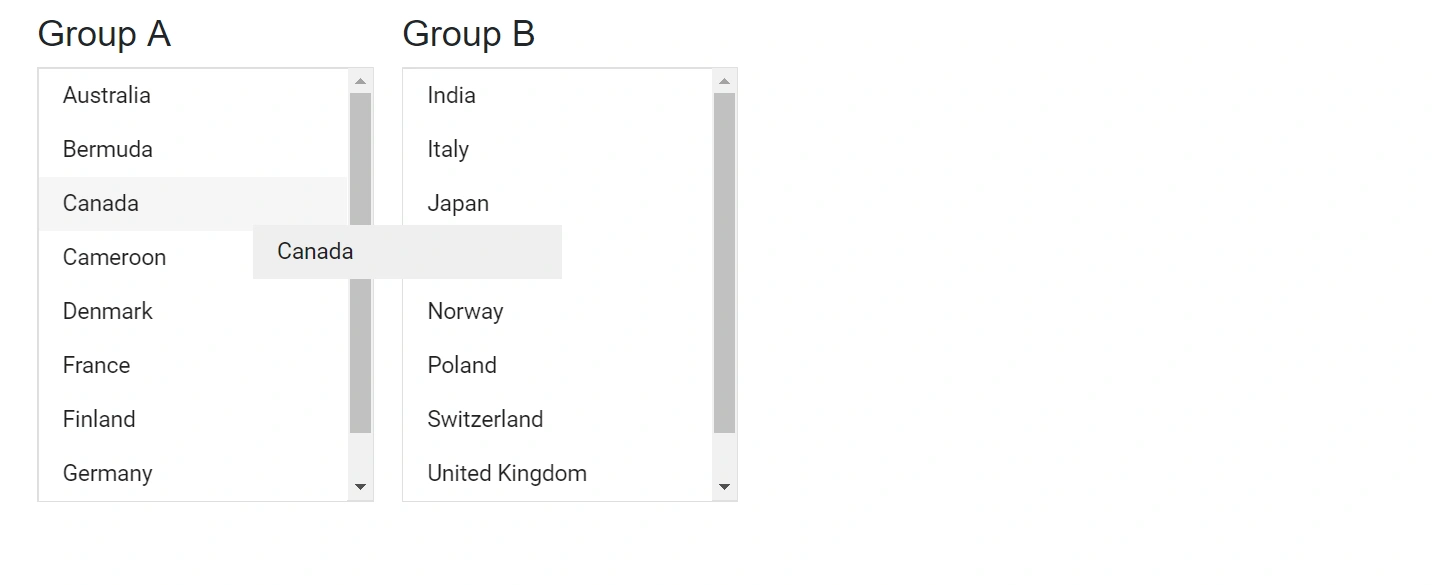
Enable drag and drop between two or more ListBoxes by setting `AllowDragAndDrop` to `true` and assigning the same [Scope](https://help.syncfusion.com/cr/blazor/Syncfusion.Blazor.DropDowns.SfListBox-2.html#Syncfusion_Blazor_DropDowns_SfListBox_2_Scope) value to each ListBox. The `Scope` value is what groups the ListBoxes for cross-list drag-and-drop. The HTML element IDs that wrap each ListBox must remain unique and are independent of `Scope`.
```cshtml
@using Syncfusion.Blazor.DropDowns
Group A
Group B
@code {
public List GroupA = new List
{
new CountryCode{ Name = "Australia", Code = "AU" },
new CountryCode{ Name = "Bermuda", Code = "BM" },
new CountryCode{ Name = "Canada", Code = "CA" },
new CountryCode{ Name = "Cameroon", Code = "CM" },
new CountryCode{ Name = "Denmark", Code = "DK" },
new CountryCode{ Name = "France", Code = "FR" },
new CountryCode{ Name = "Finland", Code = "FI" },
new CountryCode{ Name = "Germany", Code = "DE" },
new CountryCode{ Name = "Hong Kong", Code = "HK" }
};
public List GroupB = new List
{
new CountryCode{ Name = "India", Code = "IN" },
new CountryCode{ Name = "Italy", Code = "IT" },
new CountryCode{ Name = "Japan", Code = "JP" },
new CountryCode{ Name = "Mexico", Code = "MX" },
new CountryCode{ Name = "Norway", Code = "NO" },
new CountryCode{ Name = "Poland", Code = "PL" },
new CountryCode{ Name = "Switzerland", Code = "CH" },
new CountryCode{ Name = "United Kingdom", Code = "GB" },
new CountryCode{ Name = "United States", Code = "US" }
};
public class CountryCode
{
public string Name { get; set; }
public string Code { get; set; }
}
}
```
## Dual ListBox with drag and drop
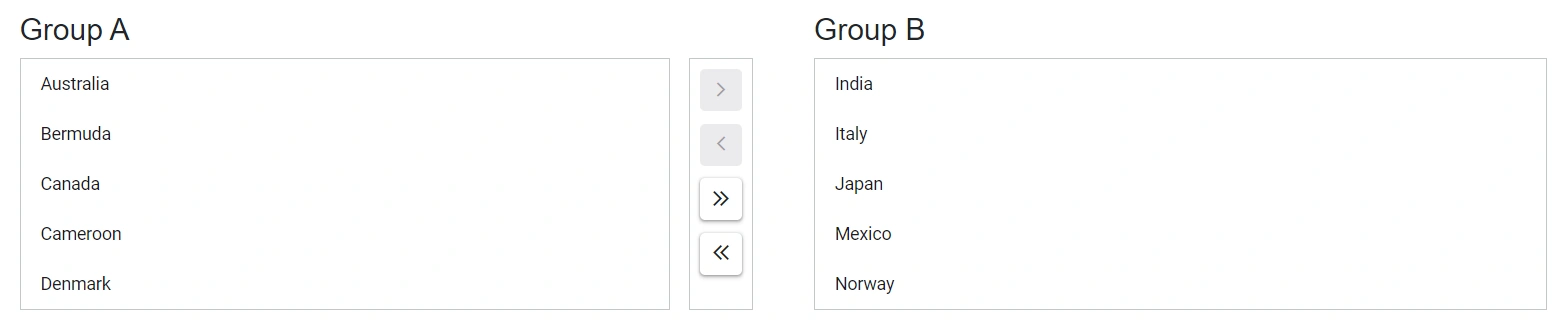
The toolbar and drag-and-drop actions between two ListBoxes can be enabled by assigning unique element IDs and the same [Scope](https://help.syncfusion.com/cr/blazor/Syncfusion.Blazor.DropDowns.SfListBox-2.html#Syncfusion_Blazor_DropDowns_SfListBox_2_Scope) value to both instances. Toolbar actions operate across ListBoxes that share the same Scope.
```
@using Syncfusion.Blazor.DropDowns
Group A
Group B
@code {
public string[] Items = new string[] { "MoveTo", "MoveFrom", "MoveAllTo", "MoveAllFrom" };
public List GroupA = new List
{
new CountryCode{ Name = "Australia", Code = "AU" },
new CountryCode{ Name = "Bermuda", Code = "BM" },
new CountryCode{ Name = "Canada", Code = "CA" },
new CountryCode{ Name = "Cameroon", Code = "CM" },
new CountryCode{ Name = "Denmark", Code = "DK" }
};
public List GroupB = new List
{
new CountryCode{ Name = "India", Code = "IN" },
new CountryCode{ Name = "Italy", Code = "IT" },
new CountryCode{ Name = "Japan", Code = "JP" },
new CountryCode{ Name = "Mexico", Code = "MX" },
new CountryCode{ Name = "Norway", Code = "NO" }
};
public class CountryCode
{
public string Name { get; set; }
public string Code { get; set; }
}
}
```
## See also
* [Dual ListBox in Blazor](./dual-listbox.md)
* [Getting Started with Blazor ListBox](./getting-started.md)
* [Selection in Blazor ListBox](./selection.md)
* [Accessibility in Blazor ListBox](./accessibility.md)