---
layout: post
title: Filtering in Blazor ListBox Component | Syncfusion®
description: Checkout and learn here all about Filtering in Blazor ListBox component in Blazor Server App and Blazor WebAssembly App.
platform: Blazor
control: ListBox
documentation: ug
---
# Filtering in ListBox
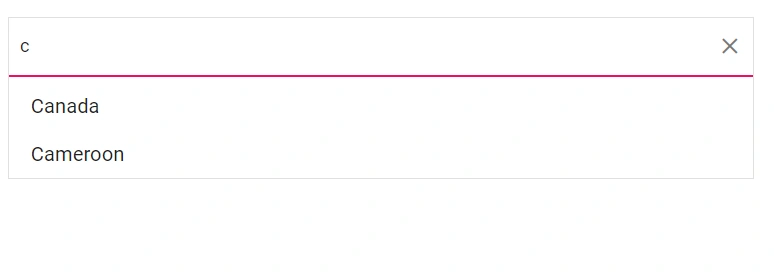
The Blazor ListBox provides built-in filtering when the [AllowFiltering](https://help.syncfusion.com/cr/blazor/Syncfusion.Blazor.DropDowns.SfListBox-2.html#Syncfusion_Blazor_DropDowns_SfListBox_2_AllowFiltering) property is set to `true`. A search box is rendered automatically, and filtering begins as the user types. The default value of `AllowFiltering` is `false`. Filtering is case-insensitive by default and affects only the visible items; existing selections remain unchanged.
The following example demonstrates the built-in filtering functionality. Set `AllowFiltering="true"` to render the search box.
```cshtml
@using Syncfusion.Blazor.DropDowns
@code {
public List CountryData = new List {
new CountryCode{ Name = "Australia", Code = "AU" },
new CountryCode{ Name = "Bermuda", Code = "BM" },
new CountryCode{ Name = "Canada", Code = "CA" },
new CountryCode{ Name = "Cameroon", Code = "CM" },
new CountryCode{ Name = "Denmark", Code = "DK" },
new CountryCode{ Name = "France", Code = "FR" },
new CountryCode{ Name = "Finland", Code = "FI" },
new CountryCode{ Name = "Germany", Code = "DE" },
new CountryCode{ Name = "Hong Kong", Code = "HK" }
};
public class CountryCode {
public string Name { get; set; }
public string Code { get; set; }
}
}
```
## Filter type
Use the [FilterType](https://help.syncfusion.com/cr/blazor/Syncfusion.Blazor.DropDowns.SfDropDownBase-1.html#Syncfusion_Blazor_DropDowns_SfDropDownBase_1_FilterType) property to specify the matching behavior used during search. The default value is `StartsWith`. The available options are:
| FilterType | Description |
|------------|-------------|
| [StartsWith](https://help.syncfusion.com/cr/blazor/Syncfusion.Blazor.DropDowns.FilterType.html#Syncfusion_Blazor_DropDowns_FilterType_StartsWith) | Checks whether the item text begins with the specified value. |
| [EndsWith](https://help.syncfusion.com/cr/blazor/Syncfusion.Blazor.DropDowns.FilterType.html#Syncfusion_Blazor_DropDowns_FilterType_EndsWith) | Checks whether the item text ends with the specified value. |
| [Contains](https://help.syncfusion.com/cr/blazor/Syncfusion.Blazor.DropDowns.FilterType.html#Syncfusion_Blazor_DropDowns_FilterType_Contains) | Checks whether the item text contains the specified value. |
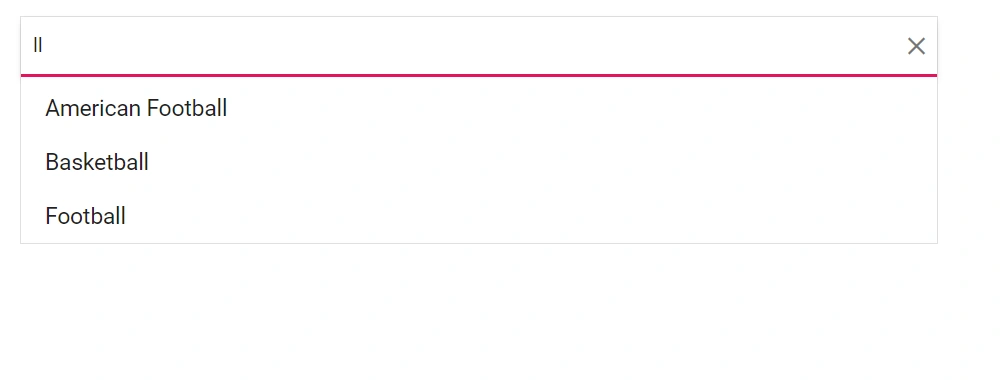
In the following example, the `EndsWith` filter type is assigned to the `FilterType` property.
```cshtml
@using Syncfusion.Blazor.DropDowns
@code {
public class Games
{
public string ID { get; set; }
public string Game { get; set; }
}
List LocalData = new List {
new Games() { ID= "Game1", Game= "American Football" },
new Games() { ID= "Game2", Game= "Badminton" },
new Games() { ID= "Game3", Game= "Basketball" },
new Games() { ID= "Game4", Game= "Cricket" },
new Games() { ID= "Game5", Game= "Football" },
new Games() { ID= "Game6", Game= "Golf" },
new Games() { ID= "Game7", Game= "Hockey" },
new Games() { ID= "Game8", Game= "Rugby"},
new Games() { ID= "Game9", Game= "Snooker" },
};
}
```
## See also
* [Filter ListBox Data Using HTML Input Element](./how-to/filter-listbox.md)
* [Data Binding in Blazor ListBox](./data-binding.md)
* [Selection in Blazor ListBox](./selection.md)
* [Getting Started with Blazor ListBox](./getting-started.md)