How to add/remove items in Blazor ListBox
14 Aug 20263 minutes to read
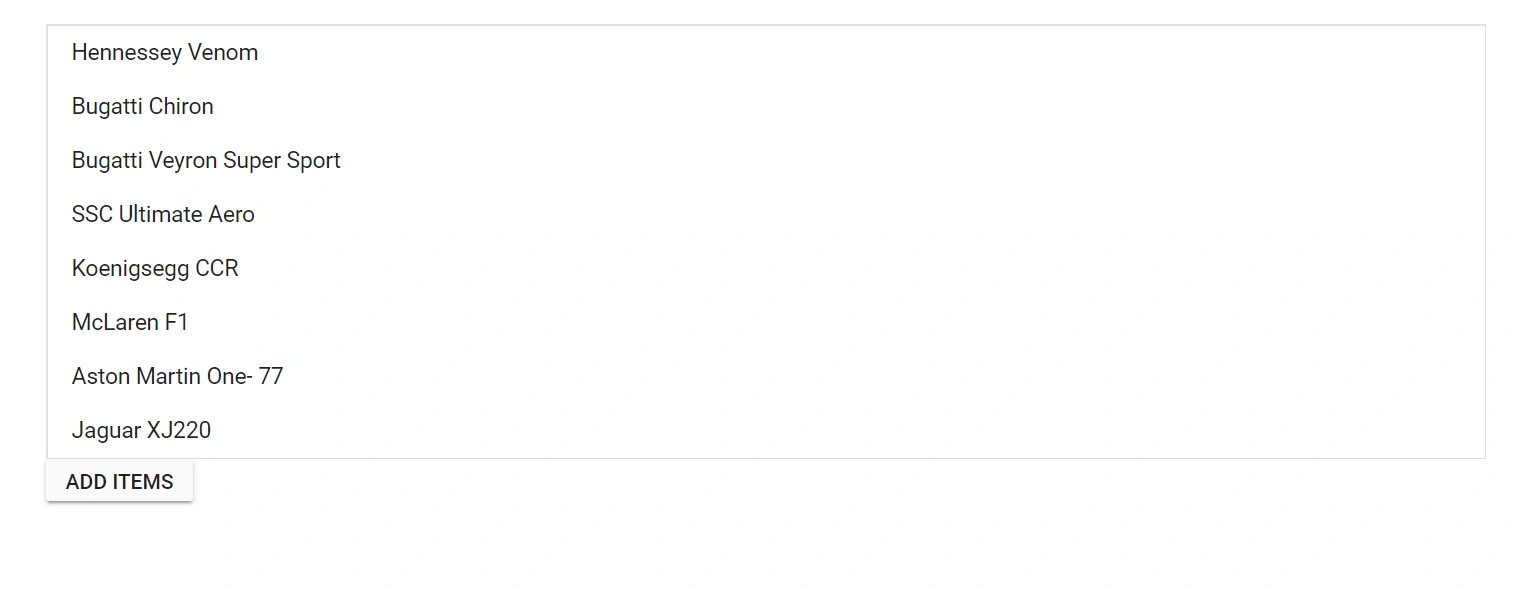
This section explains how to programmatically add and remove items in the Syncfusion Blazor ListBox component using the AddItemsAsync and RemoveItemAsync methods.
@using Syncfusion.Blazor.DropDowns
@using Syncfusion.Blazor.Buttons

<SfListBox TValue="string[]" TItem="VehicleData" DataSource="@Vehicles" @ref="ListBoxObj">
  <ListBoxFieldSettings Text="Text" Value="Id" />
</SfListBox>
<SfButton @onclick="addData">ADD ITEMS</SfButton>

@code {
      SfListBox<string[],VehicleData> ListBoxObj;
      public List<VehicleData> Vehicles = new List<VehicleData> {
        new VehicleData { Text = "Hennessey Venom", Id = "Vehicle-01" },
        new VehicleData { Text = "Bugatti Chiron", Id = "Vehicle-02" },
        new VehicleData { Text = "Bugatti Veyron Super Sport", Id = "Vehicle-03" },
        new VehicleData { Text = "SSC Ultimate Aero", Id = "Vehicle-04" },
        new VehicleData { Text = "Koenigsegg CCR", Id = "Vehicle-05" },
        new VehicleData { Text = "McLaren F1", Id = "Vehicle-06" },
        new VehicleData { Text = "Aston Martin One-77", Id = "Vehicle-07" },
        new VehicleData { Text = "Jaguar XJ220", Id = "Vehicle-08" }
    };

    public class VehicleData {
      public string Text { get; set; }
      public string Id { get; set; }
    }

      public List<VehicleData> Item = new List<VehicleData>{
        new VehicleData{ Text = "Ferrari LaFerrari", Id = "Vehicle-09"},
        new VehicleData{ Text = "McLaren P1", Id = "Vehicle-10"}
      };

      private async Task addData() {
        await ListBoxObj.AddItemsAsync(Item);
      }
}
Remove items from the listbox
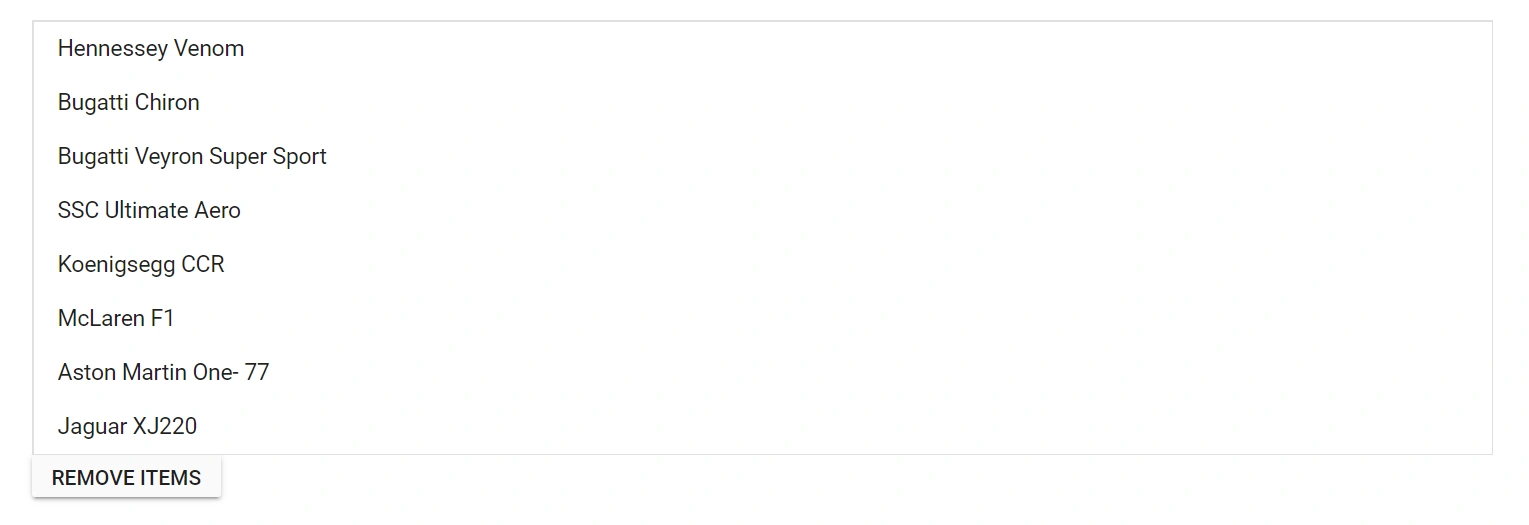
Use the RemoveItemAsync method to remove items from the ListBox. In the following example, the Ferrari LaFerrari and McLaren P1 items are removed when clicking the REMOVE ITEMS button.
@using Syncfusion.Blazor.DropDowns
@using Syncfusion.Blazor.Buttons

<SfListBox TValue="string[]" TItem="VehicleData" DataSource="@Vehicles" @ref="ListBoxObj">
  <ListBoxFieldSettings Text="Text" Value="Id" />
</SfListBox>
<SfButton @onclick="removeData">REMOVE ITEMS</SfButton>

@code {
      SfListBox<string[],VehicleData> ListBoxObj;
      public List<VehicleData> Vehicles = new List<VehicleData> {
        new VehicleData { Text = "Hennessey Venom", Id = "Vehicle-01" },
        new VehicleData { Text = "Bugatti Chiron", Id = "Vehicle-02" },
        new VehicleData { Text = "Bugatti Veyron Super Sport", Id = "Vehicle-03" },
        new VehicleData { Text = "SSC Ultimate Aero", Id = "Vehicle-04" },
        new VehicleData { Text = "Koenigsegg CCR", Id = "Vehicle-05" },
        new VehicleData { Text = "McLaren F1", Id = "Vehicle-06" },
        new VehicleData { Text = "Aston Martin One-77", Id = "Vehicle-07" },
        new VehicleData { Text = "Jaguar XJ220", Id = "Vehicle-08" },
        new VehicleData{ Text = "Ferrari LaFerrari", Id = "Vehicle-09"},
        new VehicleData{ Text = "McLaren P1", Id = "Vehicle-10"}
    };

    public class VehicleData {
      public string Text { get; set; }
      public string Id { get; set; }
    }

    public List<VehicleData> Item = new List<VehicleData>{
        new VehicleData{ Text = "Ferrari LaFerrari", Id = "Vehicle-09"},
        new VehicleData{ Text = "McLaren P1", Id = "Vehicle-10"}
    };

    private async Task removeData() {
      await ListBoxObj.RemoveItemAsync(Item);
    }
}