---
layout: post
title: Styles and Appearances in Blazor ListBox Component | Syncfusion®
description: Checkout and learn here all the features about styles and appearances in Blazor ListBox component and much more.
platform: Blazor
control: List Box
documentation: ug
---
# Styles and Appearances in Blazor ListBox Component
To modify the ListBox appearance, override the component's default CSS. The following table lists key CSS classes and the parts of the ListBox they affect. A custom theme can also be generated using the [Theme Studio](https://blazor.syncfusion.com/themestudio/?theme=material).
| CSS Class | Purpose of Class |
| ----- | ----- |
| `.e-listbox-container` | Customize the ListBox container. |
| `.e-listbox-container .e-list-item` | Customize ListBox items. |
| `.e-listbox-container .e-list-item:hover:not(.e-selected):not(.e-disabled)` | Customize ListBox items on hover. |
| `.e-listbox-container .e-list-item.e-selected` | Customize the selected item. |
| `.e-listboxtool-container .e-listbox-tool` | Customize the ListBox toolbar (dual ListBox scenarios). |
| `.e-listboxtool-container .e-listbox-tool .e-btn` | Customize toolbar buttons. |
| `.e-listboxtool-container .e-listbox-tool .e-btn .e-btn-icon.e-icons::before` | Customize toolbar icons. |
## Horizontal ListBox
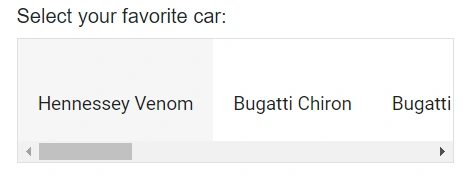
Use the [CssClass](https://help.syncfusion.com/cr/blazor/Syncfusion.Blazor.DropDowns.SfListBox-2.html#Syncfusion_Blazor_DropDowns_SfListBox_2_CssClass) property to apply a custom CSS class and display the ListBox horizontally. The following example applies layout styles via the `e-horizontal-listbox` class to render items in a single horizontal row.
{% tabs %}
{% highlight razor %}
Select your favorite car:
@code{
public string[] Value = new string[] { "Hennessey Venom" };
public List Data = new List {
new DataValues{ text = "Hennessey Venom", id = "list-01" },
new DataValues{ text = "Bugatti Chiron", id = "list-02" },
new DataValues{ text = "Bugatti Veyron Super Sport", id = "list-03" },
new DataValues{ text = "SSC Ultimate Aero", id = "list-04" },
new DataValues{ text = "Koenigsegg CCR", id = "list-05" },
new DataValues{ text = "McLaren F1", id = "list-06" },
new DataValues{ text = "Aston Martin One- 77", id = "list-07" },
new DataValues{ text = "Jaguar XJ220", id = "list-08" },
new DataValues{ text = "McLaren P1", id = "list-09" },
new DataValues{ text = "Ferrari LaFerrari", id = "list-10" }
};
public class DataValues
{
public string text { get; set; }
public string id { get; set; }
}
}
{% endhighlight %}
{% endtabs %}
N> [View sample on GitHub](https://github.com/SyncfusionExamples/how-to-set-the-blazor-list-box-items-as-horizontal-list)
## See also
* [Getting Started with Blazor ListBox](./getting-started.md)
* [Icons and Templates in Blazor ListBox](./icons-and-templates.md)
* [Selection in Blazor ListBox](./selection.md)