Filtering in Blazor MultiColumn ComboBox
26 Aug 202624 minutes to read
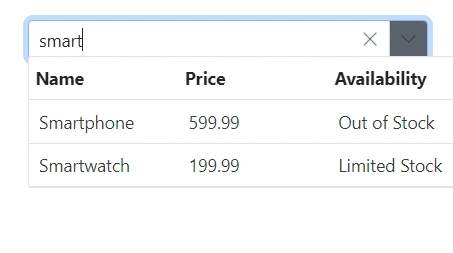
The Blazor MultiColumn ComboBox offers built-in functionality for filtering data items when the AllowFiltering option is enabled. Filtering begins as the user types in the input field. By default, the AllowFiltering property is set to false.
Local data
The following code demonstrates the filtering functionality with local data in the MultiColumn ComboBox component.
@using Syncfusion.Blazor.MultiColumnComboBox

<SfMultiColumnComboBox TValue="string" TItem="Product" @bind-Value="@Value" AllowFiltering=true ShowClearButton=true DataSource="@Products" PopupWidth="600px" ValueField="Name" TextField="Name" Placeholder="Select any product"></SfMultiColumnComboBox>

@code {

    public class Product
    {
        public string Name { get; set; }
        public decimal Price { get; set; }
        public string Availability { get; set; }
        public string Category { get; set; }
        public double Rating { get; set; }
    }
    private List<Product> Products = new List<Product>();
    private string Value { get; set; } = "Smartphone";
    protected override Task OnInitializedAsync()
    {
        Products = new List<Product>
        {
            new Product { Name = "Laptop", Price = 999.99m, Availability = "In Stock", Category = "Electronics", Rating = 4.5 },
            new Product { Name = "Smartphone", Price = 599.99m, Availability = "Out of Stock", Category = "Electronics", Rating = 4.3 },
            new Product { Name = "Tablet", Price = 299.99m, Availability = "In Stock", Category = "Electronics", Rating = 4.2 },
            new Product { Name = "Headphones", Price = 49.99m, Availability = "In Stock", Category = "Accessories", Rating = 4.0 },
            new Product { Name = "Smartwatch", Price = 199.99m, Availability = "Limited Stock", Category = "Wearables", Rating = 4.4 },
            new Product { Name = "Monitor", Price = 129.99m, Availability = "In Stock", Category = "Electronics", Rating = 4.6 },

        };
        return base.OnInitializedAsync();
    }
}
Remote data
For remote data, each keystroke triggers a server-side filter request that returns only matching records.
The following code illustrates the filtering capabilities using the ODataAdaptor in the Blazor MultiColumn ComboBox component, utilizing the Query property.
@using Syncfusion.Blazor.MultiColumnComboBox
@using Syncfusion.Blazor.Data

<SfMultiColumnComboBox TItem="EmployeeData" TValue="string" AllowFiltering=true  ValueField="EmployeeID" TextField="FirstName" PopupWidth="600px" Placeholder="e.g. Andrew">
            <SfDataManager Url="https://blazor.syncfusion.com/services/release/api/Employees" Offline="true" CrossDomain="true" Adaptor="Syncfusion.Blazor.Adaptors.WebApiAdaptor"></SfDataManager>
        </SfMultiColumnComboBox>

@code {
    public Query RemoteQuery = new Query();
    public class EmployeeData
    {
        public int EmployeeID { get; set; }
        public string FirstName { get; set; }
        public string LastName { get; set; }
        public string Country { get; set; }
    }
}Filter type
Use the FilterType property to specify how the input text is matched during filtering. The available filter types are:
| FilterType | Description |
|---|---|
| StartsWith | Checks whether a value begins with the specified text. |
| EndsWith | Checks whether a value ends with the specified text. |
| Contains | Checks whether a value contains the specified text. |
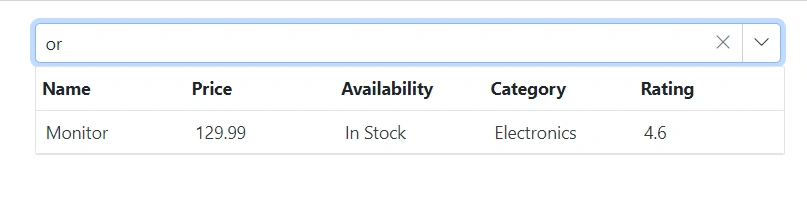
In the following example, the EndsWith filter type is assigned to the FilterType property.
@using Syncfusion.Blazor.MultiColumnComboBox

<SfMultiColumnComboBox TValue="string" TItem="Product" @bind-Value="@Value" AllowFiltering=true FilterType="FilterType.EndsWith" ShowClearButton=true DataSource="@Products" PopupWidth="600px" ValueField="Name" TextField="Name" Placeholder="Select any product"></SfMultiColumnComboBox>

@code {

    public class Product
    {
        public string Name { get; set; }
        public decimal Price { get; set; }
        public string Availability { get; set; }
        public string Category { get; set; }
        public double Rating { get; set; }
    }
    private List<Product> Products = new List<Product>();
    private string Value { get; set; } = "Smartphone";
    protected override Task OnInitializedAsync()
    {
        Products = new List<Product>
        {
            new Product { Name = "Laptop", Price = 999.99m, Availability = "In Stock", Category = "Electronics", Rating = 4.5 },
            new Product { Name = "Smartphone", Price = 599.99m, Availability = "Out of Stock", Category = "Electronics", Rating = 4.3 },
            new Product { Name = "Tablet", Price = 299.99m, Availability = "In Stock", Category = "Electronics", Rating = 4.2 },
            new Product { Name = "Headphones", Price = 49.99m, Availability = "In Stock", Category = "Accessories", Rating = 4.0 },
            new Product { Name = "Smartwatch", Price = 199.99m, Availability = "Limited Stock", Category = "Wearables", Rating = 4.4 },
            new Product { Name = "Monitor", Price = 129.99m, Availability = "In Stock", Category = "Electronics", Rating = 4.6 },

        };
        return base.OnInitializedAsync();
    }
}
Custom filtering
The Blazor MultiColumn ComboBox allows you to customize filter queries using the Filtering event. Multiple-column filtering can be implemented by composing predicates and applying them with the FilterAsync method in combination with the Filtering event.
In the following example, the filter is configured to search based on both the Name and Category fields. The Filtering event uses a Predicate with an or condition to allow filtering across these fields.
For instance, if a data source item has a Name of “Smartwatch” and a Category of “Wearables,” typing either “S” or “W” will filter and display the “Smartwatch” item (from the Name field) in the dropdown popup.
The
FilterAsyncmethod support is available for the MultiColumnComboBox component starting from version 27.1.57.
@using Syncfusion.Blazor.MultiColumnComboBox
@using Syncfusion.Blazor.Data

<SfMultiColumnComboBox @ref="MultiComboObj" TValue="string" TItem="Product" @bind-Value="@Value" AllowFiltering=true Filtering="onFiltering" ShowClearButton=true DataSource="@Products" PopupWidth="600px" ValueField="Name" TextField="Name" Placeholder="Select any product"></SfMultiColumnComboBox>

@code {

    private SfMultiColumnComboBox<string, Product> MultiComboObj { get; set; }

    public class Product
    {
        public string Name { get; set; }
        public decimal Price { get; set; }
        public string Availability { get; set; }
        public string Category { get; set; }
        public double Rating { get; set; }
    }

    private List<Product> Products = new List<Product>();

    private string Value { get; set; }

    public async Task onFiltering(Syncfusion.Blazor.MultiColumnComboBox.FilteringEventArgs args)
    {
        args.PreventDefaultAction = true;
        var predicate = new List<WhereFilter>
          {
            new WhereFilter { Condition = "or", Field = "Name", value = args.Text, Operator = "StartsWith", IgnoreAccent = true, IgnoreCase = true },
            new WhereFilter { Condition = "or", Field = "Category", value = args.Text, Operator = "StartsWith", IgnoreAccent = true, IgnoreCase = true }
          };
        var query = new Query().Where(WhereFilter.Or(predicate));

        query = !string.IsNullOrEmpty(args.Text) ? query : new Query();

        await MultiComboObj.FilterAsync(Products, query);
    }

    protected override Task OnInitializedAsync()
    {
        Products = new List<Product>
        {
            new Product { Name = "Laptop", Price = 999.99m, Availability = "In Stock", Category = "Electronics", Rating = 4.5 },
            new Product { Name = "Smartphone", Price = 599.99m, Availability = "Out of Stock", Category = "Electronics", Rating = 4.3 },
            new Product { Name = "Tablet", Price = 299.99m, Availability = "In Stock", Category = "Electronics", Rating = 4.2 },
            new Product { Name = "Headphones", Price = 49.99m, Availability = "In Stock", Category = "Accessories", Rating = 4.0 },
            new Product { Name = "Smartwatch", Price = 199.99m, Availability = "Limited Stock", Category = "Wearables", Rating = 4.4 },
            new Product { Name = "Monitor", Price = 129.99m, Availability = "In Stock", Category = "Electronics", Rating = 4.6 },

        };
        return base.OnInitializedAsync();
    }
}Prevent popup opening when filtering
To prevent the Blazor MultiColumn ComboBox popup from opening while filtering is in progress, use the PopupOpeningEventArgs.Cancel argument exposed in the PopupOpeningEventArgs. Set Cancel to true to stop the popup from opening, or false to allow it.
In the following example, the isTyped flag tracks whether filtering is occurring. The OnFiltering method sets the flag to true when filtering starts, and the popup-opening handler (for example, OnBeforeOpen) cancels opening if the flag is true. The handler then resets the flag to false for the next interaction.
This approach prevents the popup from opening during filtering while still allowing users to filter items through the input field.
@using Syncfusion.Blazor.MultiColumnComboBox
@using Syncfusion.Blazor.Data

<SfMultiColumnComboBox @ref="multicolumnObj" TValue="string" TItem="Product" Filtering="OnFilter" PopupOpening="OnOpen" AllowFiltering=true ShowClearButton=true DataSource="@Products" PopupWidth="600px" ValueField="Name" TextField="Name" Placeholder="Select any product"></SfMultiColumnComboBox>

@code {

    SfMultiColumnComboBox<string, Product> multicolumnObj { get; set; }
    public class Product
    {
        public string Name { get; set; }
        public decimal Price { get; set; }
        public string Availability { get; set; }
        public string Category { get; set; }
        public double Rating { get; set; }
    }
    private List<Product> Products = new List<Product>();
    private string Value { get; set; } = "Smartphone";
    protected override Task OnInitializedAsync()
    {
        Products = new List<Product>
        {
            new Product { Name = "Laptop", Price = 999.99m, Availability = "In Stock", Category = "Electronics", Rating = 4.5 },
            new Product { Name = "Smartphone", Price = 599.99m, Availability = "Out of Stock", Category = "Electronics", Rating = 4.3 },
            new Product { Name = "Tablet", Price = 299.99m, Availability = "In Stock", Category = "Electronics", Rating = 4.2 },
            new Product { Name = "Headphones", Price = 49.99m, Availability = "In Stock", Category = "Accessories", Rating = 4.0 },
            new Product { Name = "Smartwatch", Price = 199.99m, Availability = "Limited Stock", Category = "Wearables", Rating = 4.4 },
            new Product { Name = "Monitor", Price = 129.99m, Availability = "In Stock", Category = "Electronics", Rating = 4.6 },

        };
        return base.OnInitializedAsync();
    }

    public bool isTyped { get; set; } = false;
    public async Task OnOpen(PopupOpeningEventArgs args)
    {
        if (this.isTyped)
        {
            args.Cancel = true;
        }
        else
        {
            args.Cancel = false;
        }
        this.isTyped = false;
    }
    public void OnFilter(FilteringEventArgs args)
    {
        this.isTyped = true;
    }
}