Popup Setting in MultiColumn ComboBox
1 Dec 202517 minutes to read
Change the popup width
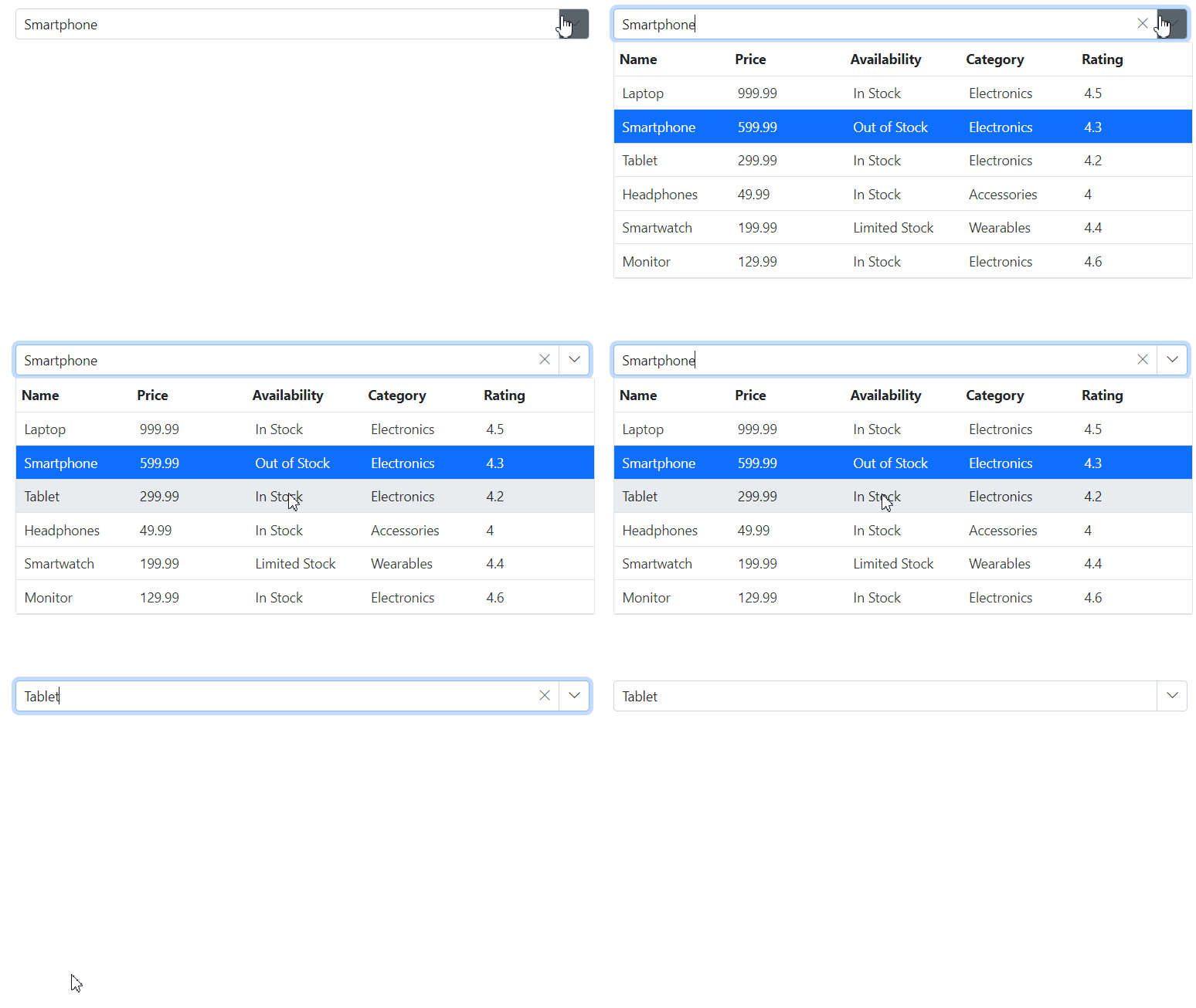
Customize the popup width using the PopupWidth property. If PopupWidth is not specified, the popup width matches the MultiColumn ComboBox input width.
In the following example, PopupWidth is set to 600px.
@using Syncfusion.Blazor.MultiColumnComboBox

<SfMultiColumnComboBox @bind-Value="@Value" DataSource="@Products" PopupWidth="600px" ValueField="Name" TextField="Name" Placeholder="Select any product"></SfMultiColumnComboBox>
@code {
    public class Product
    {
        public string Name { get; set; }
        public decimal Price { get; set; }
        public string Availability { get; set; }
        public string Category { get; set; }
        public double Rating { get; set; }
    }
    private List<Product> Products = new List<Product>();
    private string Value { get; set; } = "Smartphone";
    protected override Task OnInitializedAsync()
    {
        Products = new List<Product>
        {
            new Product { Name = "Laptop", Price = 999.99m, Availability = "In Stock", Category = "Electronics", Rating = 4.5 },
            new Product { Name = "Smartphone", Price = 599.99m, Availability = "Out of Stock", Category = "Electronics", Rating = 4.3 },
            new Product { Name = "Tablet", Price = 299.99m, Availability = "In Stock", Category = "Electronics", Rating = 4.2 },
            new Product { Name = "Headphones", Price = 49.99m, Availability = "In Stock", Category = "Accessories", Rating = 4.0 },
            new Product { Name = "Smartwatch", Price = 199.99m, Availability = "Limited Stock", Category = "Wearables", Rating = 4.4 },
            new Product { Name = "Monitor", Price = 129.99m, Availability = "In Stock", Category = "Electronics", Rating = 4.6 }
        };
        return base.OnInitializedAsync();
    }
}
Change the popup height
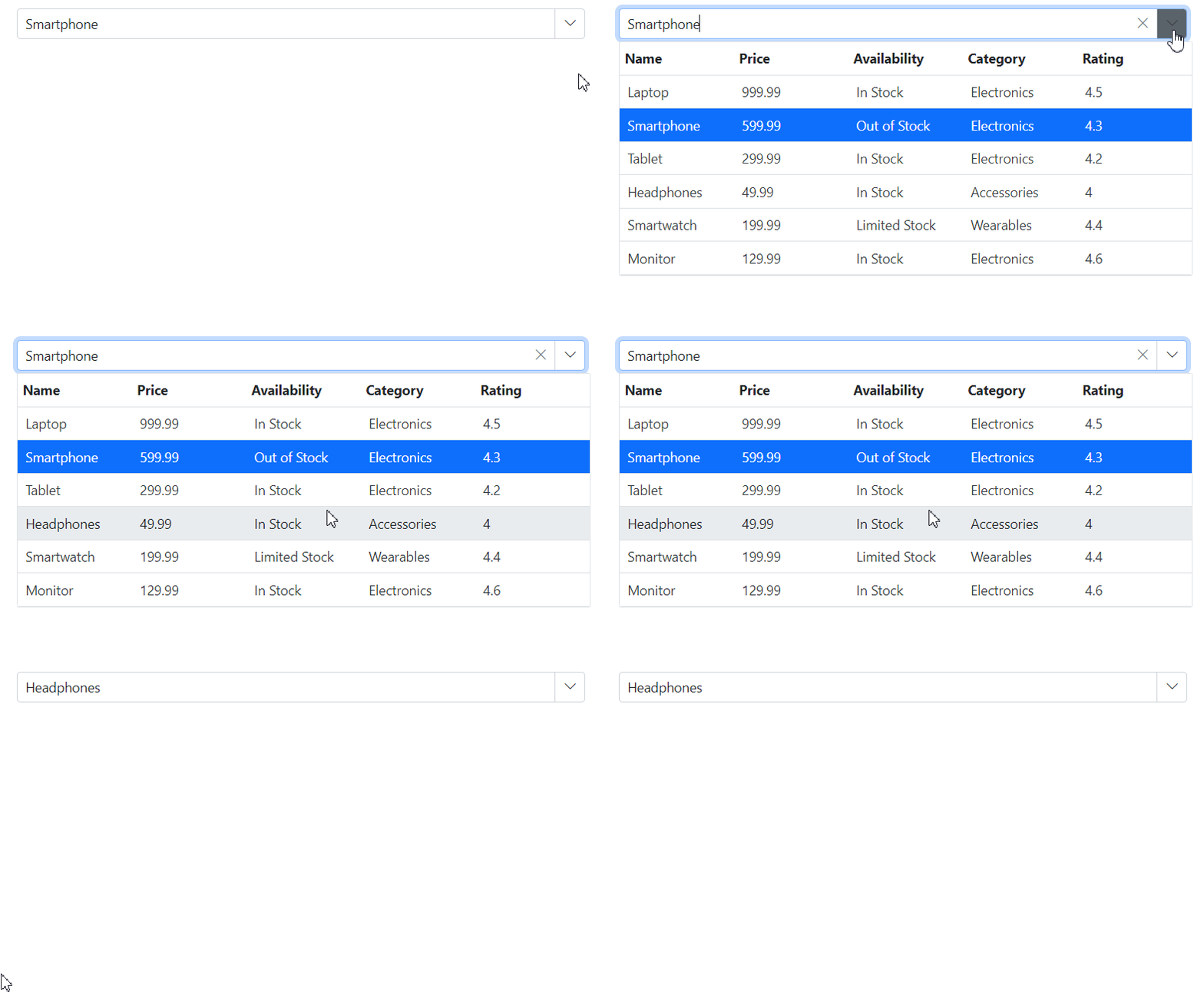
Customize the popup height using the PopupHeight property.
In the following example, PopupHeight is set to 500px.
@using Syncfusion.Blazor.MultiColumnComboBox

<SfMultiColumnComboBox @bind-Value="@Value" DataSource="@Products" PopupWidth="600px" ValueField="Name" TextField="Name" Placeholder="Select any product" PopupHeight="500px"></SfMultiColumnComboBox>
@code {
    public class Product
    {
        public string Name { get; set; }
        public decimal Price { get; set; }
        public string Availability { get; set; }
        public string Category { get; set; }
        public double Rating { get; set; }
    }
    private List<Product> Products = new List<Product>();
    private string Value { get; set; } = "Smartphone";
    protected override Task OnInitializedAsync()
    {
        Products = new List<Product>
        {
            new Product { Name = "Laptop", Price = 999.99m, Availability = "In Stock", Category = "Electronics", Rating = 4.5 },
            new Product { Name = "Smartphone", Price = 599.99m, Availability = "Out of Stock", Category = "Electronics", Rating = 4.3 },
            new Product { Name = "Tablet", Price = 299.99m, Availability = "In Stock", Category = "Electronics", Rating = 4.2 },
            new Product { Name = "Headphones", Price = 49.99m, Availability = "In Stock", Category = "Accessories", Rating = 4.0 },
            new Product { Name = "Smartwatch", Price = 199.99m, Availability = "Limited Stock", Category = "Wearables", Rating = 4.4 },
            new Product { Name = "Monitor", Price = 129.99m, Availability = "In Stock", Category = "Electronics", Rating = 4.6 }
        };
        return base.OnInitializedAsync();
    }
}
Change the popup z-index
Customize the ZIndex value to control the popup’s stacking order relative to other overlays. The default ZIndex is 1000. Increase it if the popup needs to appear above dialogs or other positioned elements.
Show popup on initial loading
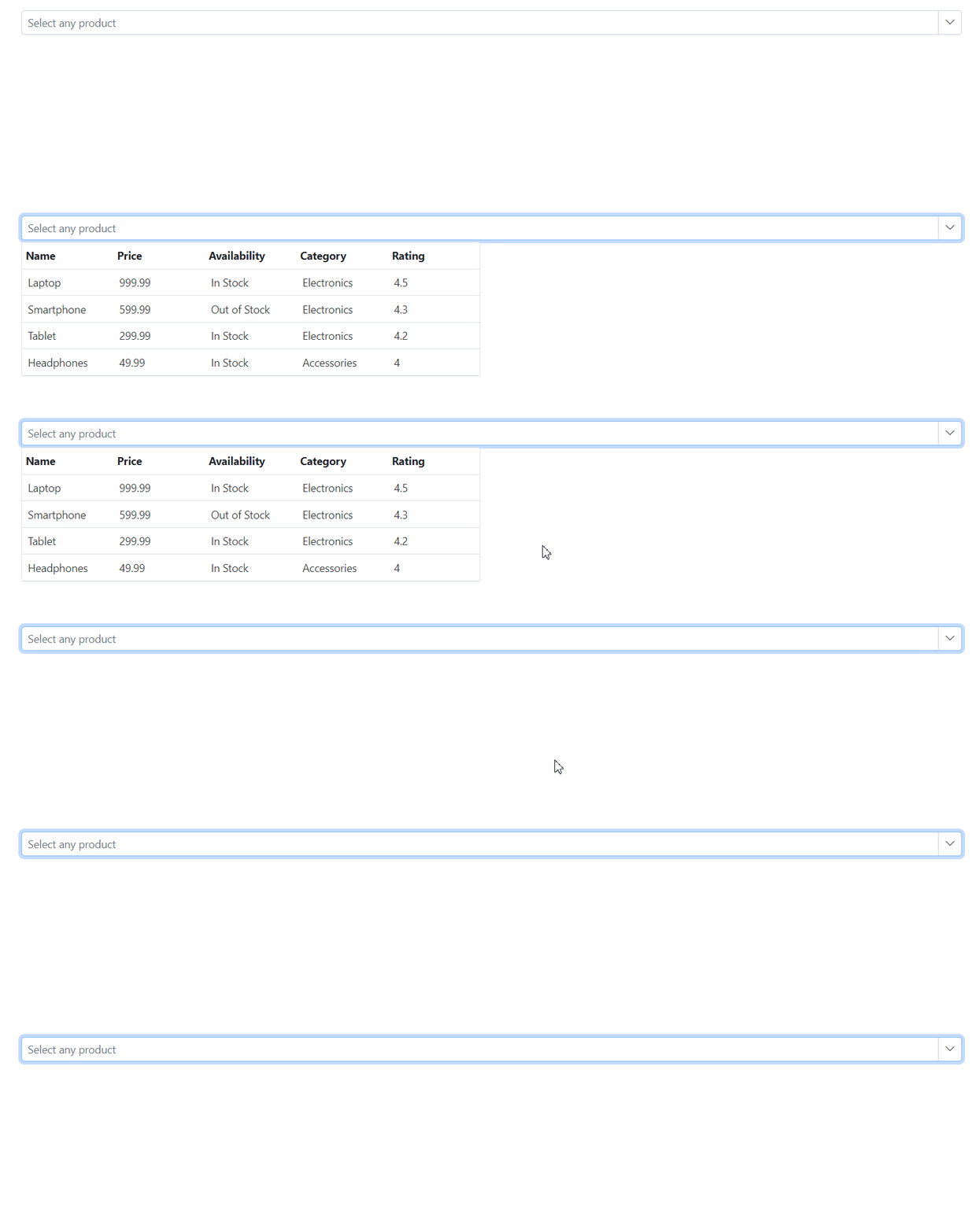
Show the popup automatically when the component is initialized by calling ShowPopupAsync() in the Created event. Use a component reference to access the method.
@using Syncfusion.Blazor.MultiColumnComboBox
@using Syncfusion.Blazor.Data

<SfMultiColumnComboBox @ref="multicolumnObj" TValue="string" TItem="Product" AllowFiltering=true ShowClearButton=true DataSource="@Products" PopupWidth="600px" ValueField="Name" TextField="Name" Placeholder="Select any product" Created="@CreatedHandler"></SfMultiColumnComboBox>

@code {

    SfMultiColumnComboBox<string, Product> multicolumnObj { get; set; }
    public class Product
    {
        public string Name { get; set; }
        public decimal Price { get; set; }
        public string Availability { get; set; }
        public string Category { get; set; }
        public double Rating { get; set; }
    }
    private List<Product> Products = new List<Product>();
    private string Value { get; set; } = "Smartphone";
    protected override Task OnInitializedAsync()
    {
        Products = new List<Product>
        {
            new Product { Name = "Laptop", Price = 999.99m, Availability = "In Stock", Category = "Electronics", Rating = 4.5 },
            new Product { Name = "Smartphone", Price = 599.99m, Availability = "Out of Stock", Category = "Electronics", Rating = 4.3 },
            new Product { Name = "Tablet", Price = 299.99m, Availability = "In Stock", Category = "Electronics", Rating = 4.2 },
            new Product { Name = "Headphones", Price = 49.99m, Availability = "In Stock", Category = "Accessories", Rating = 4.0 }

        };
        return base.OnInitializedAsync();
    }
    private void CreatedHandler(object e)
    {
         multicolumnObj.ShowPopupAsync();
    }
}
Prevent opening and closing
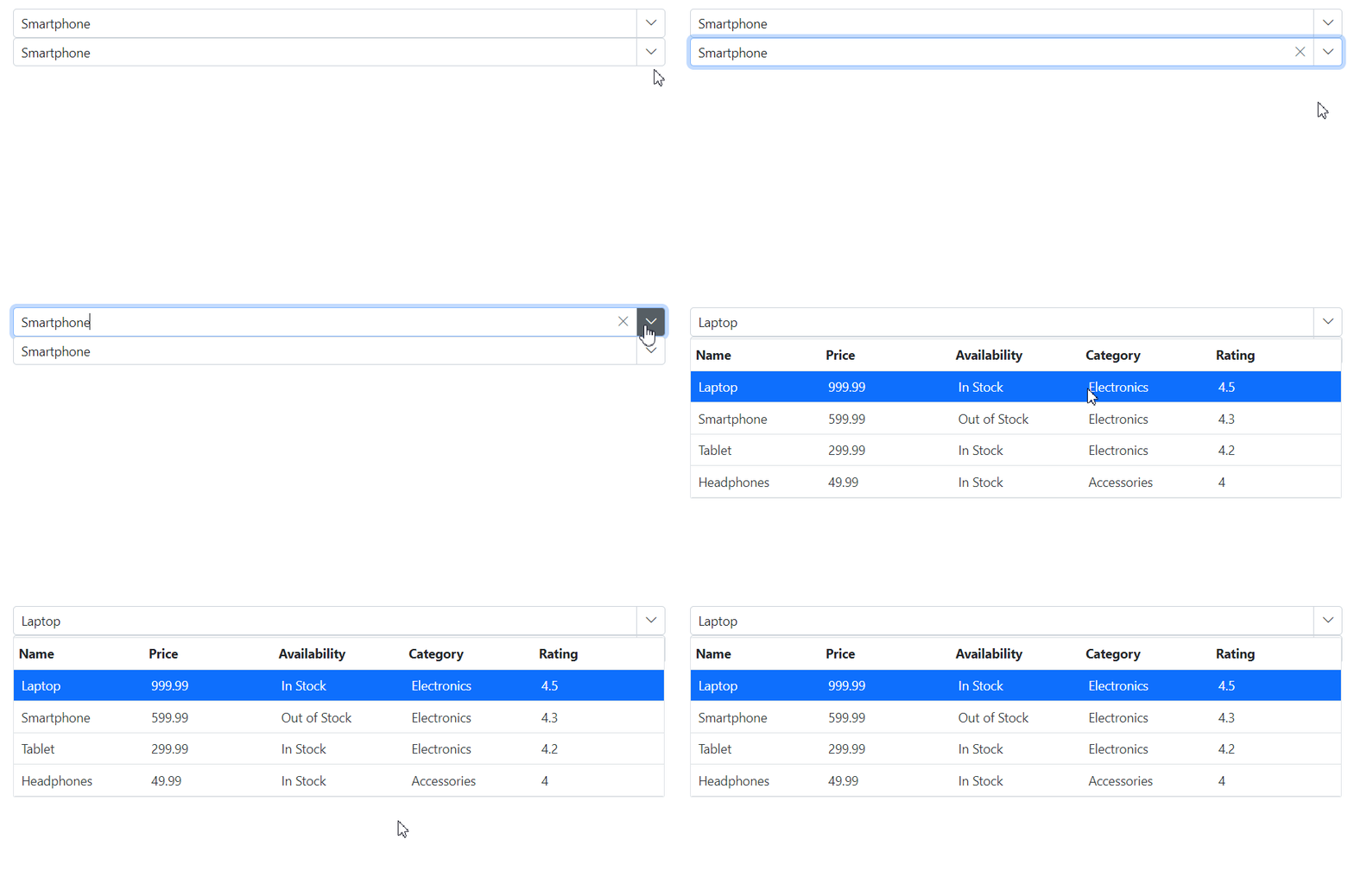
Prevent the popup from opening or closing by setting the event argument properties PopupOpeningEventArgs.Cancel and PopupClosingEventArgs.Cancel to true in the corresponding PopupOpening and PopupClosing events. This is useful to enforce conditions (for example, read-only state or validation in progress).
@using Syncfusion.Blazor.MultiColumnComboBox
<SfMultiColumnComboBox @bind-Value="@Value" DataSource="@Products" ValueField="Name" TextField="Name" Placeholder="Select any product" PopupClosing="@HandlePopupClose"></SfMultiColumnComboBox>

<SfMultiColumnComboBox @bind-Value="@Value" DataSource="@Products" ValueField="Name" TextField="Name" Placeholder="Select any product" PopupOpening="@HandlePopupOpen"></SfMultiColumnComboBox>


@code {
    public class Product
    {
        public string Name { get; set; }
        public decimal Price { get; set; }
        public string Availability { get; set; }
        public string Category { get; set; }
        public double Rating { get; set; }
    }
    private List<Product> Products = new List<Product>();
    private string Value { get; set; } = "Smartphone";
    protected override Task OnInitializedAsync()
    {
        Products = new List<Product>
        {
            new Product { Name = "Laptop", Price = 999.99m, Availability = "In Stock", Category = "Electronics", Rating = 4.5 },
            new Product { Name = "Smartphone", Price = 599.99m, Availability = "Out of Stock", Category = "Electronics", Rating = 4.3 },
            new Product { Name = "Tablet", Price = 299.99m, Availability = "In Stock", Category = "Electronics", Rating = 4.2 },
            new Product { Name = "Headphones", Price = 49.99m, Availability = "In Stock", Category = "Accessories", Rating = 4.0 }
        };
        return base.OnInitializedAsync();
    }
    private void HandlePopupClose(PopupClosingEventArgs args)
    {
        args.Cancel = true;
    }
    private void HandlePopupOpen(PopupOpeningEventArgs args)
    {
        args.Cancel = true;
    }
}
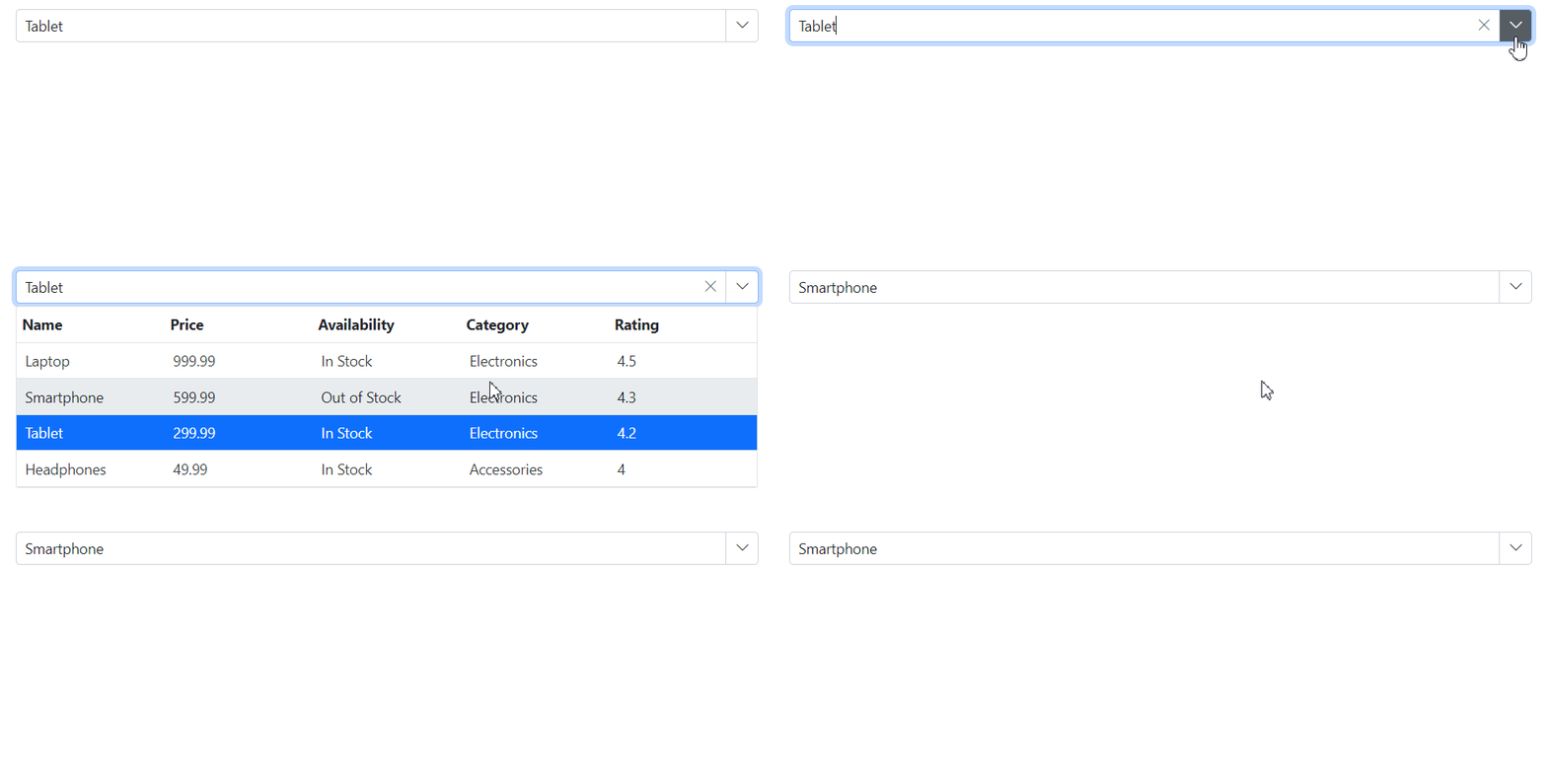
The following events are used to trigger when opening and closing popup.
PopupOpening event
The PopupOpening event triggers just before the popup opens. Cancel this event to keep the popup closed.
@using Syncfusion.Blazor.MultiColumnComboBox
<SfMultiColumnComboBox @bind-Value="@Value" DataSource="@Products" ValueField="Name" TextField="Name" Placeholder="Select any product" PopupOpening="@HandlePopupOpen"></SfMultiColumnComboBox>
@code {
    public class Product
    {
        public string Name { get; set; }
        public decimal Price { get; set; }
        public string Availability { get; set; }
        public string Category { get; set; }
        public double Rating { get; set; }
    }
    private List<Product> Products = new List<Product>();
    private string Value { get; set; } = "Smartphone";
    protected override Task OnInitializedAsync()
    {
        Products = new List<Product>
        {
            new Product { Name = "Laptop", Price = 999.99m, Availability = "In Stock", Category = "Electronics", Rating = 4.5 },
            new Product { Name = "Smartphone", Price = 599.99m, Availability = "Out of Stock", Category = "Electronics", Rating = 4.3 },
            new Product { Name = "Tablet", Price = 299.99m, Availability = "In Stock", Category = "Electronics", Rating = 4.2 },
            new Product { Name = "Headphones", Price = 49.99m, Availability = "In Stock", Category = "Accessories", Rating = 4.0 }
        };
        return base.OnInitializedAsync();
    }
    private void HandlePopupOpen(PopupOpeningEventArgs args)
    {
        // Here, you can customize your code.
    }
}
PopupOpened event
The PopupOpened event triggers after the popup has opened.
PopupClosing event
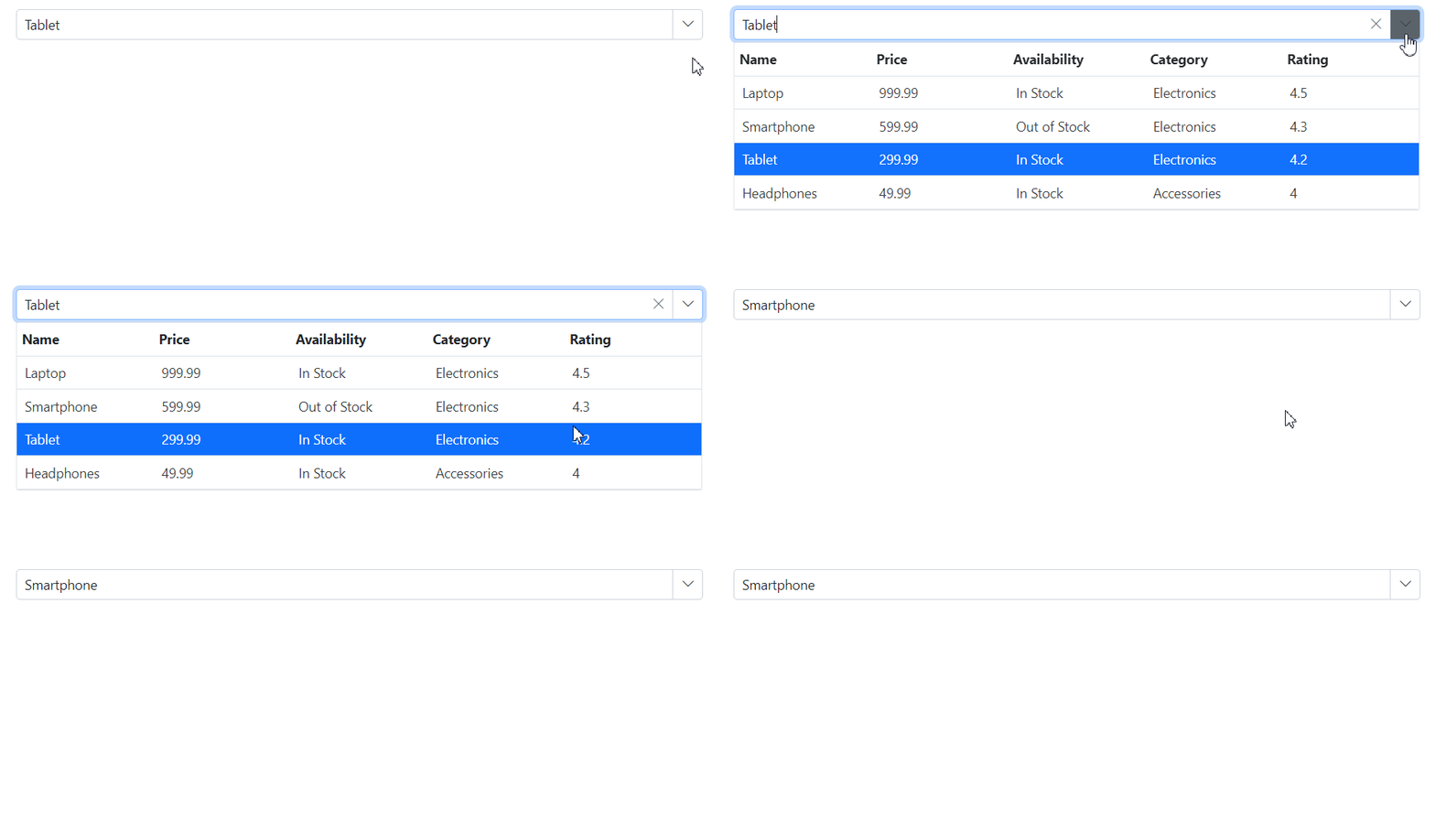
The PopupClosing event triggers just before the popup closes. Cancel this event to keep the popup open.
@using Syncfusion.Blazor.MultiColumnComboBox
<SfMultiColumnComboBox @bind-Value="@Value" DataSource="@Products" ValueField="Name" TextField="Name" Placeholder="Select any product" PopupClosing="@HandlePopupClose"></SfMultiColumnComboBox>
@code {
    public class Product
    {
        public string Name { get; set; }
        public decimal Price { get; set; }
        public string Availability { get; set; }
        public string Category { get; set; }
        public double Rating { get; set; }
    }
    private List<Product> Products = new List<Product>();
    private string Value { get; set; } = "Smartphone";
    protected override Task OnInitializedAsync()
    {
        Products = new List<Product>
        {
            new Product { Name = "Laptop", Price = 999.99m, Availability = "In Stock", Category = "Electronics", Rating = 4.5 },
            new Product { Name = "Smartphone", Price = 599.99m, Availability = "Out of Stock", Category = "Electronics", Rating = 4.3 },
            new Product { Name = "Tablet", Price = 299.99m, Availability = "In Stock", Category = "Electronics", Rating = 4.2 },
            new Product { Name = "Headphones", Price = 49.99m, Availability = "In Stock", Category = "Accessories", Rating = 4.0 }
        };
        return base.OnInitializedAsync();
    }
    private void HandlePopupClose(PopupClosingEventArgs args)
    {
        // Here, you can customize your code.
    }
}
PopupClosed event
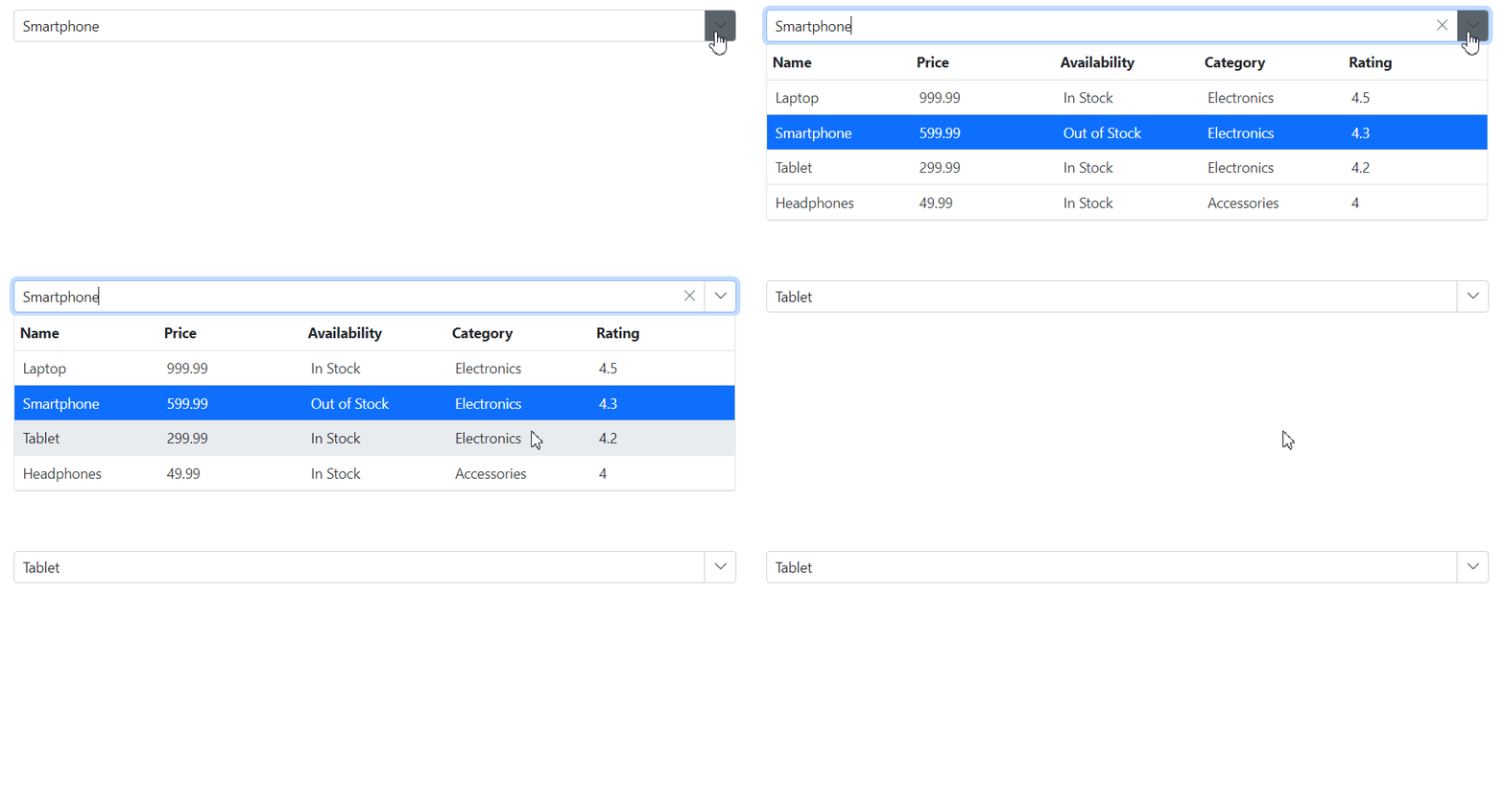
The PopupClosed event triggers after the popup has closed.
@using Syncfusion.Blazor.MultiColumnComboBox

<SfMultiColumnComboBox @bind-Value="@Value" DataSource="@Products" ValueField="Name" TextField="Name" Placeholder="Select any product" PopupClosed="@ClosedHandler"></SfMultiColumnComboBox>
@code {
    public class Product
    {
        public string Name { get; set; }
        public decimal Price { get; set; }
        public string Availability { get; set; }
        public string Category { get; set; }
        public double Rating { get; set; }
    }
    private List<Product> Products = new List<Product>();
    private string Value { get; set; } = "Smartphone";
    protected override Task OnInitializedAsync()
    {
        Products = new List<Product>
        {
            new Product { Name = "Laptop", Price = 999.99m, Availability = "In Stock", Category = "Electronics", Rating = 4.5 },
            new Product { Name = "Smartphone", Price = 599.99m, Availability = "Out of Stock", Category = "Electronics", Rating = 4.3 },
            new Product { Name = "Tablet", Price = 299.99m, Availability = "In Stock", Category = "Electronics", Rating = 4.2 },
            new Product { Name = "Headphones", Price = 49.99m, Availability = "In Stock", Category = "Accessories", Rating = 4.0 }
        };
        return base.OnInitializedAsync();
    }
    private void ClosedHandler(object e)
    {
        // Here, you can customize your code.
    }
}
Popup height based on available space
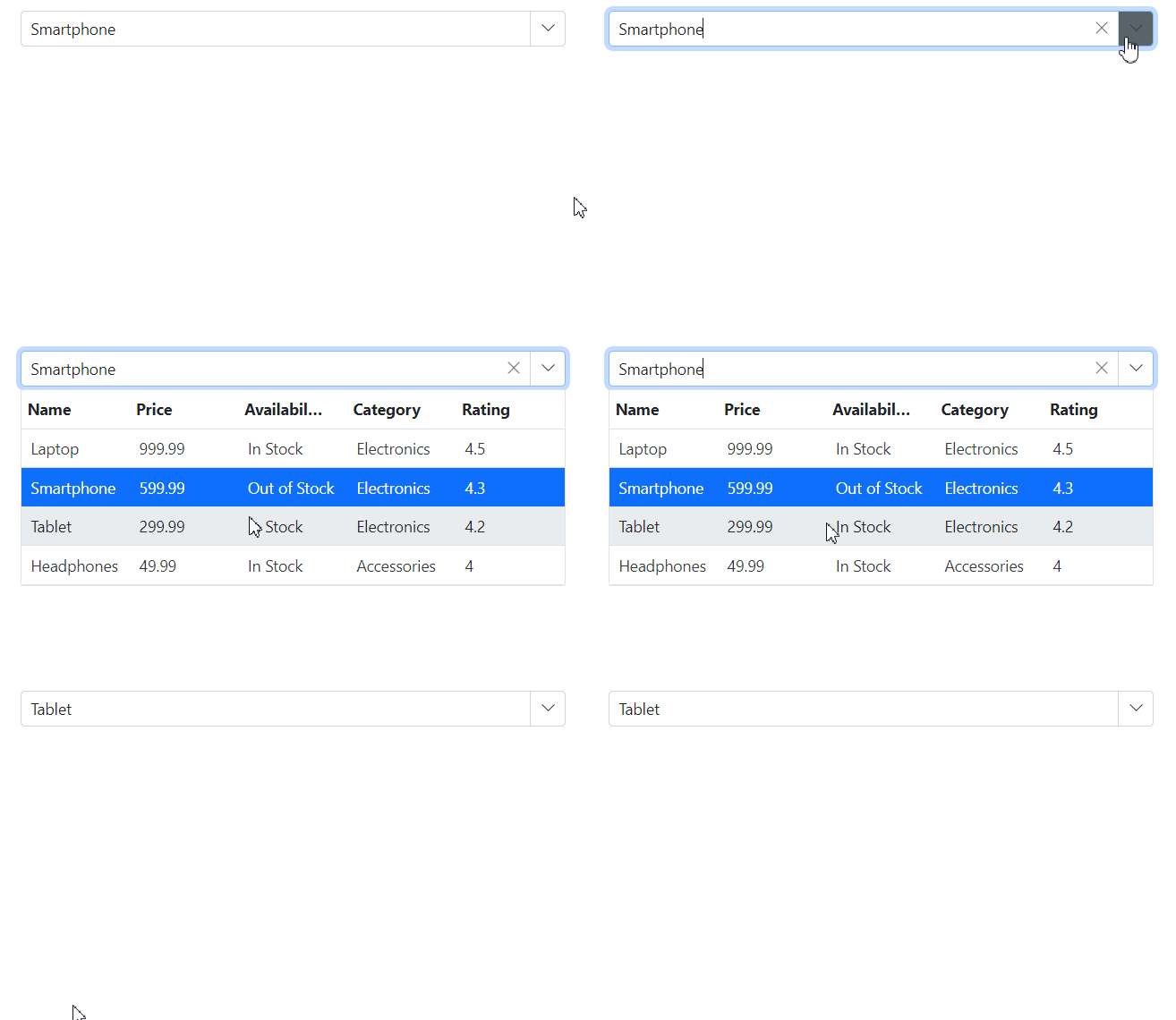
Adjust the popup height dynamically based on available viewport space by handling the window resize event and updating the popup height accordingly. Place the script in a layout or host page and ensure the element IDs in the script match the component instance.
@using Syncfusion.Blazor.MultiColumnComboBox
@inject IJSRuntime JsRuntime
<SfMultiColumnComboBox ID="multicolumncombobox" @bind-Value="@Value" DataSource="@Products" ValueField="Name" TextField="Name" Placeholder="Select any product"></SfMultiColumnComboBox>
@code {
    public class Product
    {
        public string Name { get; set; }
        public decimal Price { get; set; }
        public string Availability { get; set; }
        public string Category { get; set; }
        public double Rating { get; set; }
    }
    private List<Product> Products = new List<Product>();
    private string Value { get; set; } = "Smartphone";
    protected override Task OnInitializedAsync()
    {
        Products = new List<Product>
        {
            new Product { Name = "Laptop", Price = 999.99m, Availability = "In Stock", Category = "Electronics", Rating = 4.5 },
            new Product { Name = "Smartphone", Price = 599.99m, Availability = "Out of Stock", Category = "Electronics", Rating = 4.3 },
            new Product { Name = "Tablet", Price = 299.99m, Availability = "In Stock", Category = "Electronics", Rating = 4.2 },
            new Product { Name = "Headphones", Price = 49.99m, Availability = "In Stock", Category = "Accessories", Rating = 4.0 }
        };
        return base.OnInitializedAsync();
    }
}
<script>
    window.addEventListener("resize", function (e) {
        var wrapper = document.getElementById("multicolumncombobox").parentElement;
        var popupEle = document.getElementById("multicolumncombobox_popup");
        var topVal = wrapper.getBoundingClientRect().top;
        window.innerHeight - topVal;
        if (popupEle) {
            popupEle.style.maxHeight = (window.innerHeight - topVal-50) + "px";
            popupEle.style.height = (window.innerHeight - topVal-50) + "px";

        }
    })
</script>