How can I help you?
Popup Setting in MultiSelect
4 Nov 202516 minutes to read
Popup resize
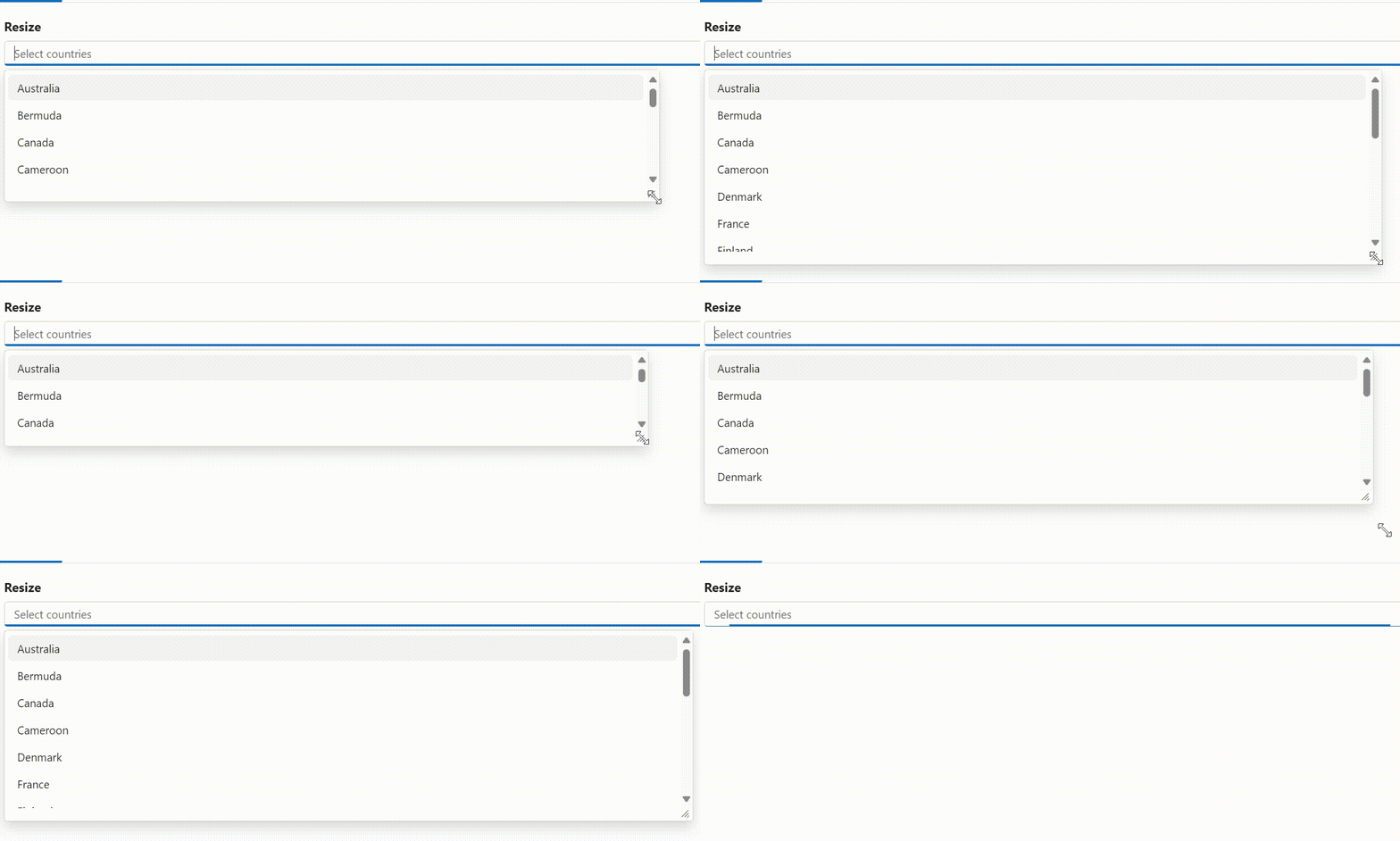
Dynamically adjust the size of the popup in the MultiSelect component by using the AllowResize property. When enabled, users can resize the popup, improving visibility and control, with the resized dimensions being retained across sessions for a consistent user experience.
@using Syncfusion.Blazor.DropDowns;

<SfMultiSelect TValue="string[]" TItem="Countries" Placeholder="e.g. Australia" DataSource="@Country" AllowResize="true">
    <MultiSelectFieldSettings Text="Name" Value="Code"></MultiSelectFieldSettings>
</SfMultiSelect>

@code{

    public class Countries
    {
        public string Name { get; set; }
        public string Code { get; set; }
    }

    private List<Countries> Country = new List<Countries>
    {
        new Countries() { Name = "Australia", Code = "AU" },
        new Countries() { Name = "Bermuda", Code = "BM" },
        new Countries() { Name = "Canada", Code = "CA" },
        new Countries() { Name = "Cameroon", Code = "CM" },
        new Countries() { Name = "Denmark", Code = "DK" },
        new Countries() { Name = "France", Code = "FR" },
        new Countries() { Name = "Finland", Code = "FI" },
        new Countries() { Name = "Germany", Code = "DE" },
        new Countries() { Name = "Greenland", Code = "GL" },
        new Countries() { Name = "Hong Kong", Code = "HK" },
        new Countries() { Name = "India", Code = "IN" },
        new Countries() { Name = "Italy", Code = "IT" },
        new Countries() { Name = "Japan", Code = "JP" },
        new Countries() { Name = "Mexico", Code = "MX" },
        new Countries() { Name = "Norway", Code = "NO" },
        new Countries() { Name = "Poland", Code = "PL" },
        new Countries() { Name = "Switzerland", Code = "CH" },
        new Countries() { Name = "United Kingdom", Code = "GB" },
        new Countries() { Name = "United States", Code = "US" }
    };
}
Change the PopupHeight
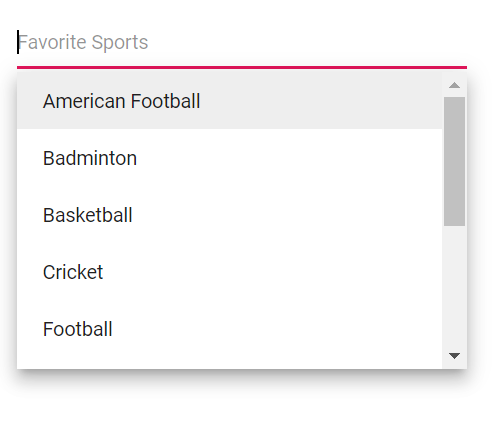
Use the PopupHeight property to change the height of the popup. The default value of the PopupHeight is 300px.
@using Syncfusion.Blazor.DropDowns;

<SfMultiSelect TValue="string[]" TItem="Games" Placeholder="Favorite Sports" DataSource="@LocalData" PopupHeight="@PopupHeight" >
    <MultiSelectFieldSettings Text="Text" Value="ID"></MultiSelectFieldSettings>
</SfMultiSelect>

@code {

    public class Games
    {
        public string ID { get; set; }
        public string Text { get; set; }
    }
    List<Games> LocalData = new List<Games> {
    new Games() { ID= "Game1", Text= "American Football" },
    new Games() { ID= "Game2", Text= "Badminton" },
    new Games() { ID= "Game3", Text= "Basketball" },
    new Games() { ID= "Game4", Text= "Cricket" },
    new Games() { ID= "Game5", Text= "Football" },
    new Games() { ID= "Game6", Text= "Golf" },
    new Games() { ID= "Game7", Text= "Hockey" },
    new Games() { ID= "Game8", Text= "Rugby"},
    new Games() { ID= "Game9", Text= "Snooker" },
    new Games() { ID= "Game10", Text= "Tennis"},
    };

    public string PopupHeight { get; set; } = "200px";

}
Change the PopupWidth
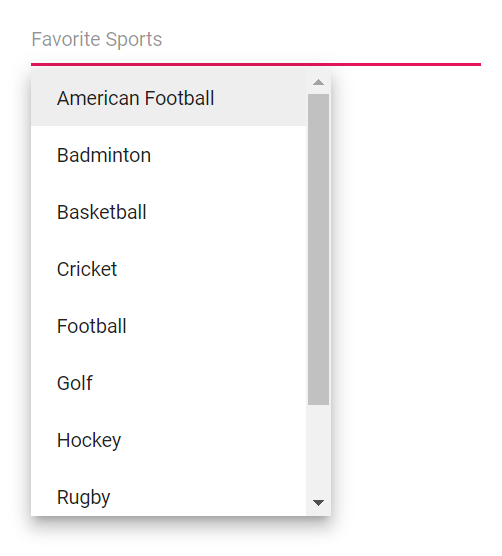
To customize only the popup width, use the PopupWidth property. The default value of the PopupWidth is 100%. If popup width unspecified, it sets based on the width of the MultiSelect component.
@using Syncfusion.Blazor.DropDowns;

<SfMultiSelect TValue="string[]" TItem="Games" Placeholder="Favorite Sports" DataSource="@LocalData" PopupWidth="@PopupWidth">
    <MultiSelectFieldSettings Text="Text" Value="ID"></MultiSelectFieldSettings>
</SfMultiSelect>

@code {

    public class Games
    {
        public string ID { get; set; }
        public string Text { get; set; }
    }
    List<Games> LocalData = new List<Games> {
    new Games() { ID= "Game1", Text= "American Football" },
    new Games() { ID= "Game2", Text= "Badminton" },
    new Games() { ID= "Game3", Text= "Basketball" },
    new Games() { ID= "Game4", Text= "Cricket" },
    new Games() { ID= "Game5", Text= "Football" },
    new Games() { ID= "Game6", Text= "Golf" },
    new Games() { ID= "Game7", Text= "Hockey" },
    new Games() { ID= "Game8", Text= "Rugby"},
    new Games() { ID= "Game9", Text= "Snooker" },
    new Games() { ID= "Game10", Text= "Tennis"},
    };

    public string PopupWidth { get; set; } = "200px";

}
Change the popup z-index
Customize the ZIndex value of the popup element to control its stacking order. The default value is 1000.
Show popup on initial loading
Show the popup on initial load by calling ShowPopupAsync() in the Created event.
@using Syncfusion.Blazor.DropDowns;

<SfMultiSelect @ref="multiObj" TValue="string[]" TItem="Games" Placeholder="Select a game" DataSource="@LocalData">
    <MultiSelectFieldSettings Value="ID" Text="Text"></MultiSelectFieldSettings>
    <MultiSelectEvents TValue="string[]" TItem="Games" Created="CreateHanlder"></MultiSelectEvents>
</SfMultiSelect>

@code {

    SfMultiSelect<string[], Games> multiObj;
public class Games
{
public string ID { get; set; }
public string Text { get; set; }
}

List<Games> LocalData = new List<Games> {
new Games() { ID= "Game1", Text= "American Football" },
new Games() { ID= "Game2", Text= "Badminton" },
new Games() { ID= "Game3", Text= "Basketball" },
new Games() { ID= "Game4", Text= "Cricket" },
new Games() { ID= "Game5", Text= "Football" },
new Games() { ID= "Game6", Text= "Golf" },
new Games() { ID= "Game7", Text= "Hockey" },
new Games() { ID= "Game8", Text= "Rugby"},
new Games() { ID= "Game9", Text= "Snooker" },
new Games() { ID= "Game10", Text= "Tennis"},
};

public void CreateHanlder()
{
    multiObj.ShowPopupAsync();
}

}
Preventing opening and closing
Prevent the popup from opening or closing by setting BeforeOpenEventArgs.Cancel or PopupEventArgs.Cancel to true within the corresponding OnOpen and OnClose events.
@using Syncfusion.Blazor.DropDowns;

<SfMultiSelect @ref="MultiObj" TValue="string[]" TItem="Games" Placeholder="Select a game" Width="300px" DataSource="@LocalData" >
    <MultiSelectFieldSettings Value="ID" Text="Text"></MultiSelectFieldSettings>
    <MultiSelectEvents TValue="string[]" TItem="Games" OnOpen="OnOpenHandler" ></MultiSelectEvents>
</SfMultiSelect>

<SfMultiSelect @ref="MultiObj" TValue="string[]" TItem="Games" Placeholder="Select a game" Width="300px" DataSource="@LocalData" >
    <MultiSelectFieldSettings Value="ID" Text="Text"></MultiSelectFieldSettings>
    <MultiSelectEvents TValue="string[]" TItem="Games" OnClose="OnCloseHandler" ></MultiSelectEvents>
</SfMultiSelect>

@code {
    SfMultiSelect<string[], Games> MultiObj;
    public class Games
    {
        public string ID { get; set; }
        public string Text { get; set; }
    }

    List<Games> LocalData = new List<Games> {
        new Games() { ID= "Game1", Text= "American Football" },
        new Games() { ID= "Game2", Text= "Badminton" },
        new Games() { ID= "Game3", Text= "Basketball" },
        new Games() { ID= "Game4", Text= "Cricket" },
        new Games() { ID= "Game5", Text= "Football" },
        new Games() { ID= "Game6", Text= "Golf" },
        new Games() { ID= "Game7", Text= "Hockey" },
        new Games() { ID= "Game8", Text= "Rugby"},
        new Games() { ID= "Game9", Text= "Snooker" },
        new Games() { ID= "Game10", Text= "Tennis"},
    };

    private void OnOpenHandler(BeforeOpenEventArgs args)
    {
        args.Cancel = true;
    }
    private void OnCloseHandler(PopupEventArgs args)
    {
        args.Cancel = true;
    }

}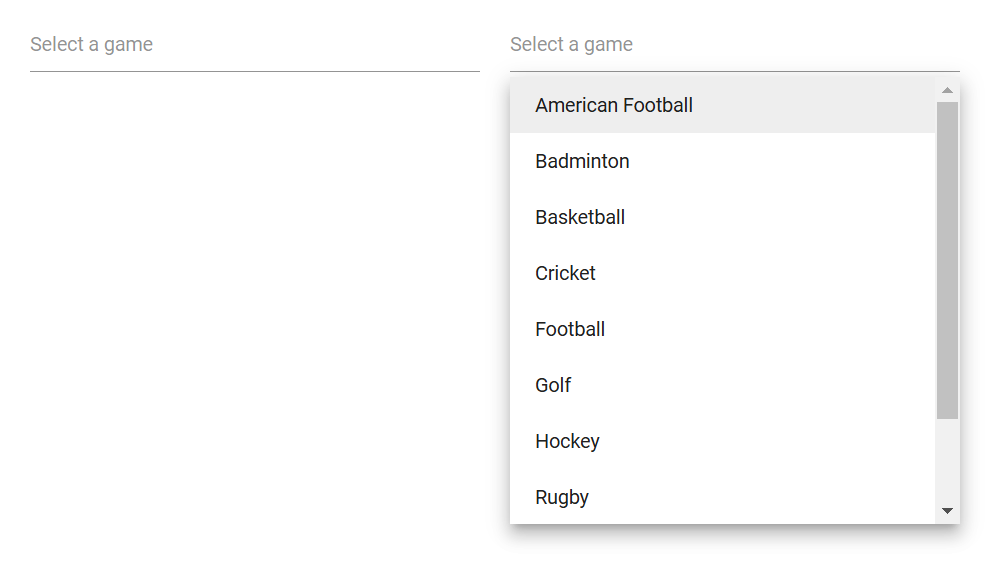
The following events are raised when opening and closing the popup.
OnOpen event
The OnOpen event triggers before the popup opens. If canceled, the popup remains closed.
@using Syncfusion.Blazor.DropDowns

<SfMultiSelect TItem="GameFields" TValue="string[]" DataSource="@Games">
    <MultiSelectEvents TItem="GameFields" TValue="string[]" OnOpen="@OnOpenHandler"></MultiSelectEvents>
    <MultiSelectFieldSettings Text="Text" Value="ID"></MultiSelectFieldSettings>
</SfMultiSelect>

@code {
    public class GameFields
    {
        public string ID { get; set; }
        public string Text { get; set; }
    }

    private List<GameFields> Games = new List<GameFields>() {
        new GameFields(){ ID= "Game1", Text= "American Football" },
        new GameFields(){ ID= "Game2", Text= "Badminton" },
        new GameFields(){ ID= "Game3", Text= "Basketball" },
        new GameFields(){ ID= "Game4", Text= "Cricket" },
     };

    private void OnOpenHandler(BeforeOpenEventArgs args)
    {
        // Here you can customize your code
    }
}
Opened event
The Opened event triggers after the popup has opened.
@using Syncfusion.Blazor.DropDowns

<SfMultiSelect TItem="GameFields" TValue="string[]" AllowFiltering="true" DataSource="@Games">
    <MultiSelectEvents TItem="GameFields" TValue="string[]" Opened="@Openedhandler"></MultiSelectEvents>
    <MultiSelectFieldSettings Text="Text" Value="ID"></MultiSelectFieldSettings>
</SfMultiSelect>

@code {
    public class GameFields
    {
        public string ID { get; set; }
        public string Text { get; set; }
    }

    private List<GameFields> Games = new List<GameFields>() {
        new GameFields(){ ID= "Game1", Text= "American Football" },
        new GameFields(){ ID= "Game2", Text= "Badminton" },
        new GameFields(){ ID= "Game3", Text= "Basketball" },
        new GameFields(){ ID= "Game4", Text= "Cricket" },
     };

    private void Openedhandler(PopupEventArgs args)
    {
        // Here you can customize your code
    }
}
OnClose event
The OnClose event triggers before the popup closes. If canceled, the popup remains open.
@using Syncfusion.Blazor.DropDowns

<SfMultiSelect TItem="GameFields" TValue="string[]" DataSource="@Games">
    <MultiSelectEvents TItem="GameFields" TValue="string[]" OnClose="@OnCloseHandler"></MultiSelectEvents>
    <MultiSelectFieldSettings Text="Text" Value="ID"></MultiSelectFieldSettings>
</SfMultiSelect>

@code {
    public class GameFields
    {
        public string ID { get; set; }
        public string Text { get; set; }
    }

    private List<GameFields> Games = new List<GameFields>() {
        new GameFields(){ ID= "Game1", Text= "American Football" },
        new GameFields(){ ID= "Game2", Text= "Badminton" },
        new GameFields(){ ID= "Game3", Text= "Basketball" },
        new GameFields(){ ID= "Game4", Text= "Cricket" },
     };

    private void OnCloseHandler(PopupEventArgs args)
    {
        // Here you can customize your code
    }
}
Closed event
The Closed event triggers after the popup has closed.
@using Syncfusion.Blazor.DropDowns

<SfMultiSelect TItem="GameFields" TValue="string[]" DataSource="@Games">
    <MultiSelectEvents TItem="GameFields" TValue="string[]" Closed="@CloseHandler"></MultiSelectEvents>
    <MultiSelectFieldSettings Text="Text" Value="ID"></MultiSelectFieldSettings>
</SfMultiSelect>

@code {
    public class GameFields
    {
        public string ID { get; set; }
        public string Text { get; set; }
    }

    private List<GameFields> Games = new List<GameFields>() {
        new GameFields(){ ID= "Game1", Text= "American Football" },
        new GameFields(){ ID= "Game2", Text= "Badminton" },
        new GameFields(){ ID= "Game3", Text= "Basketball" },
        new GameFields(){ ID= "Game4", Text= "Cricket" },
     };

    private void CloseHandler(ClosedEventArgs args)
    {
        // Here you can customize your code
    }
}
Popup height based on available space
Adjust the popup height based on the available viewport space by handling the window resize event and updating the popup’s height accordingly.
@using Syncfusion.Blazor.DropDowns;


<SfMultiSelect TValue="string[]"
                TItem="GameField"
                ID="multiselect"
                Width="300px"
                Placeholder="Supervisor"
                DataSource="@Games">
    <MultiSelectFieldSettings Value="id" Text="text"></MultiSelectFieldSettings>
</SfMultiSelect>


@code{

public GameField CurrentSelection { get; set; }

public class GameField
{
    public string id { get; set; }
    public string text { get; set; }
    public bool isAvailable { get; set; }
}

List<GameField> Games = new List<GameField>() {
    new GameField(){ id= "Game1", text= "American Football", isAvailable = true },
    new GameField(){ id= "Game2", text= "Badminton", isAvailable = false },
    new GameField(){ id= "Game3", text= "Basketball", isAvailable = false  },
    new GameField(){ id= "Game4", text= "Cricket", isAvailable = true  },
    new GameField(){ id= "Game5", text= "Football", isAvailable = true  },
    new GameField(){ id= "Game6", text= "Golf", isAvailable = false  },
    new GameField(){ id= "Game7", text= "Hockey", isAvailable = true  },
    new GameField(){ id= "Game8", text= "Rugby", isAvailable = true },
    new GameField(){ id= "Game9", text= "Snooker", isAvailable = false },
    new GameField(){ id= "Game10", text= "Tennis", isAvailable = false }
};


}<script>
window.addEventListener("resize", function (e) {
var wrapper = document.getElementById("multiselect").parentElement;
var popupEle = document.getElementById("multiselect_popup");
var topVal = wrapper.getBoundingClientRect().top;
window.innerHeight - topVal;
if (popupEle) {
popupEle.style.maxHeight = (window.innerHeight - topVal-50) + "px";
popupEle.style.height = (window.innerHeight - topVal-50) + "px";
}
})
</script>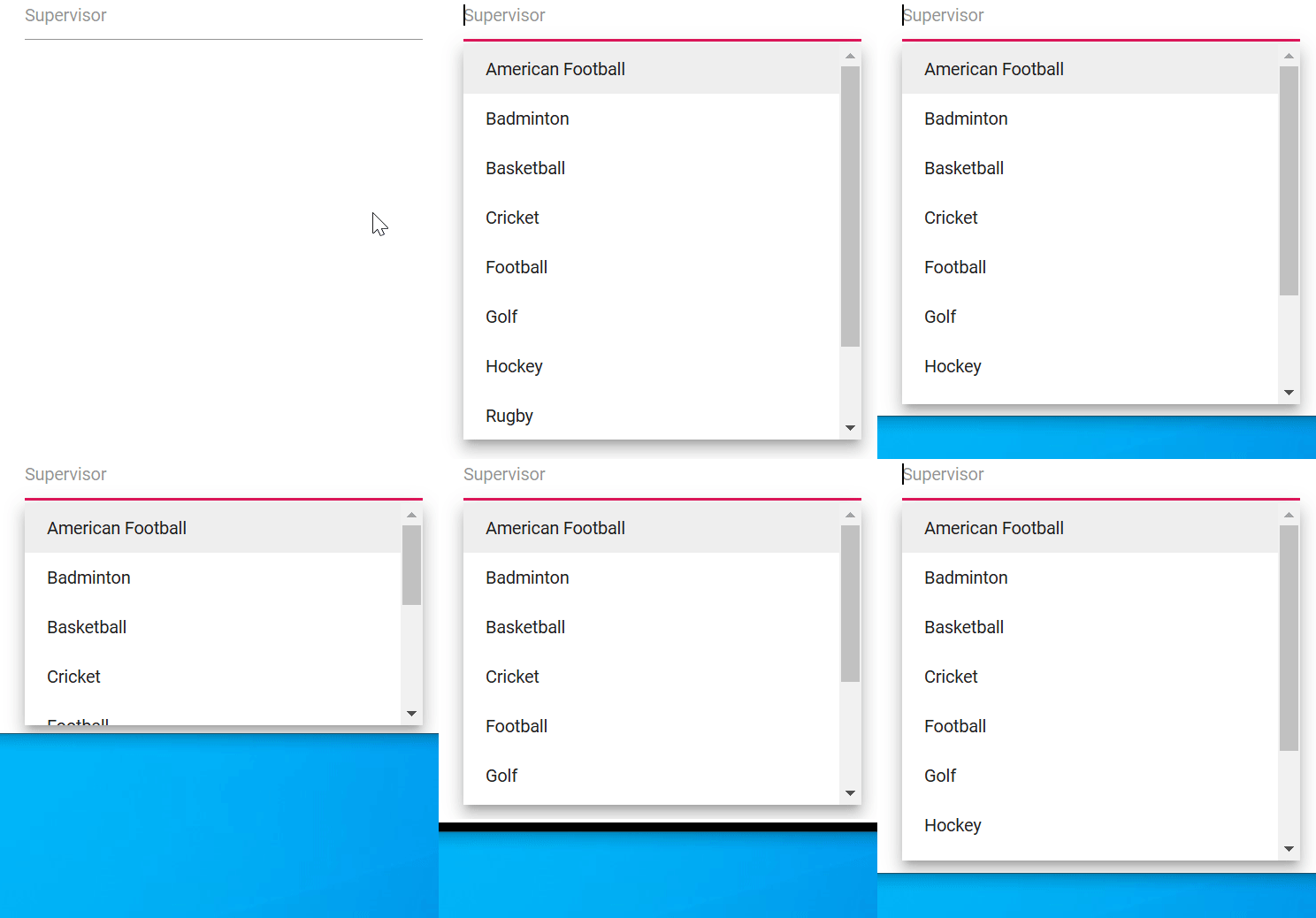
Programmatically opening and closing popup
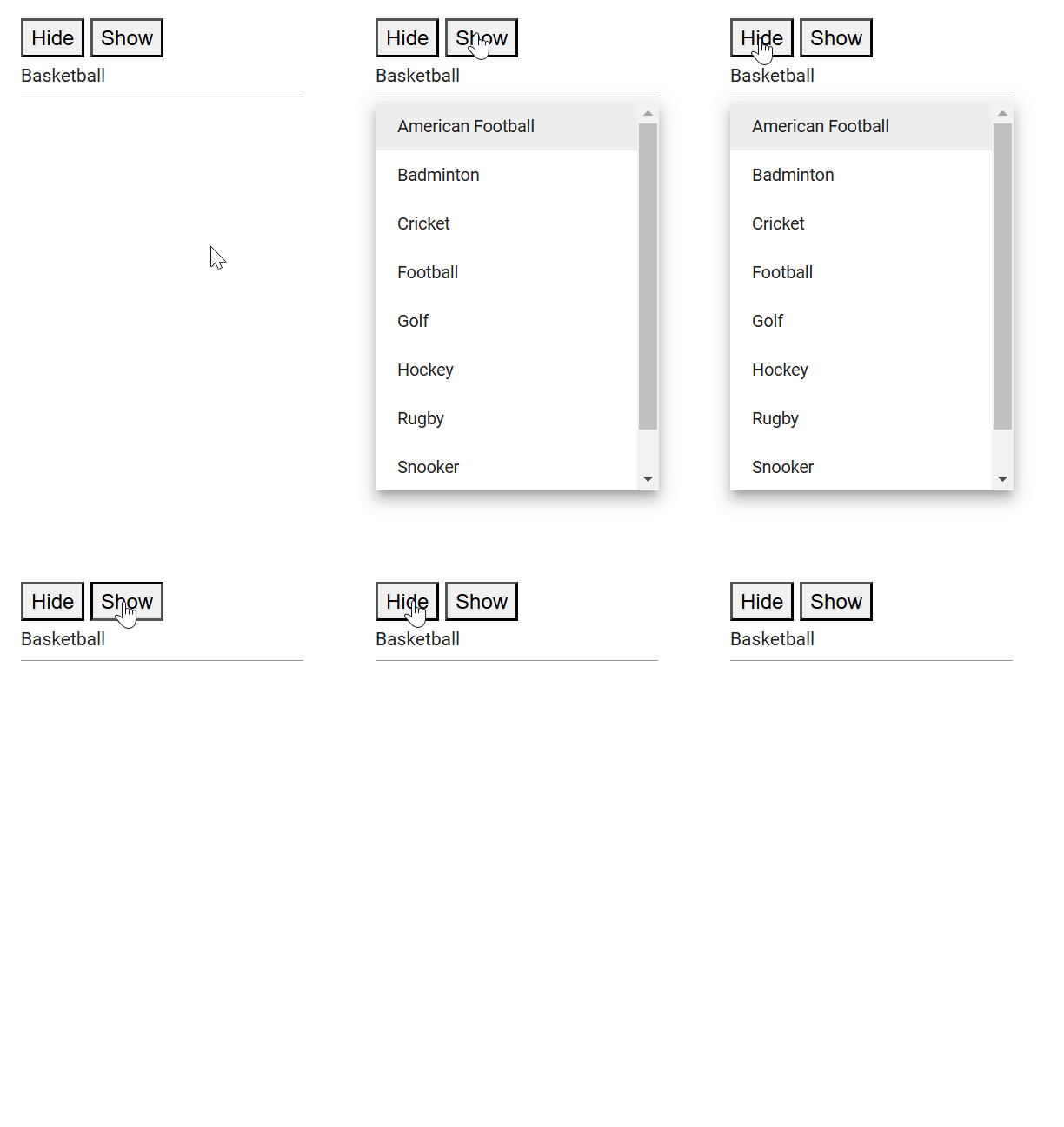
Open and close the popup programmatically by calling ShowPopupAsync() and HidePopupAsync() on the component instance. For example, bind button click events to these methods to toggle the popup.
@using Syncfusion.Blazor.DropDowns;


<button @onclick="Hide">Hide</button>

<button @onclick="Show">Show</button>

<SfMultiSelect  @ref="MultiSelect" TValue="string[]" TItem="Games" Placeholder="Select a game" DataSource="@LocalData" @bind-Value="@GameValue" >
    <MultiSelectFieldSettings Value="ID" Text="Text"></MultiSelectFieldSettings>
</SfMultiSelect>

@code {
SfMultiSelect<string[], Games> MultiSelect;

public string[] GameValue { get; set; } = new string[]{"Game3"};

public class Games
{
public string ID { get; set; }
public string Text { get; set; }
}

List<Games> LocalData = new List<Games> {
new Games() { ID= "Game1", Text= "American Football" },
new Games() { ID= "Game2", Text= "Badminton" },
new Games() { ID= "Game3", Text= "Basketball" },
new Games() { ID= "Game4", Text= "Cricket" },
new Games() { ID= "Game5", Text= "Football" },
new Games() { ID= "Game6", Text= "Golf" },
new Games() { ID= "Game7", Text= "Hockey" },
new Games() { ID= "Game8", Text= "Rugby"},
new Games() { ID= "Game9", Text= "Snooker" },
new Games() { ID= "Game10", Text= "Tennis"},
};

public void Show ()
{
this.MultiSelect.ShowPopupAsync();
}

public void Hide ()
{
this.MultiSelect.HidePopupAsync();
}

}