Value Binding in Blazor MultiSelect Dropdown
14 Aug 202612 minutes to read
Value binding is the process of passing values between a component and its parent. There are two methods for binding values. These are:
- @bind-Value binding
Bind value binding
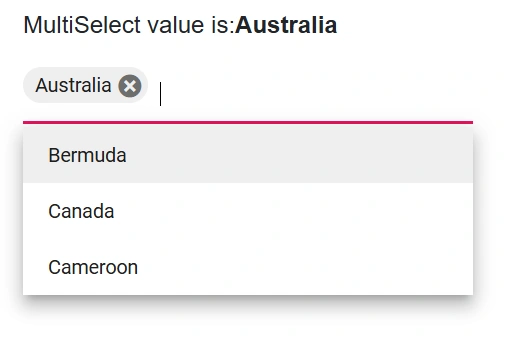
Value binding is achieved by using the @bind-Value attribute, and it supports string, int, enum, bool, and complex types. When the component value changes, the bound variable used with @bind-Value is updated everywhere it is referenced. For binding to work correctly, the value assigned to @bind-Value must correspond to the field mapped to MultiSelectFieldSettings.Value.
- TItem - Specifies the type of the data items in the MultiSelect component.
- TValue - Specifies the type of the value field (the selection type). The component’s Value is an array of this type.
@using Syncfusion.Blazor.DropDowns

@foreach (var SelectedValue in MultiValue)
{
<p>MultiSelect value is:<strong>@SelectedValue</strong></p>
}

<SfMultiSelect TValue="string[]" Placeholder="e.g. Australia" TItem="Countries" @bind-Value="@MultiValue" DataSource="@Country" Width="300px">
    <MultiSelectFieldSettings Value="Name" ></MultiSelectFieldSettings>
</SfMultiSelect>

@code {

    public string[] MultiValue { get; set; } = new string[] {"Australia" };

    public class Countries
    {
        public string Name { get; set; }

        public string Code { get; set; }
    }

    List<Countries> Country = new List<Countries>
    {
        new Countries() { Name = "Australia", Code = "AU" },
        new Countries() { Name = "Bermuda", Code = "BM" },
        new Countries() { Name = "Canada", Code = "CA" },
        new Countries() { Name = "Cameroon", Code = "CM" },
    };
}
Text and value
The MultiSelectFieldSettings.Value and MultiSelectFieldSettings.Text properties map to the corresponding fields of the data model. The Value field maintains the unique value for each item in the data source, and the Text field provides the displayed text for list items in the popup.
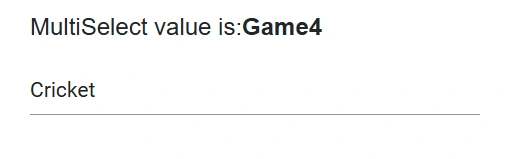
The following example demonstrates Text and Value field mapping. For instance, the selected item displays Badminton (Text), while the Value field holds Game2 (ID).
@using Syncfusion.Blazor.DropDowns
<div style="margin-bottom: 20px; font-size: 16px;">
    <strong>MultiSelect value is:</strong><strong style="color: #0066cc;">@(SelectedValue != null && SelectedValue.Length > 0 ? string.Join(", ", SelectedValue) : "")</strong>
</div>

<SfMultiSelect TValue="string[]" TItem="Games" Placeholder="Select a game" DataSource="@LocalData" @bind-Value="@SelectedValue">
    <MultiSelectFieldSettings Text="Text" Value="ID"></MultiSelectFieldSettings>
    <MultiSelectEvents TValue="string[]" TItem="Games" ValueChange="OnValueChange"></MultiSelectEvents>
</SfMultiSelect>


@code {
    private string[] SelectedValue;

    public class Games
    {
        public string ID { get; set; }
        public string Text { get; set; }
    }

    List<Games> LocalData = new List<Games>
    {
        new Games() { ID = "Game1", Text = "American Football" },
        new Games() { ID = "Game2", Text = "Badminton" },
        new Games() { ID = "Game3", Text = "Basketball" },
        new Games() { ID = "Game4", Text = "Cricket" },
        new Games() { ID = "Game5", Text = "Football" },
        new Games() { ID = "Game6", Text = "Golf" },
        new Games() { ID = "Game7", Text = "Hockey" },
        new Games() { ID = "Game8", Text = "Rugby" },
        new Games() { ID = "Game9", Text = "Snooker" },
        new Games() { ID = "Game10", Text = "Tennis" },
    };

    public void OnValueChange ( MultiSelectChangeEventArgs<string[]> args )
    {
        SelectedValue = args.Value;
    }
}
Primitive type binding
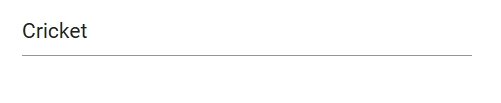
The MultiSelect supports arrays of primitive data such as strings and numbers. Bind the value of primitive data to the @bind-Value attribute of the MultiSelect.
The following example demonstrates an array of strings as the data source.
@using Syncfusion.Blazor.DropDowns

<SfMultiSelect TValue="string[]" TItem="string" Placeholder="Select a game" DataSource="@data" @bind-Value="@ComboBoxValue" Width="300px"></SfMultiSelect>

@code {
    public string[] ComboBoxValue { get; set; } = new string[] { "Cricket" };
public string[] data = { "Badminton", "Basketball", "Cricket", "Football", "Golf", "Hockey" };
}
The following example demonstrates an array of integers as the data source.
@using Syncfusion.Blazor.DropDowns


<SfMultiSelect TValue="int?[]" TItem="int?" Placeholder="Select a game" DataSource="@data" Width="300px" @bind-Value="ComboBoxValue"></SfMultiSelect>

@code {
public int?[] ComboBoxValue { get; set; } = new int?[] { 1022 };
public int?[] data = { 1011, 1022, 1044, 1066 };
}
Object binding
Bind object data to the @bind-Value attribute and map the value field via MultiSelectFieldSettings.Value. Set TItem to the data item type and TValue to the value field type.
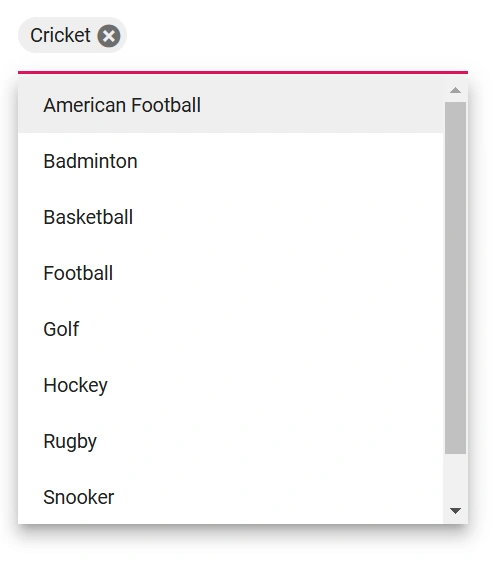
In the following example, the ID column is mapped to the Value field, and TValue is set to the data type of the ID field (string).
@using Syncfusion.Blazor.DropDowns

<SfMultiSelect TValue="Games[]" TItem="Games" Width="300px" Placeholder="Select games" DataSource="@LocalData" @bind-Value="SelectedGames">
    <MultiSelectFieldSettings Value="ID" Text="Name"></MultiSelectFieldSettings>
</SfMultiSelect>

@code {

    public Games[] SelectedGames { get; set; } = new Games[] { new Games() { ID = "Game4", Name = "Cricket" } };

    public class Games
    {
        public string ID { get; set; }
        public string Name { get; set; }
    }

    List<Games> LocalData = new List<Games>
    {
        new Games() { ID= "Game1", Name= "American Football" },
        new Games() { ID= "Game2", Name= "Badminton" },
        new Games() { ID= "Game3", Name= "Basketball" },
        new Games() { ID= "Game4", Name= "Cricket" },
        new Games() { ID= "Game5", Name= "Football" },
        new Games() { ID= "Game6", Name= "Golf" },
        new Games() { ID= "Game7", Name= "Hockey" },
        new Games() { ID= "Game8", Name= "Rugby"},
        new Games() { ID= "Game9", Name= "Snooker" },
        new Games() { ID= "Game10", Name= "Tennis"},
    };
}
Enum binding
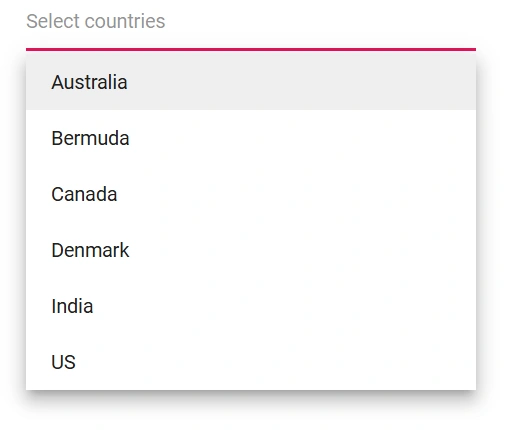
Bind enum values to the @bind-Value attribute of the MultiSelect component. The following example shows how to use enum data and obtain the selected value(s).
@using Syncfusion.Blazor.DropDowns

<SfMultiSelect TValue="Values[]" TItem="string" Placeholder="Select countries" Width="300px" DataSource="@EnumValues" @bind-Value="SelectedValues">
</SfMultiSelect>

@code {

public string[] EnumValues = Enum.GetNames(typeof(Values));
public Values[] SelectedValues { get; set; } = new Values[] { Values.Canada };

public enum Values
{
Australia,
Bermuda,
Canada,
Denmark,
India,
US
}
}
Show or hide clear button
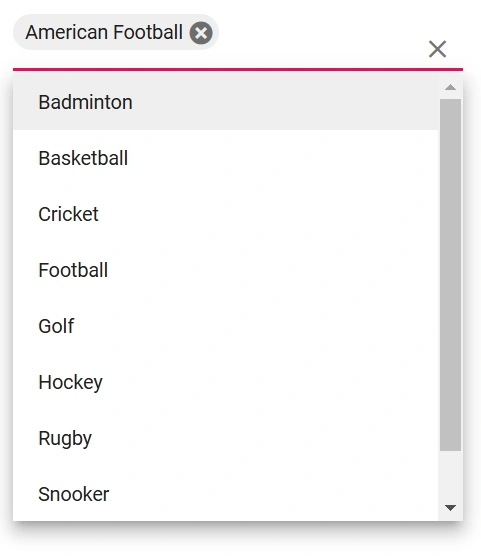
Use the ShowClearButton property to show or hide the clear button. When clicked, the selection is cleared and the bound Value is reset.
NOTE
If
TValueis a non-nullable type, the clear button sets the default value of that type (for example,0forint). IfTValueis a nullable type (for example,int?), the clear button sets the Value tonull.
The following example uses int? as TValue, so clearing sets the value to null.
@using Syncfusion.Blazor.DropDowns

<SfMultiSelect TValue="int?[]" TItem="Games" ShowClearButton=true Width="300px" Placeholder="Select a game" DataSource="@LocalData">
    <MultiSelectFieldSettings Value="ID" Text="Game"></MultiSelectFieldSettings>
</SfMultiSelect>

@code {
    public class Games
    {
        public int? ID { get; set; }
        public string Game { get; set; }
    }
    List<Games> LocalData = new List<Games> {
        new Games() { ID= 1, Game= "American Football" },
        new Games() { ID= 2, Game= "Badminton" },
        new Games() { ID= 3, Game= "Basketball" },
        new Games() { ID= 4, Game= "Cricket" },
        new Games() { ID= 5, Game= "Football" },
        new Games() { ID= 6, Game= "Golf" },
        new Games() { ID= 7, Game= "Hockey" },
        new Games() { ID= 8, Game= "Rugby"},
        new Games() { ID= 9, Game= "Snooker" },
        new Games() { ID= 10, Game= "Tennis"},
    };
}
Dynamically change TItem
The TItem type can be changed dynamically by creating a generic wrapper component using the @typeparam directive. The following example shows how to change TItem dynamically for different data sources.
Creating a generic MultiSelect component
Create a MultiSelect.razor file as a parent component. Add parameters for the List of <TItem> and the bound TValue[].
@using Syncfusion.Blazor.DropDowns;
@typeparam TValue;
@typeparam TItem;

<SfMultiSelect TValue="TValue" Width="300px" TItem="TItem" @bind-Value="@DDLValue" Placeholder="Please select a value" DataSource="@customData">
    <MultiSelectFieldSettings Text="Text" Value="ID"></MultiSelectFieldSettings>
</SfMultiSelect>

@code {
[Parameter]
public List<TItem> customData { get; set; }
[Parameter]
public TValue DDLValue { get; set; }
[Parameter]
public EventCallback<TValue> DDLValueChanged { get; set; }
}
Usage of the generic component with different types
Render the generic MultiSelect with the required TValue and TItem in the respective Razor components.
In this example, the MultiSelect is rendered with TValue as string in Home.razor and with TValue as int? in Counter.razor.
[Home.razor]
<MultiSelect TValue="string[]" TItem="Games" @bind-DDLValue="@value" customData="@LocalData">
</MultiSelect>

@code {
    public string[] value { get; set; } = new string[] { "Game1" };

    public class Games
    {
        public string ID { get; set; }
        public string Text { get; set; }
    }
    List<Games> LocalData = new List<Games>
    {
        new Games() { ID= "Game1", Text= "American Football" },
        new Games() { ID= "Game2", Text= "Badminton" },
        new Games() { ID= "Game3", Text= "Basketball" },
        new Games() { ID= "Game4", Text= "Cricket" },
        new Games() { ID= "Game5", Text= "Football" },
        new Games() { ID= "Game6", Text= "Golf" },
        new Games() { ID= "Game7", Text= "Hockey" },
        new Games() { ID= "Game8", Text= "Rugby"},
        new Games() { ID= "Game9", Text= "Snooker" },
        new Games() { ID= "Game10", Text= "Tennis"},
    };
}
[Counter.razor]
<MultiSelect TValue="int?[]" TItem="Games" @bind-DDLValue="@value" customData="@LocalData">
</MultiSelect>

@code {

    public int?[] value { get; set; } = new int?[] { 3 };
    public class Games
    {
        public int? ID { get; set; }
        public string Text { get; set; }
    }
    List<Games> LocalData = new List<Games>
    {
        new Games() { ID= 1, Text= "American Football" },
        new Games() { ID= 2, Text= "Badminton" },
        new Games() { ID= 3, Text= "Basketball" },
        new Games() { ID= 4, Text= "Cricket" },
        new Games() { ID= 5, Text= "Football" },
        new Games() { ID= 6, Text= "Golf" },
        new Games() { ID= 7, Text= "Hockey" },
        new Games() { ID= 8, Text= "Rugby"},
        new Games() { ID= 9, Text= "Snooker" },
        new Games() { ID= 10, Text= "Tennis"},
    };
}