Types and Icons in Blazor Progress Button
27 Aug 20262 minutes to read
This section describes the available ProgressButton types and how to configure icons for the component.
Types
The types of Blazor Progress Button are as follows:
- Outline Progress Button
- Round Progress Button
- Primary Progress Button
Outline Blazor Progress Button
An outline Progress Button has a border with a transparent background. To create an outline Progress Button, set the CssClass property to e-outline.
@using Syncfusion.Blazor.SplitButtons

<SfProgressButton Content="Outline" EnableProgress="true" CssClass="e-outline e-success">
    <ProgressButtonSpinSettings Position="SpinPosition.Center"></ProgressButtonSpinSettings>
</SfProgressButton>
Round Blazor Progress Button
A round Progress Button is circular and typically displays an icon representing its action. To create a round Progress Button, set the CssClass property to e-round.
@using Syncfusion.Blazor.SplitButtons

<SfProgressButton CssClass="e-round e-small e-success" IconCss="e-icons e-play-icon">
<ProgressButtonSpinSettings Position="SpinPosition.Center"></ProgressButtonSpinSettings>
</SfProgressButton>

<style>
    .e-play-icon::before {
        content: '\e324';
    }
</style>
Primary Blazor Progress Button
A primary Progress Button uses a solid background to emphasize a primary action. To create a primary Progress Button, set the IsPrimary property to true.
@using Syncfusion.Blazor.SplitButtons

<SfProgressButton Content="Primary" IsPrimary="true"></SfProgressButton>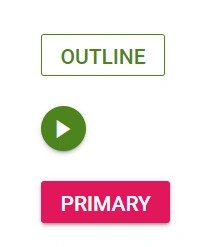
Icons
The IconCss property accepts any of the supported Syncfusion icon classes. See the Syncfusion Blazor Icons reference for the full list of available built-in icons.
IconPosition values
The IconPosition property accepts the following values:
| Value | Description |
|---|---|
Left |
Places the icon to the left of the content (default). |
Right |
Places the icon to the right of the content. |
Top |
Places the icon above the content. |
Bottom |
Places the icon below the content. |
Blazor Progress Button with font icons
The Blazor Progress Button can display an icon to visually represent the action. Assign the IconCss property to e-icons plus the desired icon class. By default, the icon is positioned to the Left. Use IconPosition to change the icon placement.
@using Syncfusion.Blazor.SplitButtons
@using Syncfusion.Blazor.Buttons

<SfProgressButton IconCss="e-icons e-play-icon" IconPosition="IconPosition.Left">PLAY
</SfProgressButton>

<style>
    .e-play-icon::before {
        content: '\e324';
    }
</style>