Quick Toolbars in Blazor Rich Text Editor Component
8 Jul 202618 minutes to read
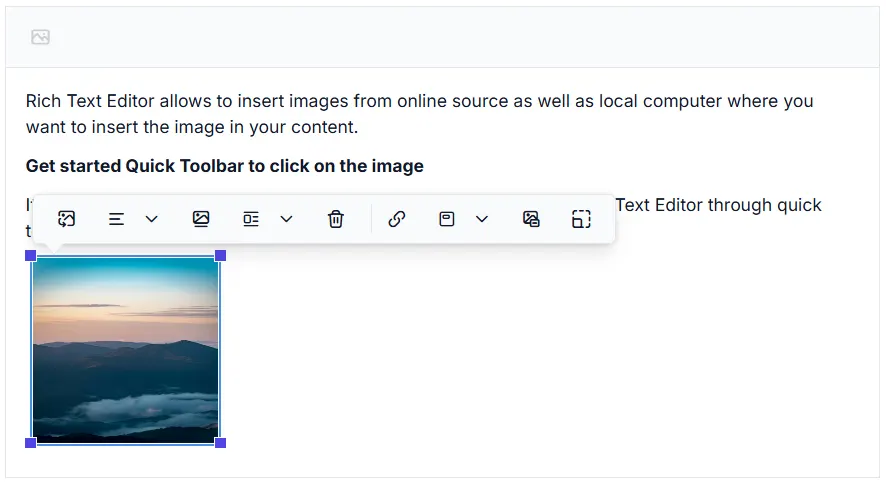
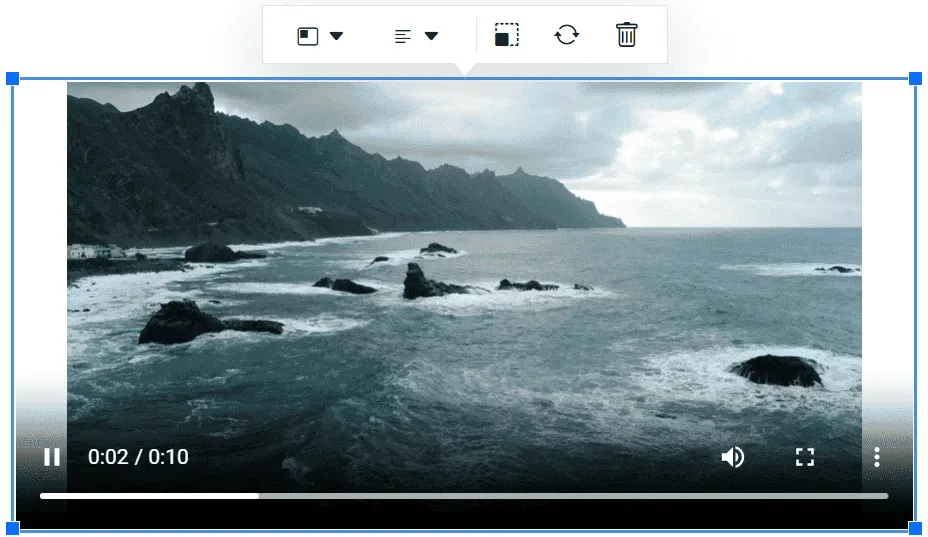
The Rich text editor has quick toolbars that are open as context-menu on clicking the image, link, audio, video and table elements. By default, the below quick toolbar items show on click on the corresponding elements. You can customize the quick toolbar items using the RichTextEditorQuickToolbarSettings property.
| Target Element | Default Quick Toolbar items |
|---|---|
| Image | Replace, Align, WrapText, Caption, Remove, InsertLink, Display, AltText, Dimension |
| Link | Open, Edit, UnLink |
| Table | TableHeader, TableRows, TableColumns, BackgroundColor, TableRemove, Alignments, TableCellVerticalAlign, Styles |
| Audio | AudioReplace, AudioRemove, AudioLayoutOption |
| Video | VideoReplace, VideoAlign, VideoRemove, VideoLayoutOption, VideoDimension |
| Text | There are no default items provided. It supports all toolbar items. |
Image quick toolbar
Customize the inserted image using the RichTextEditorQuickToolbarSettings.Image property. The image quick toolbar has the following items.
| Image Toolabr items | Description |
|---|---|
| Replace | Can replace the image with some other image |
| Align | Align the image with left, right and justify |
| WrapText | Wraps text around the image by placing it on the left or right side |
| Caption | Set the captions for the image |
| Remove | Delete the image |
| InsertLink | Provide the link to the image |
| Display | Display the image as inline or with break |
| AltText | Provide the alternative text for the image if the image is not present in the location |
| Dimension | Can change an image dimensions, such as its height and width |
| EditImageLink | Edit or update the existing hyperlink associated with the image |
| OpenImageLink | Open the linked URL of the image in a new tab |
| RemoveImageLink | Remove the hyperlink associated with the image |
| HorizontalSeparator | Adds a horizontal separator line to group toolbar items visually |
| Separator | Adds spacing or a separator between toolbar items for better grouping |
@using Syncfusion.Blazor.RichTextEditor

<SfRichTextEditor>
    <RichTextEditorToolbarSettings Items="@Tools" />
    <RichTextEditorQuickToolbarSettings Image="@Image" />
    <p>Rich Text Editor allows to insert images from online source as well as local computer where you want to insert the image in your content.</p>
    <p><b>Get started Quick Toolbar to click on the image</b></p>
    <p>It is possible to add custom style on the selected image inside the Rich Text Editor through quick toolbar.</p>
    <img alt='Logo' style='width: 150px; height: 150px; transform: rotate(0deg);' src='https://cdn.syncfusion.com/ej2/richtexteditor-resources/RTE-Portrait.png' />
</SfRichTextEditor>

@code {
    private List<ToolbarItemModel> Tools = new List<ToolbarItemModel>()
    {
        new ToolbarItemModel() { Command = ToolbarCommand.Image }
    };
    private List<ImageToolbarItemModel> Image = new List<ImageToolbarItemModel>()
    {
        new ImageToolbarItemModel() { Command = ImageToolbarCommand.Replace },
        new ImageToolbarItemModel() { Command = ImageToolbarCommand.Align },
        new ImageToolbarItemModel() { Command = ImageToolbarCommand.Caption },
        new ImageToolbarItemModel() { Command = ImageToolbarCommand.WrapText },
        new ImageToolbarItemModel() { Command = ImageToolbarCommand.Remove },
        new ImageToolbarItemModel() { Command = ImageToolbarCommand.Separator },
        new ImageToolbarItemModel() { Command = ImageToolbarCommand.InsertLink },
        new ImageToolbarItemModel() { Command = ImageToolbarCommand.OpenImageLink },
        new ImageToolbarItemModel() { Command = ImageToolbarCommand.EditImageLink },
        new ImageToolbarItemModel() { Command = ImageToolbarCommand.RemoveImageLink },
        new ImageToolbarItemModel() { Command = ImageToolbarCommand.HorizontalSeparator },
        new ImageToolbarItemModel() { Command = ImageToolbarCommand.Display },
        new ImageToolbarItemModel() { Command = ImageToolbarCommand.AltText },
        new ImageToolbarItemModel() { Command = ImageToolbarCommand.Dimension }
    };
}
Link quick toolbar
Customize the selected link using the RichTextEditorQuickToolbarSettings.Link property. The quick toolbar for link has the following options.
| Tools | Description |
|---|---|
| Open | The given link page will open in new window |
| Edit | Edits the link in the Rich Text Editor content |
| UnLink | Removes link from the content of Rich Text Editor |
@using Syncfusion.Blazor.RichTextEditor

<SfRichTextEditor>
    <RichTextEditorToolbarSettings Items="@Tools" />
    <RichTextEditorQuickToolbarSettings Link="@Link" />
    <h2>Welcome to the Syncfusion Rich Text Editor</h2><p>The Rich Text Editor, a WYSIWYG (what you see is what you get) editor, is a user interface that allows you to create, edit, and format rich text content. You can try out a demo of this editor here.</p><h3>Do you know the key features of the editor?</h3>
    <ul><li>Basic features include headings, block quotes, numbered lists, bullet lists, and support to insert images, tables, audio, and video.</li> <li>Inline styles include <b>bold</b>, <em>italic</em>, <span style="text-decoration: underline">underline</span>, <span style="text-decoration: line-through">strikethrough</span>, <a class="e-rte-anchor" href="https://blazor.syncfusion.com/demos/rich-text-editor/overview?theme=material3" title="https://blazor.syncfusion.com/demos/rich-text-editor/overview?theme=material3" aria-label="Open in new window">hyperlinks</a>,<code>InlineCode</code> and more.</li></ul>
</SfRichTextEditor>

@code {
    private List<ToolbarItemModel> Tools = new List<ToolbarItemModel>()
    {
        new ToolbarItemModel() { Command = ToolbarCommand.CreateLink }
    };
    private List<LinkToolbarItemModel> Link = new List<LinkToolbarItemModel>()
    {
        new LinkToolbarItemModel() { Command = LinkToolbarCommand.Open },
        new LinkToolbarItemModel() { Command = LinkToolbarCommand.Edit },
        new LinkToolbarItemModel() { Command = LinkToolbarCommand.UnLink }
    };
}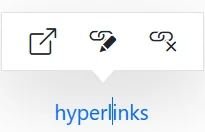
Table quick toolbar
The table quick toolbar appears when clicking on a table. You can customize the table by using the RichTextEditorQuickToolbarSettings.Table property. It has different sets of commands to be performed on the table which increases the feasibility to edit the table easily.
| Tools | Description |
|---|---|
| TableHeader | Header row can be added or removed from the inserted table |
| TableRows | Can be inserted above or below the required table cell |
| TableColumns | Can be inserted to the left or right side of the required table cell |
| BackgroundColor | Can be set each table cell background color |
| TableRemove | Can be delete the entire table from editor |
| Alignments | Can be aligned the table content |
| Styles | Can be style the table border |
| TableCellVerticalAlign | Can be used to set the vertical alignment of content within the selected table cells |
| TableCell | Provides options to merge or split table cells |
| TableEditProperties | Allows editing of table properties such as size, border, and alignment |
| HorizontalSeparator | Adds a horizontal separator line to group toolbar items visually |
| Separator | Adds spacing or a separator between toolbar items for better grouping |
@using Syncfusion.Blazor.RichTextEditor

<SfRichTextEditor>
    <RichTextEditorToolbarSettings Items="@Tools" />
    <RichTextEditorQuickToolbarSettings Table="TableQuickToolbarItems" />
    <p>Rich Text Editor allows to insert images from online source as well as local computer where you want to insert the image in your content.</p>
    <p><b>Get started Quick Toolbar to click on the Table</b></p>
    <p>It is possible to add custom style on the selected table inside the Rich Text Editor through quick toolbar.</p>
    <table class="e-rte-table" style="width: 37.3885%; min-width: 0px;">
        <colgroup>
            <col style="width: 30.6985%;">
            <col style="width: 69.3015%;">
        </colgroup>
        <tbody>
            <tr>
                <td>Bulleted List</td>
                <td>Start a line with <code>*</code> or <code>-</code> followed by a space</td>
            </tr>
            <tr>
                <td>Numbered List</td>
                <td>Start a line with <code>1.</code> or <code>i.</code> followed by a space</td>
            </tr>
        </tbody>
    </table>
</SfRichTextEditor>

@code {
    private List<ToolbarItemModel> Tools = new List<ToolbarItemModel>()
    {
        new ToolbarItemModel() { Command = ToolbarCommand.CreateTable }
    };
    private List<TableToolbarItemModel> TableQuickToolbarItems = new List<TableToolbarItemModel>()
    {
        new TableToolbarItemModel() { Command = TableToolbarCommand.TableHeader },
        new TableToolbarItemModel() { Command = TableToolbarCommand.TableRemove },
        new TableToolbarItemModel() { Command = TableToolbarCommand.TableRows },
        new TableToolbarItemModel() { Command = TableToolbarCommand.TableColumns },
        new TableToolbarItemModel() { Command = TableToolbarCommand.TableCell },
        new TableToolbarItemModel() { Command = TableToolbarCommand.Separator },
        new TableToolbarItemModel() { Command = TableToolbarCommand.Styles },
        new TableToolbarItemModel() { Command = TableToolbarCommand.BackgroundColor },
        new TableToolbarItemModel() { Command = TableToolbarCommand.Alignments },
        new TableToolbarItemModel() { Command = TableToolbarCommand.TableCellVerticalAlign },
        new TableToolbarItemModel() { Command = TableToolbarCommand.HorizontalSeparator },
        new TableToolbarItemModel() { Command = TableToolbarCommand.TableEditProperties }
    };
}
Audio quick toolbar
Customize the inserted audio using the RichTextEditorQuickToolbarSettings.Audio property. The audio quick toolbar has the following items.
| Tools | Description |
|---|---|
| AudioReplace | Can replace the audio with some other audio |
| AudioRemove | Delete the audio |
| AudioLayoutOption | Display the audio as inline or with break |
@using Syncfusion.Blazor.RichTextEditor

<SfRichTextEditor>
    <RichTextEditorToolbarSettings Items="@Tools" />
    <RichTextEditorQuickToolbarSettings Audio="AudioQuickToolbarItems" />
    <p><b>Get started with Quick Toolbar to click on an audio</b></p>
    <p>Using the quick toolbar, users can replace, display, and delete the selected audio.</p>
</SfRichTextEditor>

@code {
    private List<ToolbarItemModel> Tools = new List<ToolbarItemModel>()
    {
        new ToolbarItemModel() { Command = ToolbarCommand.Audio }
    };
    private List<AudioToolbarItemModel> AudioQuickToolbarItems = new List<AudioToolbarItemModel>()
    {
        new AudioToolbarItemModel() { Command = AudioToolbarCommand.AudioRemove },
        new AudioToolbarItemModel() { Command = AudioToolbarCommand.AudioReplace},
        new AudioToolbarItemModel() { Command = AudioToolbarCommand.AudioLayoutOption }
    };
}
Video quick toolbar
Customize the inserted video using the RichTextEditorQuickToolbarSettings.video property. The video quick toolbar has the following items.
| Tools | Description |
|---|---|
| VideoReplace | Can replace the video with some other video |
| VideoAlign | Align the video with left, right and center |
| VideoRemove | Delete the video |
| VideoLayoutOption | Display the video as inline or with break |
| VideoDimension | Can change an video dimensions, such as its height and width |
| HorizontalSeparator | Adds a horizontal separator line to group toolbar items visually |
| Separator | Adds spacing or a separator between toolbar items for better grouping |
@using Syncfusion.Blazor.RichTextEditor

<SfRichTextEditor>
    <RichTextEditorToolbarSettings Items="@Tools" />
    <RichTextEditorQuickToolbarSettings Video="VideoQuickToolbarItems" />
    <p><b>Get started with Quick Toolbar to click on a video</b></p>
    <p>Using the quick toolbar, users can replace, align, display, dimension, and delete the selected video.</p>
</SfRichTextEditor>

@code {
    private List<ToolbarItemModel> Tools = new List<ToolbarItemModel>()
    {
        new ToolbarItemModel() { Command = ToolbarCommand.Video }
    };
    private List<VideoToolbarItemModel> VideoQuickToolbarItems = new List<VideoToolbarItemModel>()
    {
        new VideoToolbarItemModel() { Command = VideoToolbarCommand.VideoReplace },
        new VideoToolbarItemModel() { Command = VideoToolbarCommand.VideoRemove},
        new VideoToolbarItemModel() { Command = VideoToolbarCommand.VideoLayoutOption },
        new VideoToolbarItemModel() { Command = VideoToolbarCommand.Separator },
        new VideoToolbarItemModel() { Command = VideoToolbarCommand.VideoAlign},
        new VideoToolbarItemModel() { Command = VideoToolbarCommand.HorizontalSeparator },
        new VideoToolbarItemModel() { Command = VideoToolbarCommand.VideoDimension}
    };
}
NOTE
You can refer to our Blazor Rich Text Editor feature tour page for its groundbreaking feature representations. You can also explore our Blazor Rich Text Editor example to knows how to render and configure the rich text editor tools.
Text quick toolbar
By activating the RichTextEditorQuickToolbarSettings.Text property, the Rich Text Editor offers the ability to display a quick toolbar when needed. The floating toolbar shows up when you select or focus on editable text. By modifying the RichTextEditorQuickToolbarSettings.Text property, the commands shown in the text quick toolbar can be changed.
Refer to the following link for a complete list of available toolbar items: Built-in Tools
@using Syncfusion.Blazor.RichTextEditor

<SfRichTextEditor>
    <RichTextEditorQuickToolbarSettings Text="@TextQuickToolbarItems"></RichTextEditorQuickToolbarSettings>
    <p>The Rich Text Editor component is WYSIWYG ('what you see is what you get') editor that provides the best user experience to create and update the content. Users can format their content using standard toolbar commands.</p>
</SfRichTextEditor>

@code {
    private List<ToolbarItemModel> TextQuickToolbarItems = new List<ToolbarItemModel>()
    {
        new ToolbarItemModel() { Command = ToolbarCommand.Formats },
        new ToolbarItemModel() { Command = ToolbarCommand.Separator },
        new ToolbarItemModel() { Command = ToolbarCommand.Bold },
        new ToolbarItemModel() { Command = ToolbarCommand.Italic },
        new ToolbarItemModel() { Command = ToolbarCommand.FontColor },
        new ToolbarItemModel() { Command = ToolbarCommand.BackgroundColor },
        new ToolbarItemModel() { Command = ToolbarCommand.Separator },
        new ToolbarItemModel() { Command = ToolbarCommand.CreateLink },
        new ToolbarItemModel() { Command = ToolbarCommand.Image },
        new ToolbarItemModel() { Command = ToolbarCommand.CreateTable },
        new ToolbarItemModel() { Command = ToolbarCommand.Blockquote },
        new ToolbarItemModel() { Command = ToolbarCommand.Separator },
        new ToolbarItemModel() { Command = ToolbarCommand.UnorderedList },
        new ToolbarItemModel() { Command = ToolbarCommand.OrderedList },
        new ToolbarItemModel() { Command = ToolbarCommand.Indent },
        new ToolbarItemModel() { Command = ToolbarCommand.Outdent }
    };
}