How can I help you?
Text Formatting in Blazor Rich Text Editor Component
29 May 202624 minutes to read
Basic text styling
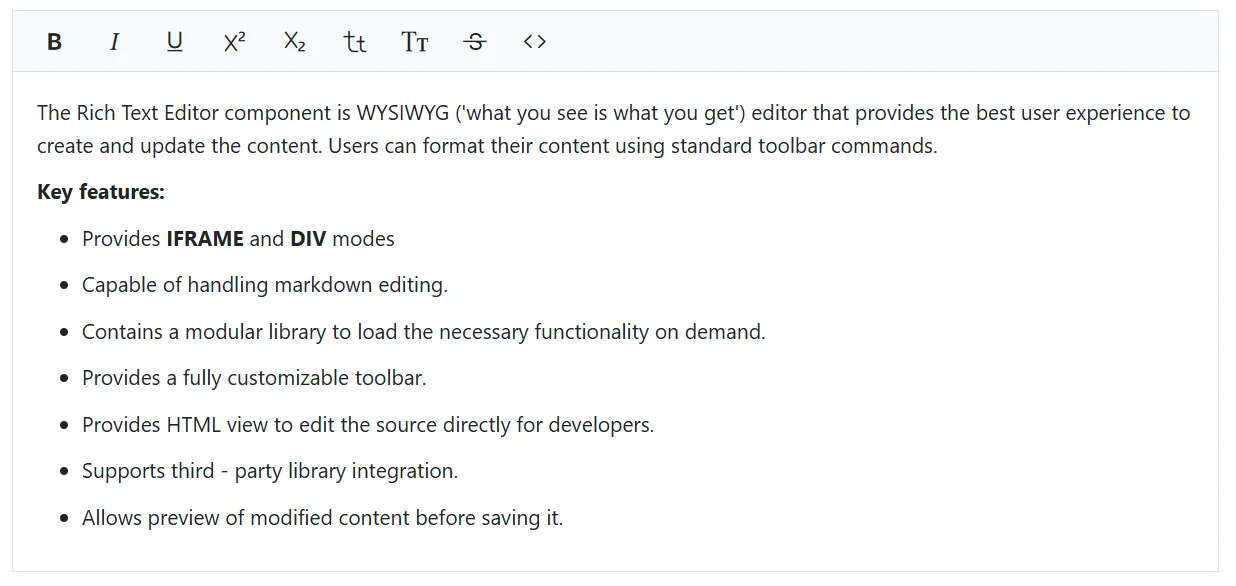
The Rich Text Editor’s basic styles feature provides essential formatting options, including bold, italic, underline, strikethrough, subscript, superscript, and case changes. These fundamental tools enable users to enhance and customize their text effortlessly. By leveraging these options, users can ensure their content is both visually appealing and well-structured.
Available text styles
The table below lists the available text styles in the Rich Text Editor’s toolbar.
| Name | Icons | Summary |
|---|---|---|
| Bold |  |
Makes text thicker and darker |
| Italic |  |
Slants text to the right |
| Underline |  |
Adds a line beneath the text |
| StrikeThrough |  |
Applies a line through the text. |
| InlineCode |  |
Formats text as inline code |
| SubScript |  |
Positions text slightly below the normal line |
| SuperScript |  |
Positions text slightly above the normal line |
| LowerCase |  |
Converts text to lowercase |
| UpperCase |  |
Converts text to uppercase |
Please refer to the sample below to add these basic text styling options in the Rich Text Editor.
@using Syncfusion.Blazor.RichTextEditor

<SfRichTextEditor>
    <RichTextEditorToolbarSettings Items="@Items" />
    <p>The Rich Text Editor component is WYSIWYG ('what you see is what you get') editor that provides the best user experience to create and update the content. Users can format their content using standard toolbar commands.</p>
        <p><b> Key features:</b></p>
        <ul>
            <li><p> Provides <b>IFRAME</b> and <b>DIV</b> modes </p></li>
            <li><p> Capable of handling markdown editing.</p></li>
            <li><p> Contains a modular library to load the necessary functionality on demand.</p></li>
            <li><p> Provides a fully customizable toolbar.</p></li>
            <li><p> Provides HTML view to edit the source directly for developers.</p></li>
            <li><p> Supports third - party library integration.</p></li>
            <li><p> Allows preview of modified content before saving it.</p></li>
        </ul>
</SfRichTextEditor>
@code {
    private List<ToolbarItemModel> Items = new List<ToolbarItemModel>()
    {
        new ToolbarItemModel() { Command = ToolbarCommand.Bold },
        new ToolbarItemModel() { Command = ToolbarCommand.Italic },
        new ToolbarItemModel() { Command = ToolbarCommand.Underline },
        new ToolbarItemModel() { Command = ToolbarCommand.SuperScript },
        new ToolbarItemModel() { Command = ToolbarCommand.SubScript },
        new ToolbarItemModel() { Command = ToolbarCommand.LowerCase },
        new ToolbarItemModel() { Command = ToolbarCommand.UpperCase },
        new ToolbarItemModel() { Command = ToolbarCommand.StrikeThrough },
        new ToolbarItemModel() { Command = ToolbarCommand.InlineCode }
    };
}
Text alignments
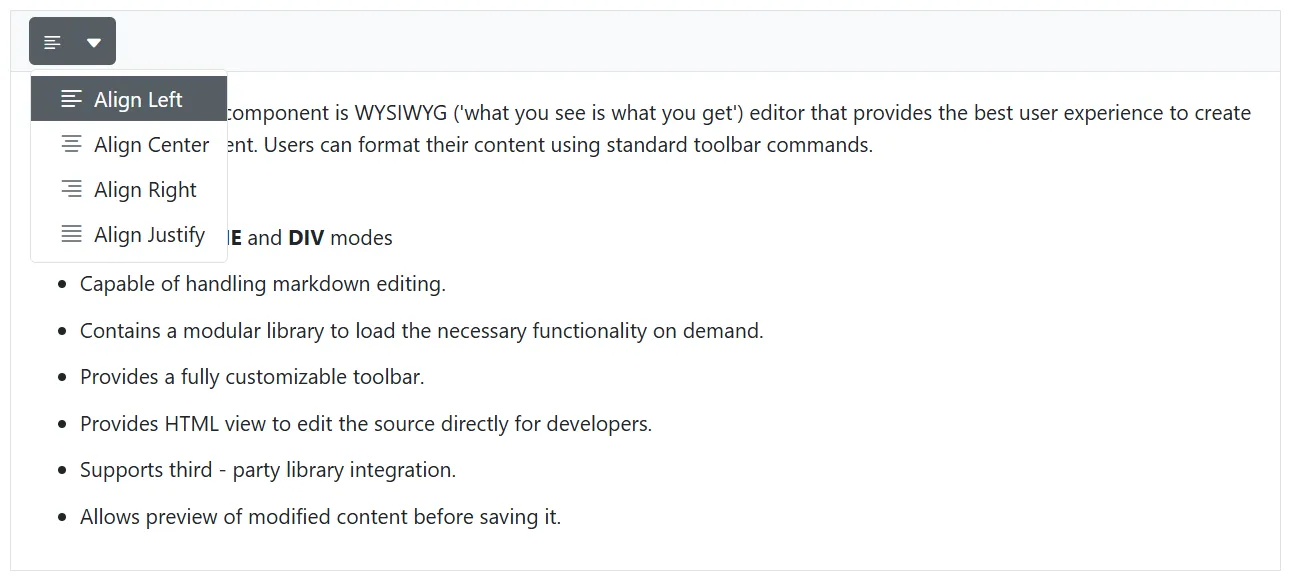
The Rich Text Editor offers various text alignment options, including left, center, right, and justify. To utilize these alignment options, add the Alignments item to the items property in the toolbarSettings.
Important Note: Text alignment is applied to the entire block element containing the cursor or selected text, not just to the selected text itself. When you apply an alignment, it affects the whole paragraph or block, even if you’ve only selected a portion of the text.
Here are the available alignment options:
-
Align Left:
To left-align your text, place the cursor in the desired paragraph or select any text within it, then click theAlign Lefticon in the toolbar. This will align the entire paragraph with the left margin. -
Align Center:
To center-align your text, place the cursor in the desired paragraph or select any text within it, then click theAlign Centericon in the toolbar. This will center the entire paragraph within its container. -
Align Right:
To right-align your text, place the cursor in the desired paragraph or select any text within it, then click theAlign Righticon in the toolbar. This will align the entire paragraph with the right margin. -
Align Justify:
To fully justify your text, place the cursor in the desired paragraph or select any text within it, then click theAlign Justifyicon in the toolbar. This will distribute the entire paragraph evenly across the line, aligning it with both the left and right margins.
Please refer to the sample and code snippets below to add these alignment options in the Rich Text Editor.
@using Syncfusion.Blazor.RichTextEditor

<SfRichTextEditor>
    <RichTextEditorToolbarSettings Items="@Items" />
    <p>The Rich Text Editor component is WYSIWYG ('what you see is what you get') editor that provides the best user experience to create and update the content. Users can format their content using standard toolbar commands.</p>
        <p><b> Key features:</b></p>
        <ul>
            <li><p> Provides <b>IFRAME</b> and <b>DIV</b> modes </p></li>
            <li><p> Capable of handling markdown editing.</p></li>
            <li><p> Contains a modular library to load the necessary functionality on demand.</p></li>
            <li><p> Provides a fully customizable toolbar.</p></li>
            <li><p> Provides HTML view to edit the source directly for developers.</p></li>
            <li><p> Supports third - party library integration.</p></li>
            <li><p> Allows preview of modified content before saving it.</p></li>
        </ul>
</SfRichTextEditor>
@code {
    private List<ToolbarItemModel> Items = new List<ToolbarItemModel>()
    {
        new ToolbarItemModel() { Command = ToolbarCommand.Alignments }
    };
}
Number and bullet format list
List formatting in the Rich Text Editor allows users to organize content into structured lists, enhancing readability and visual presentation. The control supports two main types of lists:
- Ordered Lists
- Unordered Lists
Ordered lists
Ordered lists present items in a specific sequence, with each item preceded by a number or letter. The Rich Text Editor provides two ways to create and manage ordered lists:
Using the ordered list tool
The OrderedList toolbar item offers a quick way to create or toggle a numbered list. To use it, select the desired text in the editor and click the OrderedList button in the toolbar. If the selected text is not already a numbered list, it will be converted into one. If it’s already a numbered list, clicking the button will remove the list formatting.
Number format list tool
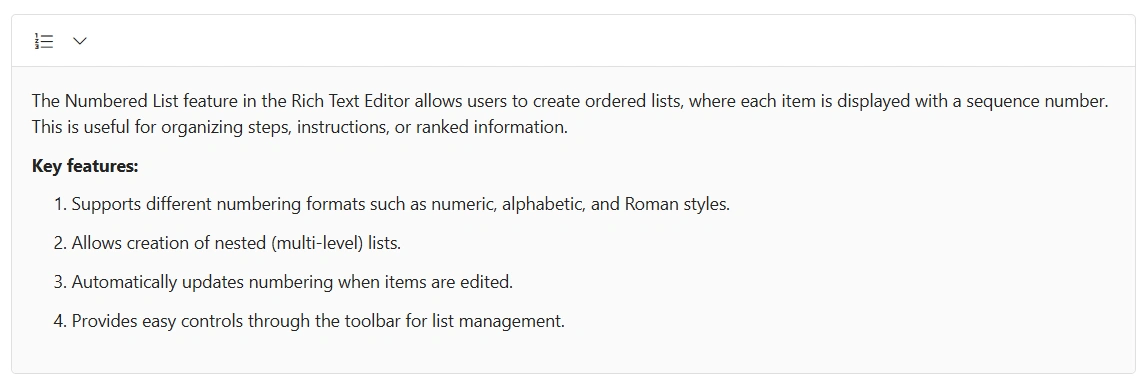
For more detailed control over the numbering style, use the NumberFormatList dropdown in the toolbar. Select the desired text in the editor, then choose the preferred format from the NumberFormatList dropdown. The selected text will be transformed into a numbered list with the chosen style.
Available numbering styles:
-
None: Removes numbering while maintaining list structure and indentation -
Number: Uses standard numeric sequencing (1, 2, 3, …) -
Lower Roman: Employs lowercase Roman numerals (i, ii, iii, …) -
Lowercase Greek: Utilizes lowercase Greek letters (α, β, γ, …) -
Upper Alpha: Applies uppercase letters (A, B, C, …) -
Lower Alpha: Uses lowercase letters (a, b, c, …) -
Upper Roman: Employs uppercase Roman numerals (I, II, III, …)
You can customize the available number formats using the NumberFormatList property of the Rich Text Editor.
The following example demonstrates how to customize the number format lists in the Rich Text Editor:
@using Syncfusion.Blazor.RichTextEditor

<SfRichTextEditor>
    <RichTextEditorToolbarSettings Items = "@Tools" />
    <RichTextEditorNumberFormatList Items="@NumberList" />
    <p>The Numbered List feature in the Rich Text Editor allows users to create ordered lists, where each item is displayed with a sequence number. This is useful for organizing steps, instructions, or ranked information.</p>
    <p><b>Key features:</b></p>
    <ol>
        <li><p>Supports different numbering formats such as numeric, alphabetic, and Roman styles.</p></li>
        <li><p>Allows creation of nested (multi-level) lists.</p></li>
        <li><p>Automatically updates numbering when items are edited.</p></li>
        <li><p>Provides easy controls through the toolbar for list management.</p></li>
    </ol>
</SfRichTextEditor>
@code {
    private List<ToolbarItemModel> Tools = new List<ToolbarItemModel>()
    {
        new ToolbarItemModel() { Command = ToolbarCommand.NumberFormatList }
    };
    List<DropDownItemModel> NumberList = new List<DropDownItemModel>() {
        new DropDownItemModel() { Text = "None", Value = "none" },
        new DropDownItemModel() { Text = "Number", Value = "decimal" },
        new DropDownItemModel() { Text = "Upper Alpha", Value = "upper-alpha" },
        new DropDownItemModel() { Text = "Lower Alpha", Value = "lower-alpha" }
    };
}
Unordered lists
Unordered lists present items with visual markers, providing an effective way to list items without implying order or priority. The Rich Text Editor offers two methods for creating and managing unordered lists:
Using the unordered list tool
The UnorderedList toolbar item provides a fast way to create or toggle a bulleted list. To use it, select the desired text in the editor and click the UnorderedList button in the toolbar. If the selected text is not already a bulleted list, it will be converted into one. If it’s already a bulleted list, clicking the button will remove the list formatting.
Bullet format list tool
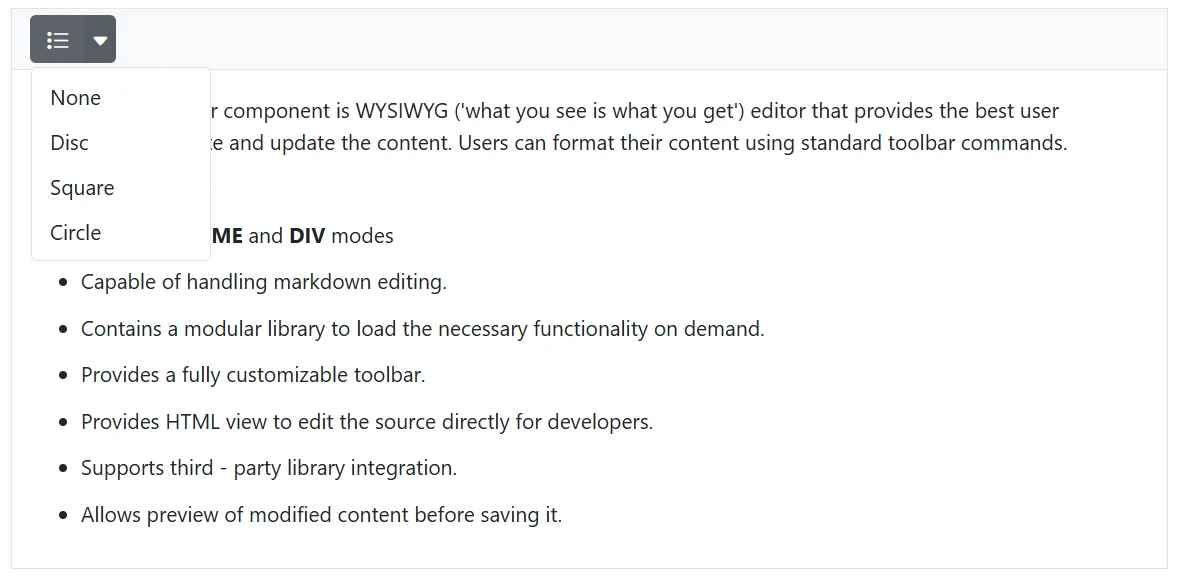
For more control over the bullet style, use the bulletFormatList dropdown in the toolbar. Select the desired text in the editor, then choose the preferred format from the bulletFormatList dropdown. The selected text will be transformed into a bullet list with the chosen style.
Available bullet styles
-
None: Removes bullet points while maintaining list structure and indentation -
Disc: Displays solid circular bullets -
Square: Uses solid square bullets -
Circle: Presents hollow circular bullets
The following example demonstrates how to customize the bullet format lists in the Rich Text Editor:
@using Syncfusion.Blazor.RichTextEditor

<SfRichTextEditor>
    <RichTextEditorToolbarSettings Items = "@Tools" />
    <RichTextEditorBulletFormatList Items="@BulletList" />
        <p>The Rich Text Editor component is WYSIWYG ('what you see is what you get') editor that provides the best user experience to create and update the content. Users can format their content using standard toolbar commands.</p>
        <p><b> Key features:</b></p>
        <ul>
            <li><p> Provides <b>IFRAME</b> and <b>DIV</b> modes </p></li>
            <li><p> Capable of handling markdown editing.</p></li>
            <li><p> Contains a modular library to load the necessary functionality on demand.</p></li>
            <li><p> Provides a fully customizable toolbar.</p></li>
            <li><p> Provides HTML view to edit the source directly for developers.</p></li>
            <li><p> Supports third - party library integration.</p></li>
            <li><p> Allows preview of modified content before saving it.</p></li>
        </ul>
</SfRichTextEditor>
@code {
    private List<ToolbarItemModel> Tools = new List<ToolbarItemModel>()
    {
        new ToolbarItemModel() { Command = ToolbarCommand.BulletFormatList }
    };
    List<DropDownItemModel> BulletList = new List<DropDownItemModel>() {
        new DropDownItemModel() { Text = "None", Value = "none" },
        new DropDownItemModel() { Text = "Disc", Value = "disc" },
        new DropDownItemModel() { Text = "Square", Value = "square" },
        new DropDownItemModel() { Text = "Circle", Value = "circle" }
    };
}
Checklist
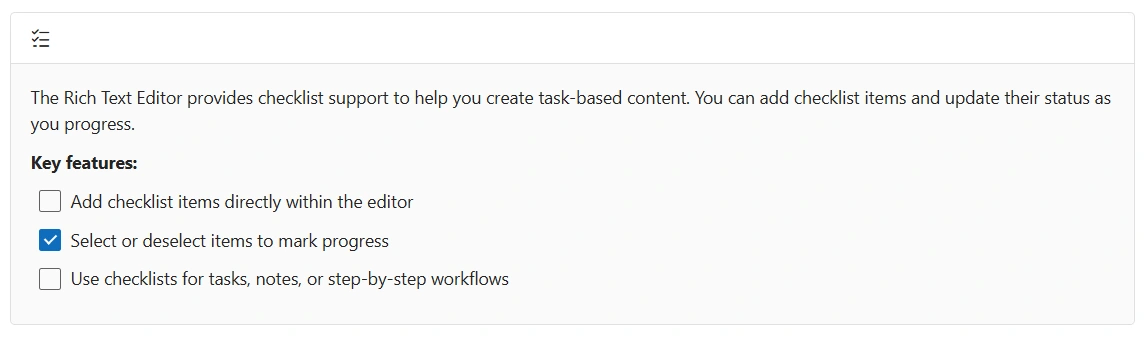
Checklists enable users to create interactive lists with selectable items, making it easier to track tasks and organize content efficiently. The Rich Text Editor provides a simple way to create and manage checklists:
Using the checklist tool
The CheckList toolbar item provides a convenient way to create or toggle a checklist. To use it, select the desired text in the editor and click the CheckList button in the toolbar. The selected text will be converted into a checklist with checkable items. If the content is already a checklist, clicking the button will remove the checklist formatting.
Please refer to the sample and code snippets below to add these checklist options in the Rich Text Editor.
@using Syncfusion.Blazor.RichTextEditor

<SfRichTextEditor>
    <RichTextEditorToolbarSettings Items = "@Tools" />
    <p>The Rich Text Editor provides checklist support to help you create task-based content.
    You can add checklist items and update their status as you progress.</p>
    <p><b>Key features:</b></p>
    <ul class="e-rte-checklist">
        <li><p>Add checklist items directly within the editor</p></li>
        <li class="e-rte-checklist-checked"><p>Select or deselect items to mark progress</p></li>
        <li><p>Use checklists for tasks, notes, or step-by-step workflows</p></li>
    </ul>
</SfRichTextEditor>
@code {
    private List<ToolbarItemModel> Tools = new List<ToolbarItemModel>()
    {
        new ToolbarItemModel() { Command = ToolbarCommand.Checklist }
    };
}
Nested list creation using Tab key

In the Rich Text Editor, pressing the Tab key while the cursor is inside a list item automatically creates a nested list. This behavior allows users to structure their content hierarchically by indenting list items. Each press of the Tab key increases the nesting level, converting the current item into a sub-item of the previous one.
Please refer to the below video for visual behavior and interaction examples:
Increase and decrease indent
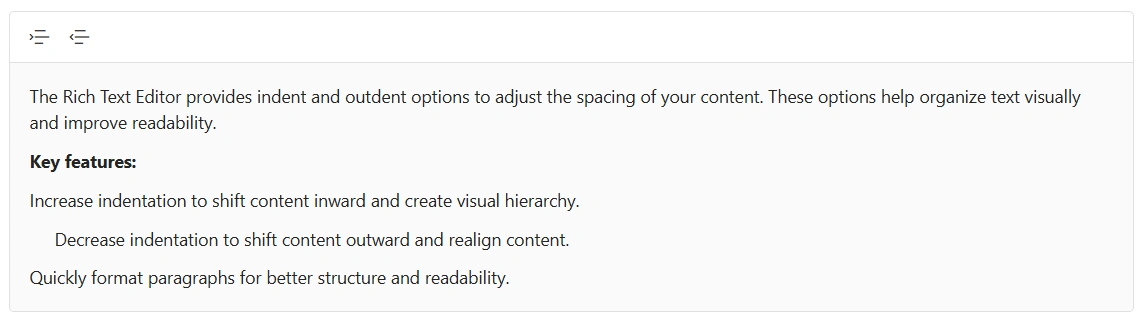
The Rich Text Editor allows you to set indentation for text blocks such as paragraphs, headings, or lists. This feature helps you visually organize and structure your content, making it easier to read and understand.
The Rich Text Editor allows you to configure two types of indentation tools, Indent and Outdent tool in the Rich Text Editor toolbar using the RichTextEditorToolbarSettings.Items property.
| Options | Description |
|---|---|
| Indent | Increases the indentation |
| Outdent | Decreases the indentation |
To adjust the text indentation:
- Select the desired text or paragraph.
- Click the Indent or Outdent button in the toolbar.
- The indentation of the selected text will be modified accordingly.
To configure the Indent and Outdent toolbar item, refer to the below code.
@using Syncfusion.Blazor.RichTextEditor

<SfRichTextEditor>
    <RichTextEditorToolbarSettings Items = "@Tools" />
    <p>The Rich Text Editor provides indent and outdent options to adjust the spacing of your content. These options help organize text visually and improve readability.</p>
    <p><b>Key features:</b></p>
    <p>Increase indentation to shift content inward and create visual hierarchy.</p>
    <p style="margin-left: 20px;">Decrease indentation to shift content outward and realign content.</p>
    <p>Quickly format paragraphs for better structure and readability.</p>
</SfRichTextEditor>
@code {
    private List<ToolbarItemModel> Tools = new List<ToolbarItemModel>()
    {
        new ToolbarItemModel() { Command = ToolbarCommand.Indent },
        new ToolbarItemModel() { Command = ToolbarCommand.Outdent }
    };
}
Indentation in lists
The Rich Text Editor provides powerful indentation features for both bullet and number format lists, allowing users to create nested lists and adjust list levels easily.
Increasing indent
To increase the indent of a list item:
- Select the list item you want to indent.
- Click the “Increase Indent” button in the toolbar or press Ctrl + ].
- The selected item will be indented, creating a nested list.
Decreasing indent
To decrease the indent of a list item:
- Select the indented list item.
- Click the “Decrease Indent” button in the toolbar or press Ctrl + [.
- The selected item will move back to the previous indentation level.
Using tab key for indentation
The Tab key provides a quick way to adjust list indentation:
- Pressing Tab will increase the indent of the selected list item, creating a nested list.
- Pressing Shift + Tab will decrease the indent of the selected list item, moving it to the previous level.
This behavior allows for efficient creation and management of multi-level lists without the need to use the toolbar buttons.
Heading formats
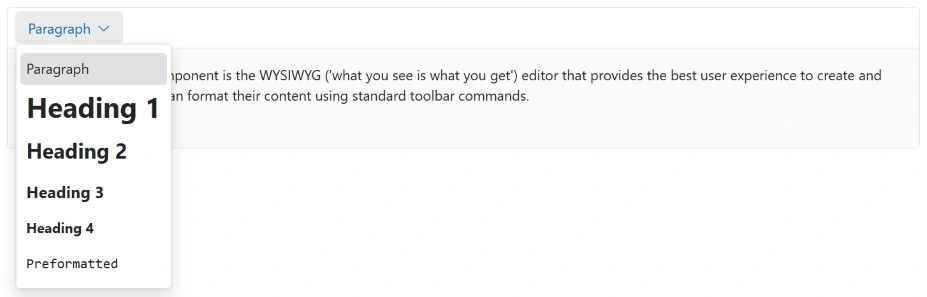
The Rich Text Editor provides a feature to format text with various heading styles, such as Heading 1, Heading 2, Heading 3, and Heading 4. These headings allow for structuring content hierarchically, improving readability, and organizing information effectively.
Built-in formats
The following table list the default format name and width of the Format dropdown and the available list of format names.
| Default Key | Default Value |
|---|---|
| Width | 65px |
| Items | new List<DropDownItemModel>() { new DropDownItemModel() { Text = “Paragraph”, Value = “P” }, new DropDownItemModel() { Text = “Heading 1”, Value = “H1” }, new DropDownItemModel() { Text = “Heading 2”, Value = “H2” }, new DropDownItemModel() { Text = “Heading 3”, Value = “H3” }, new DropDownItemModel() { Text = “Heading 4”, Value = “H4” }, new DropDownItemModel() { Text = “Preformatted”, Value = “Pre” }, }; |
@using Syncfusion.Blazor.RichTextEditor

<SfRichTextEditor>
    <RichTextEditorToolbarSettings Items="@Tools" />
    <RichTextEditorFormat Default="Paragraph"/>
    <p>The Rich Text Editor component is the WYSIWYG ('what you see is what you get') editor that provides the best user experience to create and update content. Users can format their content using standard toolbar commands.</p>
</SfRichTextEditor>

@code{
    private List<ToolbarItemModel> Tools = new List<ToolbarItemModel>()
    {
        new ToolbarItemModel() { Command = ToolbarCommand.Formats }
    };
}
Custom format
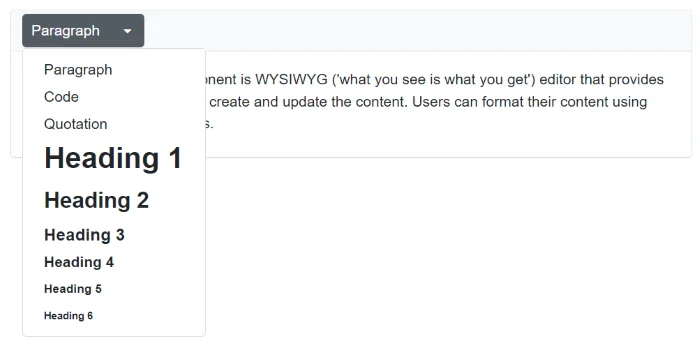
The Rich Text Editor provides support for custom formats with an existing list. If you want to add additional formats to the format drop-down, pass the format information as List<DropDownItemModel> data to the RichTextEditorFormat.Items property.
@using Syncfusion.Blazor.RichTextEditor

<SfRichTextEditor>
    <RichTextEditorToolbarSettings Items="@Tools" />
    <RichTextEditorFormat Items="@FormatItems" />
    <p>The Rich Text Editor component is the WYSIWYG ('what you see is what you get') editor that provides the best user experience to create and update content. Users can format their content using standard toolbar commands.</p>
</SfRichTextEditor>

@code{
    private List<ToolbarItemModel> Tools = new List<ToolbarItemModel>()
    {
        new ToolbarItemModel() { Command = ToolbarCommand.Formats },
    };

    private List<DropDownItemModel> FormatItems = new List<DropDownItemModel>()
    {
        new DropDownItemModel() { Text = "Paragraph", Value = "P" },
        new DropDownItemModel() { Text = "Code", Value = "Pre" },
        new DropDownItemModel() { Text = "Quotation", Value = "BlockQuote" },
        new DropDownItemModel() { Text = "Heading 1", Value = "H1" },
        new DropDownItemModel() { Text = "Heading 2", Value = "H2" },
        new DropDownItemModel() { Text = "Heading 3", Value = "H3" },
        new DropDownItemModel() { Text = "Heading 4", Value = "H4" },
        new DropDownItemModel() { Text = "Heading 5", Value = "H5" },
        new DropDownItemModel() { Text = "Heading 6", Value = "H6" }
    };
}
Quotation formatting
The Rich Text Editor facilitates quotation formatting through the Blockquote tool available in the toolbar. Blockquotes are designed to visually highlight significant text, emphasizing key information or quotations by setting them apart from the main content for added emphasis and clarity.
To format text as a quotation, select the desired text and click on the Blockquote icon in the toolbar. The selected text will be formatted as a blockquote, typically indented and styled differently from the surrounding content.
Use the Blockquote tool in the editor below to see the feature in action.
In a markdown editor, blockquotes are represented using the
>symbol.
@using Syncfusion.Blazor.RichTextEditor

<SfRichTextEditor>
    <blockquote><p>The Rich Text Editor component is WYSIWYG ('what you see is what you get') editor that provides the best user experience to create and update the content. Users can format their content using standard toolbar commands.</p></blockquote>
    <p><b> Key features:</b></p>
    <ul>
        <li><p> Provides <b>IFRAME</b> and <b>DIV</b> modes </p></li>
        <li><p> Capable of handling markdown editing.</p></li>
        <li><p> Contains a modular library to load the necessary functionality on demand.</p></li>
        <li><p> Provides a fully customizable toolbar.</p></li>
        <li><p> Provides HTML view to edit the source directly for developers.</p></li>
        <li><p> Supports third - party library integration.</p></li>
        <li><p> Allows preview of modified content before saving it.</p></li>
    </ul>
</SfRichTextEditor>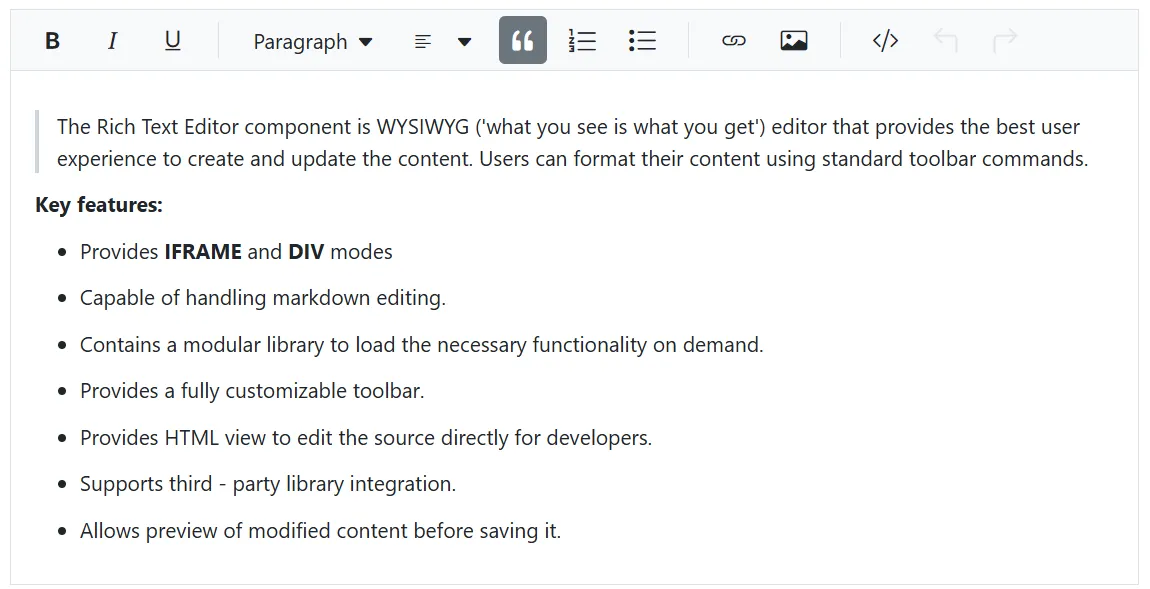
Nested blockquotes
The Rich Text Editor also supports nested blockquotes, allowing one blockquote to be placed inside another.
While the toolbar does not provide a direct method to apply blockquote formatting recursively (i.e., within an already blockquote section), nested blockquotes can still be achieved in the following ways:
- Pasting preformatted content: If you paste content that already contains nested blockquote tags (e.g., from another editor or email), the Rich Text Editor will preserve and render the nested structure correctly.
- Pre-loading nested blockquote HTML: You can initialize the editor with nested blockquote content using the value property.
- Manual editing via Source Code view: You can manually insert nested blockquote tags using the SourceCode toolbar option.
@using Syncfusion.Blazor.RichTextEditor

<SfRichTextEditor>
    <blockquote>
        <p><strong>Outer Quote:</strong> The Rich Text Editor provides a flexible way to format quotations.</p>
        <blockquote>
            <p><em>Inner Quote:</em> You can even nest blockquotes to represent quoted replies or layered citations.</p>
            <blockquote>
                <p><em>Deep Quote:</em> This is useful in forums, emails, or academic writing where multiple levels of quoting are needed.</p>
            </blockquote>
        </blockquote>
    </blockquote>
</SfRichTextEditor>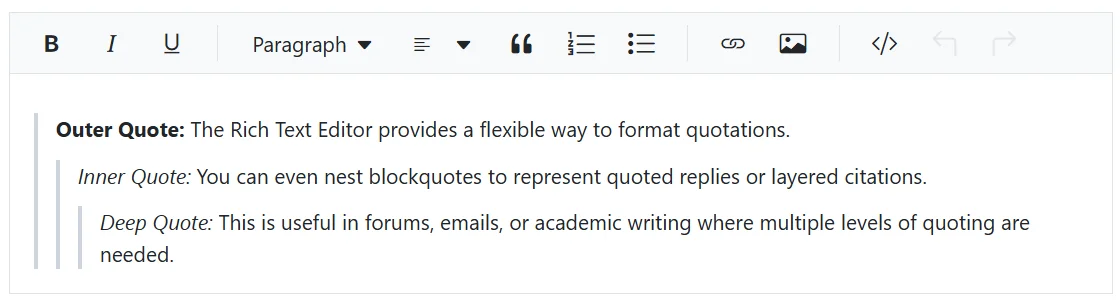
LineHeight
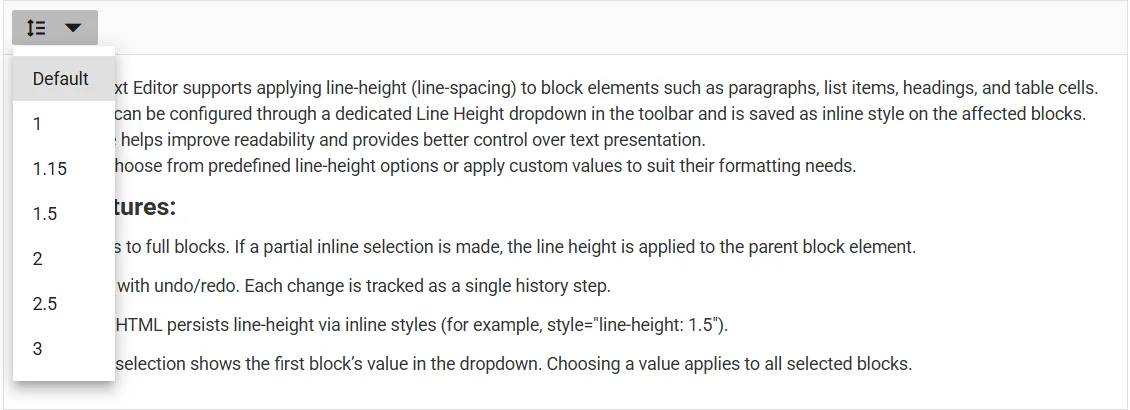
The Rich Text Editor supports applying line-height to block elements such as paragraphs, list items, headings, and table cells. It can be configured through a dedicated LineHeight dropdown in the toolbar and is saved as inline style on the affected blocks.
Key behaviors:
- Applies to full blocks. If a partial inline selection is made, the line height is applied to the parent block element.
- Works with undo/redo. Each change is tracked as a single history step.
- Saved HTML persists line-height via inline styles (for example, style=”line-height: 1.5”).
- Mixed selection shows the first block’s value in the dropdown.
Configure LineHeight in the toolbar
The LineHeight tool can be configured in the Rich Text Editor using the RichTextEditorToolbarSettings.Items property.
Built-in LineHeight items
The following table lists the default LineHeight items.
| Default Key | Default Value |
|---|---|
| Items | new List<DropDownItemModel>() { new DropDownItemModel() { Text = “Default”, Value = “” }, new DropDownItemModel() { Text = “1”, Value = “1” }, new DropDownItemModel() { Text = “1.15”, Value = “1.15” }, new DropDownItemModel() { Text = “1.5”, Value = “1.5” }, new DropDownItemModel() { Text = “2”, Value = “2” }, new DropDownItemModel() { Text = “2.5”, Value = “2.5” }, new DropDownItemModel() { Text = “3”, Value = “3”} }; |
Example: Add the LineHeight tool and configure items
@using Syncfusion.Blazor.RichTextEditor

<SfRichTextEditor>
    <RichTextEditorToolbarSettings Items="@Items" />
    <RichTextEditorLineHeight Items="@LineHeightItems" Default="Default"></RichTextEditorLineHeight>
    <p>The Rich Text Editor allows users to apply line-height (line-spacing) to elements like paragraphs, lists, headings, and table cells. You can set line height using a dedicated dropdown in the toolbar, and it is applied as inline style to the selected blocks. This feature makes text easier to read and gives better control over content layout.</p>
    <p><b> Key features:</b></p>
    <ul>
        <li><p>Provides a <b>Line Height</b> dropdown in the toolbar for easy access.</p></li>
        <li><p>Supports applying line-height to paragraphs, headings, lists, and table cells.</p></li>
        <li><p>Applies line-height as inline styles for consistent and precise text rendering.</p></li>
        <li><p>Ensures consistent appearance across devices and print layouts.</p></li>
        <li><p>Improves text readability and overall document aesthetics.</p></li>
    </ul>
</SfRichTextEditor>
@code {
    private List<ToolbarItemModel> Items = new List<ToolbarItemModel>()
    {
        new ToolbarItemModel() { Command = ToolbarCommand.LineHeight }
    };
    private List<DropDownItemModel> LineHeightItems = new()
    {
        new DropDownItemModel { Text = "Default", Value = "" },
        new DropDownItemModel { Text = "1", Value = "1" },
        new DropDownItemModel { Text = "1.15", Value = "1.15" },
        new DropDownItemModel { Text = "1.5", Value = "1.5" },
        new DropDownItemModel { Text = "2", Value = "2" },
        new DropDownItemModel { Text = "2.5", Value = "2.5" },
        new DropDownItemModel { Text = "3", Value = "3" }
    };
}
Horizontal line
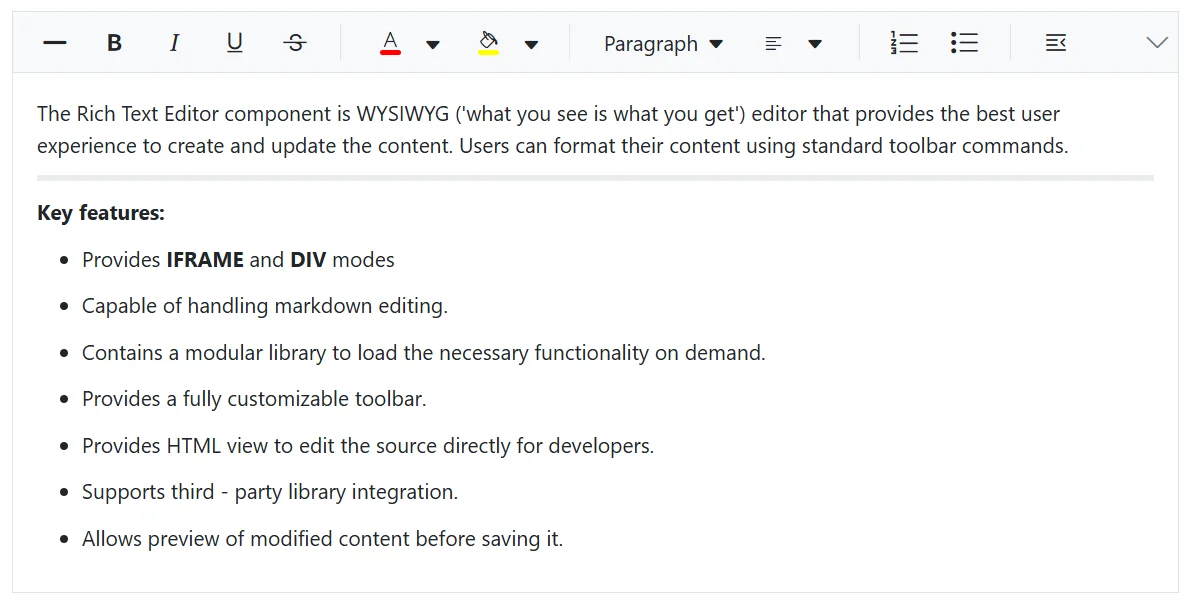
The Rich Text Editor enables users to insert horizontal dividers using the HorizontalLine tool available in the toolbar. Horizontal lines (<hr>) help visually separate sections of content, enhancing readability and structural clarity.
To insert a horizontal line, place the cursor at the desired location and click the HorizontalLine icon in the toolbar. A full-width line will be added, creating a clear visual break between sections of text or other elements.
Use the HorizontalLine tool in the editor below to see the feature in action.
@using Syncfusion.Blazor.RichTextEditor

<SfRichTextEditor>
    <RichTextEditorToolbarSettings Items="@Items" />
    <p>The Rich Text Editor component is WYSIWYG ('what you see is what you get') editor that provides the best user experience to create and update the content. Users can format their content using standard toolbar commands.</p>
        <hr/>
        <p><b> Key features:</b></p>
        <ul>
            <li><p> Provides <b>IFRAME</b> and <b>DIV</b> modes </p></li>
            <li><p> Capable of handling markdown editing.</p></li>
            <li><p> Contains a modular library to load the necessary functionality on demand.</p></li>
            <li><p> Provides a fully customizable toolbar.</p></li>
            <li><p> Provides HTML view to edit the source directly for developers.</p></li>
            <li><p> Supports third - party library integration.</p></li>
            <li><p> Allows preview of modified content before saving it.</p></li>
        </ul>
</SfRichTextEditor>
@code {
    private List<ToolbarItemModel> Items = new List<ToolbarItemModel>()
    {
        new ToolbarItemModel() { Command = ToolbarCommand.HorizontalLine },
        new ToolbarItemModel() { Command = ToolbarCommand.Bold },
        new ToolbarItemModel() { Command = ToolbarCommand.Italic },
        new ToolbarItemModel() { Command = ToolbarCommand.Underline },
        new ToolbarItemModel() { Command = ToolbarCommand.StrikeThrough },
        new ToolbarItemModel() { Command = ToolbarCommand.Separator },
        new ToolbarItemModel() { Command = ToolbarCommand.FontColor },
        new ToolbarItemModel() { Command = ToolbarCommand.BackgroundColor },
        new ToolbarItemModel() { Command = ToolbarCommand.Separator },
        new ToolbarItemModel() { Command = ToolbarCommand.Formats },
        new ToolbarItemModel() { Command = ToolbarCommand.Alignments },
        new ToolbarItemModel() { Command = ToolbarCommand.Separator },
        new ToolbarItemModel() { Command = ToolbarCommand.OrderedList },
        new ToolbarItemModel() { Command = ToolbarCommand.UnorderedList },
        new ToolbarItemModel() { Command = ToolbarCommand.Separator },
        new ToolbarItemModel() { Command = ToolbarCommand.Outdent },
        new ToolbarItemModel() { Command = ToolbarCommand.Indent },
        new ToolbarItemModel() { Command = ToolbarCommand.Separator },
        new ToolbarItemModel() { Command = ToolbarCommand.CreateLink },
        new ToolbarItemModel() { Command = ToolbarCommand.Image },
        new ToolbarItemModel() { Command = ToolbarCommand.CreateTable },
        new ToolbarItemModel() { Command = ToolbarCommand.Separator },
        new ToolbarItemModel() { Command = ToolbarCommand.Undo },
        new ToolbarItemModel() { Command = ToolbarCommand.Redo }
    };
}
Format Painter in Blazor Rich Text Editor
The format painter tool enables users to replicate formatting from one text segment and apply it to another. It can be accessed through the toolbar or via keyboard shortcuts, allowing the transfer of styles from individual words to entire paragraphs. Customization options are available through the Rich Text EditorFormatPainterSettings property.
Configuring format painter tool in the toolbar
You can add the FormatPainter tool in the Rich Text Editor using the RichTextEditorToolbarSettings.Items property.
Double-clicking the Format Painter toolbar button enables sticky mode, allowing multiple formatting applications until the Escape key is pressed. In sticky mode, the format painter remains active until the Escape key is pressed again to disable it.
The following example demonstrates how to add the Format Painter tool to the Rich Text Editor toolbar.
@using Syncfusion.Blazor.RichTextEditor

<SfRichTextEditor @bind-Value="@EditorContent">
    <RichTextEditorToolbarSettings Items="@Tools" />
</SfRichTextEditor>

@code {
    private string EditorContent = @"<h3>Format Painter in Rich Text Editor</h3><p>The <strong data-start=""50"" data-end=""68"">Format Painter</strong> allows you to quickly copy and apply text formatting within the editor, saving time and ensuring consistency.</p><h5>How to Use Format Painter?</h5>
    <ul>
        <li><strong>Select the text</strong> with the formatting you want to copy.</li>
        <li>Click the <strong>Format Painter</strong> button (paintbrush icon) in the toolbar.</li>
        <li>The cursor changes to a <strong>paintbrush</strong> icon.</li>
        <li><strong>Click and drag</strong> over the text where you want to apply the copied format.</li>
        <li>Release the mouse button, and the formatting will be applied.</li>
    </ul>
    <h5>Why Use Format Painter?</h5>
    <ul>
        <li><strong>Saves time</strong> when formatting large documents.</li>
        <li><strong>Ensures consistency</strong> in text styles.</li>
        <li><strong>Easy to use</strong> for writers, editors, and content creators.</li>
    </ul>";
    private List<ToolbarItemModel> Tools = new List<ToolbarItemModel>()
    {
        new ToolbarItemModel() { Command = ToolbarCommand.FormatPainter },
        new ToolbarItemModel() { Command = ToolbarCommand.ClearFormat },
        new ToolbarItemModel() { Command = ToolbarCommand.Bold },
        new ToolbarItemModel() { Command = ToolbarCommand.Italic },
        new ToolbarItemModel() { Command = ToolbarCommand.Underline },
        new ToolbarItemModel() { Command = ToolbarCommand.Formats },
        new ToolbarItemModel() { Command = ToolbarCommand.Alignments },
        new ToolbarItemModel() { Command = ToolbarCommand.OrderedList },
        new ToolbarItemModel() { Command = ToolbarCommand.UnorderedList },
        new ToolbarItemModel() { Command = ToolbarCommand.Undo },
        new ToolbarItemModel() { Command = ToolbarCommand.Redo },
        new ToolbarItemModel() { Command = ToolbarCommand.SourceCode }
    };
}
Clear formatting
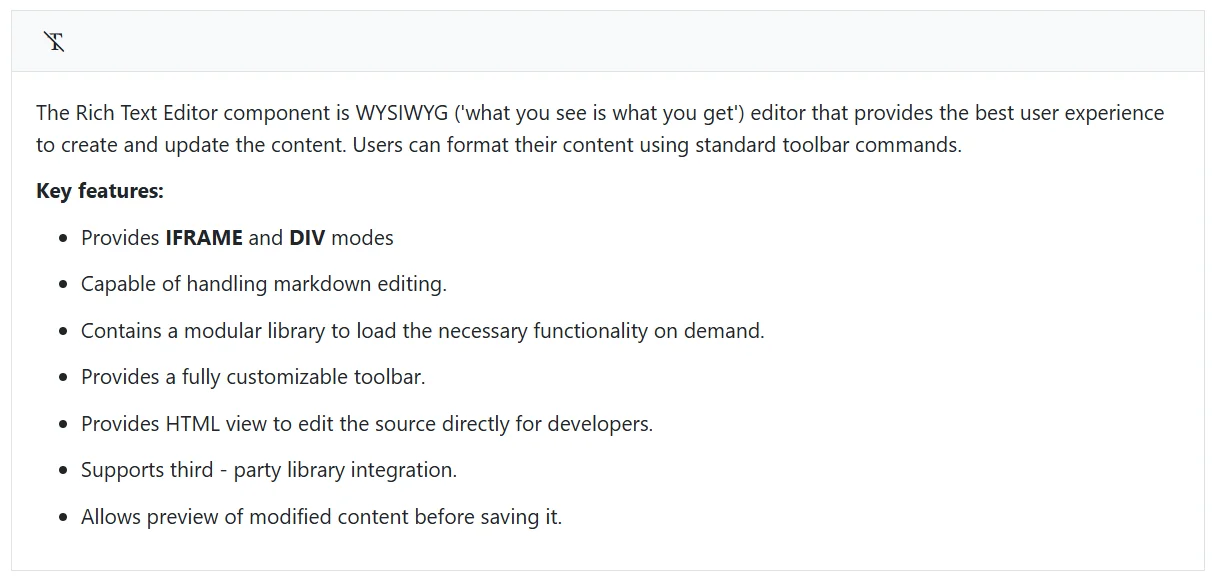
The Rich Text Editor component offers a powerful Clear Format feature to remove any applied formatting from selected text.
This feature is particularly useful when you need to:
- Remove multiple styles at once
- Quickly standardize text formatting
- Prepare text for new styling
Configuring clear format
The Clear Format feature allows users to remove all formatting (like bold, italic, font styles, etc.) from selected text in the Rich Text Editor. To enable this feature, you need to include it in the toolbar configuration.
Steps to Configure:
- Open the component file where the Rich Text Editor is implemented.
- Locate the RichTextEditorToolbarSettings.Items property in your editor configuration.
- Add
ClearFormatto theItemsarray within theToolbarSettings.
Here’s an example of how to configure the Clear Format feature:
@using Syncfusion.Blazor.RichTextEditor

<SfRichTextEditor>
    <RichTextEditorToolbarSettings Items="@Items" />
    <p>The Rich Text Editor component is WYSIWYG ('what you see is what you get') editor that provides the best user experience to create and update the content. Users can format their content using standard toolbar commands.</p>
        <p><b> Key features:</b></p>
        <ul>
            <li><p> Provides <b>IFRAME</b> and <b>DIV</b> modes </p></li>
            <li><p> Capable of handling markdown editing.</p></li>
            <li><p> Contains a modular library to load the necessary functionality on demand.</p></li>
            <li><p> Provides a fully customizable toolbar.</p></li>
            <li><p> Provides HTML view to edit the source directly for developers.</p></li>
            <li><p> Supports third - party library integration.</p></li>
            <li><p> Allows preview of modified content before saving it.</p></li>
        </ul>
</SfRichTextEditor>
@code {
    private List<ToolbarItemModel> Items = new List<ToolbarItemModel>()
    {
        new ToolbarItemModel() { Command = ToolbarCommand.ClearFormat }
    };
}
Using clear format

Once configured, you can use the Clear Format feature as follows:
- Select the text with formatting you want to remove.
- Click the
Clear Formatbutton in the toolbar. - The selected text will revert to its original, unformatted state.
Using Clear Format makes it easy to undo styling changes and keep your text looking consistent. Examples and code snippets below show how to use ‘Clear Format’ effectively in the Rich Text Editor.
@using Syncfusion.Blazor.RichTextEditor
<SfRichTextEditor>
<RichTextEditorToolbarSettings Items="@Items" />
<p style="text-align: start;"><span style="color: rgb(37, 37, 37); font-family: "Segoe UI", SegoeUI, "Helvetica Neue", Helvetica, Arial, sans-serif; font-size: 16px; font-style: normal; font-weight: 400; text-align: start; text-indent: 0px; text-transform: none; white-space: normal; background-color: rgb(255, 255, 255); display: inline !important; float: none;">The </span><span style="color: rgb(37, 37, 37); font-family: "Segoe UI", SegoeUI, "Helvetica Neue", Helvetica, Arial, sans-serif; font-size: 16px; font-style: normal; font-weight: 400; text-align: start; text-indent: 0px; text-transform: none; white-space: normal; background-color: rgb(255, 255, 0); float: none; display: inline !important;"><strong style="font-size: 16px;">clear format</strong></span><span style="color: rgb(37, 37, 37); font-family: "Segoe UI", SegoeUI, "Helvetica Neue", Helvetica, Arial, sans-serif; font-size: 16px; font-style: normal; font-weight: 400; text-align: start; text-indent: 0px; text-transform: none; white-space: normal; background-color: rgb(255, 255, 255); display: inline !important; float: none;"> tool is useful to remove all formatting styles (such as bold, italic, underline, color, superscript, subscript, and more) from currently selected text. As a result, all the text formatting will be cleared and return to its default formatting styles.</span><br></p>
</SfRichTextEditor>
@code {
private List<ToolbarItemModel> Items = new List<ToolbarItemModel>()
{
new ToolbarItemModel() { Command = ToolbarCommand.ClearFormat }
};
}
Markdown Auto Format
The Rich Text Editor supports automatic conversion of Markdown syntax into HTML using the EnableMarkdownAutoFormat property. This feature simplifies content creation by transforming Markdown elements into their corresponding HTML tags, ensuring consistency and improving efficiency.
By default, Markdown Auto-Format is enabled. The editor supports both inline formatting and block-level elements. As you type, Markdown syntax is automatically converted into semantic HTML tags, ensuring a smooth and efficient editing experience.
Inline Formatting
The following inline formatting options are available:
- Bold – Use
**text**or__text__. - Italic – Use
*text*or_text_. - Inline Code – Use
text. - Strikethrough – Use
~~text~~.
Block formatting
The following block formatting options are available:
-
Bulleted list – Start a line with
*or-followed by a space. -
Numbered list – Start a line with
1.followed by a space. -
Check List – Start a line with
[ ]or[x]followed by a space to insert an unchecked or checked list item, respectively. -
Headings – Start a line with
#,##, or###followed by a space to create Heading 1, Heading 2, or Heading 3. You can use up to six levels of headings -
Block quote – Start a line with
>followed by a space. - Code block – Start a line with ` ``` ` followed by a space.
-
Horizontal line – Start a line with
---followed by a space.
Use the EnableMarkdownAutoFormat tool in the editor below to see the feature in action.
@using Syncfusion.Blazor.RichTextEditor
<SfRichTextEditor EnableMarkdownAutoFormat="true">
<h3><span style="font-size: x-large;"><b>Auto Formatting - Write Faster, Format Smarter</b></span></h3><p><span style="font-size: inherit;">Boost your productivity with Auto Formatting, a powerful feature that lets you style content instantly using simple, familiar Markdown-style shortcuts. No need to reach for the toolbar - just type and watch your content transform in real time.</span></p><div style="font-family: "Segoe UI"; font-size: 14px; font-style: normal; line-height: 20px;"><p style="font-weight: 400;">The following Markdown shortcuts can be used:</p><ul style=""><li style="font-weight: 400;">Use <code>_</code> or <code>*</code> around text for <em>italic formatting</em>.</li><li style="">Use <code style="font-weight: 400;">__</code> or <code style="font-weight: 400;">**</code> around text for <b>bold</b> formatting.</li></ul></div>
</SfRichTextEditor>