Configure WebMCP Tools in Blazor Components
23 Oct 202616 minutes to read
Each component ships built-in tools. You can enable, disable, or rename them, add custom tools, and handle every call in OnWebMcpExecute. Tools are declared inside WebMcpSettings > WebMcpTools > WebMcpTool child tags. The tags are prefixed with the component name, for example GridWebMcpTool.
Configure tools
A built-in tool is selected with Command. The properties below apply to every tool entry.
| Property | Purpose | Default |
|---|---|---|
Command |
Built-in command to configure, or Custom for your own tool |
None |
Name |
Registered tool name. Required for custom tools. Optional override for built-in tools. Use PascalCase, for example FlagOrder
|
Generated |
Description |
Text the agent reads to decide when to call the tool | Built-in text |
InputSchema |
Object schema for the tool’s arguments. Required for custom tools. Pass an object whose type is object, not a JSON string |
Built-in schema |
Enabled |
Whether the tool is registered with the browser | true |
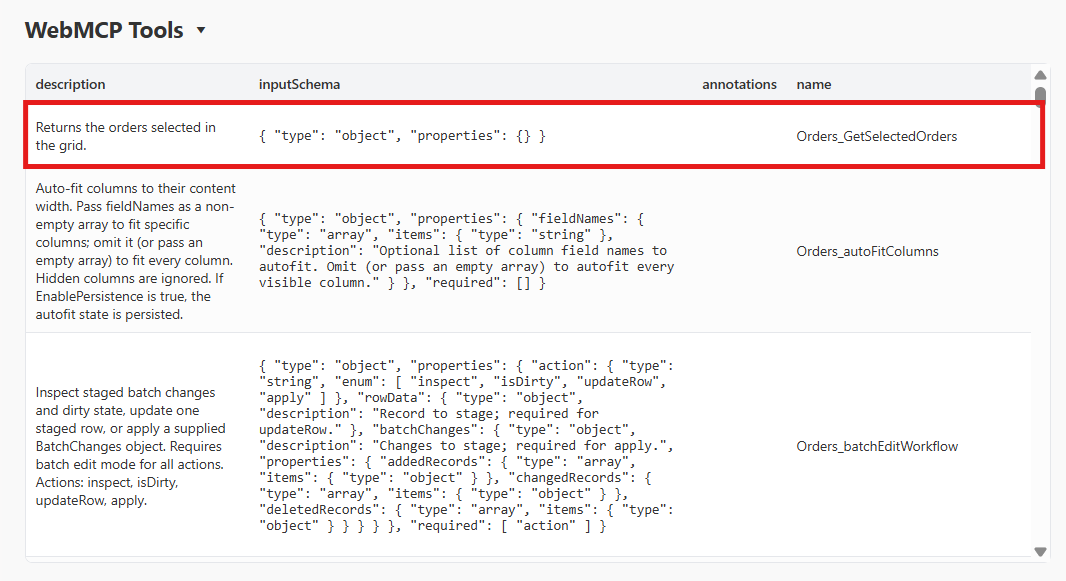
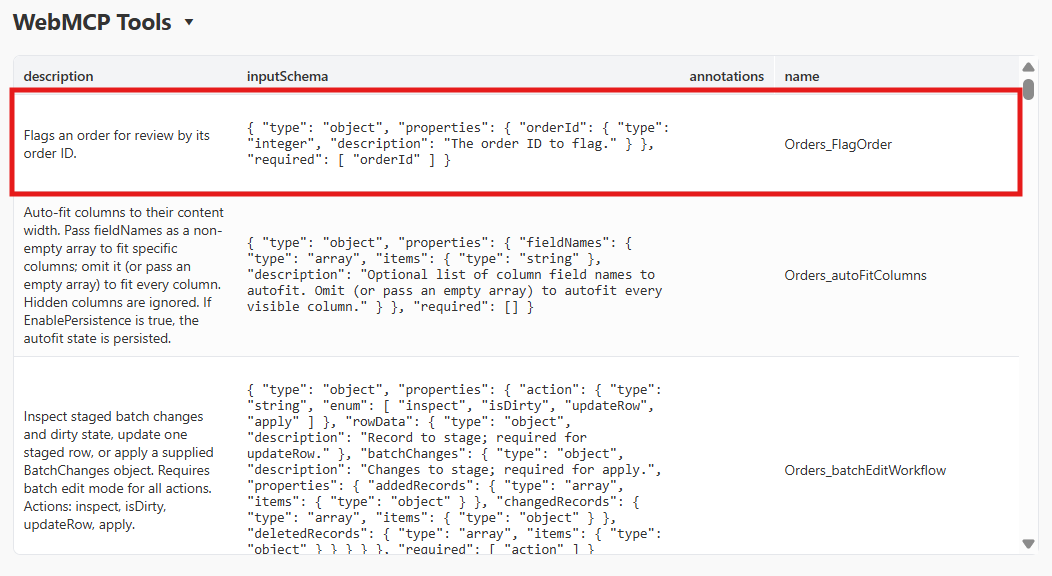
The registered name is {Prefix}_{Tool}. The prefix is the Name on WebMcpSettings, or the component ID when Name is empty. Use PascalCase for that name. The tool part is the built-in command, or the Name you set on a custom tool. With Name="Orders", SetCellValue is registered as Orders_SetCellValue, and a custom tool named FlagOrder is registered as Orders_FlagOrder. Match that full string, or use EndsWith("_SetCellValue"), so a partial suffix does not match another tool. Call GetWebMcpToolsAsync and read Name if you need the exact value for an instance.
Tools that return document or data content are disabled by default, so you opt in deliberately. Examples are PDF Viewer GetBookmarks, GetAnnotations, GetFormFields, GetSearchTextPositions, and GetPageText, and Spreadsheet GetRangeData.
@page "/orders"
@rendermode InteractiveServer
@using Syncfusion.Blazor.Grids

<SfGrid @ref="grid" DataSource="@Orders" EnableWebMcp="true" AllowPaging="true">
    <GridEvents TValue="Order" OnWebMcpExecute="OnToolExecuting" />
    <GridWebMcpSettings Name="Orders">
        <GridWebMcpTools>
            <GridWebMcpTool Command="GridWebMcpToolCommand.ExcelExport" Enabled="false" />
            <GridWebMcpTool Command="GridWebMcpToolCommand.Custom"
                            Name="GetSelectedOrders"
                            Description="Returns the orders selected in the grid."
                            InputSchema="@SelectedSchema"
                            Enabled="true" />
        </GridWebMcpTools>
    </GridWebMcpSettings>
    <GridPageSettings PageSize="5"></GridPageSettings>
    <GridColumns>
        <GridColumn Field="@nameof(Order.OrderID)" HeaderText="Order ID" IsPrimaryKey="true" Width="110"></GridColumn>
        <GridColumn Field="@nameof(Order.CustomerID)" HeaderText="Customer" Width="140"></GridColumn>
        <GridColumn Field="@nameof(Order.Freight)" HeaderText="Freight" Format="C2" Width="120"></GridColumn>
        <GridColumn Field="@nameof(Order.Flagged)" HeaderText="Flagged" Width="110"></GridColumn>
    </GridColumns>
</SfGrid>

@code {
    public class Order
    {
        public int OrderID { get; set; }
        public string CustomerID { get; set; } = string.Empty;
        public double Freight { get; set; }
        public bool Flagged { get; set; }
    }

    private SfGrid<Order> grid = default!;

    private object SelectedSchema { get; set; } = new
    {
        type = "object",
        properties = new { }
    };

    private List<Order> Orders = Enumerable.Range(1, 12).Select(i => new Order
    {
        OrderID = 10000 + i,
        CustomerID = $"CUST{i:00}",
        Freight = 20 + i * 3.5,
        Flagged = false
    }).ToList();

    private async Task OnToolExecuting(GridWebMcpExecuteEventArgs args)
    {
        if (!args.Name.EndsWith("_GetSelectedOrders"))
        {
            return;
        }

        var selected = await grid.GetSelectedRecordsAsync();
        args.Result = selected;
    }
}
Custom tools
Set Command to Custom to expose an action the component does not provide. A custom tool needs a Name, a Description, and an InputSchema. Handle the call in OnWebMcpExecute, match args.Name, and set args.Result.
@page "/orders"
@rendermode InteractiveServer
@using Syncfusion.Blazor.Grids

<SfGrid DataSource="@Orders" EnableWebMcp="true" AllowPaging="true">
    <GridEvents TValue="Order" OnWebMcpExecute="OnToolExecuting" />
    <GridWebMcpSettings Name="Orders">
        <GridWebMcpTools>
            <GridWebMcpTool Command="GridWebMcpToolCommand.Custom"
                            Name="FlagOrder"
                            Description="Flags an order for review by its order ID."
                            InputSchema="@FlagSchema" />
        </GridWebMcpTools>
    </GridWebMcpSettings>
    <GridPageSettings PageSize="5"></GridPageSettings>
    <GridColumns>
        <GridColumn Field="@nameof(Order.OrderID)" HeaderText="Order ID" IsPrimaryKey="true" Width="110"></GridColumn>
        <GridColumn Field="@nameof(Order.CustomerID)" HeaderText="Customer" Width="140"></GridColumn>
        <GridColumn Field="@nameof(Order.Freight)" HeaderText="Freight" Format="C2" Width="120"></GridColumn>
        <GridColumn Field="@nameof(Order.Flagged)" HeaderText="Flagged" Width="110"></GridColumn>
    </GridColumns>
</SfGrid>

@code {
    public class Order
    {
        public int OrderID { get; set; }
        public string CustomerID { get; set; } = string.Empty;
        public double Freight { get; set; }
        public bool Flagged { get; set; }
    }

    private object FlagSchema { get; set; } = new
    {
        type = "object",
        properties = new
        {
            orderId = new { type = "integer", description = "The order ID to flag." }
        },
        required = new[] { "orderId" }
    };

    private List<Order> Orders = Enumerable.Range(1, 12).Select(i => new Order
    {
        OrderID = 10000 + i,
        CustomerID = $"CUST{i:00}",
        Freight = 20 + i * 3.5,
        Flagged = false
    }).ToList();

    private void OnToolExecuting(GridWebMcpExecuteEventArgs args)
    {
        if (!args.Name.EndsWith("_FlagOrder"))
        {
            return;
        }

        if (!int.TryParse(args.Arguments["orderId"]?.ToString(), out var orderId))
        {
            args.Cancel = true;
            args.Result = "orderId must be an integer.";
            return;
        }

        var order = Orders.FirstOrDefault(o => o.OrderID == orderId);
        if (order is null)
        {
            args.Result = "Order not found.";
            return;
        }

        order.Flagged = true;
        args.Result = "Order flagged.";
    }
}
Control tool execution
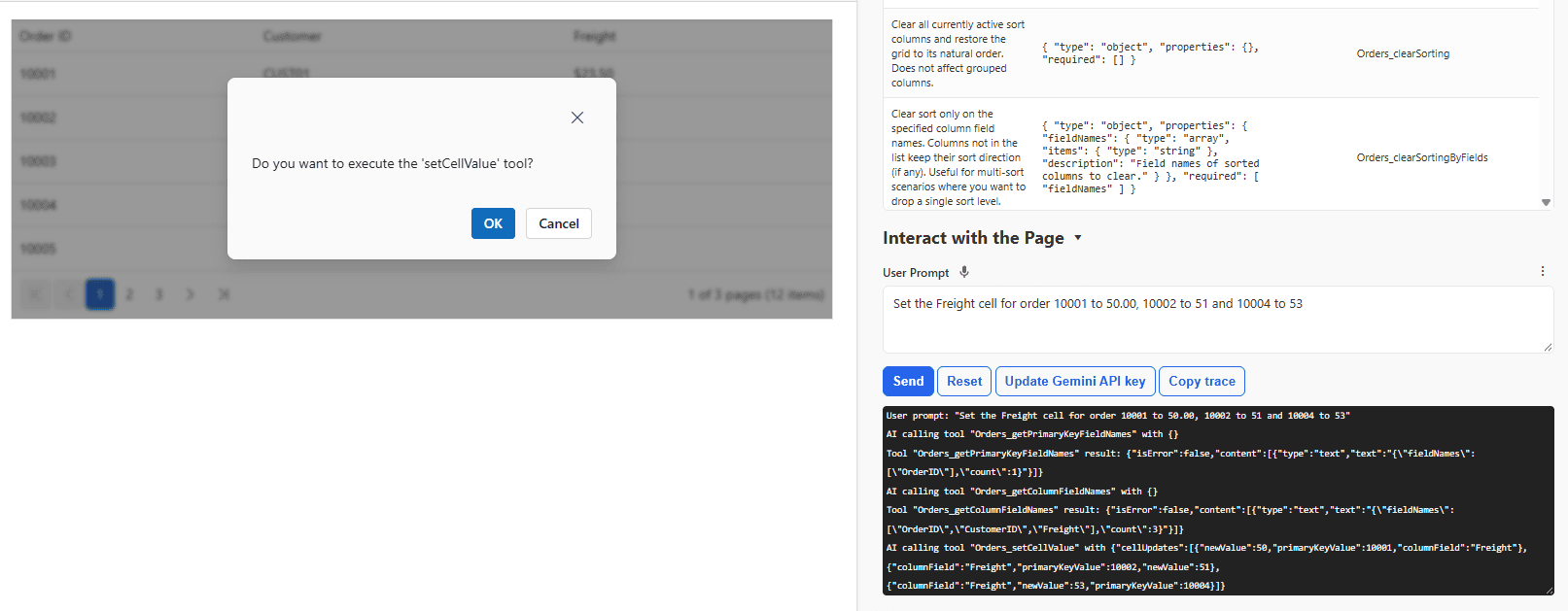
Every call triggers OnWebMcpExecute. The event arguments expose Name, Arguments, ShowConfirmationDialog, Cancel, and Result.
The order of work for each call is:
- The component resolves the tool.
-
OnWebMcpExecuteruns. - If
Cancelistrue, execution stops and a cancellation response is returned. - If
ShowConfirmationDialogistrue, the component asks the user to confirm a writable tool. - For a built-in tool, the component handler runs and returns the result. For a custom tool, the result is the value you set on
Resultin this event.
For a built-in write tool, set ShowConfirmationDialog and leave the work to the component. Do not change data in the event for that call. The component runs its handler only after the user accepts.
@page "/orders"
@rendermode InteractiveServer
@using Syncfusion.Blazor.Grids

<SfGrid DataSource="@Orders" EnableWebMcp="true" AllowPaging="true">
    <GridEvents TValue="Order" OnWebMcpExecute="OnToolExecuting" />
    <GridWebMcpSettings Name="Orders" />
    <GridPageSettings PageSize="5"></GridPageSettings>
    <GridColumns>
        <GridColumn Field="@nameof(Order.OrderID)" HeaderText="Order ID" IsPrimaryKey="true" Width="110"></GridColumn>
        <GridColumn Field="@nameof(Order.CustomerID)" HeaderText="Customer" Width="140"></GridColumn>
        <GridColumn Field="@nameof(Order.Freight)" HeaderText="Freight" Format="C2" Width="120"></GridColumn>
    </GridColumns>
</SfGrid>

@code {
    public class Order
    {
        public int OrderID { get; set; }
        public string CustomerID { get; set; } = string.Empty;
        public double Freight { get; set; }
    }

    private bool UserCanEditOrders { get; set; } = true;

    private List<Order> Orders = Enumerable.Range(1, 12).Select(i => new Order
    {
        OrderID = 10000 + i,
        CustomerID = $"CUST{i:00}",
        Freight = 20 + i * 3.5
    }).ToList();

    private void OnToolExecuting(GridWebMcpExecuteEventArgs args)
    {
        if (args.Name.EndsWith("SetCellValue") && !UserCanEditOrders)
        {
            args.Cancel = true;
            return;
        }

        if (args.Name.EndsWith("SetCellValue"))
        {
            args.ShowConfirmationDialog = true;
        }
    }
}
Confirm a custom tool
Trigger OnWebMcpExecute for a custom tool, and set Result only when the user accepts. This sample uses window.confirm through IJSRuntime. Replace that call with a Syncfusion dialog if the page already uses one.
@page "/orders"
@rendermode InteractiveServer
@inject IJSRuntime JS
@using Syncfusion.Blazor.Grids

<SfGrid DataSource="@Orders" EnableWebMcp="true" AllowPaging="true">
    <GridEvents TValue="Order" OnWebMcpExecute="OnToolExecuting" />
    <GridWebMcpSettings Name="Orders">
        <GridWebMcpTools>
            <GridWebMcpTool Command="GridWebMcpToolCommand.Custom"
                            Name="FlagOrder"
                            Description="Flags an order for review by its order ID."
                            InputSchema="@FlagSchema" />
        </GridWebMcpTools>
    </GridWebMcpSettings>
    <GridPageSettings PageSize="5"></GridPageSettings>
    <GridColumns>
        <GridColumn Field="@nameof(Order.OrderID)" HeaderText="Order ID" IsPrimaryKey="true" Width="110"></GridColumn>
        <GridColumn Field="@nameof(Order.CustomerID)" HeaderText="Customer" Width="140"></GridColumn>
        <GridColumn Field="@nameof(Order.Freight)" HeaderText="Freight" Format="C2" Width="120"></GridColumn>
        <GridColumn Field="@nameof(Order.Flagged)" HeaderText="Flagged" Width="110"></GridColumn>
    </GridColumns>
</SfGrid>

@code {
    public class Order
    {
        public int OrderID { get; set; }
        public string CustomerID { get; set; } = string.Empty;
        public double Freight { get; set; }
        public bool Flagged { get; set; }
    }

    private object FlagSchema { get; set; } = new
    {
        type = "object",
        properties = new
        {
            orderId = new { type = "integer", description = "The order ID to flag." }
        },
        required = new[] { "orderId" }
    };

    private List<Order> Orders = Enumerable.Range(1, 12).Select(i => new Order
    {
        OrderID = 10000 + i,
        CustomerID = $"CUST{i:00}",
        Freight = 20 + i * 3.5,
        Flagged = false
    }).ToList();

    private async Task OnToolExecuting(GridWebMcpExecuteEventArgs args)
    {
        if (!args.Name.EndsWith("_FlagOrder"))
        {
            return;
        }

        if (!int.TryParse(args.Arguments["orderId"]?.ToString(), out var orderId))
        {
            args.Cancel = true;
            args.Result = "orderId must be an integer.";
            return;
        }

        var order = Orders.FirstOrDefault(o => o.OrderID == orderId);
        if (order is null)
        {
            args.Result = "Order not found.";
            return;
        }

        var accepted = await JS.InvokeAsync<bool>("confirm", $"Flag order {orderId}?");
        if (!accepted)
        {
            args.Cancel = true;
            return;
        }

        order.Flagged = true;
        args.Result = "Order flagged.";
    }
}
Inspect tools
GetWebMcpToolsAsync(IEnumerable<string>? toolNames = null) returns the registered tools as IWebMcpTool items with Name, Description, and InputSchema. Use it to confirm which tools an agent can see.
See also
- Getting started with WebMCP shows how to enable registration before you customize tools.
-
Security and best practices explains how to confirm writes and validate arguments in
OnWebMcpExecute. -
Supported components lists the built-in commands you can select with
Command.