Integrate Gemini With Blazor AI AssistView
5 Aug 20265 minutes to read
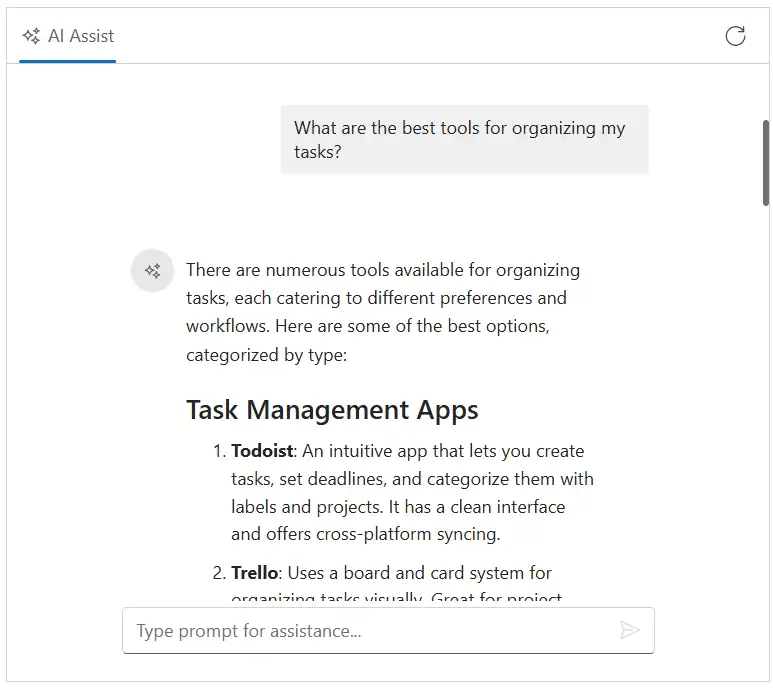
The AI AssistView component integrates with Google’s Gemini API to deliver intelligent conversational interfaces. It leverages advanced natural language understanding to interpret user input, maintain context throughout interactions, and provide accurate, relevant responses. By configuring secure authentication and data handling, developers can unlock powerful AI-driven communication features that elevate user engagement and streamline support experiences.
Prerequisites
Before starting, ensure you have the following:
-
Google Account: For generating a Gemini API key.
-
Syncfusion AI AssistView: Package Syncfusion Blazor package installed.
Set Up the AI AssistView Component
Follow the Getting Started guide to configure and render the AI AssistView component in the application and that prerequisites are met.
Install Dependencies
Install the required packages:
- Install the
Gemini AInuget package in the application.
Nuget\Install-Package Mscc.GenerativeAIGenerate API Key
-
Access Google AI Studio: Instructs users to sign into Google AI Studio with a Google account or create a new account if needed.
-
Navigate to API Key Creation: Go to the
Get API Keyoption in the left-hand menu or top-right corner of the dashboard. Click theCreate API Keybutton. -
Project Selection: Choose an existing Google Cloud project or create a new one.
-
API Key Generation: After project selection, the API key is generated. Users are instructed to copy and store the key securely, as it is shown only once.
Security note: Advises against committing the API key to version control and recommends using environment variables or a secret manager in production.
Gemini AI with AI AssistView
Modify the razor file to integrate the Gemini AI with the AI AssistView component.
- Update your Gemini API key securely in the configuration:
const string GeminiApiKey = 'Place your API key here';@using Syncfusion.Blazor.InteractiveChat
@using Syncfusion.Blazor.Navigations
@using Mscc.GenerativeAI
<div class="aiassist-container" style="height: 350px; width: 650px;">
<SfAIAssistView @ref="sfAIAssistView" ID="aiAssistView" PromptSuggestions="@promptSuggestions" PromptRequested="@OnPromptRequest">
<AssistViews>
<AssistView>
<BannerTemplate>
<div class="banner-content">
<div class="e-icons e-assistview-icon"></div>
<h3>AI Assistance</h3>
<i>To get started, provide input or choose a suggestion.</i>
</div>
</BannerTemplate>
</AssistView>
</AssistViews>
<AssistViewToolbar ItemClicked="ToolbarItemClicked">
<AssistViewToolbarItem Type="ItemType.Spacer"></AssistViewToolbarItem>
<AssistViewToolbarItem IconCss="e-icons e-refresh"></AssistViewToolbarItem>
</AssistViewToolbar>
</SfAIAssistView>
</div>
@code {
private SfAIAssistView sfAIAssistView = new SfAIAssistView();
private List<string> promptSuggestions = new List<string>
{
"What are the best tools for organizing my tasks?",
"How can I maintain work-life balance effectively?"
};
// Initialize Gemini API
private readonly string geminiApiKey = "";
// Handle user prompt: call Gemini model
private async Task OnPromptRequest(AssistViewPromptRequestedEventArgs args)
{
try
{
var gemini = new GoogleAI(apiKey: geminiApiKey); // Replace with your Gemini API key
var model = gemini.GenerativeModel(model: "gemini-2.5-flash"); // Select the Gemini model (update model name as needed)
var response = await model.GenerateContent(args.Prompt);
var responseText = response.Text;
// Add the response to the AIAssistView
await Task.Delay(1000); // Simulate delay as in original code
args.Response = responseText;
}
catch (Exception ex)
{
Console.WriteLine($"Error fetching Gemini response: {ex.Message}");
await Task.Delay(1000);
args.Response = "⚠️ Something went wrong while connecting to the AI service. Please check your API key or try again later.";
}
}
private void ToolbarItemClicked(AssistViewToolbarItemClickedEventArgs args)
{
sfAIAssistView.Prompts.Clear();
StateHasChanged();
}
}