Integrate Ollama LLM With Blazor AI AssistView
5 Aug 20269 minutes to read
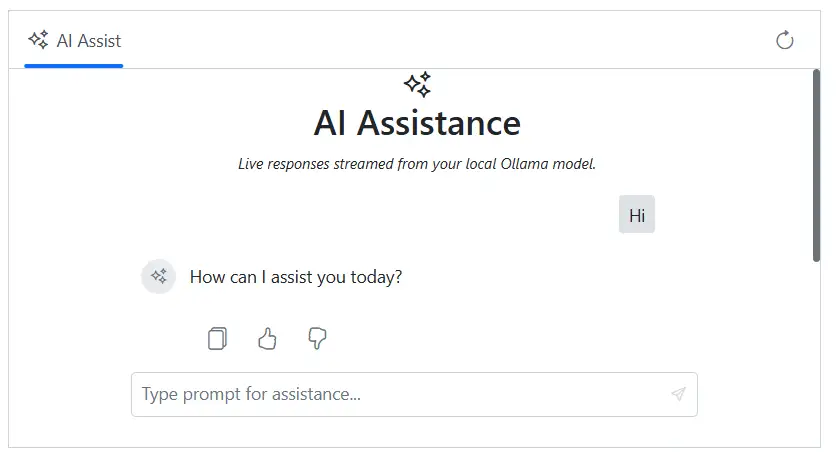
The AI AssistView component integrates with LLM via Ollama to enable advanced conversational AI features in your Blazor application. The component acts as a user interface where user prompts are sent to the selected LLM model via API calls, providing natural language understanding and context-aware responses.
Prerequisites
Before starting, ensure you have the following:
-
Ollama installed to run and manage LLM models locally.
-
Syncfusion AI AssistView: Package Syncfusion Blazor package installed.
Set Up the AI AssistView Component
Follow the Getting Started guide to configure and render the AI AssistView component in the application and that prerequisites are met.
Configuring Ollama
Install Ollama for your operating system:
1. Visit [Windows](https://ollama.com/download)
2. Click `Download for Windows` to get the `.exe installer`.
3. Run `OllamaSetup.exe` and follow the wizard to install.1. Visit [macOS](https://ollama.com/download/mac)
2. Click `Download for macOS` to get `.dmg file`
3. Install it by following the wizard.1. Visit [Linux](https://ollama.com/download/linux)
2. Run the below command to install Ollama in your system
curl -fsSL https://ollama.com/install.sh | shDownload and run an Ollama model
- Download and run a model using the following command. Replace
deepseek-r1with your preferred model (e.g.,llama3,phi4). See the Ollama model library for available models.
ollama run deepseek-r1- After the model download completes, start the Ollama server to make the model accessible:
ollama serveConfigure AI AssistView with Ollama
To integrate Ollama with the Blazor AI AssistView component in your Blazor application:
- Configure the AI services in the
Program.csfile to register the Ollama client and Blazor services.
using Blazor_AssistView_Ollama.Components;
using Microsoft.Extensions.Caching.Memory;
using Microsoft.Extensions.AI;
using OllamaSharp;
using Syncfusion.Blazor;

var builder = WebApplication.CreateBuilder(args);

// Add services to the container.
builder.Services.AddRazorComponents()
    .AddInteractiveServerComponents();
builder.Services.AddSyncfusionBlazor();

builder.Services.AddHttpClient();

builder.Services.AddDistributedMemoryCache();

// Ollama configuration
builder.Services.AddChatClient(new OllamaApiClient(new Uri("http://localhost:11434/"), "llama3.2"))
    .UseDistributedCache()
    .UseLogging();

var app = builder.Build();

// Configure the HTTP request pipeline.
if (!app.Environment.IsDevelopment())
{
    app.UseExceptionHandler("/Error", createScopeForErrors: true);
    // The default HSTS value is 30 days. You may want to change this for production scenarios, see https://aka.ms/aspnetcore-hsts.
    app.UseHsts();
}

app.UseHttpsRedirection();


app.UseAntiforgery();

app.MapStaticAssets();
app.MapRazorComponents<App>()
    .AddInteractiveServerRenderMode();

app.Run();- Modify the
Index.razorfile (or a dedicated component) to host the integration logic and handle prompt requests.
@rendermode InteractiveServer
@using Microsoft.Extensions.AI
@using Syncfusion.Blazor.Navigations

<div class="control-section">
    <div class="stream-aiassistview">
        <SfAIAssistView @ref="AIAssist"
        PromptSuggestions="@suggestions"
        PromptRequested="@PromptRequest"
        ResponseStopped="@HandleStopResponse">
            <AssistViews>
                <AssistView>
                    <BannerTemplate>
                        <div class="banner-content">
                            <div class="e-icons e-assistview-icon"></div>
                            <h3>AI Assistance</h3>
                            <i> Live responses streamed from your local Ollama model. </i>
                        </div>
                    </BannerTemplate>
                </AssistView>
            </AssistViews>

            <AssistViewToolbar ItemClicked="ToolbarItemClicked">
                <AssistViewToolbarItem Type="ItemType.Spacer"></AssistViewToolbarItem>
                <AssistViewToolbarItem IconCss="e-icons e-refresh"></AssistViewToolbarItem>
            </AssistViewToolbar>
        </SfAIAssistView>
    </div>
</div>

@code {
    private SfAIAssistView AIAssist = new();
    private bool responseStopped = false;
    private bool isStreaming = false;

    // Suggestion list
    private List<string> suggestions = new()
    {
        "What are the best tools for organizing my tasks?",
        "How can I maintain work-life balance effectively?"
    };

    [Inject] private IChatClient ChatClient { get; set; } = default!;

    private async Task PromptRequest(AssistViewPromptRequestedEventArgs args)
    {
        responseStopped = false;
        isStreaming = true; // turn on Stop button

        try
        {

            var messages = new List<Microsoft.Extensions.AI.ChatMessage>
            {
                new(ChatRole.System, "You are a helpful AI assistant. Respond with clear, concise explanations. Use Markdown when helpful."),
                new(ChatRole.User, args.Prompt)
            };

            var buffer = new System.Text.StringBuilder();
            const int updateRateChars = 5;
            int lastLenPushed = 0;

            await foreach (var update in ChatClient.GetStreamingResponseAsync(messages))
            {
                if (responseStopped) break;
                if (string.IsNullOrEmpty(update?.Text)) continue;

                buffer.Append(update.Text);

                if (buffer.Length - lastLenPushed >= updateRateChars)
                {
                    string html = buffer.ToString();
                    await AIAssist.UpdateResponseAsync(html);
                    await AIAssist.ScrollToBottomAsync();
                    lastLenPushed = buffer.Length;
                }
            }

            if (!responseStopped)
            {
                string finalHtml = buffer.ToString();
                await AIAssist.UpdateResponseAsync(finalHtml);
                await AIAssist.ScrollToBottomAsync();
            }

            args.PromptSuggestions = suggestions;
        }
        catch (Exception ex)
        {
            await AIAssist.UpdateResponseAsync($"Error generating response: {ex.Message}");
            await AIAssist.ScrollToBottomAsync();
        }
        finally
        {
            responseStopped = false;
            isStreaming = true;
            StateHasChanged();
        }
    }

    private void ToolbarItemClicked(AssistViewToolbarItemClickedEventArgs args)
    {
        // Handle Refresh
        if (args.Item.IconCss == "e-icons e-refresh")
        {
            AIAssist.Prompts.Clear();

            AIAssist.PromptSuggestions = suggestions;
        }
    }

    private void HandleStopResponse(ResponseStoppedEventArgs args)
    {
        responseStopped = true;
    }
}

<style>
.stream-aiassistview {
    height: 350px;
    width: 650px;
    margin: 0 auto;
}
.stream-aiassistview .banner-content .e-assistview-icon:before {
    font-size: 25px;
}
.stream-aiassistview .banner-content {
    text-align: center;
}
</style>