How can I help you?
Deploy Blazor Web App to Linux with NGINX
17 Mar 20262 minutes to read
This section provides information about deploying a Blazor Web applications with the Syncfusion Blazor components to Linux server using NGINX as a reverse proxy.
Refer to Host ASP.NET Core on Linux with NGINX topic for more information.
Prerequisites
- Linux Server – Ubuntu 20.04, Red Hat Enterprise (RHEL) 8.0 and SUSE Linux Enterprise Server 12.
- .NET runtime installed on the server.
- An existing Blazor Web App with Syncfusion components or create a new one.
Install and Start NGINX
Install NGINX on your Linux system and enable it to start automatically:
sudo dnf install nginx
sudo systemctl start nginx
sudo systemctl enable nginx
sudo systemctl status nginxVerification: Open http://your-server-ip in a browser — you should see the NGINX welcome page.
Create and publish Your Blazor Web App with Syncfusion Components
-
You can create a Blazor Web App using the .NET CLI commands with Syncfusion components by referring here.
-
Publish your Blazor Web application in Release configuration using the following command and run it:
dotnet publish -c Release -o publish
cd publish
dotnet SfBlazorApp.dll --urls "http://0.0.0.0:5000"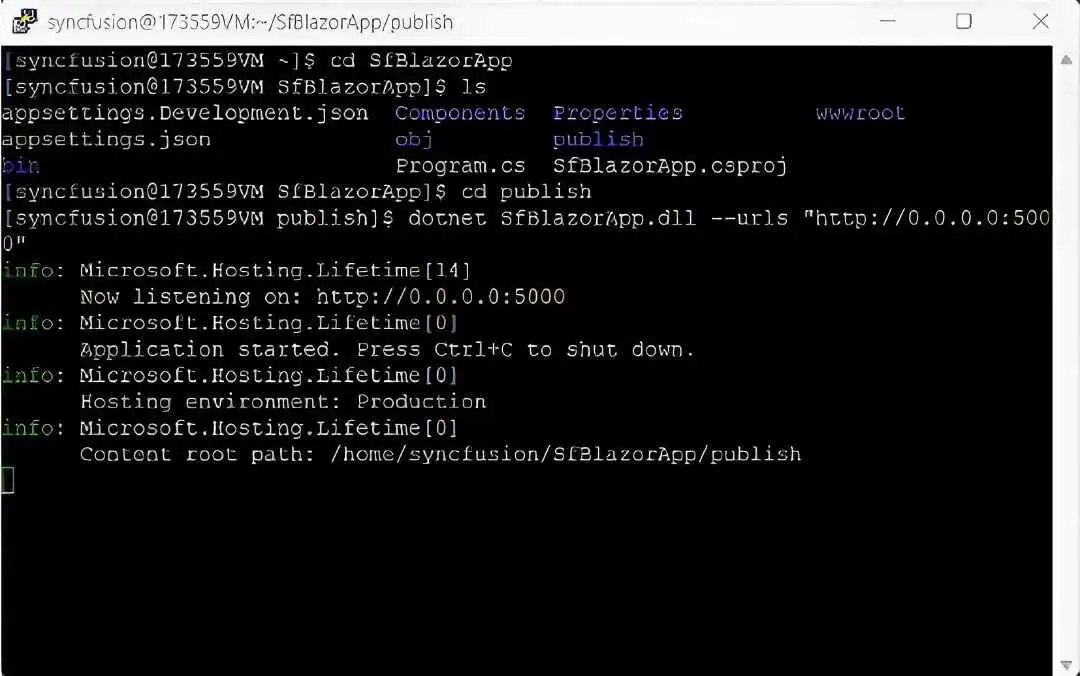
Configure NGINX to Proxy Requests
Create a new NGINX configuration file for your Blazor application:
sudo nano /etc/nginx/conf.d/blazorapp.confAdd the following configuration to enable NGINX to act as a reverse proxy:
server {
    listen 80;
    server_name _;
    location / {
        proxy_pass http://localhost:5000;
        proxy_http_version 1.1;
        proxy_set_header Host $host;
        proxy_set_header X-Real-IP $remote_addr;
        proxy_set_header X-Forwarded-For $proxy_add_x_forwarded_for;
        proxy_set_header X-Forwarded-Proto $scheme;
        proxy_set_header Upgrade $http_upgrade;
        proxy_set_header Connection "upgrade";
    }
}
Save and exit the file (Ctrl+O, Enter, then Ctrl+X).
Validate and Restart NGINX
Test the NGINX configuration and restart the service:
sudo nginx -t
sudo systemctl restart nginx
Configure SELinux (For Red Hat-based Systems)
On Red Hat-based systems, SELinux may block NGINX from accessing your Blazor app. Allow NGINX to connect to network services:
sudo setsebool -P httpd_can_network_connect 1Access the Application
From your Windows machine or any other device, open a browser and navigate to:
http://<your-vm-ip>/
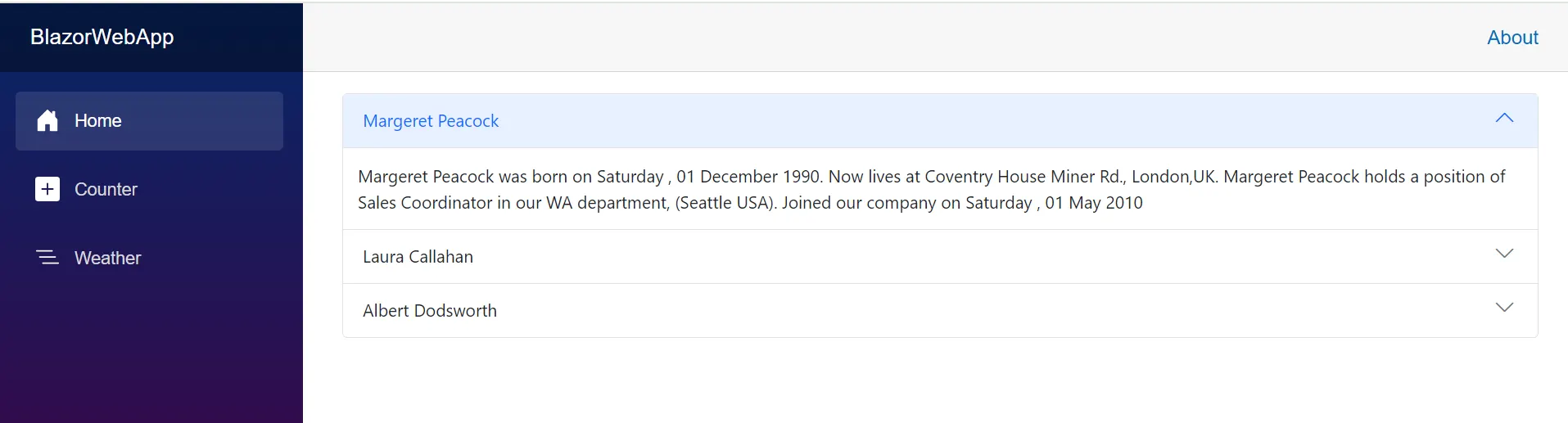
You should now see your Blazor Web app running successfully with Syncfusion components!