Getting Started with Blazor Web App
26 Aug 20267 minutes to read
This article provides step-by-step instructions for building a Blazor Web App with the Blazor DataGrid component using Visual Studio, Visual Studio Code, and the .NET CLI.
To get started quickly with a Blazor Web App, watch the following video.
Using Playground
Blazor Playground allows you to interact with our Blazor components directly in your web browser without needing to install any NuGet packages.
Using .NET CLI Templates
Quickly set up a Blazor application using the preconfigured Syncfusion Web App Template.
First, install the template using the .NET CLI.
dotnet new install Syncfusion.Blazor.WebApp.TemplatesNext, create a new project with one of the following interactivity modes.
dotnet new syncfusionblazorwebapp --name MyApp --interactivity Server --all-interactive Globaldotnet new syncfusionblazorwebapp --name MyApp --interactivity WebAssembly --all-interactive PerPage/componentdotnet new syncfusionblazorwebapp --name MyApp --interactivity Auto --all-interactive PerPage/componentAfter creating the project, navigate to the main project folder (for example, MyApp) and run the following command.
cd MyApp
dotnet run
cd MyApp
dotnet runcd MyApp
cd MyApp
dotnet runManually creating a project
This section provides a brief guide on how to manually create a Blazor Web App.
Create a new Blazor Web App
Create a Blazor Web App using Visual Studio via Microsoft Templates or the Blazor Extension.
Run the following command to create a new Blazor Web App.
dotnet new blazor -o BlazorWebApp --interactivity Auto
cd BlazorWebApp
cd BlazorWebApp.Client
Alternatively, create a Blazor Web App using Visual Studio Code via Microsoft Templates, the Blazor Extension, or the C# Dev Kit extension.
Configure the appropriate Interactive render mode and Interactivity location while creating a Blazor Web App. For detailed information, refer to the interactive render mode documentation.
Install the required Blazor packages
Install the Syncfusion.Blazor.Grid and Syncfusion.Blazor.Themes NuGet packages. All Syncfusion Blazor packages are available on nuget.org. See the NuGet packages topic for details. If using the WebAssembly or Auto render modes in the Blazor Web App, install these packages in the .Client project.
- Go to Tools → NuGet Package Manager → Manage NuGet Packages for Solution.
- Search the required NuGet packages (
Syncfusion.Blazor.GridandSyncfusion.Blazor.Themes) and install them.
Alternatively, you can install the same packages using the Package Manager Console with the following commands.
Install-Package Syncfusion.Blazor.Grid -Version 34.2.2
Install-Package Syncfusion.Blazor.Themes -Version 34.2.2
Open the terminal and run the following commands.
dotnet add package Syncfusion.Blazor.Grid -v 34.2.2
dotnet add package Syncfusion.Blazor.Themes -v 34.2.2
Add import namespaces
After the packages are installed, open the ~/_Imports.razor file in the .Client project and import the Syncfusion.Blazor and Syncfusion.Blazor.Grids namespaces.
@using Syncfusion.Blazor
@using Syncfusion.Blazor.Grids
Register the Blazor service
Open the Program.cs file in Blazor Web App and register the Blazor service and include the required namespace reference using Syncfusion.Blazor; at the top. If the Interactive Render Mode is set to WebAssembly or Auto, register the Blazor service in Program.cs files of both the server and client projects in your Blazor Web App.
builder.Services.AddSyncfusionBlazor();Add stylesheet and script resources
The theme stylesheet and script can be accessed from NuGet through Static Web Assets. Include the stylesheet at the end of the <head> section in the App.razor file.
<link href="_content/Syncfusion.Blazor.Themes/fluent2.css" rel="stylesheet" />Include the required script references at the end of the <body> section in the App.razor file to enable DataGrid functionality.
<script src="_content/Syncfusion.Blazor.Core/scripts/syncfusion-blazor.min.js" type="text/javascript"></script>Add Blazor DataGrid component
Open a Razor file located in the ~/Pages/*.razor (for example, Home.razor) and add the Blazor DataGrid component inside the razor file.
If the interactivity location is set to
Per page/componentin the Web App, define a render mode at the top of the razor file. (For example,InteractiveServer,InteractiveWebAssemblyorInteractiveAuto). If the Interactivity is set toGlobalwithAutoorWebAssembly, the render mode is automatically configured in theApp.razorfile by default.
@rendermode InteractiveAuto

<SfGrid DataSource="@Orders" />

@code {

    public List<Order> Orders { get; set; }

    protected override void OnInitialized()
    {
        var customers = new string[] { "James Hopper", "Michael Smith", "Sarah Johnson", "Robert Davis", "Emily Wilson" };
        var cities = new string[] { "New York", "Los Angeles", "Chicago", "Houston", "Phoenix" };
        var rng = new Random();
        Orders = Enumerable.Range(1, 10).Select(x => new Order()
        {
            OrderID = 1000 + x,
            CustomerName = customers[rng.Next(customers.Length)],
            ShipCity = cities[rng.Next(cities.Length)],
            Freight = Math.Round(10.5 + (x * 7.3), 2),
            OrderDate = DateTime.Now.AddDays(-x),
        }).ToList();
    }

    public class Order {
        public int? OrderID { get; set; }
        public string CustomerName { get; set; }
        public string ShipCity { get; set; }
        public DateTime? OrderDate { get; set; }
        public double? Freight { get; set; }
    }
}
Run the application
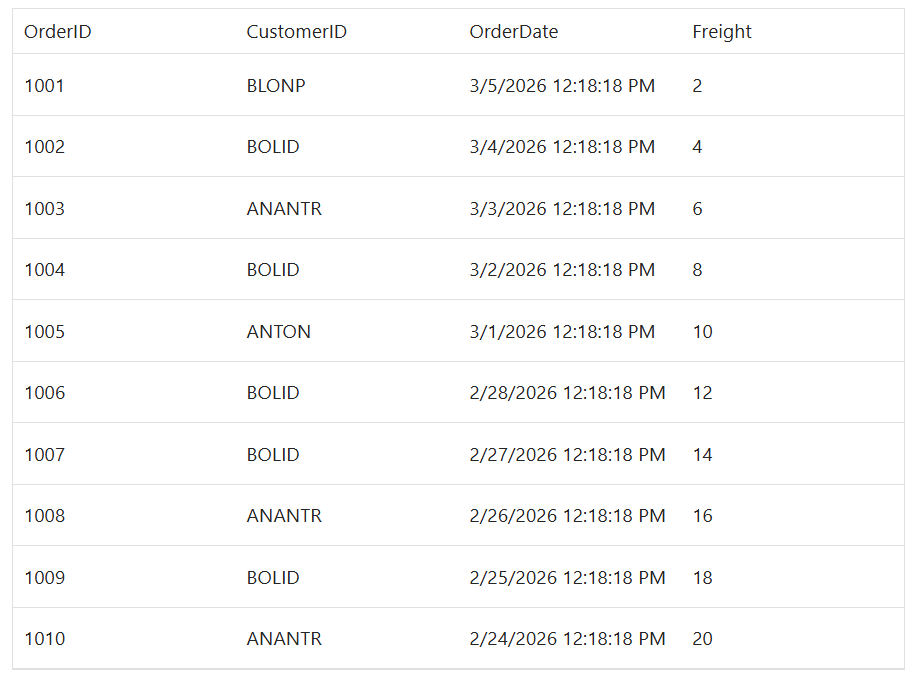
Press Ctrl+F5 (Windows) or ⌘+F5 (macOS) to launch the application. The Blazor DataGrid component will render in your default web browser.
Open the terminal and navigate to the main project folder (for example, BlazorWebApp) and run the following command.
cd ..
cd BlazorWebApp
dotnet run