Start and Depth View in Blazor DatePicker
27 Aug 20261 minute to read
The Blazor DatePicker provides the following predefined CalendarView values that let users navigate the calendar and select a date:
| View | Description |
|---|---|
CalendarView.Month (default for Start) |
Displays the days in a month. |
CalendarView.Year |
Displays the months in a year. |
CalendarView.Decade |
Displays the years in a decade. |
Start view
Use the Start property to set the initial view shown when the popup opens. The default value of Start is CalendarView.Month. After the popup opens, the user can navigate to a deeper view (for example, from Year to Month) by clicking the view header.
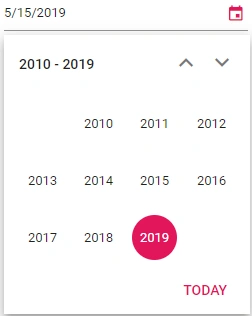
The following example renders the Blazor DatePicker with Decade as the initial view.
@using Syncfusion.Blazor.Calendars

<SfDatePicker TValue="DateTime?" Value='@DateValue' Placeholder='Select a date' Start='CalendarView.Decade'></SfDatePicker>

@code {
    public DateTime? DateValue {get;set;} = DateTime.Now;
}
Depth view
Define the Depth property to control the view navigation.
Always the Depth view has to be smaller than the Start view, otherwise the view restriction will be not restricted.
The following example demonstrates how to create a Blazor DatePicker that allows users to select a month.
@using Syncfusion.Blazor.Calendars

<SfDatePicker TValue="DateTime?" Value="@DateValue" Placeholder="Select a date" Start="CalendarView.Decade" Depth="CalendarView.Month"></SfDatePicker>

@code {
    public DateTime? DateValue { get; set; } = DateTime.Now;
}
NOTE
To learn more about Calendar views, see the Calendar’s Calendar Views section. The Navigated event fires whenever the user navigates to a different view.
See also
- CalendarView enum
- Start property
- Depth property
- Events