How can I help you?
Getting Started with WinForms Blazor Application
29 Jun 20264 minutes to read
This section explains how to create and run a WinForms Blazor App (.NET WinForms Blazor) that integrates Blazor components.
What is WinForms Blazor App?
A WinForms Blazor app hosts a Blazor web app inside a Windows Forms Application using the BlazorWebView control. This enables a Blazor Web App to integrate with desktop platform features and UI controls. The BlazorWebView control can be added on any form in the WinForms app and pointed to the Blazor app’s root component. Blazor components execute in the .NET process and render their web UI into the embedded web view control. WinForms Blazor apps run on platforms supported by WinForms (Windows).
Visual Studio provides the WinForms Application template to create WinForms Blazor Apps.
Prerequisites
Create a new WinForms Blazor App in Visual Studio
To create a WinForms Blazor App using Visual Studio, follow the comprehensive steps in the Microsoft Templates documentation. Ensuring and understanding each step in the official guide establishes the foundation required to continue with this documentation.
Install Blazor Grid and Themes NuGet in the App
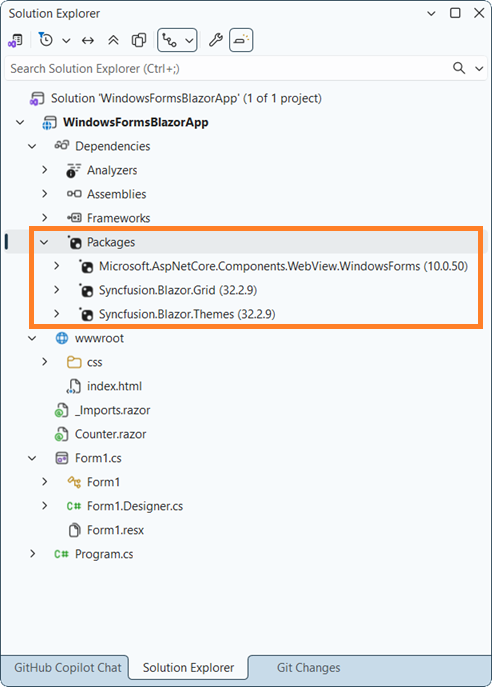
To add the Blazor DataGrid component in the app, open the NuGet Package Manager in Visual Studio (Tools → NuGet Package Manager → Manage NuGet Packages for Solution), then search and install Syncfusion.Blazor.Grid and Syncfusion.Blazor.Themes. Alternatively, run the following commands in the Package Manager Console to achieve the same.
Install-Package Syncfusion.Blazor.Grid -Version 33.2.3
Install-Package Syncfusion.Blazor.Themes -Version 33.2.3
NOTE
Ensure that the package Microsoft.AspNetCore.Components.WebView.WindowsForms is updated to version
8.0.16or later.
NOTE
Blazor components are available in nuget.org. Refer to the NuGet packages topic for the available NuGet package list with component details.
Add Import Namespaces
Open the ~/_Imports.razor file and import the Syncfusion.Blazor and Syncfusion.Blazor.Grids namespaces:
@using Syncfusion.Blazor
@using Syncfusion.Blazor.Grids
Register Blazor Service
Register the Blazor service in the Form1.cs file of the WinForms Blazor App.
using Syncfusion.Blazor;
    ....
    services.AddSyncfusionBlazor();
    ....
Add stylesheet and script resources
The theme stylesheet and script can be accessed from NuGet through Static Web Assets. Include the stylesheet in the <head> and the script at the end of the <body> in the ~wwwroot/index.html file as shown below:
<head>
    ....
    <link href="_content/Syncfusion.Blazor.Themes/bootstrap5.css" rel="stylesheet" />
</head>

<body>
    ....
    <script src="_content/Syncfusion.Blazor.Core/scripts/syncfusion-blazor.min.js" type="text/javascript"></script>
</body>
NOTE
Check out the Blazor Themes topic to discover various methods (Static Web Assets, CDN, and CRG) for referencing themes in the Blazor application. Also, see Adding Script Reference topic to learn different approaches for adding script references in the Blazor application.
Add Blazor component
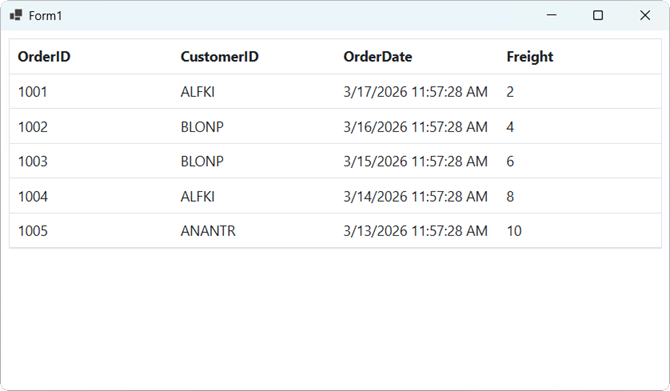
Add a Blazor component to any Razor file in the Blazor project. The example below adds the Blazor Grid component into ~/Counter.razor file.
<SfGrid DataSource="@Orders" />

@code {
    public List<Order> Orders { get; set; }

    protected override void OnInitialized()
    {
        Orders = Enumerable.Range(1, 5).Select(x => new Order()
        {
            OrderID = 1000 + x,
            CustomerID = (new string[] { "ALFKI", "ANANTR", "ANTON", "BLONP", "BOLID" })[new Random().Next(5)],
            Freight = 2 * x,
            OrderDate = DateTime.Now.AddDays(-x),
        }).ToList();
    }

    public class Order
    {
        public int? OrderID { get; set; }
        public string CustomerID { get; set; }
        public DateTime? OrderDate { get; set; }
        public double? Freight { get; set; }
    }
}
In the Visual Studio toolbar, click the start button to build and run the app.