How can I help you?
Azure OpenAI Integration with Syncfusion® Blazor AI
4 Nov 202522 minutes to read
The Syncfusion Blazor AI library integrates with Azure OpenAI to add AI-driven features to Blazor applications. These features include natural language querying (converting plain English queries to structured data filters), data analysis (processing and summarizing datasets), and content processing (generating or refining text).
Prerequisites
To integrate Azure OpenAI with a Blazor Web App (Server), ensure the following:
- The following NuGet packages are installed:
Install-Package Syncfusion.Blazor.AI -Version 32.2.3
Install-Package Microsoft.Extensions.AI
Install-Package Microsoft.Extensions.AI.OpenAI
Install-Package Azure.AI.OpenAI- An Azure OpenAI Service resource and model is deployed to obtain
apiKey,deploymentName, andendpointvalues. - The Syncfusion Blazor system requirements are met.
- Credentials are stored securely using Azure Key Vault or environment variables (see the Microsoft guide on secure storage).
Configuration Steps
Register AI Services in Program.cs
To configure Azure OpenAI in a Blazor Web App (Server), update the Program.cs file as follows:
// Add required namespaces
using Syncfusion.Blazor.AI;
using Azure.AI.OpenAI;
using Microsoft.Extensions.AI;
using System.ClientModel;

// Register Azure OpenAI credentials
string azureOpenAiKey = Environment.GetEnvironmentVariable("AZURE_OPENAI_KEY"); // Use secure storage
string azureOpenAiEndpoint = Environment.GetEnvironmentVariable("AZURE_OPENAI_ENDPOINT");
string azureOpenAiModel = "gpt-4"; // Specify a deployed Azure OpenAI model
AzureOpenAIClient azureOpenAIClient = new AzureOpenAIClient(
     new Uri(azureOpenAiEndpoint),
     new ApiKeyCredential(azureOpenAiKey)
);
IChatClient azureOpenAiChatClient = azureOpenAIClient.GetChatClient(azureOpenAiModel).AsIChatClient();
builder.Services.AddChatClient(azureOpenAiChatClient);

// Register the inference service
builder.Services.AddSingleton<IChatInferenceService, SyncfusionAIService>();
Natural Language Querying with Azure OpenAI
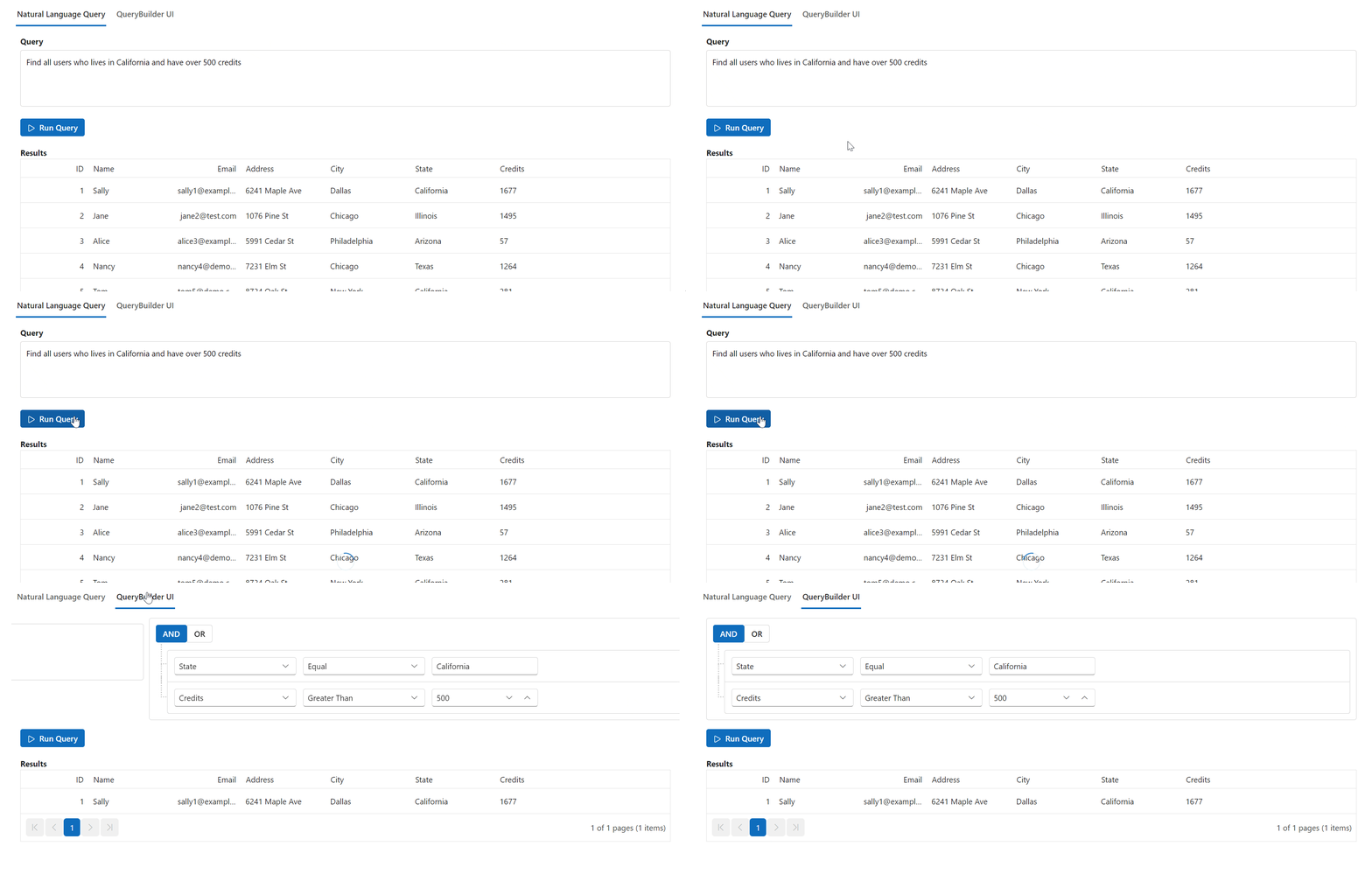
This example demonstrates using the Syncfusion Blazor AI library with Azure OpenAI to enable natural language querying. The application uses a Syncfusion Tab component with a textarea for entering natural language queries, a QueryBuilder component to visualize generated query rules, and a Grid component to display filtered results based on the Azure OpenAI-processed query.
Setup Prerequisites
- Install the following NuGet packages:
Install-Package Syncfusion.Blazor.Grid -Version 32.2.3
Install-Package Syncfusion.Blazor.Themes -Version 32.2.3
Install-Package Syncfusion.Blazor.AI -Version 32.2.3
Install-Package Syncfusion.Blazor.QueryBuilder -Version 32.2.3
Install-Package Microsoft.Extensions.AI
Install-Package Microsoft.Extensions.AI.OpenAI
Install-Package Azure.AI.OpenAI- Ensure the Blazor application meets the Syncfusion Blazor system requirements.
- Add the following to
App.razorfor Syncfusion themes and scripts:
<head>
    ...
    <link href="_content/Syncfusion.Blazor.Themes/tailwind.css" rel="stylesheet" />
</head>

<body>
    ...
    <script src="_content/Syncfusion.Blazor.Core/scripts/syncfusion-blazor.min.js" type="text/javascript"></script>
</body>
Register Syncfusion® Blazor Service
Register the Syncfusion Blazor service in the ~/Program.cs file based on the interactive render mode.
For WebAssembly or Auto Render Mode:
If the Interactive Render Mode is set to WebAssembly or Auto, the Syncfusion® Blazor service should be registered in both ~/Program.cs files.
...
using Syncfusion.Blazor;

var builder = WebApplication.CreateBuilder(args);

// Add services to the container.
builder.Services.AddRazorComponents()
    .AddInteractiveServerComponents()
    .AddInteractiveWebAssemblyComponents();
builder.Services.AddSyncfusionBlazor();

var app = builder.Build();
...
...
using Syncfusion.Blazor;
var builder = WebAssemblyHostBuilder.CreateDefault(args);
builder.Services.AddSyncfusionBlazor();
await builder.Build().RunAsync();For Server Render Mode:
If the Interactive Render Mode is set to Server, the project will contain a single ~/Program.cs file. In this case, the Syncfusion® Blazor Service should be registered within that ~/Program.cs file.
...
using Syncfusion.Blazor;

var builder = WebApplication.CreateBuilder(args);

// Add services to the container.
builder.Services.AddRazorComponents()
    .AddInteractiveServerComponents();
builder.Services.AddSyncfusionBlazor();

var app = builder.Build();
...
Razor Component (Home.razor)
@page "/"

@using Syncfusion.Blazor.QueryBuilder
@using Syncfusion.Blazor.Navigations
@using Syncfusion.Blazor.Grids
@using Syncfusion.Blazor.Buttons
@using Syncfusion.Blazor.Spinner
@using Syncfusion.Blazor.AI
@inject IChatInferenceService AzureAIService

<title>Syncfusion - Smart Natural Language Querying</title>
<SfTab LoadOn="ContentLoad.Init">
    <TabItems>
        <TabItem>
            <ChildContent>
                <TabHeader Text="Natural Language Query"></TabHeader>
            </ChildContent>
            <ContentTemplate>
                <span class="e-text">Query</span>
                <textarea id="text-area" @bind="TextAreaValue" placeholder="Find all users who lives in California and have over 500 credits"></textarea>
            </ContentTemplate>
        </TabItem>
        <TabItem>
            <ChildContent>
                <TabHeader Text="QueryBuilder UI"></TabHeader>
            </ChildContent>
            <ContentTemplate>
                <SfQueryBuilder Readonly="true" TValue="User" @ref="QueryBuilderObj" DataSource="@DataSource">
                    <QueryBuilderColumns>
                        <QueryBuilderColumn Field="id" Label="ID" Type="Syncfusion.Blazor.QueryBuilder.ColumnType.Number"></QueryBuilderColumn>
                        <QueryBuilderColumn Field="name" Label="Name" Type="Syncfusion.Blazor.QueryBuilder.ColumnType.String"></QueryBuilderColumn>
                        <QueryBuilderColumn Field="email" Label="Email" Type="Syncfusion.Blazor.QueryBuilder.ColumnType.String"></QueryBuilderColumn>
                        <QueryBuilderColumn Field="address" Label="Address" Type="Syncfusion.Blazor.QueryBuilder.ColumnType.Boolean"></QueryBuilderColumn>
                        <QueryBuilderColumn Field="city" Label="City" Type="Syncfusion.Blazor.QueryBuilder.ColumnType.String"></QueryBuilderColumn>
                        <QueryBuilderColumn Field="state" Label="State" Type="Syncfusion.Blazor.QueryBuilder.ColumnType.String"></QueryBuilderColumn>
                        <QueryBuilderColumn Field="credits" Label="Credits" Type="Syncfusion.Blazor.QueryBuilder.ColumnType.Number"></QueryBuilderColumn>
                    </QueryBuilderColumns>
                </SfQueryBuilder>
            </ContentTemplate>
        </TabItem>
    </TabItems>
</SfTab>
<div class="e-custom-elem">
    <SfButton Content="Run Query" CssClass="e-primary" IconCss="e-icons e-play" @onclick="GenBtnClick"></SfButton>
</div>
<div class="e-custom-elem">
    <span class="e-text">Results</span>
    <SfGrid TValue="User" DataSource="@GridData" AllowPaging="true">
        <SfSpinner @bind-Visible="@VisibleProperty"></SfSpinner>
        <GridEvents Created="GridCreated" TValue="User"></GridEvents>
        <GridColumns>
            <GridColumn Field=@nameof(User.id) HeaderText="ID" TextAlign="TextAlign.Right"></GridColumn>
            <GridColumn Field=@nameof(User.name) HeaderText="Name"></GridColumn>
            <GridColumn Field=@nameof(User.email) HeaderText="Email" TextAlign="TextAlign.Right"></GridColumn>
            <GridColumn Field=@nameof(User.address) HeaderText="Address"></GridColumn>
            <GridColumn Field=@nameof(User.city) HeaderText="City"></GridColumn>
            <GridColumn Field=@nameof(User.state) HeaderText="State"></GridColumn>
            <GridColumn Field=@nameof(User.credits) HeaderText="Credits"></GridColumn>
        </GridColumns>
    </SfGrid>
</div>

<style>
    #container {
        margin: 10px;
        border: 1px solid lightgray;
        border-radius: 4px;
    }
    #container .e-tab {
        margin-top: 16px;
    }
    .e-tab .e-content {
        padding: 16px;
    }
    #text-area {
        width: 100%;
        height: 100px;
        margin-top: 5px;
        margin-bottom: 0px;
        padding: 10px;
        border: 1px solid #ccc;
        border-radius: 4px;
        resize: none;
    }
    .e-text {
        font-weight: bold;
        font-family: "Roboto", -apple-system, BlinkMacSystemFont, "Segoe UI", "Helvetica Neue", sans-serif;
        font-size: 14px;
    }
    .e-custom-elem {
        margin-bottom: 16px;
        margin-left: 16px;
        width: calc(100% - 32px);
    }
</style>
Code-Behind (Home.razor.cs)
using Microsoft.Extensions.AI;
using Syncfusion.Blazor.AI;
using Syncfusion.Blazor.QueryBuilder;

namespace AzureOpenAIExample.Components.Pages
{
    public partial class Home
    {
        public bool VisibleProperty = false;
        public class User
        {
            public int id { get; set; }
            public string name { get; set; }
            public string email { get; set; }
            public string address { get; set; }
            public string city { get; set; }
            public string state { get; set; }
            public int credits { get; set; }
        }
        private static readonly string[] Names = { "John", "Jane", "Bob", "Alice", "Tom", "Sally", "Jim", "Mary", "Peter", "Nancy" };
        private static readonly string[] Cities = { "Los Angeles", "San Diego", "New York", "Chicago", "Houston", "Phoenix", "Philadelphia", "San Antonio", "Dallas", "San Jose" };
        private static readonly string[] States = { "California", "New York", "Illinois", "Texas", "Arizona", "Pennsylvania" };
        private static readonly string[] Streets = { "Elm St", "Oak St", "Maple Ave", "Pine St", "Cedar St", "Birch St" };
        private static readonly string[] Emails = { "example.com", "test.com", "demo.com" };

        public static List<User> GenerateRandomUsers(int count)
        {
            var random = new Random();
            var users = new List<User>();

            for (int i = 0; i < count; i++)
            {
                var id = i + 1;
                var name = Names[random.Next(Names.Length)];
                var email = $"{name.ToLower()}{id}@{Emails[random.Next(Emails.Length)]}";
                var address = $"{random.Next(10000)} {Streets[random.Next(Streets.Length)]}";
                var city = Cities[random.Next(Cities.Length)];
                var state = States[random.Next(States.Length)];
                var credits = random.Next(2001);

                users.Add(new User
                {
                    id = id,
                    name = name,
                    email = email,
                    address = address,
                    city = city,
                    state = state,
                    credits = credits
                });
            }

            return users;
        }

        List<User> Users = GenerateRandomUsers(7);

        private string TextAreaValue { get; set; } = "Find all users who lives in Los Angeles and have over 500 credits";
        SfQueryBuilder<User> QueryBuilderObj;
        private IEnumerable<User> GridData { get; set; }
        private IEnumerable<User> DataSource { get; set; }
        protected override void OnInitialized()
        {
            DataSource = Users;
        }
        private void GridCreated()
        {
            GridData = DataSource;
        }

        private async void GenBtnClick()
        {
            VisibleProperty = true;
            string prompt = "Create an SQL query to achieve the following task: " + TextAreaValue + " from a single table. Focus on constructing a valid SQL query that directly addresses the specified task, ensuring it adheres to standard SQL syntax for querying a single table. NOTE: Return only the SQL query without any additional explanation or commentary. The response should contain the query itself, formatted correctly and ready for execution.";

            ChatParameters chatParameters = new ChatParameters
            {
                Messages = new List<ChatMessage>
                {
                    new ChatMessage(ChatRole.User, prompt)
                }
            };
            string result = await AzureAIService.GenerateResponseAsync(chatParameters);

            string value = result.Split("WHERE ")[1].Split(";\n")[0];
            value = value.Replace("\n", " ");
            value = value.Replace(";", "");
            QueryBuilderObj.SetRulesFromSql(value);
            GridData = QueryBuilderObj.GetFilteredRecords().ToList().AsEnumerable<User>();
            StateHasChanged();
            VisibleProperty = false;
        }
    }
}
How It Works
This example illustrates how the Syncfusion Blazor AI library integrates with Azure OpenAI to process natural language queries:
-
Setup: Configure Azure OpenAI in
Program.csusing a secure API key, endpoint, and deployed model (e.g.,gpt-4). -
Component Integration: Inject
IChatInferenceServiceto process user queries entered in a textarea. - Prompt Engineering: Craft a prompt to convert natural language input into a valid SQL query for filtering data.
- Response Processing: Parse the SQL query from Azure OpenAI, apply it to the QueryBuilder component, and update the Grid with filtered results.
Key Components
- IChatInferenceService: Injected service for interacting with Azure OpenAI models.
- ChatParameters: Configures the AI request with prompts and user messages.
- GenerateResponseAsync: Sends asynchronous requests to Azure OpenAI and retrieves responses.
- UI Components: Syncfusion Tab, QueryBuilder, and Grid components integrate with the AI service for dynamic query processing.
Error Handling
- Invalid credentials: Ensure the API key, endpoint, and model are valid and correctly configured in environment variables or Azure Key Vault.
- Rate limits: Azure OpenAI usage may be limited based on your subscription. See the Azure OpenAI pricing documentation for details.