Convert a Blazor Project to Syncfusion® Blazor
16 Jul 20263 minutes to read
The Syncfusion® Blazor extension for Visual Studio Code upgrades a Blazor project by adding the required NuGet packages and configuring the selected theme automatically.
Supported project types
- Blazor Web App (Server or WebAssembly rendering)
- Blazor Server App
- Blazor WebAssembly App (standalone or ASP.NET Core hosted)
- Blazor WebAssembly App (Progressive Web Application)
Conversion steps
-
Open the Blazor project in Visual Studio Code.
-
In Explorer, right-click the project
.csprojfile and choose Convert to Syncfusion Blazor App….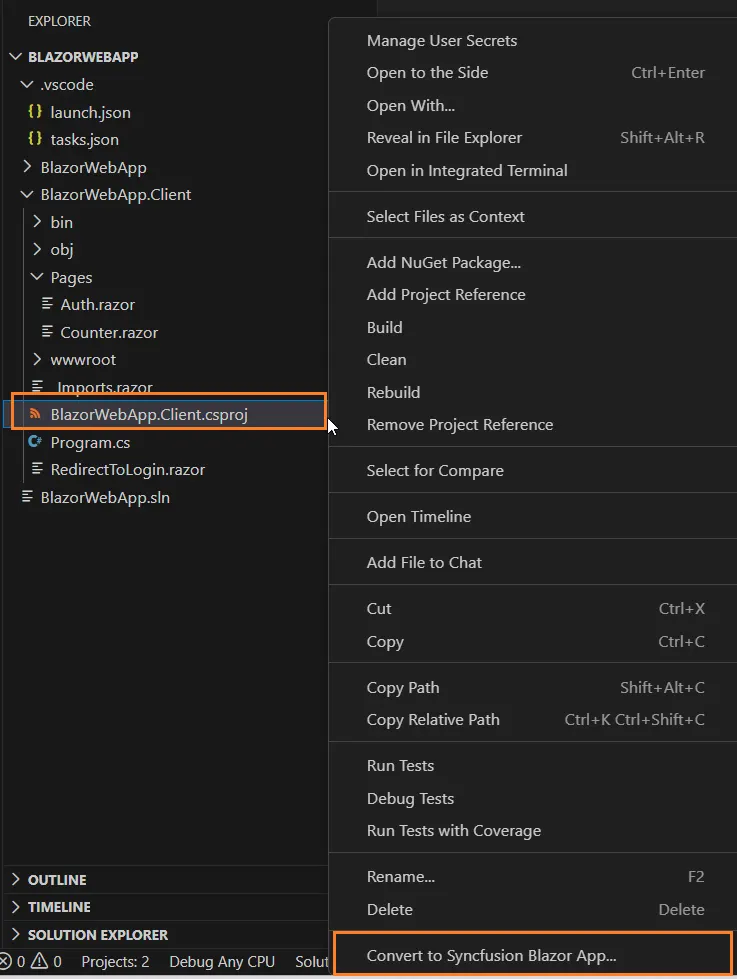
-
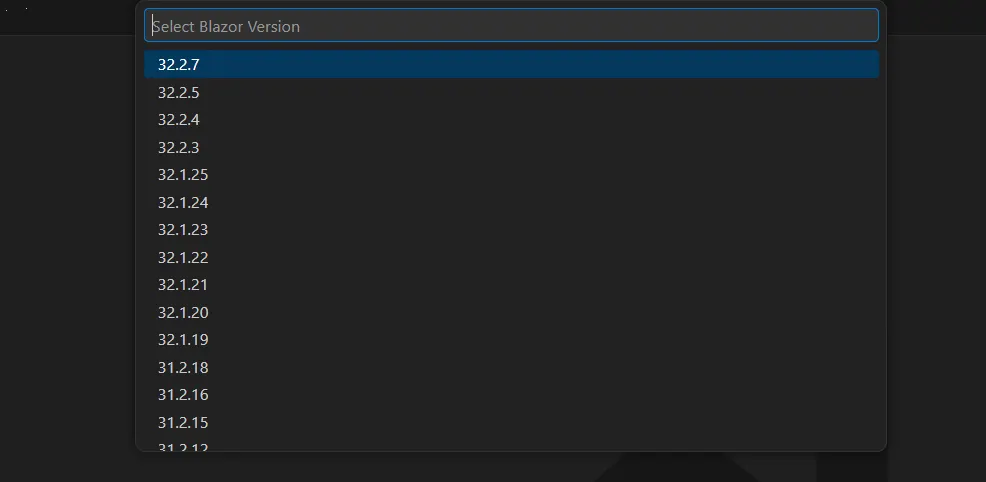
In the Command Palette, pick Select Blazor Version and choose the desired Blazor release (pulled from nuget.org).
-
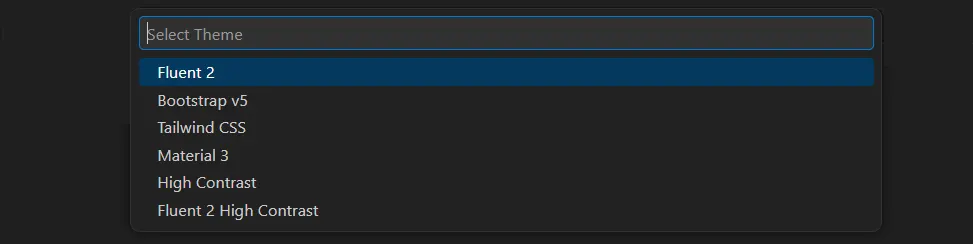
Choose the theme from the theme list. Refer to the Blazor Themes documentation for the full list.
The conversion process will run automatically. This may take a few moments as NuGet packages are downloaded and the project is configured.
After conversion, the project contains the required Blazor NuGet packages and the selected theme stylesheet.
If you installed the trial setup or NuGet packages from nuget.org, you must register the license key. Refer to the licensing overview for details on generating and registering your license key.
What changes are made during conversion
-
NuGet packages: Adds Syncfusion.Blazor (and other required packages depending on the project type).
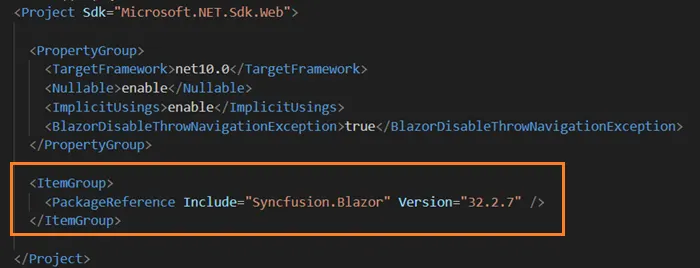
-
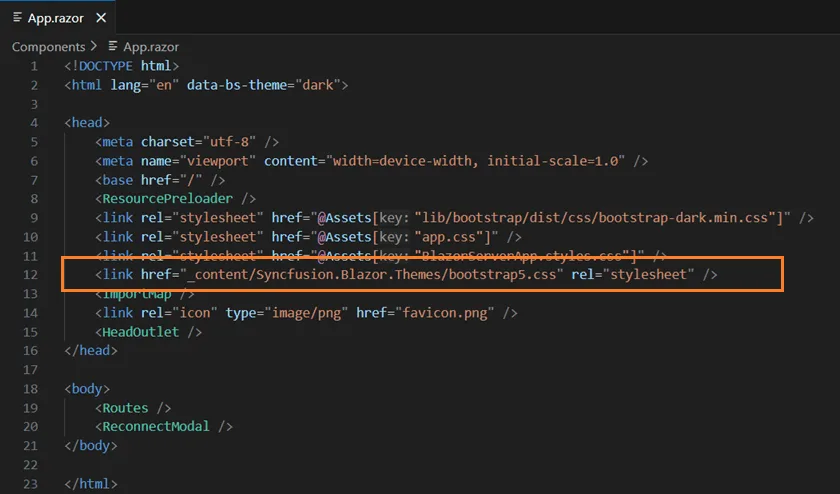
Theme: Adds the chosen theme reference to the appropriate file based on application type:
Application Type Theme file location Blazor Web App (Server or WebAssembly) Components/App.razorBlazor WebAssembly (standalone) wwwroot/index.htmlBlazor WebAssembly (ASP.NET Core hosted) Client project: wwwroot/index.htmlBlazor WebAssembly (PWA) wwwroot/index.html