Getting Started with Blazor Accumulation Chart Component

23 Dec 202510 minutes to read

This section briefly explains about how to include Blazor Accumulation Chart component in a Blazor WebAssembly App using Visual Studio, Visual Studio Code, and the .NET CLI.

Prerequisites

Create a new Blazor App in Visual Studio

Create a Blazor WebAssembly App using Visual Studio via Microsoft Templates or the Syncfusion® Blazor Extension. For detailed instructions, refer to the Blazor WASM App Getting Started documentation.

Blazor WASM Create Project Template

Install Syncfusion® Blazor Charts and Themes NuGet in the App

To add the Blazor Accumulation Chart component in the app, open the NuGet package manager in Visual Studio (Tools → NuGet Package Manager → Manage NuGet Packages for Solution), then search and install Syncfusion.Blazor.Charts and Syncfusion.Blazor.Themes. Alternatively, run the following commands in the Package Manager Console to achieve the same.

Install-Package Syncfusion.Blazor.Charts -Version 32.1.19
Install-Package Syncfusion.Blazor.Themes -Version 32.1.19

NOTE

Syncfusion® Blazor components are available in nuget.org. Refer to the NuGet packages topic for the available NuGet packages list with component details.

Prerequisites

Create a new Blazor App in Visual Studio Code

Create a Blazor WebAssembly App using Visual Studio Code via Microsoft Templates or the Syncfusion® Blazor Extension. For detailed instructions, refer to the Blazor WASM App Getting Started documentation.

Alternatively, create a WebAssembly application by using the following command in the integrated terminal(Ctrl+`).

dotnet new blazorwasm -o BlazorApp
cd BlazorApp

Install Syncfusion® Blazor Charts and Themes NuGet in the App

  • Press Ctrl+` to open the integrated terminal in Visual Studio Code.
  • Ensure in the project root directory where the .csproj file is located.
  • Run the following command to install a Syncfusion.Blazor.Charts and Syncfusion.Blazor.Themes NuGet packages and ensure all dependencies are installed.
dotnet add package Syncfusion.Blazor.Charts -v 32.1.19
dotnet add package Syncfusion.Blazor.Themes -v 32.1.19
dotnet restore

NOTE

Syncfusion® Blazor components are available in nuget.org. Refer to the NuGet packages topic for the available NuGet packages list with component details.

Prerequisites

Install the latest version of .NET SDK. If the .NET SDK is already installed, determine the installed version by running the following command in a command prompt (Windows), terminal (macOS), or command shell (Linux).

dotnet --version

Create a Blazor WebAssembly App using .NET CLI

Run the following command to create a new Blazor WebAssembly App in a command prompt (Windows) or terminal (macOS) or command shell (Linux). For detailed instructions, refer to this Blazor WASM App Getting Started documentation.

dotnet new blazorwasm -o BlazorApp
cd BlazorApp

Install Syncfusion® Blazor Charts and Themes NuGet in the App

To add the Blazor Accumulation Chart component to the application, run the following commands in a command prompt (Windows), command shell (Linux), or terminal (macOS) to install the Syncfusion.Blazor.Charts and Syncfusion.Blazor.Themes NuGet packages. See Install and manage packages using the dotnet CLI for more details.

dotnet add package Syncfusion.Blazor.Charts -Version 32.1.19
dotnet add package Syncfusion.Blazor.Themes -Version 32.1.19
dotnet restore

NOTE

Syncfusion® Blazor components are available in nuget.org. Refer to the NuGet packages topic for the available NuGet packages list with component details.

Add Import Namespaces

Open the ~/_Imports.razor file and import the Syncfusion.Blazor and Syncfusion.Blazor.Charts namespaces.

@using Syncfusion.Blazor
@using Syncfusion.Blazor.Charts

Register Syncfusion® Blazor Service

Register the Syncfusion® Blazor Service in the ~/Program.cs file of the Blazor WebAssembly App.

using Microsoft.AspNetCore.Components.Web;
using Microsoft.AspNetCore.Components.WebAssembly.Hosting;
using Syncfusion.Blazor;

var builder = WebAssemblyHostBuilder.CreateDefault(args);
builder.RootComponents.Add<App>("#app");
builder.RootComponents.Add<HeadOutlet>("head::after");

builder.Services.AddScoped(serviceProvider => new HttpClient { BaseAddress = new Uri(builder.HostEnvironment.BaseAddress) });

builder.Services.AddSyncfusionBlazor();
await builder.Build().RunAsync();
....

Add stylesheet and script resources

The theme stylesheet and script can be accessed from NuGet through Static Web Assets. Include the stylesheet and script references within the <head> section of the ~/index.html file.

<head>
    ....
    <link href="_content/Syncfusion.Blazor.Themes/bootstrap5.css" rel="stylesheet" />
    <script src="_content/Syncfusion.Blazor.Core/scripts/syncfusion-blazor.min.js" type="text/javascript"></script>
</head>

NOTE

Check out the Blazor Themes topic to discover various methods (Static Web Assets, CDN, and CRG) for referencing themes in Blazor application. Also, check out the Adding Script Reference topic to learn different approaches for adding script references in Blazor application.

Add Blazor Accumulation Chart component

Add the Syncfusion® Blazor Accumulation Chart component in the ~/Pages/Index.razor file.

<SfAccumulationChart>
    <AccumulationChartSeriesCollection>
        <AccumulationChartSeries DataSource="@MedalDetails" XName="Country" YName="Medals">
        </AccumulationChartSeries>
    </AccumulationChartSeriesCollection>
</SfAccumulationChart>

@code{
    public class ChartData
    {
        public string Country { get; set;}
        public double Medals { get; set;}
    }

    public List<ChartData> MedalDetails = new List<ChartData>
    {
        new ChartData { Country= "United States of America", Medals= 46 },
        new ChartData { Country= "Great Britain", Medals= 27 },
        new ChartData { Country= "China", Medals= 26 },
        new ChartData { Country= "United Kingdom", Medals= 23 },
        new ChartData { Country= "Australia", Medals= 16 },
        new ChartData { Country= "India", Medals= 36 },
        new ChartData { Country= "Nigeria", Medals= 12 },
        new ChartData { Country= "Brazil", Medals= 20 },
     };
}

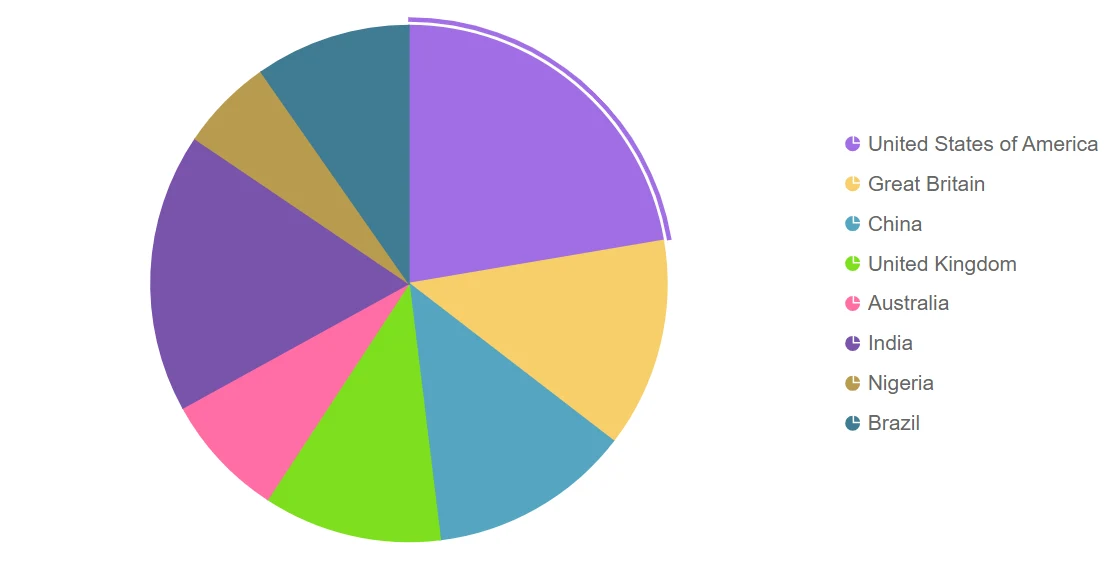
Press Ctrl+F5 (Windows) or +F5 (macOS) to launch the application. This will render the Syncfusion® Blazor Accumulation Chart component in the default web browser.

Blazor Pie Chart

Add title

Using the Title property, a title to the accumulation chart is added to provide the user with quick information about the data plotted in the chart.

<SfAccumulationChart Title="Olympic Medal Details">
    <AccumulationChartSeriesCollection>
        <AccumulationChartSeries DataSource="@MedalDetails" XName="Country" YName="Medals">
        </AccumulationChartSeries>
    </AccumulationChartSeriesCollection>
</SfAccumulationChart>
@code{
    public class ChartData
    {
        public string Country { get; set; }
        public double Medals { get; set; }
    }

    public List<ChartData> MedalDetails = new List<ChartData>
    {
        new ChartData { Country= "United States of America", Medals= 46 },
        new ChartData { Country= "Great Britain", Medals= 27 },
        new ChartData { Country= "China", Medals= 26 },
        new ChartData { Country= "United Kingdom", Medals= 23 },
        new ChartData { Country= "Australia", Medals= 16 },
        new ChartData { Country= "India", Medals= 36 },
        new ChartData { Country= "Nigeria", Medals= 12 },
        new ChartData { Country= "Brazil", Medals= 20 },
     };
}
Adding Title in Blazor Accumulation Chart

Add data label

The data labels are added to improve the readability of the accumulation chart. This can be achieved by setting the Visible property to true in the AccumulationDataLabelSettings.

<SfAccumulationChart Title="Olympic Medal Details">
    <AccumulationChartSeriesCollection>
        <AccumulationChartSeries DataSource="@MedalDetails" XName="Country" YName="Medals">
            <AccumulationDataLabelSettings Visible="true"/>
        </AccumulationChartSeries>
    </AccumulationChartSeriesCollection>
</SfAccumulationChart>
Adding Data Label in Blazor Accumulation Chart

Enable Tooltip

When space constraints prevent from displaying the information using data labels, the tooltip comes in handy. The tooltip can be enabled by setting the Enable property in AccumulationChartTooltipSettings to true.

<SfAccumulationChart Title="Olympic Medal Details">
    <AccumulationChartSeriesCollection>
        <AccumulationChartSeries DataSource="@MedalDetails" XName="Country" YName="Medals">
        </AccumulationChartSeries>
    </AccumulationChartSeriesCollection>
    <AccumulationChartTooltipSettings Enable="true"></AccumulationChartTooltipSettings>
</SfAccumulationChart>
Blazor Accumulation Chart displays Tooltip

Enable Legend

Legend is used for the accumulation chart by setting the Visible property to true in the AccumulationChartLegendSettings.

<SfAccumulationChart Title="Olympic Medal Details">
    <AccumulationChartSeriesCollection>
        <AccumulationChartSeries DataSource="@MedalDetails" XName="Country" YName="Medals">
            <AccumulationDataLabelSettings Visible="true"></AccumulationDataLabelSettings>
        </AccumulationChartSeries>
    </AccumulationChartSeriesCollection>
    <AccumulationChartTooltipSettings Enable="true"></AccumulationChartTooltipSettings>
    <AccumulationChartLegendSettings Visible="true"></AccumulationChartLegendSettings>
</SfAccumulationChart>
Blazor Accumulation Chart with Legend

NOTE

View Sample in GitHub.

See also