How can I help you?
Getting Started with Blazor Chart Component in Blazor MAUI App
20 May 20264 minutes to read
This section explains the step-by-step process of integrating the Syncfusion® Blazor Charts component in your Blazor MAUI App using both Visual Studio and Visual Studio Code.
Ready to streamline your Syncfusion® Blazor development?
Discover the full potential of Syncfusion® Blazor components with Syncfusion® AI Coding Assistants. Effortlessly integrate, configure, and enhance your projects with intelligent, context-aware code suggestions, streamlined setups, and real-time insights—all seamlessly integrated into your preferred AI-powered IDEs like VS Code, Cursor, Syncfusion® CodeStudio and more. Explore Syncfusion® AI Coding Assistants
Prerequisites
To use the MAUI project templates, install the Mobile development with the .NET extension for Visual Studio. For more details, refer to here or the Syncfusion® Blazor Extension.
Create a new Blazor MAUI App in Visual Studio
Create a Blazor MAUI App using Visual Studio via Microsoft Templates. For detailed instructions, refer to the Blazor MAUI App Getting Started documentation.
Prerequisites
To use the MAUI project templates, install the Mobile development with the .NET extension for Visual Studio Code. For more details, refer to here or the Syncfusion® Blazor Extension.
Create a new Blazor MAUI App in Visual Studio Code
Create a Blazor MAUI App using Visual Studio Code via Microsoft Templates or the Syncfusion® Blazor Extension. For detailed instructions, refer to the Blazor MAUI App Getting Started documentation.
Alternatively, create a MAUI application by using the following command in the integrated terminal (Ctrl+`).
dotnet new maui-blazor -o MauiBlazorApp
cd MauiBlazorApp
Install Syncfusion® Blazor packages
Install the Syncfusion.Blazor.Charts NuGet package in your project using the NuGet Package Manager in Visual Studio (Tools → NuGet Package Manager → Manage NuGet Packages for Solution), or the integrated terminal in Visual Studio Code (dotnet add package Syncfusion.Blazor.Charts –version 33.2.3).
Alternatively, run the following command in the Package Manager Console to achieve the same.
Install-Package Syncfusion.Blazor.Charts -Version 33.2.3NOTE
All Syncfusion Blazor packages are available on nuget.org. See the NuGet packages topic for details.
Add import namespaces
After the package is installed, open the ~/_Imports.razor file and import the Syncfusion.Blazor and Syncfusion.Blazor.Charts namespaces.
NOTE
The
~/notation represents the root directory of your project. This file is typically located in your project’s root folder.
@using Syncfusion.Blazor
@using Syncfusion.Blazor.Charts
Register Syncfusion® Blazor service
Register the Syncfusion® Blazor service in the ~/MauiProgram.cs file. This step enables the Syncfusion components to work in your application.
....
using Syncfusion.Blazor;

....

public static class MauiProgram
{
    public static MauiApp CreateMauiApp()
    {
        ....
        builder.Services.AddSyncfusionBlazor();
        ....
    }
}
Add script resources
The Syncfusion JavaScript library needs to be included in your application. The script can be accessed from NuGet through Static Web Assets. Include the script reference in the ~/index.html file (this is the main HTML entry point of your MAUI Blazor application).
<script src="_content/Syncfusion.Blazor.Core/scripts/syncfusion-blazor.min.js" type="text/javascript"></script>NOTE
Check out the Adding Script Reference topic to learn different approaches for adding script references in your Blazor application.
Add Syncfusion® Blazor Chart component
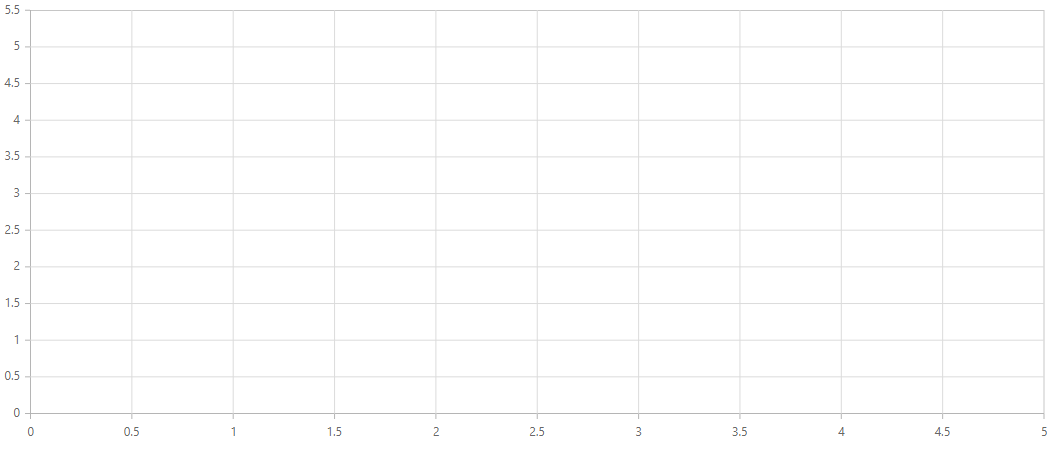
Add the Syncfusion® Blazor Chart component in the ~/Pages/Home.razor file.
<!-- SfChart is the root container component for the chart -->
<SfChart>

</SfChart>
How to run the sample on windows
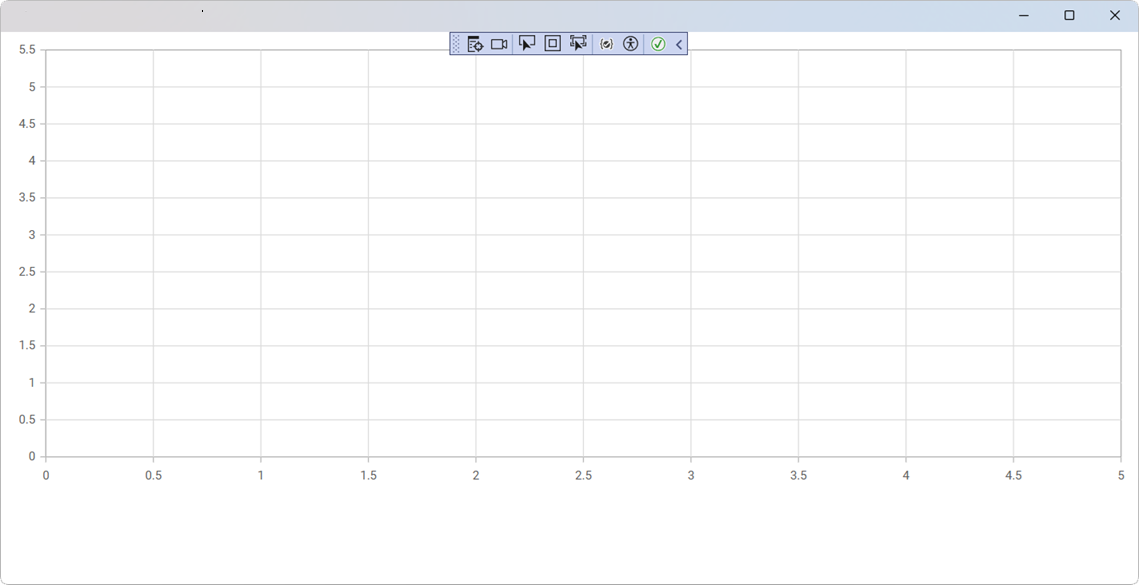
Run the sample in Windows Machine mode, and it will run Blazor MAUI in Windows.
How to run the sample on android
To run the Blazor Chart in a Blazor Android MAUI application using the Android emulator, follow these steps:
Refer here to install and launch the Android emulator.
NOTE
If you encounter any errors while using the Android Emulator, refer to the following link for troubleshooting guidanceTroubleshooting Android Emulator.