Getting Started with Blazor Predefined Dialogs in Blazor WASM App
18 Aug 20268 minutes to read
This section explains how to include the Blazor Predefined Dialogs in a Blazor WebAssembly App using Visual Studio, Visual Studio Code, and the .NET CLI.
Create a new Blazor WebAssembly (Standalone) App
Create a Blazor WebAssembly App using Visual Studio via Microsoft Templates or the Syncfusion® Blazor Extension.
Run the following command to create a new Blazor WebAssembly App.
dotnet new blazorwasm -o BlazorApp
cd BlazorApp
Alternatively, create a Blazor WebAssembly App using Visual Studio Code via Microsoft Templates or the Syncfusion® Blazor Extension, or the C# Dev Kit extension.
Run the following command to create a new Blazor WebAssembly App.
dotnet new blazorwasm -o BlazorApp
cd BlazorApp
Install the required Blazor packages
Install the Syncfusion.Blazor.Popups and Syncfusion.Blazor.Themes NuGet packages. All Syncfusion Blazor packages are available on nuget.org. See the NuGet packages topic for details.
- Go to Tools → NuGet Package Manager → Manage NuGet Packages for Solution.
- Search the required NuGet packages (
Syncfusion.Blazor.PopupsandSyncfusion.Blazor.Themes) and install them.
Alternatively, you can install the same packages using the Package Manager Console with the following commands.
Install-Package Syncfusion.Blazor.Popups -Version 35.1.37
Install-Package Syncfusion.Blazor.Themes -Version 35.1.37
Open the terminal and run the following commands.
dotnet add package Syncfusion.Blazor.Popups -v 35.1.37
dotnet add package Syncfusion.Blazor.Themes -v 35.1.37
Open the command prompt and run the following commands.
dotnet add package Syncfusion.Blazor.Popups -v 35.1.37
dotnet add package Syncfusion.Blazor.Themes -v 35.1.37
Add import namespaces
After the packages are installed, open the ~/_Imports.razor file and import the Syncfusion.Blazor and Syncfusion.Blazor.Popups namespaces.
@using Syncfusion.Blazor
@using Syncfusion.Blazor.Popups
Register the Blazor service
Open the Program.cs file in Blazor WebAssembly App and register the Blazor service and include the required namespace reference using Syncfusion.Blazor; at the top.
builder.Services.AddScoped<SfDialogService>();
builder.Services.AddSyncfusionBlazor();
Add stylesheet and script resources
The theme stylesheet and script can be accessed from NuGet through Static Web Assets. Include the stylesheet at the end of the <head> section in the ~wwwroot/index.html file.
<link href="_content/Syncfusion.Blazor.Themes/fluent2.css" rel="stylesheet" />Include the required script references at the end of the <body> section in the ~wwwroot/index.html file to enable Predefined Dialogs functionality.
<script src="_content/Syncfusion.Blazor.Core/scripts/syncfusion-blazor.min.js" type="text/javascript"></script>Add Blazor Predefined Dialogs component
Open a Razor file located in the ~/Pages/*.razor (for example, Home.razor) and add the Blazor Predefined Dialogs component inside the razor file.
SfDialogProvider opens predefined dialogs based on SfDialogService settings from anywhere in the application. Add SfDialogProvider in MainLayout.razor or in a specific page, but include it only once in the app. When added to MainLayout.razor, predefined dialogs can be opened from anywhere in the application. When added to a specific page, dialogs can be opened only within that page.
- Now, add
SfDialogProviderin the ~/_MainLayout.razor file.
<Syncfusion.Blazor.Popups.SfDialogProvider/>Open Predefined Dialog
After adding SfDialogService and SfDialogProvider, open predefined dialogs from anywhere in the application using AlertAsync, ConfirmAsync, or PromptAsync methods in SfDialogService.
Show alert dialog
An alert dialog is used to display errors, warnings, or informational messages that require user acknowledgment. This is achieved using the DialogService.AlertAsync method. The alert dialog displays an OK button. When the user selects OK, the alert dialog closes.
In the following example, an alert dialog is displayed when a Blazor Button is clicked.
@using Syncfusion.Blazor.Popups
@using Syncfusion.Blazor.Buttons
@inject SfDialogService DialogService
<SfDialogProvider />
    <div>
        <SfButton @onclick="@AlertBtn">Alert</SfButton>
    </div>
    <div class="status" style ="padding-top:10px">@DialogStatus</div>
@code {
    private string DialogStatus { get; set; }
    private async Task AlertBtn()
    {
        await DialogService.AlertAsync("10% of battery remaining", "Low Battery");
        this.DialogStatus = "The user closed the Alert dialog";
    }
}
Run the application
Press Ctrl+F5 (Windows) or ⌘+F5 (macOS) to launch the application. The Blazor Predefined Dialogs component will render in your default web browser.
Open the terminal and run the following command.
dotnet runOpen the command prompt and run the following command.
dotnet run
Show confirm dialog
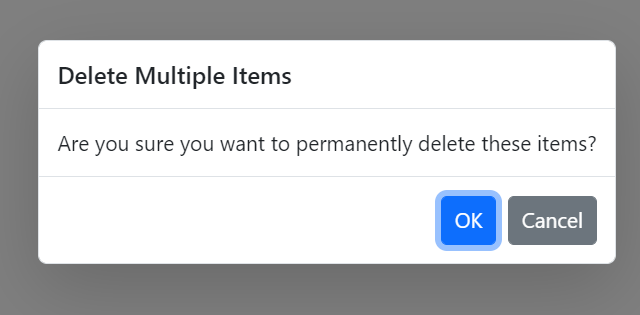
A confirm dialog displays a specified message along with OK and Cancel buttons and returns a boolean value based on the user action. Selecting OK returns true; selecting Cancel returns false. This can be achieved using the DialogService.ConfirmAsync method. It is typically used to get user approval before a critical action. After the user responds, the dialog closes automatically.
In the following example, the confirm dialog is displayed and returns a value based on the OK or Cancel button click.
@using Syncfusion.Blazor.Popups
@using Syncfusion.Blazor.Buttons
@inject SfDialogService DialogService
 <SfDialogProvider />
    <div>
        <SfButton @onclick="@ConfirmBtn">Confirm</SfButton>
    </div>
    <div class="status" style ="padding-top:10px">
    @DialogStatus
</div>
@code {
    private string DialogStatus { get; set; }
    private async Task ConfirmBtn()
    {
        bool isConfirm = await DialogService.ConfirmAsync("Are you sure you want to permanently delete these items?", "Delete Multiple Items");
        string confirmMessage = isConfirm ? "confirmed" : "canceled";
        this.DialogStatus = $"The user {confirmMessage} the dialog box.";
    }
}
Show prompt dialog
A prompt dialog is used to get input from the user using the DialogService.PromptAsync method. Selecting OK returns the input value; selecting Cancel returns null. After the user responds, the dialog closes automatically.
In the following example, the prompt dialog is displayed and returns a value based on the OK or Cancel button click.
@using Syncfusion.Blazor.Popups
@using Syncfusion.Blazor.Buttons
@inject SfDialogService DialogService
 <SfDialogProvider />
    <div>
        <SfButton @onclick="@PromptBtn">Prompt</SfButton>
    </div>
    <div class="status" style ="padding-top:10px">
    @DialogStatus
</div>
@code {
    private string DialogStatus { get; set; }

    private async Task PromptBtn()
    {
        string promptText = await DialogService.PromptAsync("Enter your name:", "Join Chat Group");

        this.DialogStatus = $"Input from the user is returned as \"{promptText}\".";
    }
}