Getting Started with Blazor WebAssembly Standalone App
24 Aug 20266 minutes to read
This article provides step-by-step instructions for building a Blazor WebAssembly App with the Blazor DataGrid component using Visual Studio, Visual Studio Code, and the .NET CLI.
Using Playground
Blazor Playground allows interaction with Blazor components directly in a web browser without needing to install any NuGet packages.
Using .NET CLI Templates
Quickly set up a Blazor application using the preconfigured Syncfusion WebAssembly App Template.
First, install the template using the .NET CLI.
dotnet new install Syncfusion.Blazor.WebAssemblyApp.TemplatesNext, create a new project with following command.
dotnet new syncfusionblazorwasmapp --name MyApp --pwa trueAfter creating the project, navigate to the main project folder (for example, MyApp) and run the following command.
cd MyApp
dotnet run
Manually creating a project
This section provides a brief guide on how to manually create a Blazor WebAssembly App.
Create a new Blazor WebAssembly (Standalone) App
Create a Blazor WebAssembly App using Visual Studio via Microsoft Templates or the Blazor Extension.
Run the following command to create a new Blazor WebAssembly App.
dotnet new blazorwasm -o BlazorWasmApp
cd BlazorWasmApp
Alternatively, create a Blazor WebAssembly App using Visual Studio Code via Microsoft Templates or the Blazor Extension, or the C# Dev Kit extension.
Install the required Blazor packages
Install the Syncfusion.Blazor.Grid and Syncfusion.Blazor.Themes NuGet packages. All Syncfusion Blazor packages are available on nuget.org. See the NuGet packages topic for details.
- Go to Tools → NuGet Package Manager → Manage NuGet Packages for Solution.
- Search the required NuGet packages (
Syncfusion.Blazor.GridandSyncfusion.Blazor.Themes) and install them.
Alternatively, you can install the same packages using the Package Manager Console with the following commands.
Install-Package Syncfusion.Blazor.Grid -Version 35.1.37
Install-Package Syncfusion.Blazor.Themes -Version 35.1.37
Open the terminal and run the following commands.
dotnet add package Syncfusion.Blazor.Grid -v 35.1.37
dotnet add package Syncfusion.Blazor.Themes -v 35.1.37
Add import namespaces
After the packages are installed, open the ~/_Imports.razor file and import the Syncfusion.Blazor and Syncfusion.Blazor.Grids namespaces.
@using Syncfusion.Blazor
@using Syncfusion.Blazor.Grids
Register the Blazor service
Open the Program.cs file in Blazor WebAssembly App and register the Blazor service and include the required namespace reference using Syncfusion.Blazor; at the top.
builder.Services.AddSyncfusionBlazor();Add stylesheet and script resources
The theme stylesheet and script can be accessed from NuGet through Static Web Assets. Include the stylesheet at the end of the <head> section in the ~wwwroot/index.html file.
<link href="_content/Syncfusion.Blazor.Themes/fluent2.css" rel="stylesheet" />Include the required script references at the end of the <body> section in the ~wwwroot/index.html file to enable DataGrid functionality.
<script src="_content/Syncfusion.Blazor.Core/scripts/syncfusion-blazor.min.js" type="text/javascript"></script>Add Blazor DataGrid component
Open a Razor file located in the ~/Pages/*.razor (for example, Home.razor) and add the Blazor DataGrid component inside the razor file.
@using Syncfusion.Blazor.Grids

<SfGrid DataSource="@Orders" />

@code {

    public List<Order> Orders { get; set; }

    protected override void OnInitialized()
    {
        var customers = new string[] { "James Hopper", "Michael Smith", "Sarah Johnson", "Robert Davis", "Emily Wilson" };
        var cities = new string[] { "New York", "Los Angeles", "Chicago", "Houston", "Phoenix" };
        var rng = new Random();
        Orders = Enumerable.Range(1, 10).Select(x => new Order()
        {
            OrderID = 1000 + x,
            CustomerName = customers[rng.Next(customers.Length)],
            ShipCity = cities[rng.Next(cities.Length)],
            Freight = Math.Round(10.5 + (x * 7.3), 2),
            OrderDate = DateTime.Now.AddDays(-x),
        }).ToList();
    }

    public class Order {
        public int? OrderID { get; set; }
        public string CustomerName { get; set; }
        public string ShipCity { get; set; }
        public DateTime? OrderDate { get; set; }
        public double? Freight { get; set; }
    }
}
Run the application
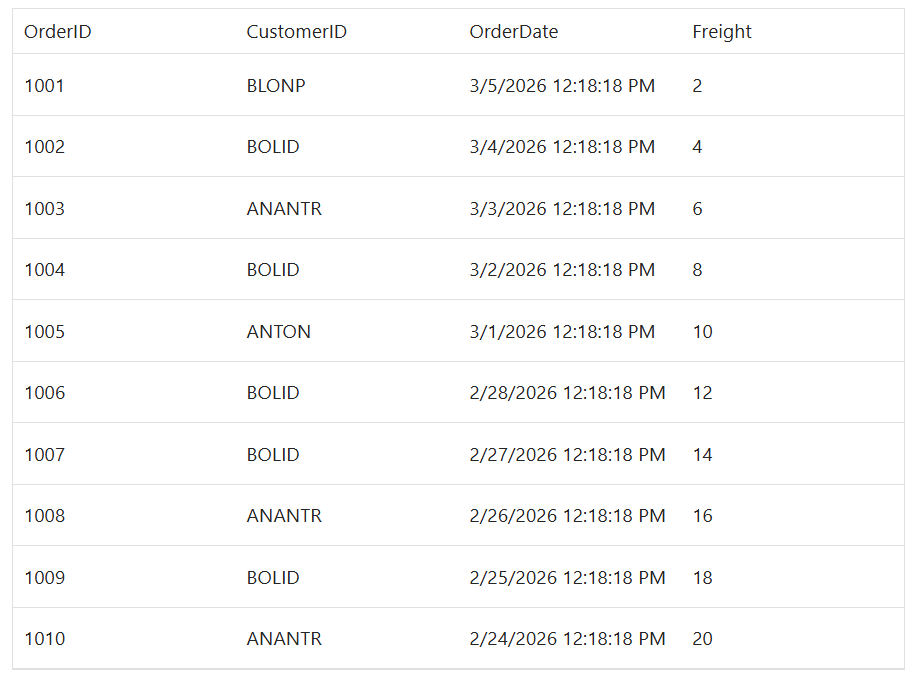
Press Ctrl+F5 (Windows) or ⌘+F5 (macOS) to launch the application. The Blazor DataGrid component will render in your default web browser.
Open the terminal and run the following command.
dotnet run