Getting Started with Blazor In-place Editor in Blazor WASM App
27 Aug 202620 minutes to read
This section briefly explains how to include the Blazor In-place Editor component in a Blazor WebAssembly App using Visual Studio, Visual Studio Code, and the .NET CLI.
Create a new Blazor WebAssembly (Standalone) App
Create a Blazor WebAssembly App using Visual Studio via Microsoft Templates or the Syncfusion® Blazor Extension.
Run the following command to create a new Blazor WebAssembly App.
dotnet new blazorwasm -o BlazorApp
cd BlazorApp
Alternatively, create a Blazor WebAssembly App using Visual Studio Code via Microsoft Templates or the Syncfusion® Blazor Extension, or the C# Dev Kit extension.
Run the following command to create a new Blazor WebAssembly App.
dotnet new blazorwasm -o BlazorApp
cd BlazorApp
Install the required Blazor packages
Install the Syncfusion.Blazor.InPlaceEditor and Syncfusion.Blazor.Themes NuGet packages. All Syncfusion Blazor packages are available on nuget.org. See the NuGet packages topic for details.
- Go to Tools → NuGet Package Manager → Manage NuGet Packages for Solution.
- Search the required NuGet packages (
Syncfusion.Blazor.InPlaceEditorandSyncfusion.Blazor.Themes) and install them.
Alternatively, you can install the same packages using the Package Manager Console with the following commands.
Install-Package Syncfusion.Blazor.InPlaceEditor -Version 35.1.37
Install-Package Syncfusion.Blazor.Themes -Version 35.1.37
Open the terminal and run the following commands.
dotnet add package Syncfusion.Blazor.InPlaceEditor -v 35.1.37
dotnet add package Syncfusion.Blazor.Themes -v 35.1.37
Open the command prompt and run the following commands.
dotnet add package Syncfusion.Blazor.InPlaceEditor -v 35.1.37
dotnet add package Syncfusion.Blazor.Themes -v 35.1.37
Add import namespaces
After the packages are installed, open the ~/_Imports.razor file and import the Syncfusion.Blazor, Syncfusion.Blazor.InPlaceEditor and Syncfusion.Blazor.Inputs namespaces.
@using Syncfusion.Blazor
@using Syncfusion.Blazor.InPlaceEditor
@using Syncfusion.Blazor.Inputs
Register the Blazor service
Open the Program.cs file in Blazor WebAssembly App and register the Blazor service and include the required namespace reference using Syncfusion.Blazor; at the top.
builder.Services.AddSyncfusionBlazor();Add stylesheet and script resources
The theme stylesheet and script can be accessed from NuGet through Static Web Assets. Include the stylesheet at the end of the <head> section in the ~wwwroot/index.html file.
<link href="_content/Syncfusion.Blazor.Themes/fluent2.css" rel="stylesheet" />Include the required script references at the end of the <body> section in the ~wwwroot/index.html file to enable Blazor In-place Editor functionality.
<script src="_content/Syncfusion.Blazor.Core/scripts/syncfusion-blazor.min.js" type="text/javascript"></script>Add Blazor In-place Editor component
Open a Razor file located in the ~/Pages/*.razor (for example, Home.razor) and add the Blazor In-place Editor component inside the razor file.
@using Syncfusion.Blazor.Inputs
@using Syncfusion.Blazor.InPlaceEditor

<table>
    <tr>
        <td>
            <label class="control-label" style="text-align: left;font-size: 14px;font-weight: 400">
                TextBox
            </label>
        </td>
        <td>
            <SfInPlaceEditor @bind-Value="@TextValue" TValue="string">
                <EditorComponent>
                    <SfTextBox @bind-Value="@TextValue" Placeholder="Enter employee name"></SfTextBox>
                </EditorComponent>
            </SfInPlaceEditor>
        </td>
    </tr>
</table>

@code
{
    public string TextValue = "Andrew";
}
The type of component editor must be configured in the ‘Type’ Editor In-place property. Also, the two-way binding between the Blazor In-place Editor and its EditorComponent should be configured. It’s used to update the editor component value into the Blazor In-place Editor component.
Run the application
Press Ctrl+F5 (Windows) or ⌘+F5 (macOS) to launch the application. The Blazor In-place Editor component will render in your default web browser.
Open the terminal and run the following command.
dotnet runOpen the command prompt and run the following command.
dotnet run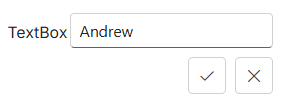
Render Blazor In-place Editor with popup
The following example shows how to initialize a simple Blazor In-place Editor with a popup in a Blazor page.
@using Syncfusion.Blazor.InPlaceEditor
@using Syncfusion.Blazor.DropDowns

<table>
    <tr>
        <td>
            <label class="control-label">
                Choose a Country:
            </label>
        </td>
        <td>
            <SfInPlaceEditor Type="Syncfusion.Blazor.InPlaceEditor.InputType.AutoComplete" @bind-Value="@AutoValue" Mode="Syncfusion.Blazor.InPlaceEditor.RenderMode.Popup" TValue="string">
                <EditorComponent>
                    <SfAutoComplete TValue="string" TItem="Countries" @bind-Value="@AutoValue" Placeholder="e.g. Australia" DataSource="@LocalData">
                        <AutoCompleteFieldSettings Value="Name"></AutoCompleteFieldSettings>
                    </SfAutoComplete>
                </EditorComponent>
            </SfInPlaceEditor>
        </td>
    </tr>
</table>

@code
{
    public string AutoValue = "Australia";

    public class Countries
    {
        public string Name { get; set; }
        public string Code { get; set; }
    }

    List<Countries> LocalData = new List<Countries> {
        new Countries() { Name = "Australia", Code = "AU" },
        new Countries() { Name = "Bermuda", Code = "BM" },
        new Countries() { Name = "Canada", Code = "CA" },
        new Countries() { Name = "Cameroon", Code = "CM" },
        new Countries() { Name = "Denmark", Code = "DK" }
    };
}
Configuring DropDownList
Render the Blazor DropDownList by setting the Type property to DropDownList and configuring the DropDownList component inside the editor component.
@using Syncfusion.Blazor.DropDowns
@using Syncfusion.Blazor.InPlaceEditor

<SfInPlaceEditor @bind-Value="@DropdownValue" Type="Syncfusion.Blazor.InPlaceEditor.InputType.DropDownList" TValue="string">
    <EditorComponent>
        <SfDropDownList TValue="string" TItem="Games"  @bind-Value="@DropdownValue" Placeholder="Select a game" DataSource="@LocalData">
            <DropDownListFieldSettings Value="ID" Text="Text"></DropDownListFieldSettings>
        </SfDropDownList>
    </EditorComponent>
</SfInPlaceEditor>

@code
{
    public string DropdownValue = "Game4";

    public class Games
    {
        public string ID { get; set; }
        public string Text { get; set; }
    }
    List<Games> LocalData = new List<Games> {
    new Games() { ID= "Game1", Text= "American Football" },
    new Games() { ID= "Game2", Text= "Badminton" },
    new Games() { ID= "Game3", Text= "Basketball" },
    new Games() { ID= "Game4", Text= "Cricket" },
    new Games() { ID= "Game5", Text= "Football" },
    new Games() { ID= "Game6", Text= "Golf" },
    new Games() { ID= "Game7", Text= "Hockey" },
    new Games() { ID= "Game8", Text= "Rugby"},
    new Games() { ID= "Game9", Text= "Snooker" },
    new Games() { ID= "Game10", Text= "Tennis"},
  };
}
Integrate DatePicker
Render the Blazor DatePicker by setting the Type property to Date and configuring the DatePicker component inside the editor component. Configure its properties directly on the DatePicker component as needed.
@using Syncfusion.Blazor.InPlaceEditor
@using Syncfusion.Blazor.Calendars

<SfInPlaceEditor Type="Syncfusion.Blazor.InPlaceEditor.InputType.Date" TValue="DateTime?" @bind-Value="@DateValue">
    <EditorComponent>
        <SfDatePicker TValue="DateTime?" @bind-Value="@DateValue" Placeholder="Choose a Date"></SfDatePicker>
    </EditorComponent>
</SfInPlaceEditor>

@code
{
    public DateTime? DateValue { get; set; } = new DateTime(DateTime.Now.Year, DateTime.Now.Month, DateTime.Now.Day);
}
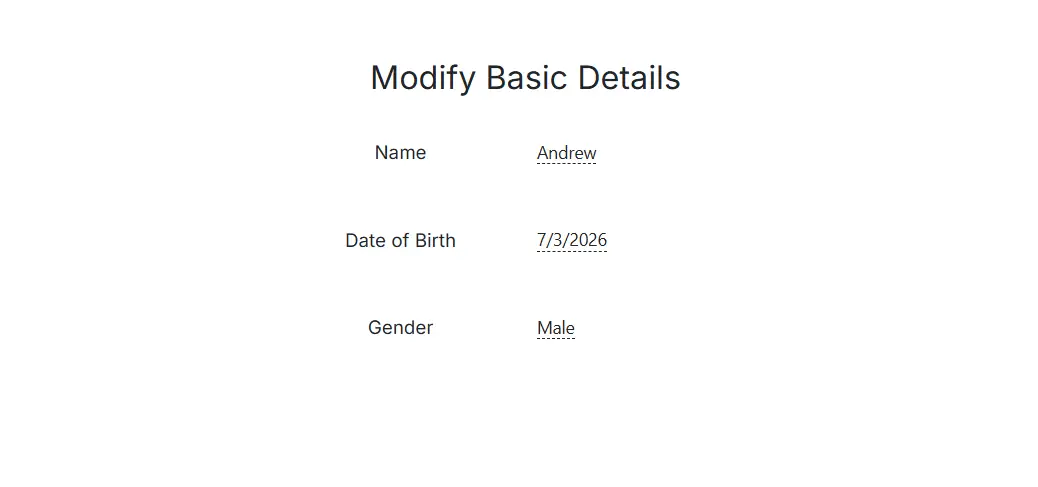
In the following code, the DatePicker, DropDownList, and TextBox components are configured.
@using Syncfusion.Blazor.InPlaceEditor
@using Syncfusion.Blazor.Inputs
@using Syncfusion.Blazor.Calendars
@using Syncfusion.Blazor.DropDowns

<div id="container" class="control-group">
    <h3> Modify Basic Details </h3>
    <table style="margin: 10px auto;">
        <tr>
            <td>Name</td>
            <td class='left'>
                <SfInPlaceEditor @bind-Value="@TextValue" TValue="string">
                    <EditorComponent>
                        <SfTextBox @bind-Value="@TextValue" Placeholder="Enter your name"></SfTextBox>
                    </EditorComponent>
                </SfInPlaceEditor>
            </td>
        </tr>
        <tr>
            <td>Date of Birth</td>
            <td class='left'>
                <SfInPlaceEditor Type="Syncfusion.Blazor.InPlaceEditor.InputType.Date" TValue="DateTime?" @bind-Value="@DateValue">
                    <EditorComponent>
                        <SfDatePicker TValue="DateTime?" @bind-Value="@DateValue" Placeholder="Select date"></SfDatePicker>
                    </EditorComponent>
                </SfInPlaceEditor>
            </td>
        </tr>
        <tr>
            <td>Gender</td>
            <td class='left'>
                <SfInPlaceEditor @bind-Value="@DropdownValue" Type="Syncfusion.Blazor.InPlaceEditor.InputType.DropDownList"  TValue="string">
                    <EditorComponent>
                        <SfDropDownList Width="90%" TItem="Gender" TValue="string" DataSource="@dropdownData" @bind-Value="@DropdownValue">
                            <DropDownListFieldSettings Text="text" Value="text"></DropDownListFieldSettings>
                        </SfDropDownList>
                    </EditorComponent>
                </SfInPlaceEditor>
            </td>
        </tr>
    </table>
</div>

<style>
    #container {
        text-align: center;
        margin-top: 50px;
    }

        #container table {
            width: 400px;
            margin: auto;
        }

            #container table td {
                height: 70px;
                width: 150px;
            }

            #container table .left {
                text-align: left;
            }
</style>

@code
{
    public DateTime? DateValue { get; set; } = new DateTime(DateTime.Now.Year, DateTime.Now.Month, DateTime.Now.Day);
    public string TextValue = "Andrew";
    public string DropdownValue = "Male";

    public class Gender
    {
        public string value { get; set; }
        public string text { get; set; }
    }
    List<Gender> dropdownData = new List<Gender>()
    {
        new Gender(){ text= "Male" },
        new Gender(){ text= "Female" }
    };
}
Submitting data to the server (save)
Submit the editor value to the server by configuring the SaveUrl, Adaptor, and PrimaryKey properties.
| Property | Usage |
|---|---|
SaveUrl |
Gets the URL for the server submit action. |
Adaptor |
Specifies the adaptor type used by DataManager to communicate with the data source. |
PrimaryKey |
Defines the unique primary key of the editable text field used for saving data in the database. |
The
PrimaryKeyproperty is mandatory. If it is not set, edited data are not sent to the server.
Refresh Blazor In-place Editor with modified value
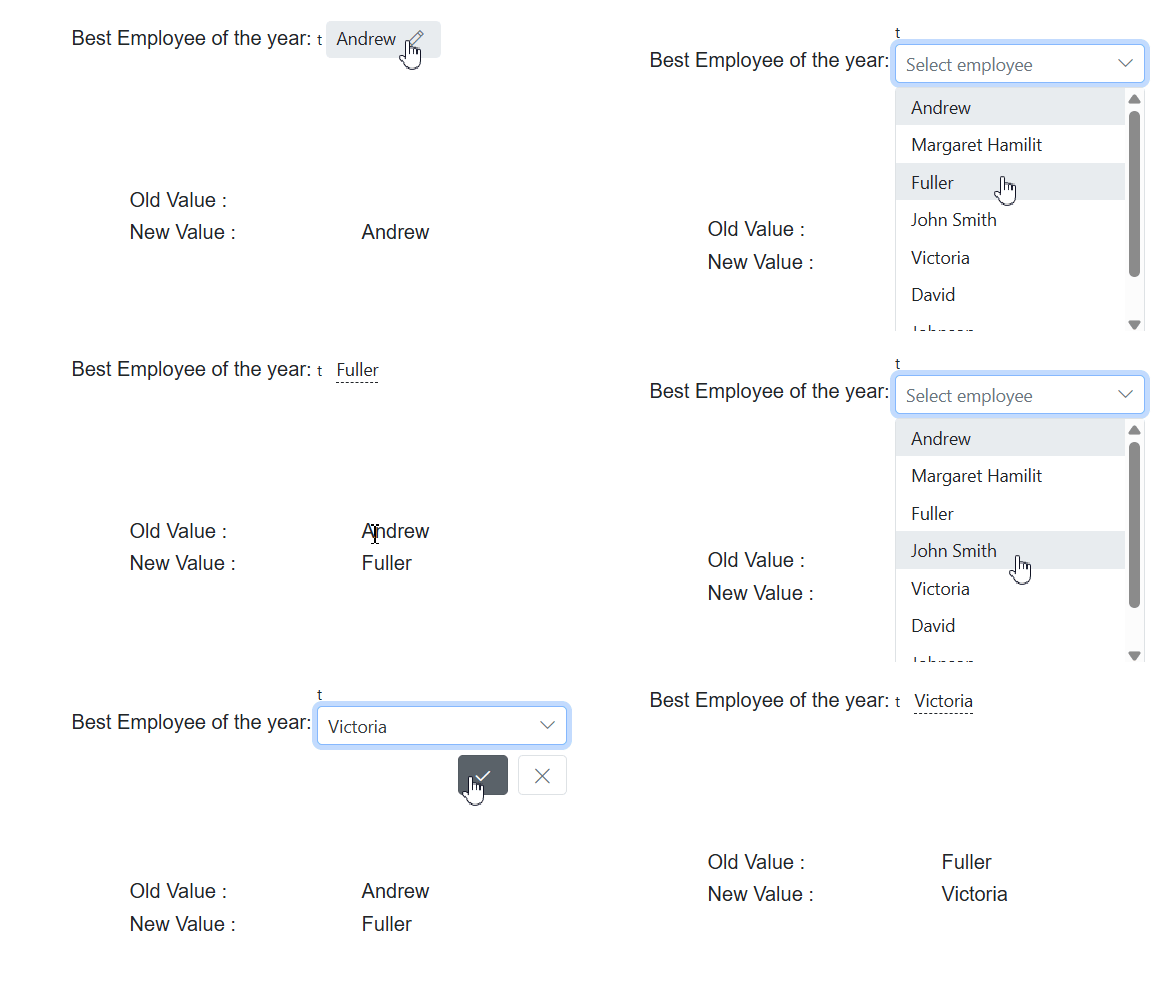
After submission, the edited data is sent to the server, and the updated value is reflected in the Blazor In-place Editor.
@using Syncfusion.Blazor.DropDowns
@using Syncfusion.Blazor.InPlaceEditor

<div id="container">
    <div class="control-group">
        Best Employee of the year:

        <SfInPlaceEditor @ref="InPlaceObj" PrimaryKey="Employee" Name="Employee" Adaptor="Adaptors.UrlAdaptor" SaveUrl="https://ej2services.syncfusion.com/production/web-services/api/Editor/UpdateData" Type="Syncfusion.Blazor.InPlaceEditor.InputType.DropDownList" @bind-Value="@DropdownValue" TValue="string">
            <EditorComponent>
                <SfDropDownList TValue="string" TItem="Employees" Placeholder="Select employee" PopupHeight="200px" DataSource="@LocalData">
                    <DropDownListFieldSettings Value="ID" Text="Text"></DropDownListFieldSettings>
                </SfDropDownList>
            </EditorComponent>t
            <InPlaceEditorEvents Created="@OnCreate" OnActionSuccess="@OnSuccess" TValue="string"></InPlaceEditorEvents>
        </SfInPlaceEditor>

    </div>
    <table style="margin:60px auto;width:25%">
        <tr>
            <td style="text-align: left">
                Old Value :
            </td>
            <td id="oldValue" style="text-align: left">
                @PreviousValue
            </td>
        </tr>
        <tr>
            <td style="text-align: left">
                New Value :
            </td>
            <td id="newValue" style="text-align: left">
                @CurrentValue
            </td>
        </tr>
    </table>
</div>

<style>
    .e-inplaceeditor {
        min-width: 200px;
        text-align: left;
    }

    #container .control-group {
        text-align: center;
        margin: 100px auto;
    }
</style>

@code
{
    SfInPlaceEditor<string> InPlaceObj;
    public string PreviousValue { get; set; }
    public string DropdownValue = "Andrew";
    public string CurrentValue { get; set; }

    public class Employees
    {
        public string ID { get; set; }
        public string Text { get; set; }
    }
    List<Employees> LocalData = new List<Employees> {
    new Employees() { ID= "Andrew", Text= "Andrew" },
    new Employees() { ID= "Margaret Hamilit", Text= "Margaret Hamilit" },
    new Employees() { ID= "Fuller", Text= "Fuller" },
    new Employees() { ID= "John Smith", Text= "John Smith" },
    new Employees() { ID= "Victoria", Text= "Victoria" },
    new Employees() { ID= "David", Text= "David" },
    new Employees() { ID= "Johnson", Text= "Johnson" },
    new Employees() { ID= "Rosy", Text= "Rosy"}
  };

    public void OnCreate(Object args)
    {
        this.CurrentValue = this.DropdownValue;
    }

    public void OnSuccess(ActionEventArgs<string> args)
    {
        this.PreviousValue = this.CurrentValue;
        this.CurrentValue = this.DropdownValue;
    }
}