How can I help you?
Data Binding in Blazor MultiColumn ComboBox Component
1 Dec 202523 minutes to read
The MultiColumn ComboBox can retrieve data from either local data sources or remote data services. To connect local data, use the DataSource property with an IEnumerable-compatible source. For remote data, create a DataManager instance configured with an adaptor and assign it to DataSource.
- TItem - Specifies the data model type for items in the MultiColumn ComboBox.
Binding local data
The MultiColumn ComboBox loads data from local sources through the DataSource property. Supported types include:
- Array of primitive type
- Array of object
- List of primitive type
- List of object
- ObservableCollection
- ExpandoObject
- DynamicObject
Ensure [TextField] and [ValueField] are set appropriately for your data model so display text and values are mapped correctly.
@using Syncfusion.Blazor.MultiColumnComboBox

<SfMultiColumnComboBox @bind-Value="@Value" DataSource="@Products" PopupWidth="600px" ValueField="Name" TextField="Name" Placeholder="Select any product"></SfMultiColumnComboBox>

@code {

     public class Product
    {
        public string Name { get; set; }
        public decimal Price { get; set; }
        public string Availability { get; set; }
        public string Category { get; set; }
        public double Rating { get; set; }
    }
    private List<Product> Products = new List<Product>();
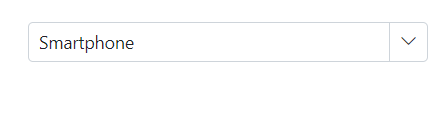
    private string Value { get; set; } = "Smartphone";
    protected override Task OnInitializedAsync()
    {
        Products = new List<Product>
        {
            new Product { Name = "Laptop", Price = 999.99m, Availability = "In Stock", Category = "Electronics", Rating = 4.5 },
            new Product { Name = "Smartphone", Price = 599.99m, Availability = "Out of Stock", Category = "Electronics", Rating = 4.3 },
            new Product { Name = "Tablet", Price = 299.99m, Availability = "In Stock", Category = "Electronics", Rating = 4.2 },
            new Product { Name = "Headphones", Price = 49.99m, Availability = "In Stock", Category = "Accessories", Rating = 4.0 },
            new Product { Name = "Smartwatch", Price = 199.99m, Availability = "Limited Stock", Category = "Wearables", Rating = 4.4 },
            new Product { Name = "Monitor", Price = 129.99m, Availability = "In Stock", Category = "Electronics", Rating = 4.6 },
        };
        return base.OnInitializedAsync();
    }
}
Index value binding
Index value binding can be accomplished with the bind-Index attribute, which supports both integer and nullable integer types. This binds the selected item by its zero-based index in the current view. Sorting or filtering may change indices, which affects the bound value.
@using Syncfusion.Blazor.MultiColumnComboBox

<SfMultiColumnComboBox TItem="Product" TValue="string" @bind-Index="@ComboIndex" DataSource="@Products" PopupWidth="600px" ValueField="Name" TextField="Name" Placeholder="Select any product"></SfMultiColumnComboBox>

@code {

     public class Product
    {
        public string Name { get; set; }
        public decimal Price { get; set; }
        public string Availability { get; set; }
        public string Category { get; set; }
        public double Rating { get; set; }
    }
    private List<Product> Products = new List<Product>();
    private int? ComboIndex { get; set; } = 2;
    protected override Task OnInitializedAsync()
    {
        Products = new List<Product>
        {
            new Product { Name = "Laptop", Price = 999.99m, Availability = "In Stock", Category = "Electronics", Rating = 4.5 },
            new Product { Name = "Smartphone", Price = 599.99m, Availability = "Out of Stock", Category = "Electronics", Rating = 4.3 },
            new Product { Name = "Tablet", Price = 299.99m, Availability = "In Stock", Category = "Electronics", Rating = 4.2 },
            new Product { Name = "Headphones", Price = 49.99m, Availability = "In Stock", Category = "Accessories", Rating = 4.0 },
            new Product { Name = "Smartwatch", Price = 199.99m, Availability = "Limited Stock", Category = "Wearables", Rating = 4.4 },
            new Product { Name = "Monitor", Price = 129.99m, Availability = "In Stock", Category = "Electronics", Rating = 4.6 },
            new Product { Name = "Keyboard", Price = 39.99m, Availability = "In Stock", Category = "Accessories", Rating = 4.1 },
            new Product { Name = "Mouse", Price = 19.99m, Availability = "Out of Stock", Category = "Accessories", Rating = 4.3 },
        };
        return base.OnInitializedAsync();
    }
}Expando object binding
Bind the ExpandoObject data to the MultiColumn ComboBox component. In the following example, an ExpandoObject collection of vehicles is bound. Set TextField and ValueField to the corresponding dynamic property names.
@using Syncfusion.Blazor.MultiColumnComboBox
@using System.Dynamic
@using Syncfusion.Blazor.Data

<SfMultiColumnComboBox TItem="ExpandoObject" TValue="string" @bind-Value="@VehicleValue" DataSource="VehicleData" AllowFiltering=true ValueField="ID" TextField="Text" PopupWidth="600px" Placeholder="e.g. Andrew">
        </SfMultiColumnComboBox>

@code {
    public string VehicleValue { get; set; } = "1011";
    public List<ExpandoObject> VehicleData { get; set; } = new List<ExpandoObject>();
    protected override void OnInitialized()
    {
        VehicleData = Enumerable.Range(1, 15).Select((x) =>
        {
            dynamic d = new ExpandoObject();
            d.ID = (1000 + x).ToString();
            d.Text = (new string[] { "Hennessey Venom", "Bugatti Chiron", "Bugatti Veyron Super Sport", "SSC Ultimate Aero", "Koenigsegg CCR", "McLaren F1", "Aston Martin One- 77", "Jaguar XJ220", "McLaren P1", "Ferrari LaFerrari", "Mahindra Jaguar", "Hyundai Toyota", "Jeep Volkswagen", "Tata Maruti Suzuki", "Audi Mercedes Benz" }[x - 1]);
            return d;
        }).Cast<ExpandoObject>().ToList<ExpandoObject>();
    }
}
Dynamic object binding
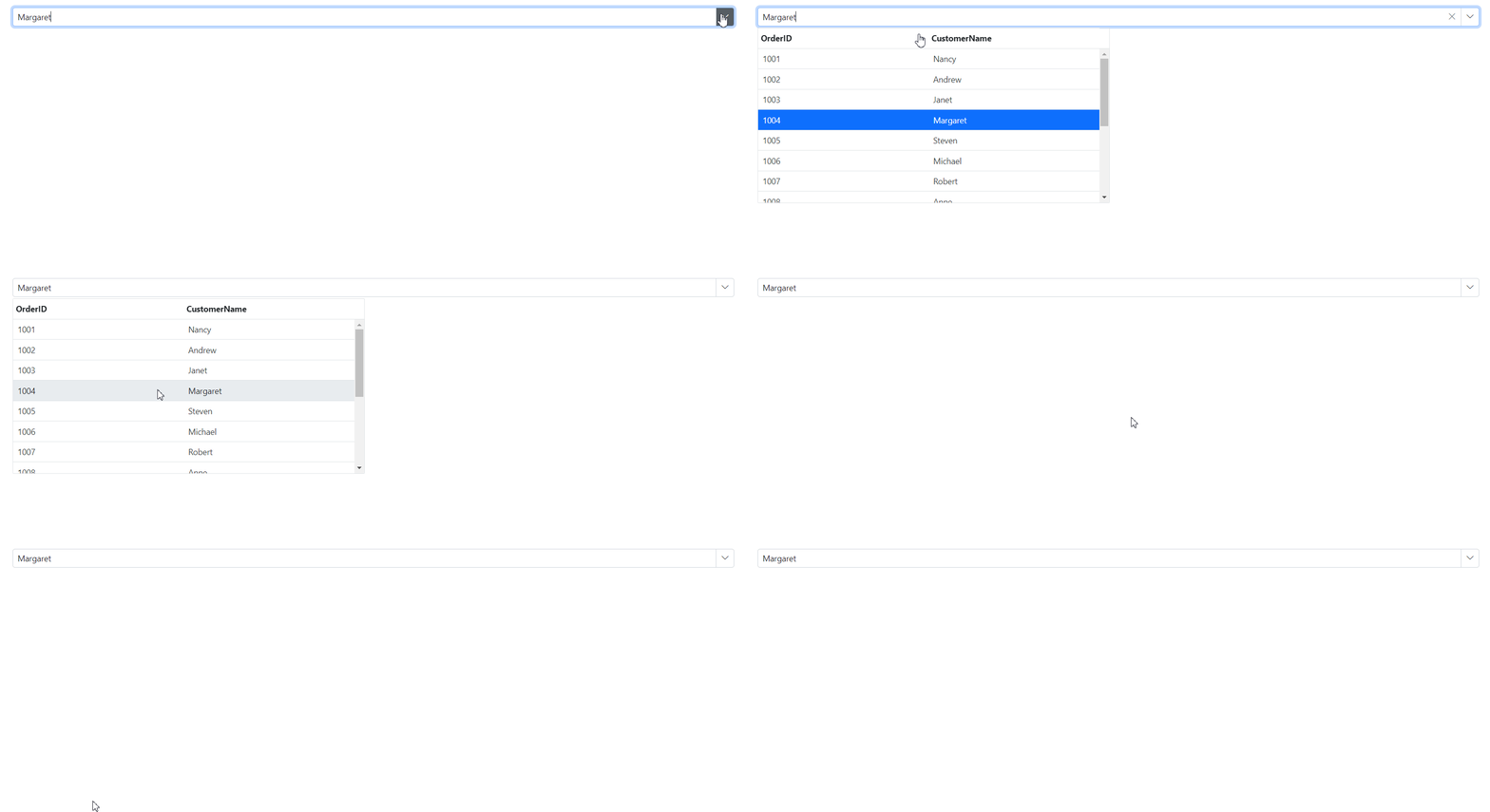
Bind the DynamicObject data to the MultiColumn ComboBox component. In the following example, a DynamicObject collection of customers is bound. Ensure TextField and ValueField map to the dynamic members exposed at runtime.
@using Syncfusion.Blazor.MultiColumnComboBox
@using System.Dynamic
@using Syncfusion.Blazor.Data

<SfMultiColumnComboBox TItem="DynamicDictionary" TValue="string" @bind-Value="@NameValue" DataSource="Orders" AllowFiltering=true ValueField="CustomerName" TextField="CustomerName" PopupWidth="600px" Placeholder="e.g. Andrew">
        </SfMultiColumnComboBox>

@code {
    public string NameValue { get; set; } = "Margaret";
    public List<DynamicDictionary> Orders = new List<DynamicDictionary>() { };
    protected override void OnInitialized()
    {
        Orders = Enumerable.Range(1, 15).Select((x) =>
        {
            dynamic d = new DynamicDictionary();
            d.OrderID = 1000 + x;
            d.CustomerName = (new string[] { "Nancy", "Andrew", "Janet", "Margaret", "Steven", "Michael", "Robert", "Anne", "Nige", "Fuller", "Dodsworth", "Leverling", "Callahan", "Suyama", "Davolio" }[x - 1]);
            return d;
        }).Cast<DynamicDictionary>().ToList<DynamicDictionary>();
    }
    public class DynamicDictionary : System.Dynamic.DynamicObject
    {
        Dictionary<string, object> dictionary = new Dictionary<string, object>();
        public override bool TryGetMember(GetMemberBinder binder, out object result)
        {
            string name = binder.Name;
            return dictionary.TryGetValue(name, out result);
        }
        public override bool TrySetMember(SetMemberBinder binder, object value)
        {
            dictionary[binder.Name] = value;
            return true;
        }
        //The GetDynamicMemberNames method of DynamicObject class must be overridden and return the property names to perform data operation and editing while using DynamicObject.
        public override System.Collections.Generic.IEnumerable<string> GetDynamicMemberNames()
        {
            return this.dictionary?.Keys;
        }
    }
}
ValueTuple data binding
Bind the ValueTuple data to the MultiColumn ComboBox component. The following example retrieves a string value from enumeration data using ValueTuple. Map TextField/ValueField to the tuple members (for example, Item1, Item2) as used in the sample.
@using Syncfusion.Blazor.DropDowns;

<SfComboBox TItem="(DayOfWeek, string)" Width="250px" TValue="DayOfWeek"
                DataSource="@(Enum.GetValues<DayOfWeek>().Select(e => (e, e.ToString())))">
    <ComboBoxFieldSettings Value="Item1" Text="Item2" />
</SfComboBox>Binding remote data
The MultiColumn ComboBox loads the data from remote data services through the DataSource property when it is assigned a DataManager instance.
The MultiColumn ComboBox supports retrieving data from remote services with the DataManager. Use the Query property to shape requests and fetch data, then bind the results to the component.
- DataManager.Url - Defines the service endpoint to fetch data.
- DataManager.Adaptor - Defines the adaptor used to communicate with the service. By default, the ODataAdaptor is used for remote binding. Choose the adaptor based on your API (for example, ODataV4Adaptor, WebApiAdaptor, UrlAdaptor).
- Syncfusion.Blazor.Data package provides predefined adaptors designed to interact with specific service endpoints.
OnActionBegin event
The OnActionBegin event triggers before fetching data from the remote server. Use it to adjust the query, show a loading indicator, or log outgoing requests.
@using Syncfusion.Blazor.MultiColumnComboBox
@using Syncfusion.Blazor.Data

<SfMultiColumnComboBox TItem="OrderDetails" TValue="string" AllowFiltering=true ValueField="CustomerID" OnActionBegin="@OnActionBeginhandler" TextField="CustomerID" PopupWidth="Auto" Placeholder="e.g. Andrew">
    <SfDataManager Url="https://blazor.syncfusion.com/services/production/api/Orders" CrossDomain="true" Offline="true" Adaptor="Syncfusion.Blazor.Adaptors.WebApiAdaptor"></SfDataManager>
</SfMultiColumnComboBox>

@code {
    public Query RemoteQuery = new Query();
    public class OrderDetails
    {
        public int? OrderID { get; set; }
        public string CustomerID { get; set; }
        public int? EmployeeID { get; set; }
        public double? Freight { get; set; }
        public string ShipCity { get; set; }
        public bool Verified { get; set; }
        public DateTime? OrderDate { get; set; }
        public string ShipName { get; set; }
        public string ShipCountry { get; set; }
        public DateTime? ShippedDate { get; set; }
        public string ShipAddress { get; set; }
    }

    private void OnActionBeginhandler(Syncfusion.Blazor.MultiColumnComboBox.ActionBeginEventArgs args)
    {
        // Here, you can customize your code.
    }
}OnActionFailure event
The OnActionFailure event triggers when the data fetch request from the remote server fails. Handle this event to log errors, display user-friendly messages, or retry operations.
@using Syncfusion.Blazor.MultiColumnComboBox
@using Syncfusion.Blazor.Data

<SfMultiColumnComboBox TItem="OrderDetails" TValue="string" AllowFiltering=true ValueField="CustomerID" OnActionFailure="@OnActionFailurehandler" TextField="CustomerID" PopupWidth="Auto" Placeholder="e.g. Andrew">
    <SfDataManager Url="https://blazor.syncfusion.com/services/production/api/Orders" CrossDomain="true" Offline="true" Adaptor="Syncfusion.Blazor.Adaptors.WebApiAdaptor"></SfDataManager>
</SfMultiColumnComboBox>

@code {
    public Query RemoteQuery = new Query();
    public class OrderDetails
    {
        public int? OrderID { get; set; }
        public string CustomerID { get; set; }
        public int? EmployeeID { get; set; }
        public double? Freight { get; set; }
        public string ShipCity { get; set; }
        public bool Verified { get; set; }
        public DateTime? OrderDate { get; set; }
        public string ShipName { get; set; }
        public string ShipCountry { get; set; }
        public DateTime? ShippedDate { get; set; }
        public string ShipAddress { get; set; }
    }

    private void OnActionFailurehandler(Exception args)
    {
        // Here, you can customize your code.
    }
}OData v4 services
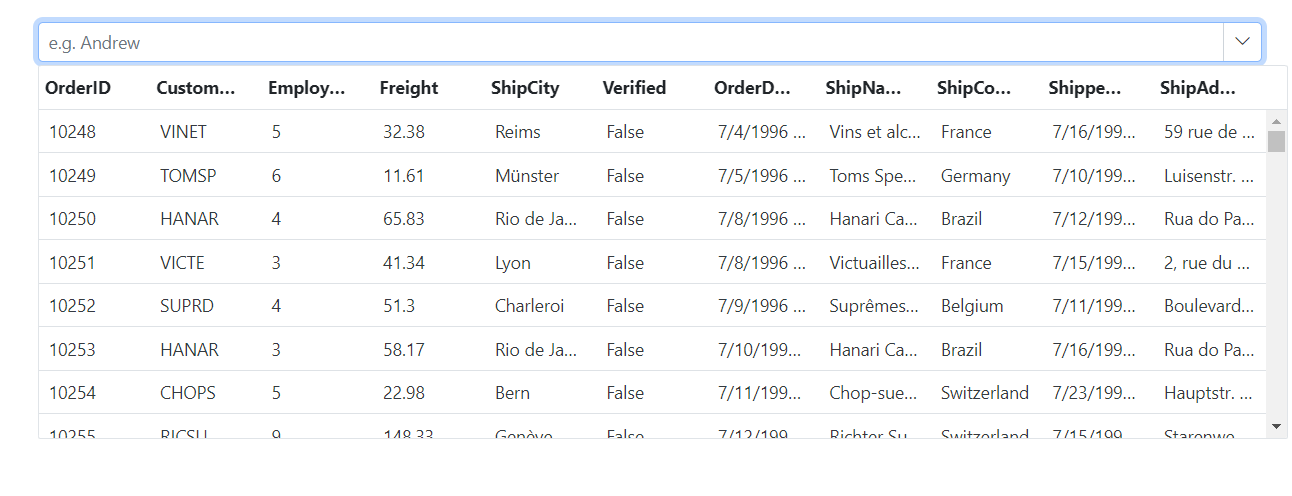
The OData v4 Adaptor provides the ability to consume and manipulate data from OData v4 services. The following sample displays the first six customer details from the Customers table of the Northwind data service.
@using Syncfusion.Blazor.MultiColumnComboBox
@using Syncfusion.Blazor.Data

<SfMultiColumnComboBox TItem="OrderDetails" TValue="string" AllowFiltering=true ValueField="CustomerID" TextField="CustomerID" PopupWidth="600px" Placeholder="e.g. Andrew">
    <SfDataManager Url="https://services.odata.org/V4/Northwind/Northwind.svc/Orders" Adaptor="Syncfusion.Blazor.Adaptors.ODataV4Adaptor" CrossDomain=true></SfDataManager>
</SfMultiColumnComboBox>

@code {
    public string OrderValue { get; set; } = "TOMSP";
    public Query Query = new Query().Select(new List<string> { "CustomerID", "OrderID" }).Take(6).RequiresCount();

    public class OrderDetails
    {
        public int? OrderID { get; set; }
        public string CustomerID { get; set; }
        public int? EmployeeID { get; set; }
        public double? Freight { get; set; }
        public string ShipCity { get; set; }
        public bool Verified { get; set; }
        public DateTime? OrderDate { get; set; }
        public string ShipName { get; set; }
        public string ShipCountry { get; set; }
        public DateTime? ShippedDate { get; set; }
        public string ShipAddress { get; set; }
    }
}
Web API adaptor
The Web API Adaptor is used to interact with Web API endpoints that follow OData conventions. The WebApiAdaptor extends the ODataAdaptor. The endpoint must recognize OData-formatted queries sent with the request.
@using Syncfusion.Blazor.MultiColumnComboBox
@using Syncfusion.Blazor.Data

<SfMultiColumnComboBox TItem="OrderDetails" TValue="string" AllowFiltering=true ValueField="CustomerID" TextField="CustomerID" PopupWidth="Auto" Placeholder="e.g. Andrew">
    <SfDataManager Url="https://blazor.syncfusion.com/services/production/api/Orders" CrossDomain="true" Offline="true" Adaptor="Syncfusion.Blazor.Adaptors.WebApiAdaptor"></SfDataManager>
</SfMultiColumnComboBox>

@code {
    public Query RemoteQuery = new Query();
    public class OrderDetails
    {
        public int? OrderID { get; set; }
        public string CustomerID { get; set; }
        public int? EmployeeID { get; set; }
        public double? Freight { get; set; }
        public string ShipCity { get; set; }
        public bool Verified { get; set; }
        public DateTime? OrderDate { get; set; }
        public string ShipName { get; set; }
        public string ShipCountry { get; set; }
        public DateTime? ShippedDate { get; set; }
        public string ShipAddress { get; set; }
    }
}Offline mode
To avoid a postback for every action, load all data on initialization and process actions on the client side. Enable this behavior by setting the Offline property of DataManager. In offline mode, data is fetched once; filtering and searching then occur client side.
The following example demonstrates remote data binding with offline mode enabled.
@using Syncfusion.Blazor.MultiColumnComboBox
@using Syncfusion.Blazor.Data

<SfMultiColumnComboBox TItem="EmployeeData" TValue="string" AllowFiltering=true ValueField="EmployeeID" OnActionBegin="@OnActionBeginhandler" TextField="FirstName" PopupWidth="600px" Placeholder="e.g. Andrew">
    <SfDataManager Url="https://blazor.syncfusion.com/services/release/api/Employees" Offline="true" CrossDomain="true" Adaptor="Syncfusion.Blazor.Adaptors.WebApiAdaptor"></SfDataManager>
</SfMultiColumnComboBox>

@code {
    public Query RemoteQuery = new Query();
    public class EmployeeData
    {
        public int EmployeeID { get; set; }
        public string FirstName { get; set; }
        public string LastName { get; set; }
        public string Country { get; set; }
    }
    private void OnActionBeginhandler(ActionBeginEventArgs args)
    {
        // Here, you can customize your code.
    }
}Entity Framework
Follow these steps to consume data from the Entity Framework in the MultiColumn ComboBox component.
Create DBContext class
The first step is to create a DBContext class called OrderContext to connect to a Microsoft SQL Server database.
using Microsoft.EntityFrameworkCore;
using System;
using System.Collections.Generic;
using System.Linq;
using System.Threading.Tasks;
using EFDropDown.Shared.Models;

namespace EFDropDown.Shared.DataAccess
{
    public class OrderContext : DbContext
    {
        public virtual DbSet<Shared.Models.Order> Orders { get; set; }

        protected override void OnConfiguring(DbContextOptionsBuilder optionsBuilder)
        {
            if (!optionsBuilder.IsConfigured)
            {
                optionsBuilder.UseSqlServer(@"Data Source=(LocalDB)\MSSQLLocalDB;AttachDbFilename=D:\Blazor\DropDownList\EFDropDown\Shared\App_Data\NORTHWND.MDF;Integrated Security=True;Connect Timeout=30");
            }
        }
    }
}
Create data access layer to perform data operation
Now, create a class named OrderDataAccessLayer, which act as data access layer for retrieving the records from the database table.
using Microsoft.EntityFrameworkCore;
using System;
using System.Collections.Generic;
using System.Linq;
using System.Threading.Tasks;
using EFDropDown.Shared.Models;

namespace EFDropDown.Shared.DataAccess
{
    public class OrderDataAccessLayer
    {
        OrderContext db = new OrderContext();

        //To Get all Orders details
        public DbSet<Order> GetAllOrders()
        {
            try
            {
                return db.Orders;
            }
            catch
            {
                throw;
            }
        }
    }
}
Creating web API controller
A Web API Controller has to be created, which allows the MultiColumn ComboBox to directly consume data from the Entity Framework.
using EFDropDown.Shared.DataAccess;
using EFDropDown.Shared.Models;
using Microsoft.AspNetCore.Mvc;
using Microsoft.Extensions.Primitives;
using System;
using System.Collections.Generic;
using System.Linq;
using System.Threading.Tasks;
using System.Web;
using Microsoft.AspNetCore.Http;

namespace EFDropDown.Controllers
{
    [Route("api/[controller]")]
    [ApiController]
    //TreeGrid
    public class DefaultController : ControllerBase
    {
        OrderDataAccessLayer db = new OrderDataAccessLayer();
        [HttpGet]
        public object Get()
        {
            IQueryable<Order> data = db.GetAllOrders().AsQueryable();
            var count = data.Count();
            var queryString = Request.Query;
            if (queryString.Keys.Contains("$inlinecount"))
            {
                StringValues Skip;
                StringValues Take;
                int skip = (queryString.TryGetValue("$skip", out Skip)) ? Convert.ToInt32(Skip[0]) : 0;
                int top = (queryString.TryGetValue("$top", out Take)) ? Convert.ToInt32(Take[0]) : data.Count();
                return new { Items = data.Skip(skip).Take(top), Count = count };
            }
            else
            {
                return data;
            }
         }
    }
}
Configure MultiColumn ComboBox component using Web API adaptor
Now, configure the MultiColumn ComboBox using the SfDataManager to interact with the created Web API and consume the data appropriately. To interact with web API, use the WebApiAdaptor.
@using Syncfusion.Blazor.MultiColumnComboBox
@using Syncfusion.Blazor
@using Syncfusion.Blazor.Data

<SfMultiColumnComboBox TItem="Order" TValue="string" AllowFiltering=true ValueField="ShipCountry" TextField="ShipCountry" PopupWidth="1000px" Placeholder="e.g. Andrew">
    <SfDataManager Url="api/Default" Adaptor="Adaptors.WebApiAdaptor" CrossDomain="true"></SfDataManager>
</SfMultiColumnComboBox>

@code {
    public class Order
    {
        public int? OrderID { get; set; }
        public string ShipCountry { get; set; }
    }
}