Classic Layout in Blazor Pivot Table
14 Aug 20264 minutes to read
NOTE
The classic layout applies only to relational data sources and operates in both client-side and server-side engines.
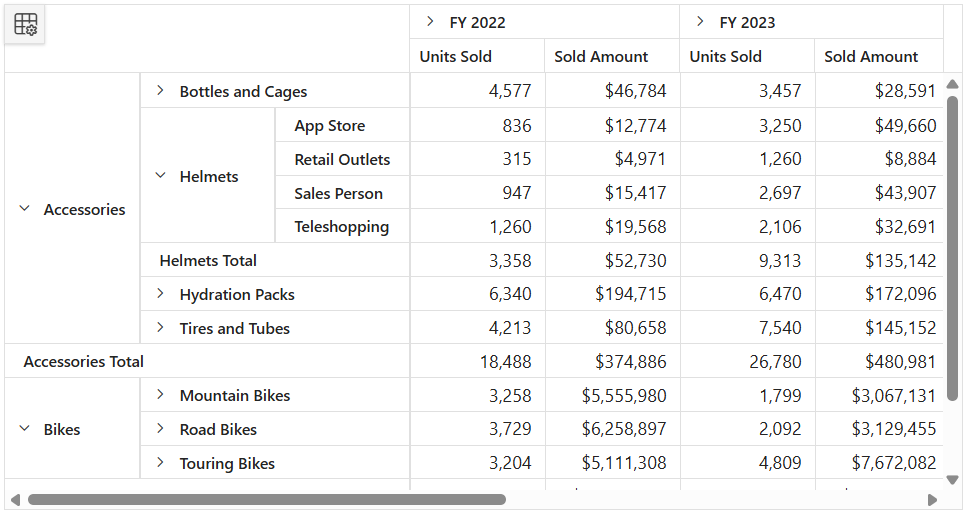
The classic layout, also known as the tabular layout, in the Syncfusion® Blazor Pivot Table provides a structured, tabular presentation of data that enhances readability and usability. In this layout, fields in the row axis are displayed side by side in separate columns, making data interpretation and analysis easier. By default, grand totals appear at the end of all rows, while subtotals are placed in a separate row beneath each group. All other features of the Pivot Table, such as filtering, sorting, drag-and-drop, expand/collapse functionality, and more, remain the same as in the compact layout, which serves as the default hierarchical format of the Pivot Table.
To enable the classic layout, set the Layout property in the PivotViewGridSettings of the Pivot Table to PivotLayout.Tabular.
@using Syncfusion.Blazor.PivotView

<SfPivotView TValue="ProductDetails" @ref="pivot" Height="450" Width="100%" ShowFieldList=true>
    <PivotViewDataSourceSettings DataSource="@dataSource">
        <PivotViewColumns>
            <PivotViewColumn Name="Year"></PivotViewColumn>
            <PivotViewColumn Name="Quarter"></PivotViewColumn>
        </PivotViewColumns>
        <PivotViewRows>
            <PivotViewRow Name="Product_Categories"></PivotViewRow>
            <PivotViewRow Name="Products"></PivotViewRow>
            <PivotViewRow Name="Order_Source"></PivotViewRow>
        </PivotViewRows>
        <PivotViewValues>
            <PivotViewValue Name="Sold" Caption="Units Sold"></PivotViewValue>
            <PivotViewValue Name="Amount" Caption="Sold Amount"></PivotViewValue>
        </PivotViewValues>
        <PivotViewFormatSettings>
            <PivotViewFormatSetting Name="Amount" Format="C0"></PivotViewFormatSetting>
            <PivotViewFormatSetting Name="Sold" Format="N0"></PivotViewFormatSetting>
        </PivotViewFormatSettings>
        <PivotViewDrilledMembers>
            <PivotViewDrilledMember Name="Product_Categories" Items="@(new string[] { "Accessories", "Bikes" })"></PivotViewDrilledMember>
            <PivotViewDrilledMember Name="Products" Delimiter="##" Items="@(new string[] { "Accessories##Helmets" })"></PivotViewDrilledMember>
        </PivotViewDrilledMembers>
        <PivotViewFilterSettings>
            <PivotViewFilterSetting Name="Products" Type="FilterType.Exclude" Items="@(new string[] { "Cleaners", "Fenders" })"></PivotViewFilterSetting>
        </PivotViewFilterSettings>
    </PivotViewDataSourceSettings>
    <PivotViewGridSettings ColumnWidth="120" Layout=layout></PivotViewGridSettings>
</SfPivotView>

@code {
    public SfPivotView<ProductDetails>? pivot;
    public List<ProductDetails> dataSource { get; set; }
    public PivotLayout layout = PivotLayout.Tabular;

    protected override void OnInitialized()
    {
        this.dataSource = ProductDetails.GetProductData().ToList();
    }

    public class ProductDetails
    {
        public int In_Stock { get; set; }
        public int Sold { get; set; }
        public double Amount { get; set; }
        public string Country { get; set; } = string.Empty;
        public string Product_Categories { get; set; } = string.Empty;
        public string Products { get; set; } = string.Empty;
        public string Order_Source { get; set; } = string.Empty;
        public string Year { get; set; } = string.Empty;
        public string Quarter { get; set; } = string.Empty;
    }
}
Limitations
- Subtotals at the “Top” position are not supported for row subtotals.
- The following features are currently not supported in the Pivot Table:
- Column resizing
- Auto-fit
- Column reordering when the grouping bar feature is enabled
- Clip mode