Getting Started with Blazor Chart Wizard Component in Blazor Web App
12 Aug 202613 minutes to read
This section briefly explains how to include the Blazor Chart Wizard component in your Blazor Web App using Visual Studio, Visual Studio Code, and the .NET CLI.
Ready to streamline your Blazor development?
Discover the full potential of Blazor components with AI Coding Assistants. Effortlessly integrate, configure, and enhance your projects with intelligent, context-aware code suggestions, streamlined setups, and real-time insights—all seamlessly integrated into your preferred AI-powered IDEs like VS Code, Cursor, Code Studio and more. Explore AI Coding Assistants
Create a new Blazor Web App
Create a Blazor Web App using Visual Studio via Microsoft Templates or the Blazor Extension.
Run the following command to create a new Blazor Web App.
dotnet new blazor -o BlazorWebApp --interactivity Auto
cd BlazorWebApp
cd BlazorWebApp.Client
Alternatively, create a Blazor Web App using Visual Studio Code via Microsoft Templates, the Blazor Extension, or the C# Dev Kit extension.
Run the following command to create a new Blazor Web App.
dotnet new blazor -o BlazorWebApp --interactivity Auto
cd BlazorWebApp
cd BlazorWebApp.Client
NOTE
Configure the appropriate Interactive render mode and Interactivity location while creating a Blazor Web App. For detailed information, refer to the interactive render mode documentation.
Install the required Blazor packages
Install the Syncfusion.Blazor.ChartWizard and Syncfusion.Blazor.Themes NuGet packages. All Syncfusion Blazor packages are available on nuget.org. See the NuGet packages topic for details. If using the WebAssembly or Auto render modes in the Blazor Web App, install these packages in the .Client project.
- Go to Tools → NuGet Package Manager → Manage NuGet Packages for Solution.
- Search the required NuGet packages (
Syncfusion.Blazor.ChartWizardandSyncfusion.Blazor.Themes) and install them.
Alternatively, you can install the same packages using the Package Manager Console with the following commands.
Install-Package Syncfusion.Blazor.ChartWizard -Version 34.2.2
Install-Package Syncfusion.Blazor.Themes -Version 34.2.2
Open the terminal and run the following commands.
dotnet add package Syncfusion.Blazor.ChartWizard -v 34.2.2
dotnet add package Syncfusion.Blazor.Themes -v 34.2.2
Open the command prompt and run the following commands.
dotnet add package Syncfusion.Blazor.ChartWizard -v 34.2.2
dotnet add package Syncfusion.Blazor.Themes -v 34.2.2
Add Import Namespaces
After the package is installed, open the ~/_Imports.razor file from the .Client project and import the Syncfusion.Blazor and Syncfusion.Blazor.ChartWizard namespaces.
@using Syncfusion.Blazor
@using Syncfusion.Blazor.ChartWizard
Register the Blazor service
Open the Program.cs file in Blazor Web App and register the Blazor service. If the Interactive Render Mode is set to WebAssembly or Auto, register the Blazor service in Program.cs files of both the server and client projects in your Blazor Web App.
....
using Syncfusion.Blazor;
....
builder.Services.AddSyncfusionBlazor();
....
Add stylesheet and script resources
The theme stylesheet and script can be accessed from NuGet through Static Web Assets. Include the stylesheet and script references in the ~/Components/App.razor file.
...
<link href="_content/Syncfusion.Blazor.Themes/fluent2.css" rel="stylesheet" />
...
<script src="_content/Syncfusion.Blazor.Core/scripts/syncfusion-blazor.min.js" type="text/javascript"></script>
Add Blazor Chart Wizard component
Open a Razor file located in the ~/Pages/*.razor (for example, Home.razor) and add the Blazor Chart Wizard component inside the .Client project razor file.
NOTE
If the interactivity location is set to
Per page/componentin the Web App, define a render mode at the top of the razor file. (For example,InteractiveServer,InteractiveWebAssembly, orInteractiveAuto). If the Interactivity is set toGlobalwithAutoorWebAssembly, the render mode is automatically configured in theApp.razorfile by default.
@rendermode InteractiveAuto

<SfChartWizard Height="600px">

</SfChartWizard>
Run the application
Press Ctrl+F5 (Windows) or ⌘+F5 (macOS) to launch the application. The Blazor Chart Wizard component will render in your default web browser.
Open the terminal and navigate to the main project folder (for example, BlazorWebApp) and run the following command.
cd ..
cd BlazorWebApp
dotnet run
Open the command prompt and navigate to the main project folder (for example, BlazorWebApp) and run the following command.
cd ..
cd BlazorWebApp
dotnet run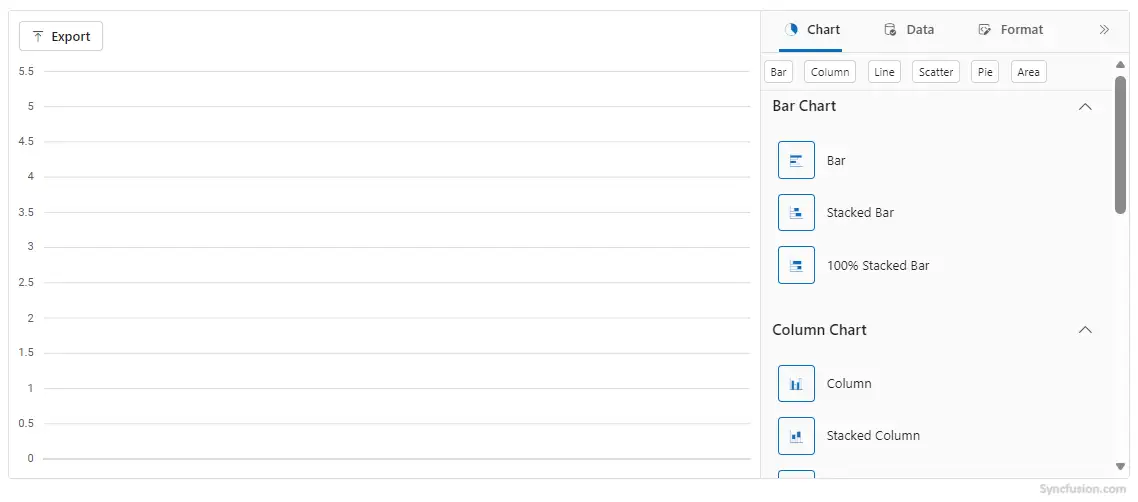
Populate Blazor Chart Wizard data
To bind data for the chart wizard component, you can assign an IEnumerable object to the DataSource property.
public class OlympicsData
{
    public string? Country { get; set; }
    public string? CountryCode { get; set; }
    public int Gold { get; set; }
    public int Silver { get; set; }
    public int Bronze { get; set; }
}

private readonly List<OlympicsData> OlympicsDataSource = new()
{
    new OlympicsData { Country = "USA", CountryCode = "USA", Gold = 40, Silver = 44, Bronze = 42 },
    new OlympicsData { Country = "China", CountryCode = "CHN", Gold = 40, Silver = 27, Bronze = 24 },
    new OlympicsData { Country = "Great Britain", CountryCode = "GBR", Gold = 14, Silver = 22, Bronze = 29 },
    new OlympicsData { Country = "France", CountryCode = "FRA", Gold = 16, Silver = 26, Bronze = 22 },
    new OlympicsData { Country = "Australia", CountryCode = "AUS", Gold = 18, Silver = 19, Bronze = 16 },
    new OlympicsData { Country = "Japan", CountryCode = "JPN", Gold = 20, Silver = 12, Bronze = 13 },
    new OlympicsData { Country = "Italy", CountryCode = "ITA", Gold = 12, Silver = 13, Bronze = 15 },
    new OlympicsData { Country = "Netherlands", CountryCode = "NLD", Gold = 15, Silver = 7,  Bronze = 12 },
    new OlympicsData { Country = "Germany", CountryCode = "DEU", Gold = 12, Silver = 13, Bronze = 8  },
    new OlympicsData { Country = "South Korea", CountryCode = "KOR", Gold = 13, Silver = 9,  Bronze = 10 }
};
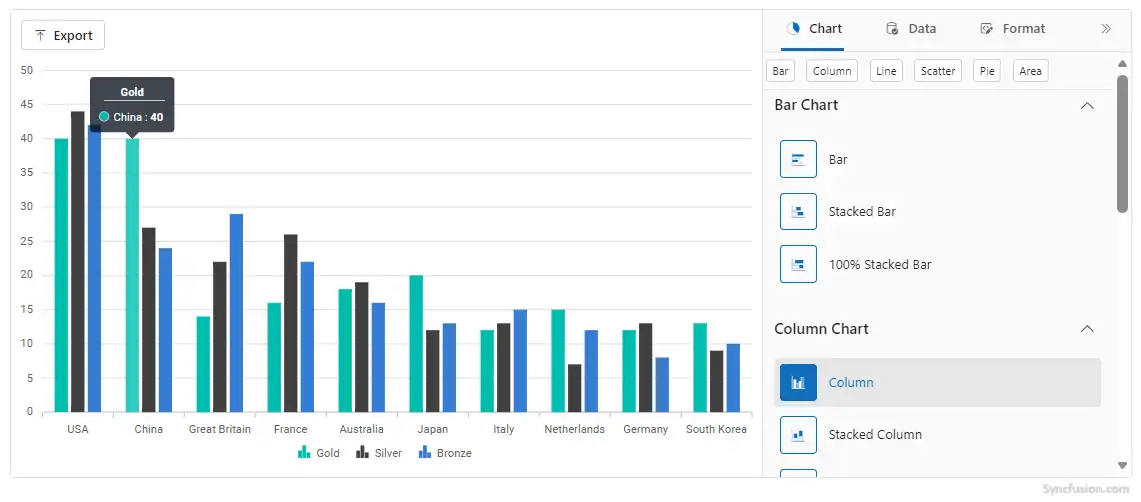
Now, populate the categories and chartSeries collections with the appropriate data defining the chart’s categories and series. Then, assign these values to the CategoryFields and SeriesFields properties of the ChartSettings, respectively.
NOTE
The default series type is Line. Use the
SeriesTypeproperty to change the series type.
@using Syncfusion.Blazor.ChartWizard

<div class="control-section">
    <SfChartWizard>
        <ChartSettings DataSource="@OlympicsDataSource"
                       CategoryFields="@categories"
                       SeriesType="ChartWizardSeriesType.Column"
                       SeriesFields="@chartSeries">
        </ChartSettings>
    </SfChartWizard>
</div>

@code
{
    private readonly List<string> chartSeries = new() { "Gold", "Silver", "Bronze" };
    private readonly List<string> categories = new() { "Country", "CountryCode" };

    public class OlympicsData
    {
        public string? Country { get; set; }
        public string? CountryCode { get; set; }
        public int Gold { get; set; }
        public int Silver { get; set; }
        public int Bronze { get; set; }
    }

    private readonly List<OlympicsData> OlympicsDataSource = new()
    {
        new OlympicsData { Country = "USA", CountryCode = "USA", Gold = 40, Silver = 44, Bronze = 42 },
        new OlympicsData { Country = "China", CountryCode = "CHN", Gold = 40, Silver = 27, Bronze = 24 },
        new OlympicsData { Country = "Great Britain", CountryCode = "GBR", Gold = 14, Silver = 22, Bronze = 29 },
        new OlympicsData { Country = "France", CountryCode = "FRA", Gold = 16, Silver = 26, Bronze = 22 },
        new OlympicsData { Country = "Australia", CountryCode = "AUS", Gold = 18, Silver = 19, Bronze = 16 },
        new OlympicsData { Country = "Japan", CountryCode = "JPN", Gold = 20, Silver = 12, Bronze = 13 },
        new OlympicsData { Country = "Italy", CountryCode = "ITA", Gold = 12, Silver = 13, Bronze = 15 },
        new OlympicsData { Country = "Netherlands", CountryCode = "NLD", Gold = 15, Silver = 7,  Bronze = 12 },
        new OlympicsData { Country = "Germany", CountryCode = "DEU", Gold = 12, Silver = 13, Bronze = 8  },
        new OlympicsData { Country = "South Korea", CountryCode = "KOR", Gold = 13, Silver = 9,  Bronze = 10 }
    };
}
Prerequisites
In order to apply same theme update for the overall Chart Wizard UI, include the same theme stylesheet (this can be accessed from NuGet through Static Web Assets) in the <head> tag in the ~/Components/App.razor file as shown below:
<head>
    ....
    <link href="_content/Syncfusion.Blazor.Themes/material3.css" rel="stylesheet" />
</head>
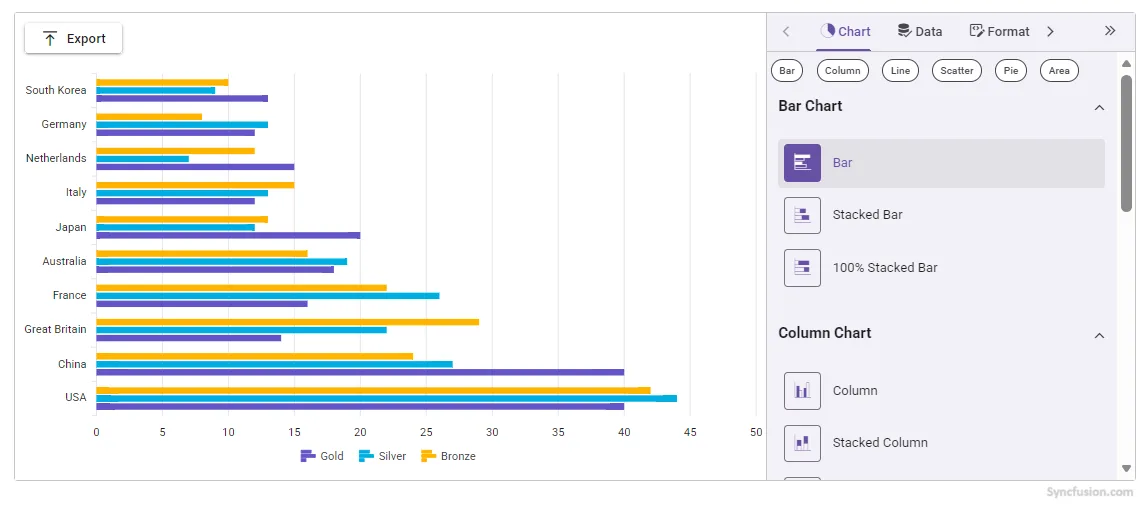
The Theme property is used to specify the visual theme applied to the chart.
@using Syncfusion.Blazor.ChartWizard

<div class="control-section">
    <SfChartWizard Theme="Theme.Material3">
        <ChartSettings DataSource="@OlympicsDataSource"
                       CategoryFields="@categories"
                       SeriesType="ChartWizardSeriesType.Bar"
                       SeriesFields="@chartSeries">
        </ChartSettings>
    </SfChartWizard>
</div>

@code
{
    private readonly List<string> chartSeries = new() { "Gold", "Silver", "Bronze" };
    private readonly List<string> categories = new() { "Country", "CountryCode" };

    public class OlympicsData
    {
        public string? Country { get; set; }
        public string? CountryCode { get; set; }
        public int Gold { get; set; }
        public int Silver { get; set; }
        public int Bronze { get; set; }
    }

    private readonly List<OlympicsData> OlympicsDataSource = new()
    {
        new OlympicsData { Country = "USA", CountryCode = "USA", Gold = 40, Silver = 44, Bronze = 42 },
        new OlympicsData { Country = "China", CountryCode = "CHN", Gold = 40, Silver = 27, Bronze = 24 },
        new OlympicsData { Country = "Great Britain", CountryCode = "GBR", Gold = 14, Silver = 22, Bronze = 29 },
        new OlympicsData { Country = "France", CountryCode = "FRA", Gold = 16, Silver = 26, Bronze = 22 },
        new OlympicsData { Country = "Australia", CountryCode = "AUS", Gold = 18, Silver = 19, Bronze = 16 },
        new OlympicsData { Country = "Japan", CountryCode = "JPN", Gold = 20, Silver = 12, Bronze = 13 },
        new OlympicsData { Country = "Italy", CountryCode = "ITA", Gold = 12, Silver = 13, Bronze = 15 },
        new OlympicsData { Country = "Netherlands", CountryCode = "NLD", Gold = 15, Silver = 7,  Bronze = 12 },
        new OlympicsData { Country = "Germany", CountryCode = "DEU", Gold = 12, Silver = 13, Bronze = 8  },
        new OlympicsData { Country = "South Korea", CountryCode = "KOR", Gold = 13, Silver = 9,  Bronze = 10 }
    };
}