How can I help you?
UrlAdaptor in Syncfusion Blazor Gantt Chart
20 Feb 202624 minutes to read
The UrlAdaptor serves as the base adaptor that enables communication between remote data services and a UI component. It supports seamless data binding and interaction with custom API services or any remote endpoint via URLs. The UrlAdaptor is particularly useful in scenarios where a custom API service with unique logic for handling data and CRUD operations is in place.
This section provides a step-by-step guide to retrieving data using the UrlAdaptor and binding it to the Syncfusion® Blazor Gantt Chart, including server‑side data operations and CRUD actions.
Creating an API service
To configure a server with the Blazor Gantt Chart, follow these steps:
1. Create a Blazor web app
You can create a Blazor Web App named URLAdaptor using Visual Studio, either via Microsoft Templates or the Syncfusion® Blazor Extension. Make sure to configure the appropriate interactive render mode and interactivity location.
2. Create a model class
Add a new folder named Models. Then, add a model class named TaskData.cs to represent the Gantt Chart task data.
namespace URLAdaptor.Models
{
    public class TaskData
    {
        public int TaskID { get; set; }
        public string TaskName { get; set; }
        public DateTime? StartDate { get; set; }
        public DateTime? EndDate { get; set; }
        public int? ParentID { get; set; }
        public int Progress { get; set; }
        public string? Predecessor { get; set; }
        public string Duration { get; set; }

        public static List<TaskData> GetAllRecords()
        {
            List<TaskData> DataCollection = new List<TaskData>();

            int x = 0;
            int duration = 0;

            // Base start date (change if needed)
            DateTime startDate = new DateTime(2026, 04, 02);

            for (int i = 1; i <= 2; i++)
            {
                // Create parent task (no separate variable name like parent1/parent2)
                int parentID = ++x;

                DataCollection.Add(new TaskData()
                {
                    TaskID = parentID,
                    TaskName = "Task " + parentID,          // Parent
                    StartDate = startDate,
                    EndDate = startDate.AddDays(26),
                    Duration = "20",
                    Progress = 0,
                    ParentID = null,
                    Predecessor = null
                });

                // Reset child start for each parent
                DateTime childStart = startDate;

                for (int j = 1; j <= 4; j++)
                {
                    // Move start like your sample: first child same date, next children based on duration+2
                    childStart = childStart.AddDays(j == 1 ? 0 : duration + 2);
                    duration = 5;

                    int childId = ++x;

                    DataCollection.Add(new TaskData()
                    {
                        TaskID = childId,
                        TaskName = "Task " + childId,        // Child
                        StartDate = childStart,
                        EndDate = childStart.AddDays(duration),
                        Duration = duration.ToString(),
                        Progress = 0,
                        ParentID = parentID,
                        Predecessor = j > 1 ? (childId - 1) + "FS" : null
                    });
                }

                // Move next parent start date after current parent ends (+2 days gap)
                startDate = startDate.AddDays(28);
                duration = 0;
            }
            return DataCollection;
        }
    }
}
3. Create an API controller
Create an API controller file named GanttController.cs under Controllers folder to establish data communication with the Blazor Gantt Chart.
using Microsoft.AspNetCore.Mvc;
using Syncfusion.Blazor;
using Syncfusion.Blazor.Data;
using URLAdaptor.Models;

namespace URLAdaptor.Controllers
{
    [ApiController]
    public class GanttController : ControllerBase
    {
        /// <summary>
        /// Retrieves the list of tasks.
        /// </summary>
        /// <returns>Retrieve data from the data source.</returns>
        [HttpGet]
        [Route("api/[controller]/GetTaskData")]
        public List<TaskData> GetTaskData()
        {
            return TaskData.GetAllRecords().ToList();
        }

        /// <summary>
        /// Handles server-side data operations and returns the processed data.
        /// </summary>
        /// <param name="DataManagerRequest">
        /// The request object contains parameters for searching, filtering, sorting, skip, and take.
        /// </param>
        /// <returns>Returns the data and total count in result and count format.</returns>
        [HttpPost]
        [Route("api/[controller]")]
        public object Post([FromBody] DataManagerRequest DataManagerRequest)
        {
            // Retrieve data source and convert to queryable.
            IQueryable<TaskData> DataSource = GetTaskData().AsQueryable();

            // Get total records count.
            int totalRecordsCount = DataSource.Count();

            // Return data and count.
            return new { result = DataSource, count = totalRecordsCount };
        }
    }
}
The GetTaskData method returns sample Task data. Replace it with your custom logic to fetch data from a database or other sources.
4. Register controllers in Program.cs
Add the following lines in the Program.cs file to register controllers:
// Register controllers in the service container.
builder.Services.AddControllers();

// Map controller routes.
app.MapControllers();
5. Run the application
Run the application in Visual Studio. The API will be accessible at a URL like https://localhost:71xx/api/gantt (where 71xx represents the port number in the launchSettings.json). Please verify that the API returns the task data.
Connecting Syncfusion® Blazor Gantt Chart to an API service
To integrate the Blazor Gantt Chart into your project using Visual Studio 2026, follow the below steps:
1. Install Syncfusion® Blazor Gantt and Themes NuGet packages
To add the Blazor Gantt Chart in the app, open the NuGet Package Manager in Visual Studio (Tools → NuGet Package Manager → Manage NuGet Packages for Solution), search and install Syncfusion.Blazor.Gantt and Syncfusion.Blazor.Themes.
If your Blazor Web App uses WebAssembly or Auto render modes, install the Syncfusion® Blazor NuGet packages in the client project.
Alternatively, use the following Package Manager commands:
Install-Package Syncfusion.Blazor.Gantt -Version 33.2.3
Install-Package Syncfusion.Blazor.Themes -Version 33.2.3Syncfusion® Blazor components are available on nuget.org. Refer to the NuGet packages topic for a complete list of available packages.
2. Register Syncfusion® Blazor service
- Open the ~/_Imports.razor file and import the required namespaces.
@using Syncfusion.Blazor
@using Syncfusion.Blazor.Gantt
@using Syncfusion.Blazor.Data- Register the Syncfusion® Blazor service in the ~/Program.cs file.
using Syncfusion.Blazor;

builder.Services.AddSyncfusionBlazor();
For apps using WebAssembly or Auto (Server and WebAssembly) render modes, register the service in both ~/Program.cs files.
3. Add stylesheet and script resources
Include the theme stylesheet and script references in the ~/Components/App.razor file.
<head>
    ....
    <link href="_content/Syncfusion.Blazor.Themes/bootstrap5.css" rel="stylesheet" />
</head>
....
<body>
    ....
    <script src="_content/Syncfusion.Blazor.Core/scripts/syncfusion-blazor.min.js" type="text/javascript"></script>
</body>
- Refer to the Blazor Themes topic for various methods to include themes (e.g., Static Web Assets, CDN, or CRG).
- Set the render mode to InteractiveServer or InteractiveAuto in your Blazor Web App configuration.
4. Add Blazor Gantt Chart and configure with server
To connect the Blazor Gantt chart to a hosted API, use the Url property of SfDataManager. Update the Index.razor file as follows.
The SfDataManager offers multiple adaptor options to connect with remote database based on an API service. Below is an example of the UrlAdaptor configuration where an API service are set up to return the resulting data in the result and count format.
@using Syncfusion.Blazor.Gantt
@using Syncfusion.Blazor.Data
@using Syncfusion.Blazor
@using URLAdaptor.Models

<SfGantt TValue="TaskData" Height="450px">
    <SfDataManager Url="/api/gantt" Adaptor="Adaptors.UrlAdaptor"></SfDataManager>
    <GanttTaskFields Id="TaskID" Name="TaskName" StartDate="StartDate" EndDate="EndDate" Duration="Duration" Progress="Progress"
                     ParentID="ParentID" Dependency="Predecessor">
    </GanttTaskFields>
    <GanttColumns>
        <GanttColumn Field="TaskID" HeaderText="Task ID" Width="90"></GanttColumn>
        <GanttColumn Field="TaskName" HeaderText="Task Name" Width="220"></GanttColumn>
        <GanttColumn Field="StartDate" HeaderText="Start Date" Width="140" Format="d"></GanttColumn>
        <GanttColumn Field="EndDate" HeaderText="End Date" Width="140" Format="d"></GanttColumn>
        <GanttColumn Field="Duration" HeaderText="Duration" Width="110"></GanttColumn>
        <GanttColumn Field="Predecessor" HeaderText="Predecessor" Width="140"></GanttColumn>
        <GanttColumn Field="Progress" HeaderText="Progress" Width="110"></GanttColumn>
    </GanttColumns>
</SfGantt>
using Microsoft.AspNetCore.Mvc;
using Syncfusion.Blazor.Data;
using Syncfusion.Blazor;
using URLAdaptor.Models;
namespace URLAdaptor.Controllers
{
[ApiController]
public class GanttController : ControllerBase
{
/// <summary>
/// Retrieves the list of tasks.
/// </summary>
/// <returns>Retrieve data from the data source.</returns>
[HttpGet]
[Route("api/[controller]/GetTaskData")]
public List<TaskData> GetTaskData()
{
return TaskData.GetAllRecords().ToList();
}
/// <summary>
/// Handles server-side data operations and returns the processed data.
/// </summary>
/// <param name="DataManagerRequest">
/// The request object contains parameters for searching, filtering, sorting, skip, and take.
/// </param>
/// <returns>Returns the data and total count in result and count format.</returns>
[HttpPost]
[Route("api/[controller]")]
public object Post([FromBody] DataManagerRequest DataManagerRequest)
{
// Retrieve data source and convert to queryable.
IQueryable<TaskData> DataSource = GetTaskData().AsQueryable();
// Get total records count.
int totalRecordsCount = DataSource.Count();
// Return data and count.
return new { result = DataSource, count = totalRecordsCount };
}
}
}Replace
https://localhost:71xx/api/gantt(Replace71xxwith the port number shown in the launchSettings.json) with the actual URL of your API endpoint that provides the data in a consumable format (e.g., JSON).
5. Run the application
When you run the application, the Blazor Gantt Chart will display data fetched from the API.
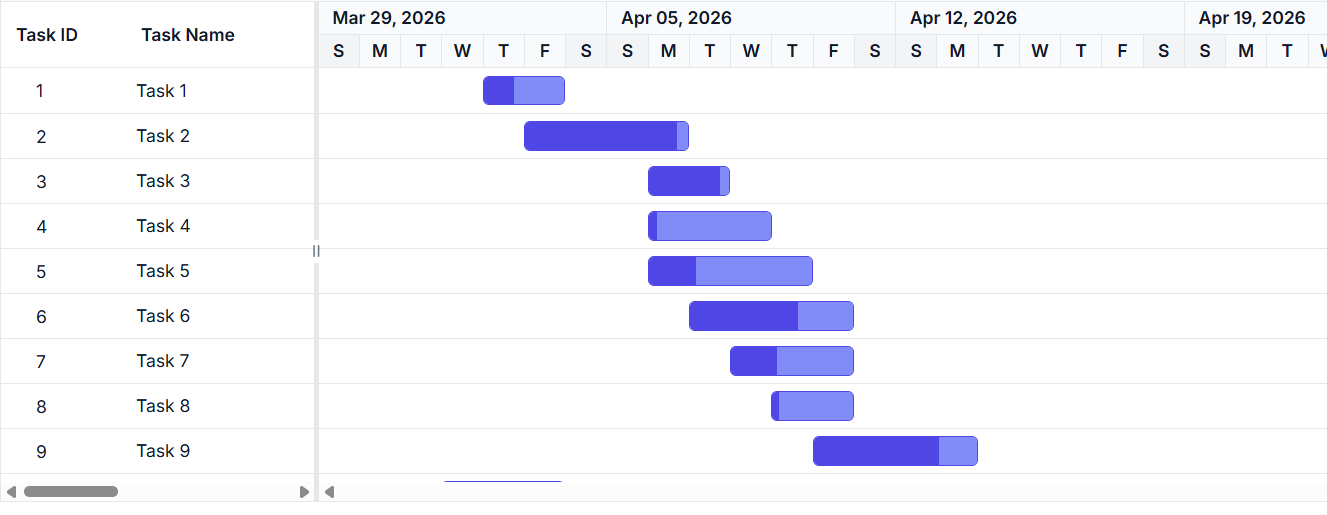
- The Gantt Chart supports server-side operations such as searching, sorting and filtering. These can be handled using methods like PerformSearching, PerformFiltering, PerformSorting, PerformTake, and PerformSkip from the Syncfusion.Blazor.Data package. Let’s explore how to manage these data operations using the
UrlAdaptor.- In an API service project, add Syncfusion.Blazor.Data by opening the NuGet package manager in Visual Studio (Tools → NuGet Package Manager → Manage NuGet Packages for Solution), search and install it.
Handling searching operation
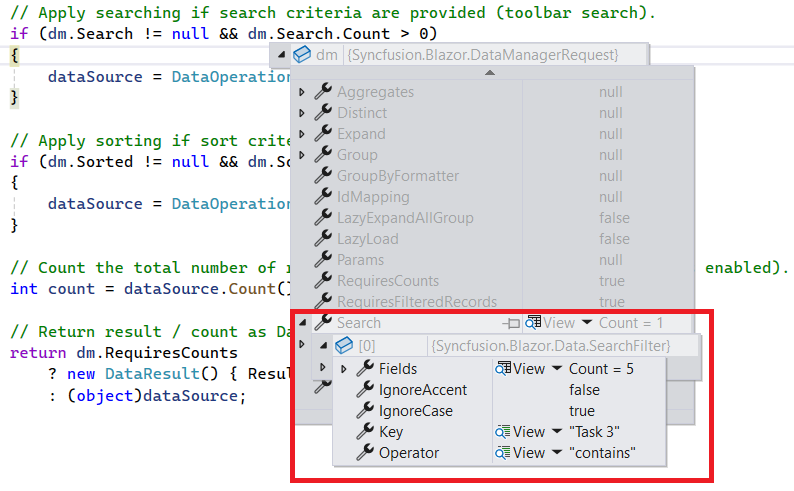
To handle the searching operation, ensure that your API endpoint supports custom searching criteria. Implement the searching logic on the server side using the PerformSearching method from the DataOperations class. This allows the custom data source to undergo searching based on the criteria specified in the incoming DataManagerRequest object.
/// <summary>
/// Handles server-side data operations such as searching and returns the processed data.
/// </summary>
/// <param name="DataManagerRequest">The request object contains searched details.</param>
/// <returns>Returns a response containing the processed data and the total record count.</returns>
[HttpPost]
[Route("api/[controller]")]
public object Post([FromBody] DataManagerRequest DataManagerRequest)
{
    // Retrieve data from the data source.
    IQueryable<TaskData> DataSource = GetTaskData().AsQueryable();

    // Handling searching operation.
    if (DataManagerRequest.Search != null && DataManagerRequest.Search.Count > 0)
    {
        DataSource = DataOperations.PerformSearching(DataSource, DataManagerRequest.Search);
        // Add custom logic here if needed and remove above method.
    }

    // Get the total records count.
    int totalRecordsCount = DataSource.Count();

    // Return data based on the request.
    return new { result = DataSource, count = totalRecordsCount };
}
@using Syncfusion.Blazor.Gantt
@using Syncfusion.Blazor.Data
@using URLAdaptor.Models
<SfGantt TValue="TaskData" Height="450px" Toolbar="@(new List<string>() { "Search" })">
<SfDataManager Url="/api/gantt" Adaptor="Adaptors.UrlAdaptor"></SfDataManager>
<GanttTaskFields Id="TaskID" Name="TaskName" StartDate="StartDate" EndDate="EndDate" Duration="Duration" Progress="Progress"
ParentID="ParentID" Dependency="Predecessor">
</GanttTaskFields>
<GanttColumns>
<GanttColumn Field="TaskID" HeaderText="Task ID" Width="90"></GanttColumn>
<GanttColumn Field="TaskName" HeaderText="Task Name" Width="220"></GanttColumn>
<GanttColumn Field="StartDate" HeaderText="Start Date" Width="140" Format="d"></GanttColumn>
<GanttColumn Field="EndDate" HeaderText="End Date" Width="140" Format="d"></GanttColumn>
<GanttColumn Field="Duration" HeaderText="Duration" Width="110"></GanttColumn>
<GanttColumn Field="Predecessor" HeaderText="Predecessor" Width="140"></GanttColumn>
<GanttColumn Field="Progress" HeaderText="Progress" Width="110"></GanttColumn>
</GanttColumns>
</SfGantt>Handling filtering operation
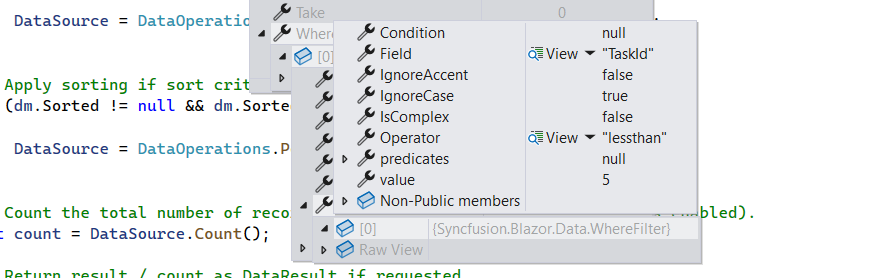
To handle the filtering operation, ensure that your API endpoint supports custom filtering criteria. Implement the filtering logic on the server side using the PerformFiltering method from the DataOperations class. This allows the custom data source to undergo filtering based on the criteria specified in the incoming DataManagerRequest object.
Column filtering
/// <summary>
/// Handles server-side data operations such as filtering and returns the processed data.
/// </summary>
/// <param name="DataManagerRequest">The request object contains filtered details.</param>
/// <returns>Returns a response containing the processed data and the total record count.</returns>
[HttpPost]
[Route("api/[controller]")]
public object Post([FromBody] DataManagerRequest DataManagerRequest)
{
    // Retrieve data from the data source.
    IQueryable<TaskData> DataSource = GetTaskData().AsQueryable();

    if (DataManagerRequest.Where != null && DataManagerRequest.Where.Count > 0)
    {
        // Filtering
        if (DataManagerRequest.Where[0].Field != null && DataManagerRequest.Where[0].Field == @nameof(TaskData.ParentID)){}
        else
        {
            DataSource = DataOperations.PerformFiltering(DataSource, DataManagerRequest.Where, DataManagerRequest.Where[0].Operator);
        }
    }

    // Get the total records count.
    int totalRecordsCount = DataSource.Count();

    // Return data based on the request.
    return new { result = DataSource, count = totalRecordsCount };
}
@using Syncfusion.Blazor.Gantt
@using Syncfusion.Blazor.Data
@using Syncfusion.Blazor
@using URLAdaptor.Models
<SfGantt TValue="TaskData" Height="450px" AllowFiltering="true">
<SfDataManager Url="/api/gantt" Adaptor="Adaptors.UrlAdaptor"></SfDataManager>
<GanttTaskFields Id="TaskID" Name="TaskName" StartDate="StartDate" EndDate="EndDate" Duration="Duration" Progress="Progress"
ParentID="ParentID" Dependency="Predecessor">
</GanttTaskFields>
<GanttColumns>
<GanttColumn Field="TaskID" HeaderText="Task ID" Width="90"></GanttColumn>
<GanttColumn Field="TaskName" HeaderText="Task Name" Width="220"></GanttColumn>
<GanttColumn Field="StartDate" HeaderText="Start Date" Width="140" Format="d"></GanttColumn>
<GanttColumn Field="EndDate" HeaderText="End Date" Width="140" Format="d"></GanttColumn>
<GanttColumn Field="Duration" HeaderText="Duration" Width="110"></GanttColumn>
<GanttColumn Field="Predecessor" HeaderText="Predecessor" Width="140"></GanttColumn>
<GanttColumn Field="Progress" HeaderText="Progress" Width="110"></GanttColumn>
</GanttColumns>
</SfGantt>Handling sorting operation
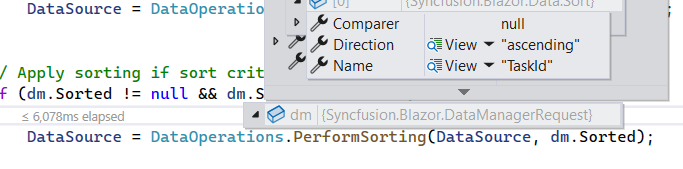
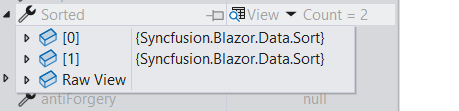
To handle the sorting operation, ensure that your API endpoint supports custom sorting criteria. Implement the sorting logic on the server side using the PerformSorting method from the DataOperations class. This allows the custom data source to undergo sorting based on the criteria specified in the incoming DataManagerRequest object.
Single column sorting
Multi column sorting
/// <summary>
/// Handles server-side data operations such as sorting and returns the processed data.
/// </summary>
/// <param name="DataManagerRequest">The request object contains sorted details.</param>
/// <returns>Returns a response containing the processed data and the total record count.</returns>
[HttpPost]
[Route("api/[controller]")]
public object Post([FromBody] DataManagerRequest DataManagerRequest)
{
    // Retrieve data from the data source.
    IQueryable<TaskData> DataSource = GetTaskData().AsQueryable();

    // Handling sorting operation.
    if (DataManagerRequest.Sorted != null && DataManagerRequest.Sorted.Count > 0)
    {
        DataSource = DataOperations.PerformSorting(DataSource, DataManagerRequest.Sorted);
        // Add custom logic here if needed and remove above method.
    }

    // Get the total count of records.
    int totalRecordsCount = DataSource.Count();

    // Return data based on the request.
    return new { result = DataSource, count = totalRecordsCount };
}
@using Syncfusion.Blazor.Gantt
@using Syncfusion.Blazor.Data
@using Syncfusion.Blazor
@using URLAdaptor.Models
<SfGantt TValue="TaskData" Height="450px" AllowSorting="true">
<SfDataManager Url="/api/gantt" Adaptor="Adaptors.UrlAdaptor"></SfDataManager>
<GanttTaskFields Id="TaskID" Name="TaskName" StartDate="StartDate" EndDate="EndDate" Duration="Duration" Progress="Progress"
ParentID="ParentID" Dependency="Predecessor">
</GanttTaskFields>
<GanttColumns>
<GanttColumn Field="TaskID" HeaderText="Task ID" Width="90"></GanttColumn>
<GanttColumn Field="TaskName" HeaderText="Task Name" Width="220"></GanttColumn>
<GanttColumn Field="StartDate" HeaderText="Start Date" Width="140" Format="d"></GanttColumn>
<GanttColumn Field="EndDate" HeaderText="End Date" Width="140" Format="d"></GanttColumn>
<GanttColumn Field="Duration" HeaderText="Duration" Width="110"></GanttColumn>
<GanttColumn Field="Predecessor" HeaderText="Predecessor" Width="140"></GanttColumn>
<GanttColumn Field="Progress" HeaderText="Progress" Width="110"></GanttColumn>
</GanttColumns>
</SfGantt>Handling CRUD operations
The Syncfusion® Blazor Gantt Chart seamlessly integrates CRUD (Create, Read, Update, and Delete) operations with server-side controller actions through specific properties: InsertUrl, RemoveUrl, UpdateUrl and BatchUrl. These properties enable the Gantt Chart to communicate with the data service for every action, facilitating server-side operations.
CRUD operations mapping
CRUD operations within the Gantt Chart can be mapped to server-side controller actions using specific properties:
- InsertUrl: Specifies the URL for inserting new data.
- RemoveUrl: Specifies the URL for removing existing data.
- UpdateUrl: Specifies the URL for updating existing data.
- BatchUrl: Specifies the URL for batch editing.
To enable editing in Blazor Gantt Chart, refer to the editing documentation. In the example below, the Toolbar property is configured to display toolbar items for editing purposes.
@using Syncfusion.Blazor.Gantt
@using Syncfusion.Blazor.Data
@using Syncfusion.Blazor
@using URLAdaptor.Models

<SfGantt TValue="TaskData" Height="450px" AllowFiltering="true" AllowSorting="true" Toolbar="@(new List<string>() { "Add", "Edit", "Delete", "Update", "Cancel", "Search" })">
    <SfDataManager Url="/api/gantt" InsertUrl="/api/gantt/Insert" UpdateUrl="/api/gantt/Update" RemoveUrl="/api/gantt/Remove" Adaptor="Adaptors.UrlAdaptor"></SfDataManager>
    <GanttTaskFields Id="TaskID" Name="TaskName" StartDate="StartDate" EndDate="EndDate" Duration="Duration" Progress="Progress"
                     ParentID="ParentID" Dependency="Predecessor">
    </GanttTaskFields>
    <GanttEditSettings AllowAdding="true" AllowEditing="true" AllowTaskbarEditing="true" AllowDeleting="true" />
    <GanttColumns>
        <GanttColumn Field="TaskID" HeaderText="Task ID" Width="90"></GanttColumn>
        <GanttColumn Field="TaskName" HeaderText="Task Name" Width="220"></GanttColumn>
        <GanttColumn Field="StartDate" HeaderText="Start Date" Width="140" Format="d"></GanttColumn>
        <GanttColumn Field="EndDate" HeaderText="End Date" Width="140" Format="d"></GanttColumn>
        <GanttColumn Field="Duration" HeaderText="Duration" Width="110"></GanttColumn>
        <GanttColumn Field="Predecessor" HeaderText="Predecessor" Width="140"></GanttColumn>
        <GanttColumn Field="Progress" HeaderText="Progress" Width="110"></GanttColumn>
    </GanttColumns>
</SfGantt>
Normal/Inline editing is the default edit Mode for the Gantt. To enable CRUD operations, ensure that the IsPrimaryKey property is set to true for a specific Gantt Chart column, ensuring that its value is unique.
The below class is used to structure data sent during CRUD operations.
public class CRUDModel<T> where T : class
{
    /// <summary>The action type (for example: "insert", "update", "remove", "batch").</summary>
    [JsonPropertyName("action")]
    public string? Action { get; set; }

    /// <summary>The name of the key column used by the client.</summary>
    [JsonPropertyName("keyColumn")]
    public string? KeyColumn { get; set; }

    /// <summary>The key value identifying a single record (for single operations).</summary>
    [JsonPropertyName("key")]
    public object? Key { get; set; }

    /// <summary>The single entity payload for insert/update operations.</summary>
    [JsonPropertyName("value")]
    public T? Value { get; set; }

    /// <summary>Collection of added records for batch operations.</summary>
    [JsonPropertyName("added")]
    public List<T>? Added { get; set; }

    /// <summary>Collection of changed records for batch operations.</summary>
    [JsonPropertyName("changed")]
    public List<T>? Changed { get; set; }

    /// <summary>Collection of deleted records for batch operations.</summary>
    [JsonPropertyName("deleted")]
    public List<T>? Deleted { get; set; }

    /// <summary>Additional parameters sent by the client.</summary>
    [JsonPropertyName("params")]
    public IDictionary<string, object>? Params { get; set; }
}
Insert operation:
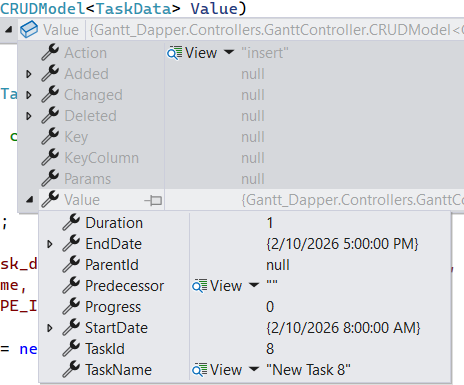
To insert a new record, use the InsertUrl property to specify the controller action mapping URL for the insert operation. The details of the newly added record are passed to the newRecord parameter.
/// <summary>
/// Inserts a new data item into the data collection.
/// </summary>
/// <param name="value">It contains the new record detail which is need to be inserted.</param>
/// <returns>Returns void.</returns>
[HttpPost]
[Route("api/[controller]/Insert")]
public void Insert([FromBody] CRUDModel<TaskData> newRecord)
{
    if (newRecord.value != null)
    {
        // Add the new record to the data collection.
        TaskData.GetAllRecords().Insert(0, newRecord.value);
    }
}
Update operation:
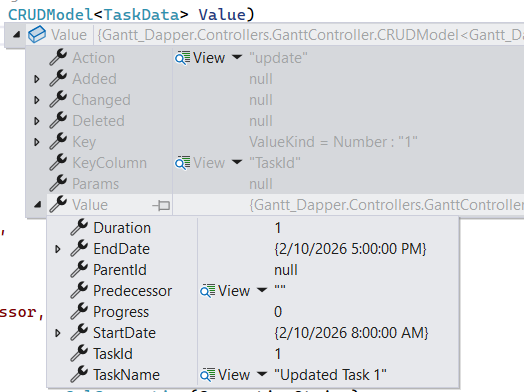
For updating existing records, use the UpdateUrl property to specify the controller action mapping URL for the update operation. The details of the updated record are passed to the updatedRecord parameter.
/// <summary>
/// Update a existing data item from the data collection.
/// </summary>
/// <param name="updatedRecord">It contains the updated record detail which is need to be updated.</param>
/// <returns>Returns void.</returns>
[HttpPost]
[Route("api/[controller]/Update")]
public void Update([FromBody] CRUDModel<TaskData> updatedRecord)
{
    var updatedTask = updatedRecord.value;
    if (updatedTask != null)
    {
        var data = TaskData.GetAllRecords().FirstOrDefault(or => or.TaskID == updatedTask.TaskID);
        if (data != null)
        {
            // Update the existing record.
            data.TaskID = updatedTask.TaskID;
            data.TaskName = updatedTask.TaskName;
            data.StartDate = updatedTask.StartDate;
            data.EndDate = updatedTask.EndDate;
            // Update other properties similarly.
        }
    }
}
Delete operation:
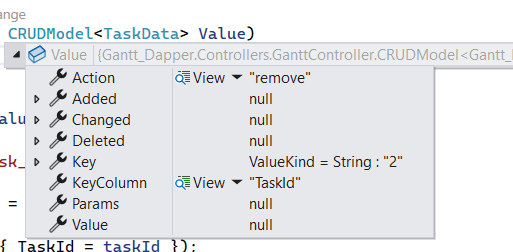
To delete existing records, use the RemoveUrl property to specify the controller action mapping URL for the delete operation. The primary key value of the deleted record is passed to the deletedRecord parameter.
/// <summary>
/// Remove a specific data item from the data collection.
/// </summary>
/// <param name="deletedRecord">It contains the specific record detail which is need to be removed.</param>
/// <returns>Returns void.</returns>
[HttpPost]
[Route("api/[controller]/Remove")]
public void Remove([FromBody] CRUDModel<TaskData> deletedRecord)
{
    // Get the key value from the deletedRecord.
    int taskID = int.Parse(deletedRecord.key.ToString());
    var data = TaskData.GetAllRecords().FirstOrDefault(task => task.TaskID == taskID);
    if (data != null)
    {
        // Remove the record from the data collection.
        TaskData.GetAllRecords().Remove(data);
    }
}