Getting Started with Blazor Sankey Diagram in Blazor WASM App
10 Jul 202613 minutes to read
This section briefly explains how to include the Blazor Sankey Diagram in a Blazor WASM App using Visual Studio, Visual Studio Code, and the .NET CLI.
Create a new Blazor WebAssembly App
Create a Blazor WebAssembly App using Visual Studio via Microsoft Templates or the Blazor Extension. For detailed instructions, refer to the Blazor WebAssembly App Getting Started documentation.
Run the following command to create a new Blazor WebAssembly App.
dotnet new blazorwasm -o BlazorApp
cd BlazorApp
Alternatively, create a Blazor WebAssembly App using Visual Studio Code via Microsoft Templates, the Blazor Extension, or the C# Dev Kit extension.
Run the following command to create a new Blazor WebAssembly App.
dotnet new blazorwasm -o BlazorApp
cd BlazorApp
Install the required Blazor package
Install Syncfusion.Blazor.Sankey NuGet package. All Syncfusion Blazor packages are available on nuget.org. See the NuGet packages topic for details.
- Go to Tools → NuGet Package Manager → Manage NuGet Packages for Solution.
- Search the required NuGet package (
Syncfusion.Blazor.Sankey) and install it.
Alternatively, you can install the same package using the Package Manager Console with the following command.
Install-Package Syncfusion.Blazor.Sankey -Version 34.1.29Open the terminal and run the following command.
dotnet add package Syncfusion.Blazor.Sankey -v 34.1.29Open the command prompt and run the following command.
dotnet add package Syncfusion.Blazor.Sankey -v 34.1.29Add import namespaces
After the package is installed, open the ~/_Imports.razor file and import the Syncfusion.Blazor and Syncfusion.Blazor.Sankey namespaces.
@using Syncfusion.Blazor
@using Syncfusion.Blazor.Sankey
Register the Blazor service
Open the Program.cs file in Blazor WebAssembly App and register the Blazor service.
....
using Syncfusion.Blazor;
....
builder.Services.AddSyncfusionBlazor();
....
Add script resources
The script can be accessed from NuGet through Static Web Assets. Include the script references in the ~wwwroot/index.html file.
<script src="_content/Syncfusion.Blazor.Core/scripts/syncfusion-blazor.min.js" type="text/javascript"></script>Add Blazor Sankey Diagram component
Open a Razor file located in the ~/Pages/*.razor (for example, Home.razor) and add the Blazor Sankey Diagram component inside the razor file.
@using Syncfusion.Blazor.Sankey

<SfSankey Nodes=@Nodes Links=@Links>

</SfSankey>

@code {
    public List<SankeyDataNode> Nodes = new List<SankeyDataNode>();
    public List<SankeyDataLink> Links = new List<SankeyDataLink>();

    protected override void OnInitialized()
    {
        Nodes = new List<SankeyDataNode>()
        {
            new SankeyDataNode() { Id = "Coffee Production" },
            new SankeyDataNode() { Id = "Arabica" },
            new SankeyDataNode() { Id = "Robusta" },
            new SankeyDataNode() { Id = "Roasted Coffee" },
            new SankeyDataNode() { Id = "Instant Coffee" },
            new SankeyDataNode() { Id = "Green Coffee" },
            new SankeyDataNode() { Id = "North America" },
            new SankeyDataNode() { Id = "Europe" },
            new SankeyDataNode() { Id = "Asia Pacific" },
        };
        Links = new List<SankeyDataLink>()
        {
            new SankeyDataLink() { SourceId = "Coffee Production", TargetId = "Arabica", Value = 95 },
            new SankeyDataLink() { SourceId = "Coffee Production", TargetId = "Robusta", Value = 65 },
            new SankeyDataLink() { SourceId = "Arabica", TargetId = "Roasted Coffee", Value = 60 },
            new SankeyDataLink() { SourceId = "Arabica", TargetId = "Instant Coffee", Value = 20 },
            new SankeyDataLink() { SourceId = "Arabica", TargetId = "Green Coffee", Value = 15 },
            new SankeyDataLink() { SourceId = "Robusta", TargetId = "Roasted Coffee", Value = 30 },
            new SankeyDataLink() { SourceId = "Robusta", TargetId = "Instant Coffee", Value = 25 },
            new SankeyDataLink() { SourceId = "Robusta", TargetId = "Green Coffee", Value = 10 },
            new SankeyDataLink() { SourceId = "Roasted Coffee", TargetId = "North America", Value = 35 },
            new SankeyDataLink() { SourceId = "Roasted Coffee", TargetId = "Europe", Value = 30 },
            new SankeyDataLink() { SourceId = "Roasted Coffee", TargetId = "Asia Pacific", Value = 25 },
            new SankeyDataLink() { SourceId = "Instant Coffee", TargetId = "North America", Value = 15 },
            new SankeyDataLink() { SourceId = "Instant Coffee", TargetId = "Europe", Value = 15 },
            new SankeyDataLink() { SourceId = "Instant Coffee", TargetId = "Asia Pacific", Value = 15 },
            new SankeyDataLink() { SourceId = "Green Coffee", TargetId = "North America", Value = 10 },
            new SankeyDataLink() { SourceId = "Green Coffee", TargetId = "Europe", Value = 8 },
            new SankeyDataLink() { SourceId = "Green Coffee", TargetId = "Asia Pacific", Value = 7 },
        };
        base.OnInitialized();
    }
}
Run the application
Press Ctrl+F5 (Windows) or ⌘+F5 (macOS) to launch the application. The Blazor Sankey Diagram component will render in your default web browser.
Open the terminal and run the following command.
dotnet runOpen the command prompt and run the following command.
dotnet run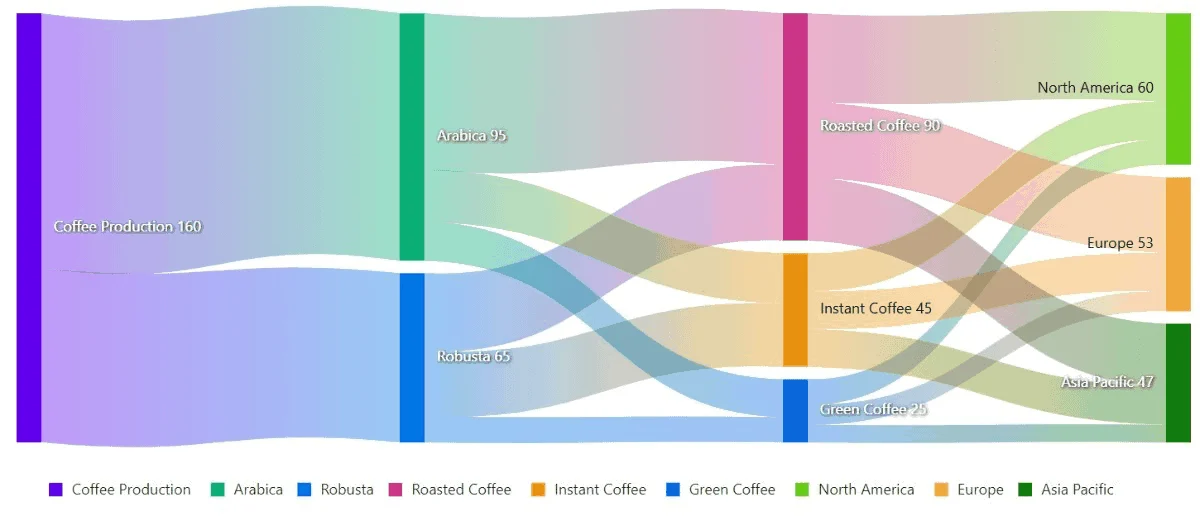
Populate Blazor Sankey with data
To bind data for the Sankey diagram, you can assign an IEnumerable object to the Nodes and Links properties. These properties define the structure of the nodes and the relationships between them.
@using Syncfusion.Blazor.Sankey

<SfSankey Nodes=@Nodes Links=@Links>

</SfSankey>

@code {
    public List<SankeyDataNode> Nodes = new List<SankeyDataNode>();
    public List<SankeyDataLink> Links = new List<SankeyDataLink>();

    protected override void OnInitialized()
    {
        Nodes = new List<SankeyDataNode>()
        {
            new SankeyDataNode() { Id = "Coffee Production" },
            new SankeyDataNode() { Id = "Arabica" },
            new SankeyDataNode() { Id = "Robusta" },
            new SankeyDataNode() { Id = "Roasted Coffee" },
            new SankeyDataNode() { Id = "Instant Coffee" },
            new SankeyDataNode() { Id = "Green Coffee" },
            new SankeyDataNode() { Id = "North America" },
            new SankeyDataNode() { Id = "Europe" },
            new SankeyDataNode() { Id = "Asia Pacific" },
        };
        Links = new List<SankeyDataLink>()
        {
            new SankeyDataLink() { SourceId = "Coffee Production", TargetId = "Arabica", Value = 95 },
            new SankeyDataLink() { SourceId = "Coffee Production", TargetId = "Robusta", Value = 65 },
            new SankeyDataLink() { SourceId = "Arabica", TargetId = "Roasted Coffee", Value = 60 },
            new SankeyDataLink() { SourceId = "Arabica", TargetId = "Instant Coffee", Value = 20 },
            new SankeyDataLink() { SourceId = "Arabica", TargetId = "Green Coffee", Value = 15 },
            new SankeyDataLink() { SourceId = "Robusta", TargetId = "Roasted Coffee", Value = 30 },
            new SankeyDataLink() { SourceId = "Robusta", TargetId = "Instant Coffee", Value = 25 },
            new SankeyDataLink() { SourceId = "Robusta", TargetId = "Green Coffee", Value = 10 },
            new SankeyDataLink() { SourceId = "Roasted Coffee", TargetId = "North America", Value = 35 },
            new SankeyDataLink() { SourceId = "Roasted Coffee", TargetId = "Europe", Value = 30 },
            new SankeyDataLink() { SourceId = "Roasted Coffee", TargetId = "Asia Pacific", Value = 25 },
            new SankeyDataLink() { SourceId = "Instant Coffee", TargetId = "North America", Value = 15 },
            new SankeyDataLink() { SourceId = "Instant Coffee", TargetId = "Europe", Value = 15 },
            new SankeyDataLink() { SourceId = "Instant Coffee", TargetId = "Asia Pacific", Value = 15 },
            new SankeyDataLink() { SourceId = "Green Coffee", TargetId = "North America", Value = 10 },
            new SankeyDataLink() { SourceId = "Green Coffee", TargetId = "Europe", Value = 8 },
            new SankeyDataLink() { SourceId = "Green Coffee", TargetId = "Asia Pacific", Value = 7 },
        };
        base.OnInitialized();
    }
}
Add title
Using the Title property, you can add a title to the Sankey diagram to provide the user with quick information about the data plotted in the Sankey diagram.
@using Syncfusion.Blazor.Sankey

<SfSankey Title="Global Coffee Production and Consumption Flow" Nodes=@Nodes Links=@Links>
</SfSankey>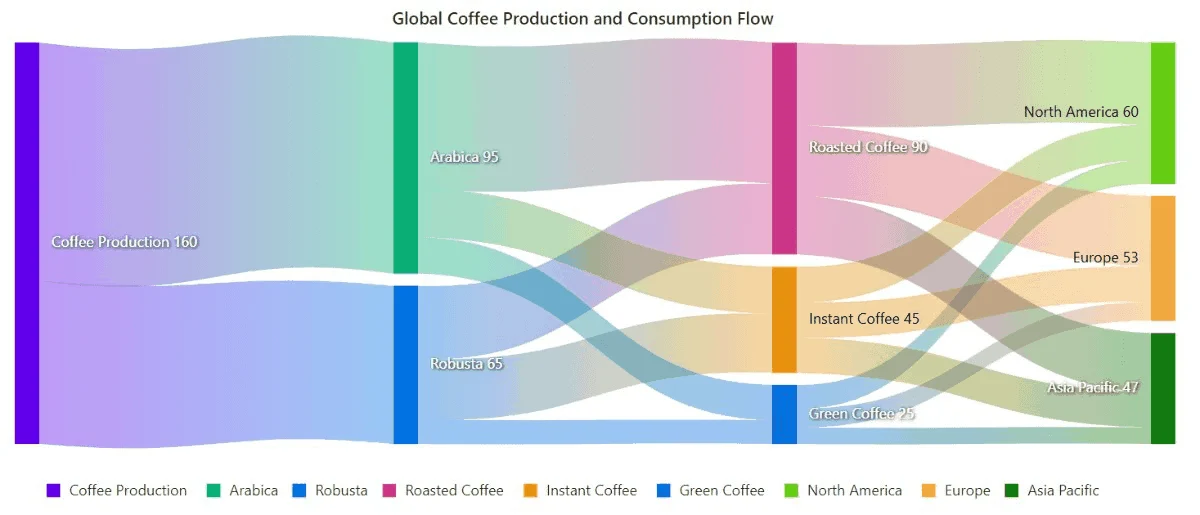
Add node labels
You can add data labels to improve the readability of the Sankey diagram. This can be achieved by setting the Visible property to true in the SankeyLabelSettings.
@using Syncfusion.Blazor.Sankey

<SfSankey Title="Global Coffee Production and Consumption Flow" Nodes=@Nodes Links=@Links>
    <SankeyLabelSettings Visible="true"></SankeyLabelSettings>
</SfSankey>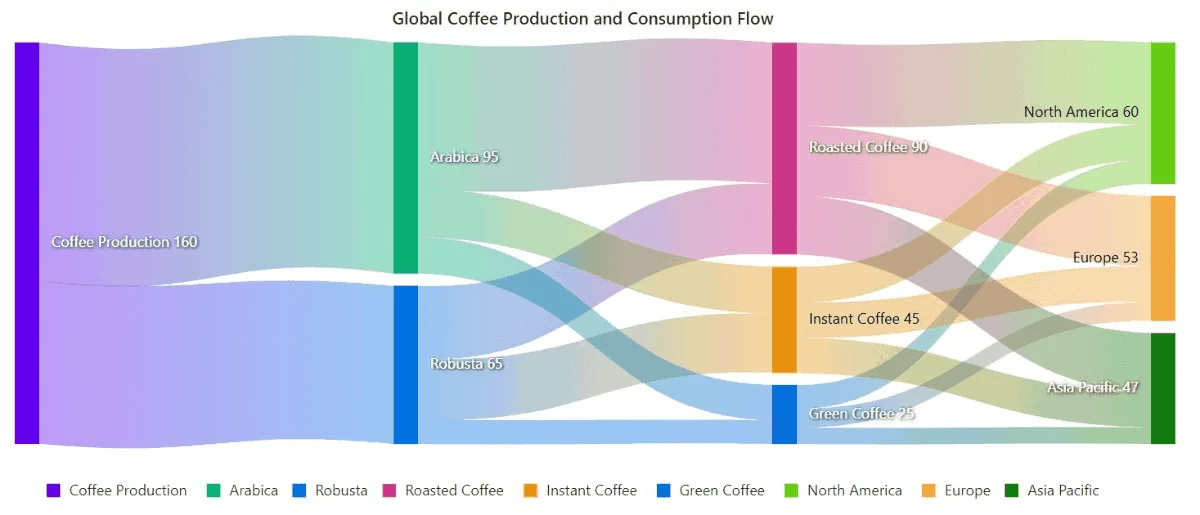
Enable tooltip
The tooltip can be enabled by setting the Enable property in SankeyTooltipSettings to true. However, the tooltip is enabled by default in the Sankey diagram.
@using Syncfusion.Blazor.Sankey

<SfSankey Title="Global Coffee Production and Consumption Flow" Nodes=@Nodes Links=@Links>
   <SankeyTooltipSettings Enable="true"></SankeyTooltipSettings>
</SfSankey>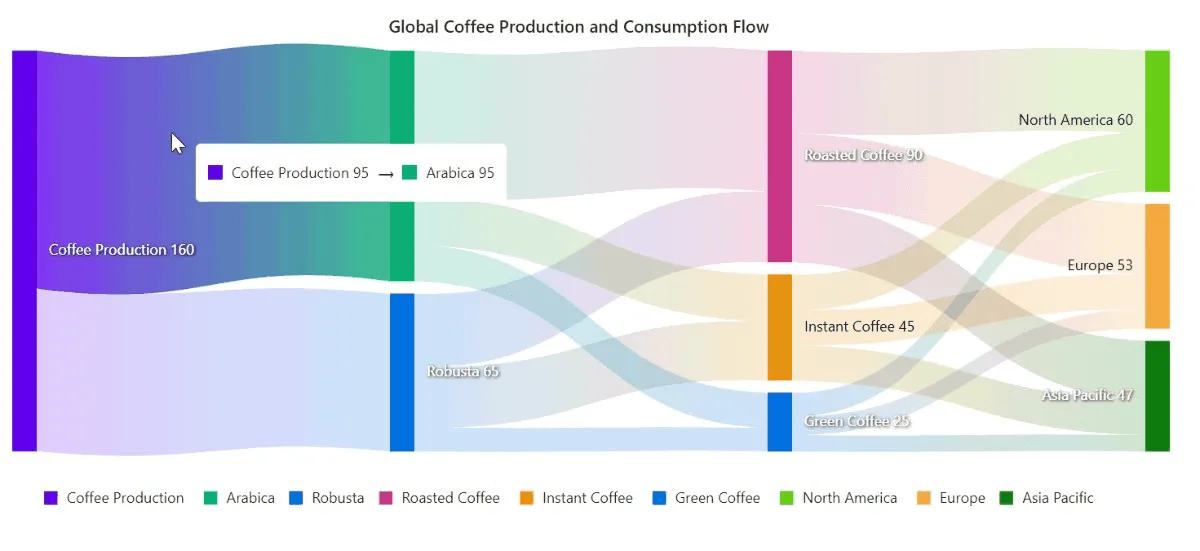
Enable legend
You can use legend for the Sankey diagram by setting the Visible property to true in SankeyLegendSettings. However, the legend is enabled by default in the sankey diagram.
@using Syncfusion.Blazor.Sankey

<SfSankey Title="Global Coffee Production and Consumption Flow" Nodes=@Nodes Links=@Links>
    <SankeyLegendSettings Visible="true"></SankeyLegendSettings>
</SfSankey>