HelpBot Assistant

How can I help you?

Getting Started with Blazor TreeGrid in Blazor MAUI App

24 Sep 202523 minutes to read

This section explains you through the step-by-step process of integrating the Syncfusion® Blazor TreeGrid component into your Blazor MAUI application using both Visual Studio and Visual Studio Code.

Prerequisites

To use the MAUI project templates, install the Mobile development with the .NET extension for Visual Studio. For more details, refer to here or the Syncfusion® Blazor Extension.

Create a new Blazor MAUI App in Visual Studio

You can create a Blazor MAUI App using Visual Studio via Microsoft Templates. For detailed instructions, refer to this Blazor MAUI App Getting Started documentation.

Install Syncfusion® Blazor TreeGrid and Themes NuGet in the app

To add Blazor TreeGrid component in the app, open the NuGet package manager in Visual Studio (Tools → NuGet Package Manager → Manage NuGet Packages for Solution), search and install Syncfusion.Blazor.TreeGrid and Syncfusion.Blazor.Themes.

Install-Package Syncfusion.Blazor.TreeGrid -Version 32.2.3
Install-Package Syncfusion.Blazor.Themes -Version 32.2.3

NOTE

Syncfusion® Blazor components are available in nuget.org. Refer to NuGet packages topic for available NuGet packages list with component details.

Prerequisites

To use the MAUI project templates, install the Mobile development with the .NET extension for Visual Studio Code. For more details, refer to here or the Syncfusion® Blazor Extension.

Create a new Blazor MAUI App in Visual Studio Code

You can create a Blazor MAUI App using Visual Studio Code via Microsoft Templates or the Syncfusion® Blazor Extension. For detailed instructions, refer to this Blazor MAUI App Getting Started documentation.

Install Blazor TreeGrid and Themes NuGet in the App

To add Blazor TreeGrid component in the app, open the NuGet package manager in Visual Studio (Tools → NuGet Package Manager → Manage NuGet Packages for Solution), search and install Syncfusion.Blazor.TreeGrid and Syncfusion.Blazor.Themes.

dotnet add package Syncfusion.Blazor.TreeGrid -v 32.2.3
dotnet add package Syncfusion.Blazor.Themes -v 32.2.3
dotnet restore

NOTE

Syncfusion® Blazor components are available in nuget.org. Refer to NuGet packages topic for available NuGet packages list with component details.

Add Import Namespaces

Open the ~/_Imports.razor file and import the Syncfusion.Blazor and Syncfusion.Blazor.TreeGrid namespace.

@using Syncfusion.Blazor 
@using Syncfusion.Blazor.TreeGrid

Register Syncfusion® Blazor Service

Register the Syncfusion® Blazor Service in the ~/MauiProgram.cs file.

using Microsoft.Extensions.Logging;
using Syncfusion.Blazor;

namespace MauiBlazorWindow;

    public static class MauiProgram
    {
        public static MauiApp CreateMauiApp()
        {
            var builder = MauiApp.CreateBuilder();
            builder
                .UseMauiApp<App>()
                .ConfigureFonts(fonts =>
                {
                    fonts.AddFont("OpenSans-Regular.ttf", "OpenSansRegular");
                });

            builder.Services.AddMauiBlazorWebView();
            builder.Services.AddSyncfusionBlazor();
#if DEBUG
            builder.Services.AddBlazorWebViewDeveloperTools();
            builder.Logging.AddDebug();
#endif

            return builder.Build();
        }
    }

Add stylesheet and script resources

The theme stylesheet and script can be accessed from NuGet through Static Web Assets. Include the stylesheet and script references in the <head> section of the ~/index.html file.

<head>
    ....
    <link href="_content/Syncfusion.Blazor.Themes/bootstrap5.css" rel="stylesheet" />
    <script src="_content/Syncfusion.Blazor.Core/scripts/syncfusion-blazor.min.js" type="text/javascript"></script>

    //Blazor TreeGrid Component script reference.
    <!-- <script src="_content/Syncfusion.Blazor.TreeGrid/scripts/sf-treegrid.min.js" type="text/javascript"></script> -->
</head>

NOTE

Check out the Blazor Themes topic to discover various methods (Static Web Assets, CDN, and CRG) for referencing themes in your Blazor application. Also, check out the Adding Script Reference topic to learn different approaches for adding script references in your Blazor application.

Add Blazor TreeGrid component

Add the Syncfusion® Blazor TreeGrid component in the ~/Pages/Index.razor file.

<SfTreeGrid DataSource="@TreeData" IdMapping="TaskId" ParentIdMapping="ParentId" TreeColumnIndex="1">
    <TreeGridColumns>
        <TreeGridColumn Field="TaskId" HeaderText="Task ID" Width="5" TextAlign="Syncfusion.Blazor.Grids.TextAlign.Center"></TreeGridColumn>
        <TreeGridColumn Field="TaskName" HeaderText="Task Name" Width="30" TextAlign="Syncfusion.Blazor.Grids.TextAlign.Center"></TreeGridColumn>
    </TreeGridColumns>
</SfTreeGrid>

@code
{
    public class BusinessObject
    {
        public int TaskId { get; set; }
        public string TaskName { get; set; }
        public int? ParentId { get; set; }
    }

    public List<BusinessObject> TreeData = new List<BusinessObject>();

    protected override void OnInitialized()
    {
        TreeData.Add(new BusinessObject() { TaskId = 1, TaskName = "Parent Task 1", ParentId = null });
        TreeData.Add(new BusinessObject() { TaskId = 2, TaskName = "Child task 1", ParentId = 1 });
        TreeData.Add(new BusinessObject() { TaskId = 3, TaskName = "Child Task 2", ParentId = 1, });
        TreeData.Add(new BusinessObject() { TaskId = 4, TaskName = "Parent Task 2", ParentId = null });
        TreeData.Add(new BusinessObject() { TaskId = 5, TaskName = "Child Task 5", ParentId = 4 });
        TreeData.Add(new BusinessObject() { TaskId = 6, TaskName = "Child Task 6", ParentId = 5 });
    }
}

How to Run the Sample on Windows

Run the sample in Windows Machine mode, and it will run Blazor MAUI in Windows.
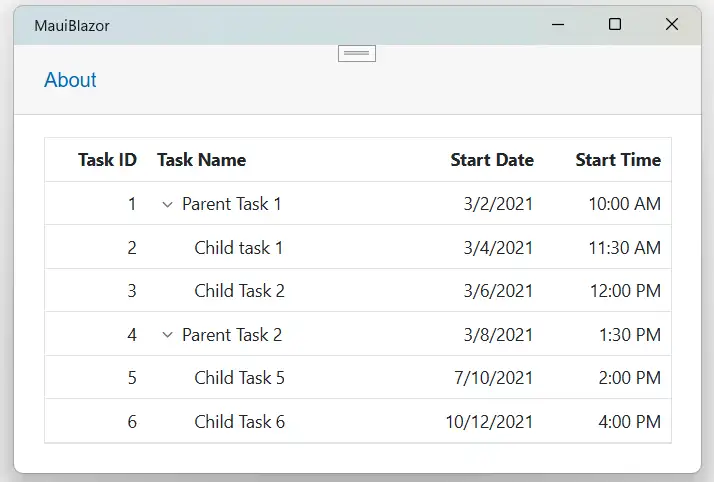
Blazor TreeGrid Component

How to Run the Sample on Android

To run the Blazor DataGrid in a Blazor Android MAUI application using the Android emulator, follow these steps:

Refer here to install and launch Android emulator.

NOTE

If you encounter any errors while using the Android Emulator, refer to the following link for troubleshooting guidanceTroubleshooting Android Emulator.
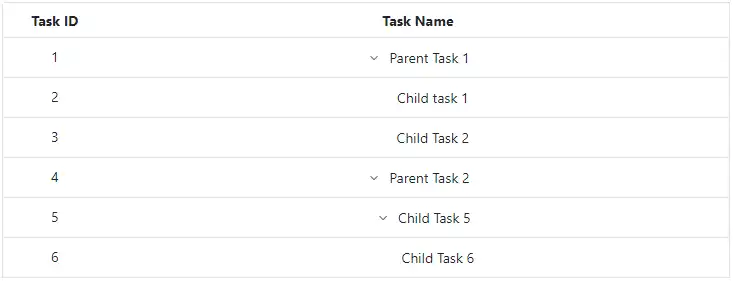
Blazor TreeGrid Component

Defining columns

The Tree Grid has an option to define columns using the TreeGridColumns directive. In the TreeGridColumn directive there are properties to customize columns.

Let’s check the properties used here:

  • Field to map with a property name in datasource is been added.
  • HeaderText to change the title of columns is been added.
  • TextAlign to change the alignment of columns is been used. By default, columns will be left aligned. To change columns to right align, define TextAlign as Right.
<SfTreeGrid DataSource="@TreeData" IdMapping="TaskId" ParentIdMapping="ParentId" TreeColumnIndex="1">
    <TreeGridColumns>
        <TreeGridColumn Field="TaskId" HeaderText="Task ID" Width="80" TextAlign="Syncfusion.Blazor.Grids.TextAlign.Right"></TreeGridColumn>
        <TreeGridColumn Field="TaskName" HeaderText="Task Name" Width="160"></TreeGridColumn>
        <TreeGridColumn Field="Duration" HeaderText="Duration" Width="100" TextAlign="Syncfusion.Blazor.Grids.TextAlign.Right"></TreeGridColumn>
        <TreeGridColumn Field="Progress" HeaderText="Progress" Width="100" TextAlign="Syncfusion.Blazor.Grids.TextAlign.Right"></TreeGridColumn>
        <TreeGridColumn Field="Priority" HeaderText="Priority" Width="80"></TreeGridColumn>
    </TreeGridColumns>
</SfTreeGrid>

@code{

    public class BusinessObject
    {
        public int TaskId { get; set; }
        public string TaskName { get; set; }
        public int Duration { get; set; }
        public int Progress { get; set; }
        public string Priority { get; set; }
        public int? ParentId { get; set; }
    }

    public List<BusinessObject> TreeData = new List<BusinessObject>();

    protected override void OnInitialized()
    {
        TreeData.Add(new BusinessObject() { TaskId = 1, TaskName = "Parent Task 1", Duration = 10, Progress = 70, ParentId = null, Priority = "High" });
        TreeData.Add(new BusinessObject() { TaskId = 2, TaskName = "Child task 1", Duration = 4, Progress = 80, ParentId = 1, Priority = "Normal" });
        TreeData.Add(new BusinessObject() { TaskId = 3, TaskName = "Child Task 2", Duration = 5, Progress = 65, ParentId = 1, Priority = "Critical" });
        TreeData.Add(new BusinessObject() { TaskId = 4, TaskName = "Parent Task 2", Duration = 6, Progress = 77, ParentId = null, Priority = "Low" });
        TreeData.Add(new BusinessObject() { TaskId = 5, TaskName = "Child Task 5", Duration = 9, Progress = 25, ParentId = 4, Priority = "Normal" });
        TreeData.Add(new BusinessObject() { TaskId = 6, TaskName = "Child Task 6", Duration = 9, Progress = 7, ParentId = 5, Priority = "Normal" });
        TreeData.Add(new BusinessObject() { TaskId = 7, TaskName = "Parent Task 3", Duration = 4, Progress = 45, ParentId = null, Priority = "High" });
        TreeData.Add(new BusinessObject() { TaskId = 8, TaskName = "Child Task 7", Duration = 3, Progress = 38, ParentId = 7, Priority = "Critical" });
        TreeData.Add(new BusinessObject() { TaskId = 9, TaskName = "Child Task 8", Duration = 7, Progress = 70, ParentId = 7, Priority = "Low" });
    }
}

In the above code example, the Self-Referential data binding is represented in which the IdMapping and ParentIdMapping properties denotes the hierarchy relationship; whereas in Hierarchical data binding ChildMapping denotes the hierarchy relationship.

Enable paging

The paging feature enables users to view the tree grid record in a paged view. It can be enabled by setting the AllowPaging property to true. The pager can be customized using the PageSettings property.

In root-level paging mode, paging is based on the root-level rows only, i.e., it ignores the child row count and it can be enabled by using the PageSettings.PageSizeMode property.

<SfTreeGrid DataSource="@TreeData" IdMapping="TaskId" ParentIdMapping="ParentId" TreeColumnIndex="1" AllowPaging="true">
    <TreeGridPageSettings PageSizeMode="PageSizeMode.Root" PageSize="2"></TreeGridPageSettings>
    <TreeGridColumns>
        <TreeGridColumn Field="TaskId" HeaderText="Task ID" Width="80" TextAlign="Syncfusion.Blazor.Grids.TextAlign.Right"></TreeGridColumn>
        <TreeGridColumn Field="TaskName" HeaderText="Task Name" Width="160"></TreeGridColumn>
        <TreeGridColumn Field="Duration" HeaderText="Duration" Width="100" TextAlign="Syncfusion.Blazor.Grids.TextAlign.Right"></TreeGridColumn>
        <TreeGridColumn Field="Progress" HeaderText="Progress" Width="100" TextAlign="Syncfusion.Blazor.Grids.TextAlign.Right"></TreeGridColumn>
        <TreeGridColumn Field="Priority" HeaderText="Priority" Width="80"></TreeGridColumn>
    </TreeGridColumns>
</SfTreeGrid>

@code{

    public class BusinessObject
    {
        public int TaskId { get; set; }
        public string TaskName { get; set; }
        public int Duration { get; set; }
        public int Progress { get; set; }
        public string Priority { get; set; }
        public int? ParentId { get; set; }
    }

    public List<BusinessObject> TreeData = new List<BusinessObject>();

    protected override void OnInitialized()
    {
        TreeData.Add(new BusinessObject() { TaskId = 1, TaskName = "Parent Task 1", Duration = 10, Progress = 70, ParentId = null, Priority = "High" });
        TreeData.Add(new BusinessObject() { TaskId = 2, TaskName = "Child task 1", Duration = 4, Progress = 80, ParentId = 1, Priority = "Normal" });
        TreeData.Add(new BusinessObject() { TaskId = 3, TaskName = "Child Task 2", Duration = 5, Progress = 65, ParentId = 1, Priority = "Critical" });
        TreeData.Add(new BusinessObject() { TaskId = 4, TaskName = "Parent Task 2", Duration = 6, Progress = 77, ParentId = null, Priority = "Low" });
        TreeData.Add(new BusinessObject() { TaskId = 5, TaskName = "Child Task 5", Duration = 9, Progress = 25, ParentId = 4, Priority = "Normal" });
        TreeData.Add(new BusinessObject() { TaskId = 6, TaskName = "Child Task 6", Duration = 9, Progress = 7, ParentId = 5, Priority = "Normal" });
        TreeData.Add(new BusinessObject() { TaskId = 7, TaskName = "Parent Task 3", Duration = 4, Progress = 45, ParentId = null, Priority = "High" });
        TreeData.Add(new BusinessObject() { TaskId = 8, TaskName = "Child Task 7", Duration = 3, Progress = 38, ParentId = 7, Priority = "Critical" });
        TreeData.Add(new BusinessObject() { TaskId = 9, TaskName = "Child Task 8", Duration = 7, Progress = 70, ParentId = 7, Priority = "Low" });
    }
}

Enable sorting

The sorting feature enables to order the records. It can be enabled by setting the AllowSorting property to true.

<SfTreeGrid DataSource="@TreeData" IdMapping="TaskId" ParentIdMapping="ParentId" TreeColumnIndex="1" AllowPaging="true" AllowSorting="true">
    <TreeGridPageSettings PageSizeMode="PageSizeMode.Root" PageSize="2"></TreeGridPageSettings>
    <TreeGridColumns>
        <TreeGridColumn Field="TaskId" HeaderText="Task ID" Width="80" TextAlign="Syncfusion.Blazor.Grids.TextAlign.Right"></TreeGridColumn>
        <TreeGridColumn Field="TaskName" HeaderText="Task Name" Width="160"></TreeGridColumn>
        <TreeGridColumn Field="Duration" HeaderText="Duration" Width="100" TextAlign="Syncfusion.Blazor.Grids.TextAlign.Right"></TreeGridColumn>
        <TreeGridColumn Field="Progress" HeaderText="Progress" Width="100" TextAlign="Syncfusion.Blazor.Grids.TextAlign.Right"></TreeGridColumn>
        <TreeGridColumn Field="Priority" HeaderText="Priority" Width="80"></TreeGridColumn>
    </TreeGridColumns>
</SfTreeGrid>

@code{

    public class BusinessObject
    {
        public int TaskId { get; set; }
        public string TaskName { get; set; }
        public int Duration { get; set; }
        public int Progress { get; set; }
        public string Priority { get; set; }
        public int? ParentId { get; set; }
    }

    public List<BusinessObject> TreeData = new List<BusinessObject>();

    protected override void OnInitialized()
    {
        TreeData.Add(new BusinessObject() { TaskId = 1, TaskName = "Parent Task 1", Duration = 10, Progress = 70, ParentId = null, Priority = "High" });
        TreeData.Add(new BusinessObject() { TaskId = 2, TaskName = "Child task 1", Duration = 4, Progress = 80, ParentId = 1, Priority = "Normal" });
        TreeData.Add(new BusinessObject() { TaskId = 3, TaskName = "Child Task 2", Duration = 5, Progress = 65, ParentId = 1, Priority = "Critical" });
        TreeData.Add(new BusinessObject() { TaskId = 4, TaskName = "Parent Task 2", Duration = 6, Progress = 77, ParentId = null, Priority = "Low" });
        TreeData.Add(new BusinessObject() { TaskId = 5, TaskName = "Child Task 5", Duration = 9, Progress = 25, ParentId = 4, Priority = "Normal" });
        TreeData.Add(new BusinessObject() { TaskId = 6, TaskName = "Child Task 6", Duration = 9, Progress = 7, ParentId = 5, Priority = "Normal" });
        TreeData.Add(new BusinessObject() { TaskId = 7, TaskName = "Parent Task 3", Duration = 4, Progress = 45, ParentId = null, Priority = "High" });
        TreeData.Add(new BusinessObject() { TaskId = 8, TaskName = "Child Task 7", Duration = 3, Progress = 38, ParentId = 7, Priority = "Critical" });
        TreeData.Add(new BusinessObject() { TaskId = 9, TaskName = "Child Task 8", Duration = 7, Progress = 70, ParentId = 7, Priority = "Low" });
    }
}

Blazor TreeGrid

Handling exceptions

Exception handling in Tree Grid identifies exceptions and notifies them through the OnActionFailure event. When configuring the Tree Grid or enabling specific features through its API, mistakes can occur. The OnActionFailure event can be used to manage these exceptions. This event triggers when such mistakes happen. The OnActionFailure event handles various scenarios, including:

  • For CRUD operations, row drag and drop, and persisting the selection, ensure the IsPrimaryKey property is mapped to a unique data column. Failure to do so will cause an exception.
  • Paging is not supported with Virtualization. Enabling Paging with Virtualization will result in an exception.
  • To render the Tree Grid, map either the DataSource or Columns property. Failure to do so will result in an exception.
  • Freeze columns by mapping either IsFrozen or FrozenColumns. Enabling both properties simultaneously will result in an exception.
  • The DetailTemplate is not supported with Virtualization and Stacked Header. Enabling them with these features will result in an exception.

  • The FrozenRows and FrozenColumns are not supported with RowTemplate, DetailTemplate, and Cell Editing. Enabling them with these features will result in an exception.

  • In Stacked Header, the Freeze direction is incompatible with Column Reordering.
  • Selection functionality is not supported when using RowTemplate. Enabling both properties simultaneously will result in an exception.
  • Set the TreeColumnIndex value to display the tree structure. Make sure the value does not exceed the total column count, or it will result in an exception.
  • For Virtualization, do not specify height and width in percentages. Using percentages will result in an error.
  • When using the default filter (FilterBar) type, do not apply the other FilterType to columns within the same tree grid, as this will result in an exception.
  • In Tree Grid, avoid enabling IdMapping and ChildMapping simultaneously. Enabling both properties at the same time will result in an exception.
  • The ShowCheckbox column should only be defined in the tree column. Defining it elsewhere will result in an exception.
  • The TextAlign right is not applicable for tree columns in the Tree Grid. Enabling right alignment for tree columns will result in an exception.

The following code example shows how to use the OnActionFailure event in the Tree Grid control to display an exception when IsPrimaryKeyare not configured properly in the Tree Grid.

@using Syncfusion.Blazor.TreeGrid;
@using Syncfusion.Blazor.Data;

 <span class="error">@ErrorDetails</span>
<SfTreeGrid DataSource="@TreeData" IdMapping="TaskId" ParentIdMapping="ParentId" TreeColumnIndex="1">
    <TreeGridEditSettings AllowEditing></TreeGridEditSettings>
    <TreeGridEvents TValue="BusinessObject" OnActionFailure="ActionFailure"></TreeGridEvents>
    <TreeGridColumns>
        <TreeGridColumn Field="TaskId" HeaderText="Task ID" Width="80" TextAlign="Syncfusion.Blazor.Grids.TextAlign.Right"></TreeGridColumn>
        <TreeGridColumn Field="TaskName" HeaderText="Task Name" Width="160"></TreeGridColumn>
        <TreeGridColumn Field="StartDate" HeaderText="Start Date" Format="d" Type="Syncfusion.Blazor.Grids.ColumnType.DateOnly" Width="152" TextAlign="Syncfusion.Blazor.Grids.TextAlign.Right"></TreeGridColumn>
        <TreeGridColumn Field="StartTime" HeaderText="Start Time" Type="Syncfusion.Blazor.Grids.ColumnType.TimeOnly" Width="100" TextAlign="Syncfusion.Blazor.Grids.TextAlign.Right"></TreeGridColumn>
        <TreeGridColumn Field="Duration" HeaderText="Duration" Width="100" TextAlign="Syncfusion.Blazor.Grids.TextAlign.Right"></TreeGridColumn>
        <TreeGridColumn Field="Progress" HeaderText="Progress" Width="100" TextAlign="Syncfusion.Blazor.Grids.TextAlign.Right"></TreeGridColumn>
    </TreeGridColumns>
</SfTreeGrid>
<style>
    .error {
        color: red;
    }
</style>

@code{

    private string ErrorDetails = "";
    public class BusinessObject
    {
        public int TaskId { get; set; }
        public string TaskName { get; set; }
        public DateOnly? StartDate { get; set; }
        public TimeOnly? StartTime { get; set; }
        public int Duration { get; set; }
        public int Progress { get; set; }
        public string Priority { get; set; }
        public int? ParentId { get; set; }
    }

    public void ActionFailure(Syncfusion.Blazor.Grids.FailureEventArgs args)
    {
        this.ErrorDetails = args.Error.Message.ToString();
        StateHasChanged();
    }

    public List<BusinessObject> TreeData = new List<BusinessObject>();

    protected override void OnInitialized()
    {
        TreeData.Add(new BusinessObject() { TaskId = 1, TaskName = "Parent Task 1", StartDate = new DateOnly(2021, 03, 02), StartTime = new TimeOnly(10, 00, 00), Duration = 10, Progress = 70, ParentId = null, Priority = "High" });
        TreeData.Add(new BusinessObject() { TaskId = 2, TaskName = "Child task 1", StartDate = new DateOnly(2021, 03, 04), StartTime = new TimeOnly(11, 30, 00), Duration = 4, Progress = 80, ParentId = 1, Priority = "Normal" });
        TreeData.Add(new BusinessObject() { TaskId = 3, TaskName = "Child Task 2", StartDate = new DateOnly(2021, 03, 06), StartTime = new TimeOnly(12, 00, 00), Duration = 5, Progress = 65, ParentId = 1, Priority = "Critical" });
        TreeData.Add(new BusinessObject() { TaskId = 4, TaskName = "Parent Task 2", StartDate = new DateOnly(2021, 03, 08), StartTime = new TimeOnly(13, 30, 00), Duration = 6, Progress = 77, ParentId = null, Priority = "Low" });
        TreeData.Add(new BusinessObject() { TaskId = 5, TaskName = "Child Task 5", StartDate = new DateOnly(2021, 07, 10), StartTime = new TimeOnly(14, 00, 00), Duration = 9, Progress = 25, ParentId = 4, Priority = "Normal" });
        TreeData.Add(new BusinessObject() { TaskId = 6, TaskName = "Child Task 6", StartDate = new DateOnly(2021, 10, 12), StartTime = new TimeOnly(16, 00, 00), Duration = 9, Progress = 7, ParentId = 5, Priority = "Normal" });
        TreeData.Add(new BusinessObject() { TaskId = 7, TaskName = "Parent Task 3", StartDate = new DateOnly(2021, 10, 14), StartTime = new TimeOnly(17, 30, 00), Duration = 4, Progress = 45, ParentId = null, Priority = "High" });
        TreeData.Add(new BusinessObject() { TaskId = 8, TaskName = "Child Task 7", StartDate = new DateOnly(2021, 10, 16), StartTime = new TimeOnly(18, 00, 00), Duration = 3, Progress = 38, ParentId = 7, Priority = "Critical" });
        TreeData.Add(new BusinessObject() { TaskId = 9, TaskName = "Child Task 8", StartDate = new DateOnly(2021, 02, 18), StartTime = new TimeOnly(19, 30, 00), Duration = 7, Progress = 70, ParentId = 7, Priority = "Low" });
    }
}

See also